1
Open the NDA and select Properties
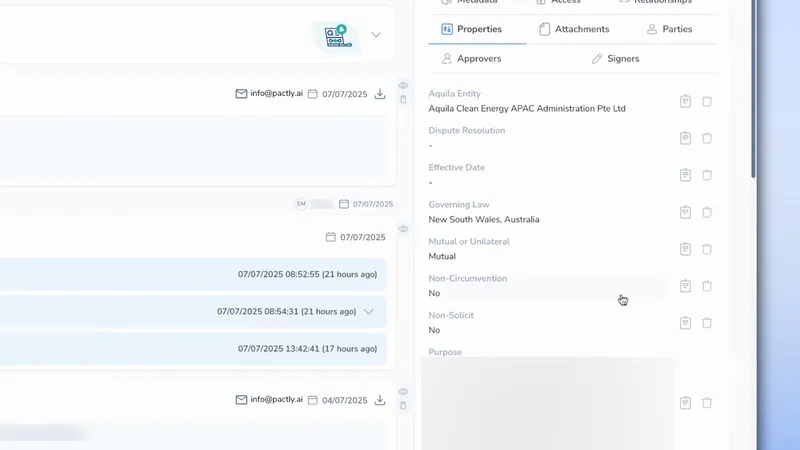
Stay on the Timeline tab and select Properties in the side panel on the right. The NDA's property values are listed there, with empty ones showing a dash.
The NDA tracker lists every executed NDA. Each column comes from the NDA’s contract record: the counterparty from its parties, and the other columns, such as Aquila Entity, Effective Date, Governing Law and Purpose, from its properties. When a value is missing or wrong in the tracker, correct it on the NDA and the next export picks it up.
Stay on the Timeline tab and select Properties in the side panel on the right. The NDA's property values are listed there, with empty ones showing a dash.
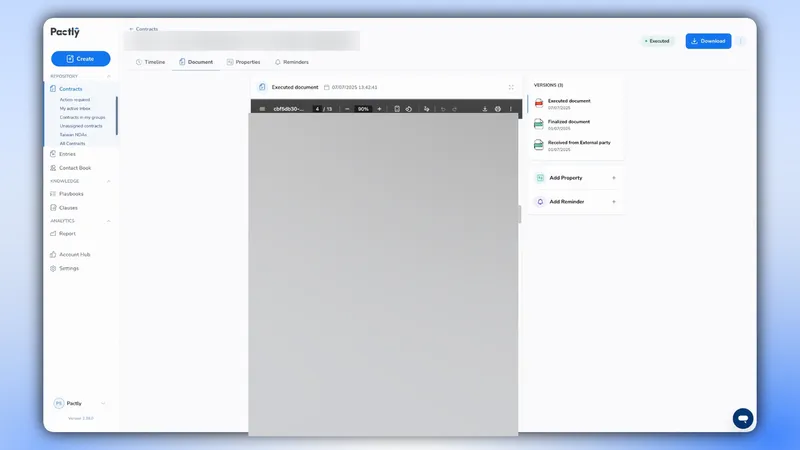
Open the Document tab to read the executed NDA and find the value you need, for example the effective date or the governing law.
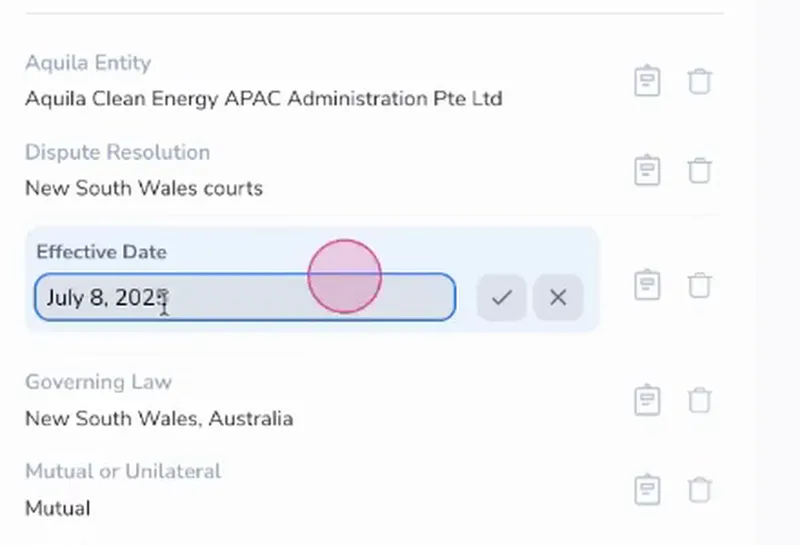
Back on the Timeline tab, select the empty or incorrect value in Properties, enter the correct one, and save it with the tick.
The tracker’s counterparty column reads the NDA’s parties, so a missing counterparty means no party has been added to the NDA yet.
In the same side panel, select Parties. Every party already on the NDA is listed with its role.
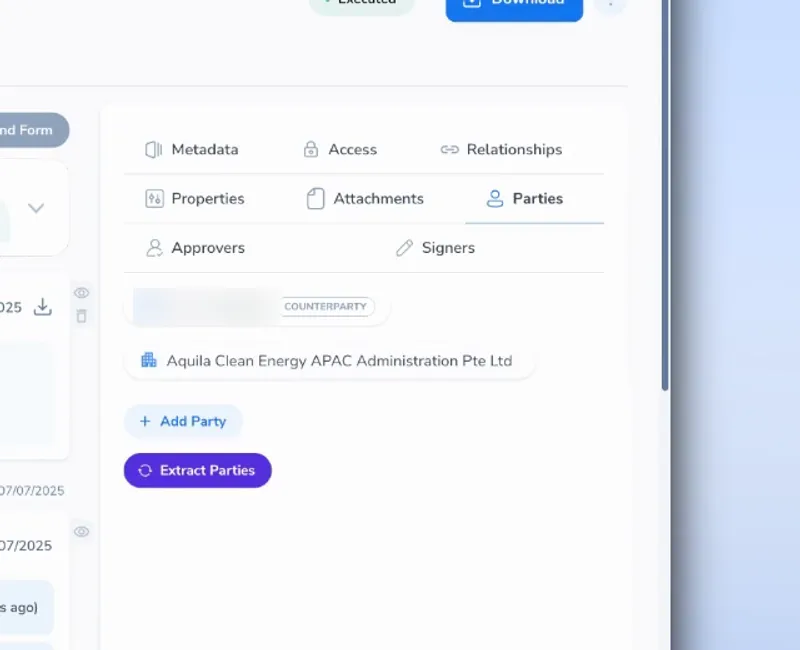
Select Extract parties to let Pactly read the parties from the document, or select Add Party and search the Contact Book for the counterparty.
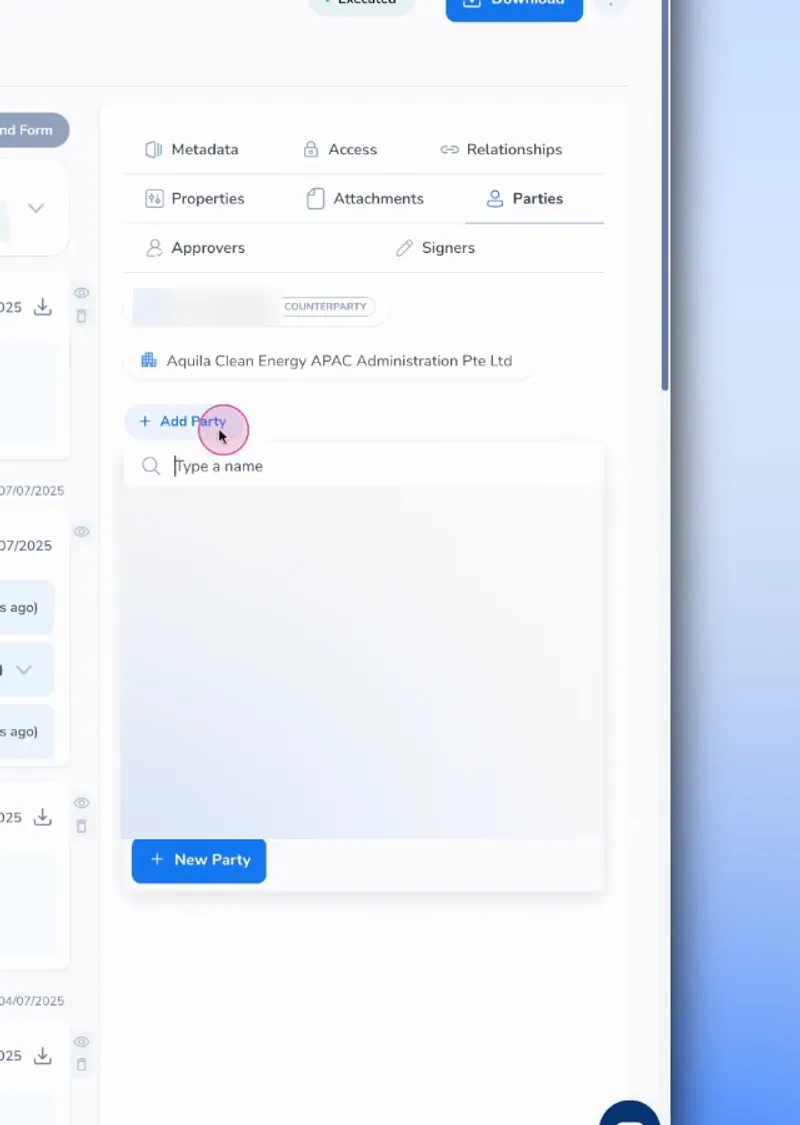
Review each suggestion before you accept it, and make sure the counterparty has the Counterparty role. It then appears in the Parties list and in the next tracker export.