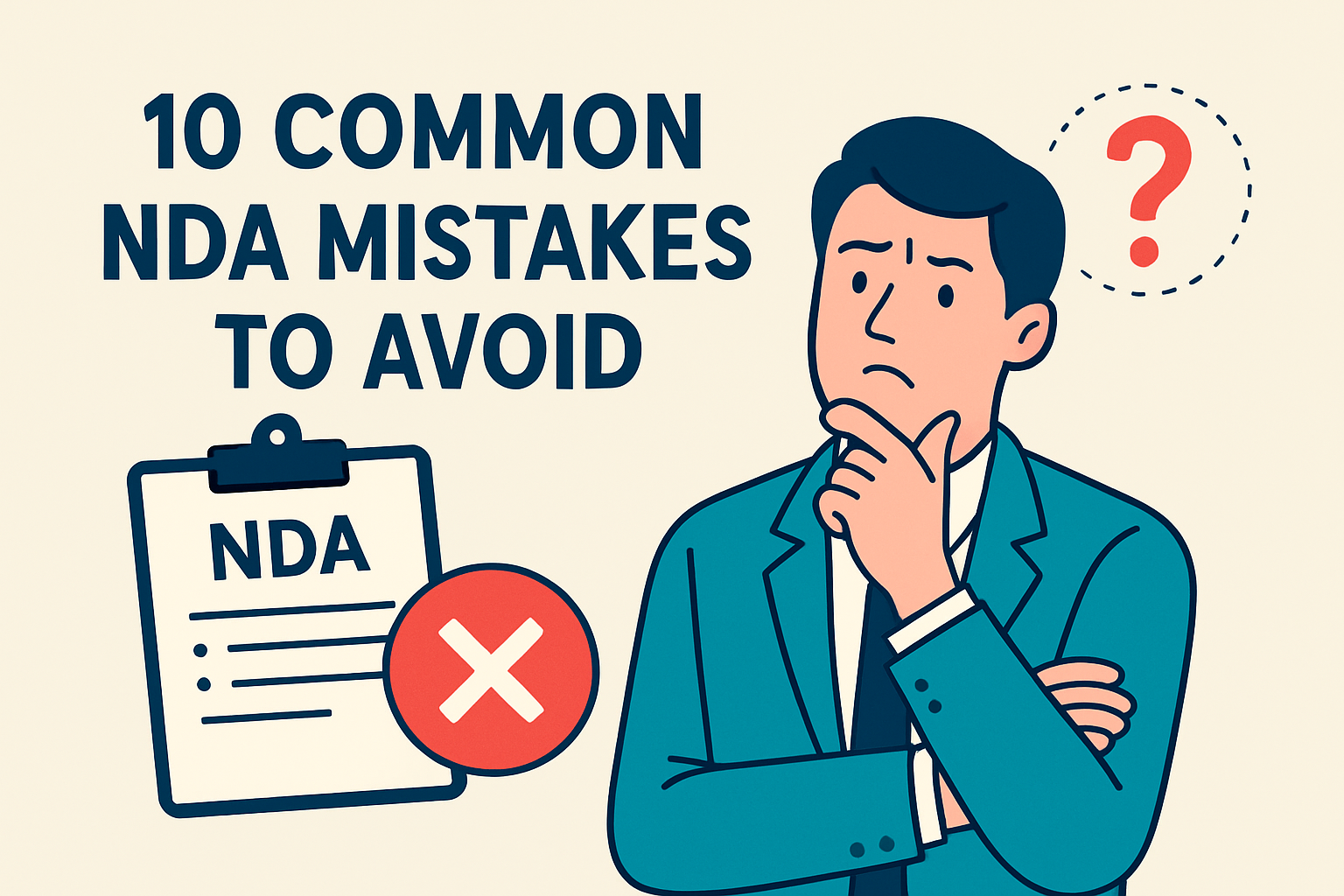
10 Common NDA Mistakes to Avoid
Non-disclosure agreements are often dismissed as “standard,” but that’s exactly when mistakes happen. A single misplaced word can turn a simple confidentiality agreement into a massive liability.
Whether you are drafting a new deal or using an NDA contract playbook checklist to screen incoming paper, watch out for these 10 common pitfalls.
1. Including Indemnification
This is the most common “over-drafting” mistake. NDAs are preliminary documents; they shouldn’t carry the weight of a full commercial agreement.
- The Risk: Indemnity for a breach of confidentiality can lead to uncapped financial liability.
- The Fix: Remove it. Confidentiality breaches are handled through “Damages” and “Injunctive Relief,” not indemnification.
2. Overly Vague “Confidential Information”
If you define your secrets as “everything the company does,” a court might find the entire NDA “unreasonable” and strike it down.
- The Risk: Broad language is often unenforceable.
- The Fix: Be specific. Protect the categories of data being shared (e.g., source code, financial models, customer lists).
3. Signing as the Wrong Entity
In the rush to get a deal done, parties often use “trading names” or parent company names instead of the specific legal entity sharing the data.
- The Risk: If “Global Tech Corp” signs, but “Global Tech LLC” owns the data, you may have no standing to sue for a leak.
4. Missing the “No-AI Training” Clause
In 2026, this is a critical oversight. If your NDA doesn’t explicitly forbid it, a counterparty might feed your proprietary data into a Large Language Model (LLM).
- The Risk: Your trade secrets become part of a third-party AI’s permanent training set.
- The Fix: Add a specific restriction against using disclosed data for machine learning or AI model training.
5. Buried Non-Solicitation Clauses
Some parties use an NDA as a “Trojan Horse” to sneak in a non-solicit, preventing you from hiring their employees for years.
- The Risk: You accidentally freeze your ability to recruit talent just to have a 10-minute discovery call.
6. Misaligned “Standard of Care”
Does the recipient have to use “reasonable care” or “the same degree of care they use for their own secrets”?
- The Risk: If the recipient has terrible internal security, “the same care they use” might mean your data is left on an unlocked laptop.
- The Fix: Always insist on a “Reasonable Degree of Care” as an absolute minimum.
7. No Provision for “Injunctive Relief”
By the time you prove financial damages for a leak, the secret is already out.
- The Risk: Money can’t “un-tell” a secret.
- The Fix: Ensure the NDA allows you to get a court order (injunction) to stop the disclosure immediately.
8. The “Indefinite” Duration Trap
Unless you are protecting a “Forever Secret” (like the Coca-Cola formula), courts generally dislike indefinite terms for standard business info.
- The Risk: A judge might throw out the whole agreement because it “restrains trade” unfairly.
9. Forgetting the “Residuals” Clause
Sometimes a recipient will try to add a clause saying they can use any info “retained in the unaided memory” of their employees.
- The Risk: This is a massive loophole that effectively lets them steal your ideas if they can claim they “just remembered” them.
10. Unauthorized Signatories
Having the Head of Sales sign a document that requires a “C-Level” or “Director” signature can render the contract void.
- The Risk: You think you’re protected, but the contract isn’t legally binding.
Moving from Mistakes to Best Practices
The easiest way to avoid these pitfalls is to take the “human guesswork” out of the equation. Even the most experienced lawyers can miss a buried non-solicit clause when they are reviewing ten NDAs a day.
By codifying these “Red Flags” into an NDA contract playbook generator, you ensure that every contract is scanned for these 10 mistakes automatically.
See it in action
Turn contract chaos into a streamlined workflow
Join legal teams who cut contract turnaround time by 60%. Book a 15-minute demo to see how.