How to Triage Legacy Contract Debt Before CLM Migration
If you are currently in the process of batching contract data extraction or figuring out how to map legacy PDF data into structured CLM fields, you’ve likely realized one thing: you have a lot of files.
At this stage, you might be asking yourself, “Do all of these contracts actually need to move?”
If that’s you, you’re not alone. The temptation is often to just move everything and figure it out later, but migrating expired NDAs and decade-old renewals is the fastest way to clutter your new system.
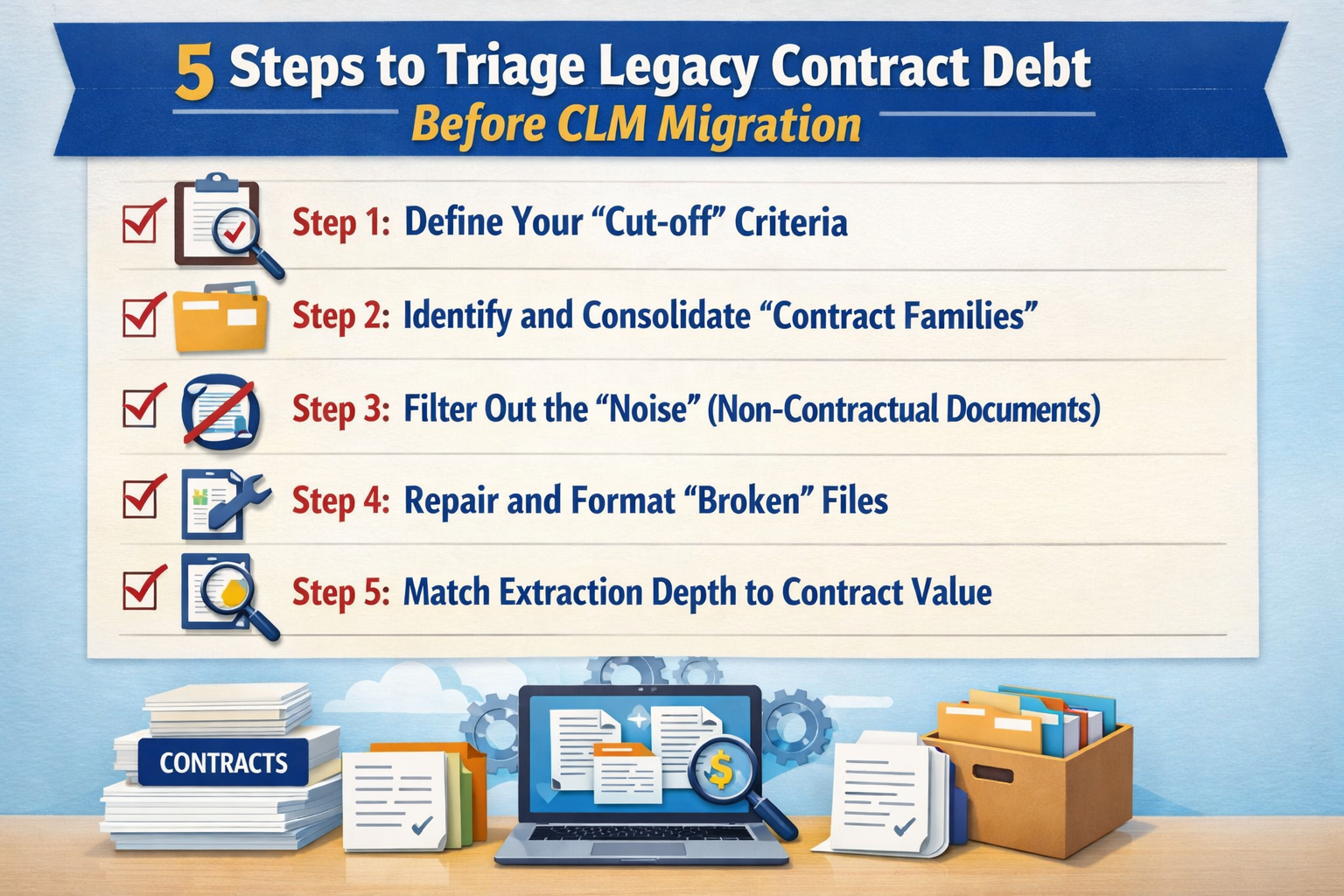
Here are the 5 steps to triaging your legacy contracts before the migration:
Step 1: Define Your “Cut-off” Criteria
The first thing you’ll want to do is set firm rules on what actually qualifies for the move. You need to distinguish between “active business data” and “historical archives” before you spend time on extraction.
If a contract has no active obligations and expired years ago, it probably doesn’t need to be in your CLM.
We recommend setting these three categories:
- Active/In-Flight: Any contract currently governing a live relationship. These get the “Gold Standard” treatment (full data extraction).
- Recent Historical: Contracts that expired within the last 24 months. These are useful for reference and get a “Lite” upload (basic metadata only).
- Legacy Archive: Anything older than your industry’s retention policy (e.g., 7+ years). These should stay in your cheap cloud storage, not your new CLM.
Step 2: Identify and Consolidate “Contract Families”
Before you start the upload, you need to find the “Parents” and the “Children.”
A common mistake is uploading an amendment as a standalone document, which breaks the logic of your database.
You want to ensure that every SOW, Addendum, and Change Order is logically linked to its original Master Service Agreement (MSA).
To keep this organized, try to group files by:
- Counterparty Name: Getting all “Microsoft” or “AWS” documents into one view first.
- Agreement Hierarchy: Tagging documents as “Master,” “Subordinate,” or “Amendment” so the system knows how to link them during the import.
Step 3: Filter Out the “Noise” (Non-Contractual Documents)
If you’ve been using a general folder system, your folders are likely full of drafts, email chains, and signature certificates. Moving these into a CLM creates “ghost records” that will mess up your reporting and search results later.
Before the migration, we suggest a “Clean Sweep” to remove:
- Drafts and Redlines: Only the final, executed version should move into the live system.
- Ancillary Paperwork: Unless a certificate of insurance is legally required to be inside the CLM record, keep it in your general cloud storage.
- Duplicate Scans: Use a basic de-duplication tool to ensure you aren’t migrating the same PDF multiple times.
Step 4: Repair and Format “Broken” Files
During triage, you’ll inevitably find files that an AI or extraction tool can’t read.
These are “dead” files that will fail during the batch upload. Addressing these now prevents your migration from grinding to a halt later.
We recommend checking for these “un-readable” files:
- Image-Only PDFs: Scans that haven’t been OCR’d (Optical Character Recognition). You’ll need to run them through a converter so the text is selectable.
- Password Protected Files: Ensure any locked PDFs are decrypted before the batch process starts.
- Corrupt Files: Open a sample of your oldest files to ensure they haven’t been corrupted over time.
Step 5: Match Extraction Depth to Contract Value
Not every contract needs the same level of detail.
“Triaging” also applies to how much work you put into the mapping.
Trying to extract 20 different fields from a low-value, one-off NDA is usually a waste of your team’s resources.
We suggest matching your extraction depth to the contract’s importance:
- High-Value/High-Risk: Full extraction (TCV, Indemnity, Liability, Renewals).
- Standard/Low-Risk: Basic extraction (Parties, Effective Date, Expiration).
- Bulk Archive: Just the PDF and the Counterparty Name for searchability.
Conclusion
And there you have it.
By triaging your legacy debt now, you’re ensuring that your new CLM is a powerful tool for the future, rather than just a more expensive graveyard for old PDFs.
If you’re feeling overwhelmed by the mountain of legacy files and want to see how we handle the “heavy lifting” of triage and data mapping, feel free to book a demo with us. We’re happy to help you map out a plan.
If you’re ready to keep going, check out our next article on how to architect your digital workflow logic so your “human” approvals actually work inside the software.
See it in action
Turn contract chaos into a streamlined workflow
Join legal teams who cut contract turnaround time by 60%. Book a 15-minute demo to see how.