Properties on a Contract
Read and edit a contract’s stored facts, its value, expiry, owner, risk level, from the Properties tab, without opening the document. This article covers working with those values on one contract: where to find them, how to read and edit them, and how to fill them in.
Defining which properties exist, their types, and how AI extraction is configured is a one-time setup task covered in the Properties & Categories section.
The Properties tab
Section titled “The Properties tab”Open any contract and select the Properties tab. Properties are organized into groups down the left, with the selected group’s fields on the right.
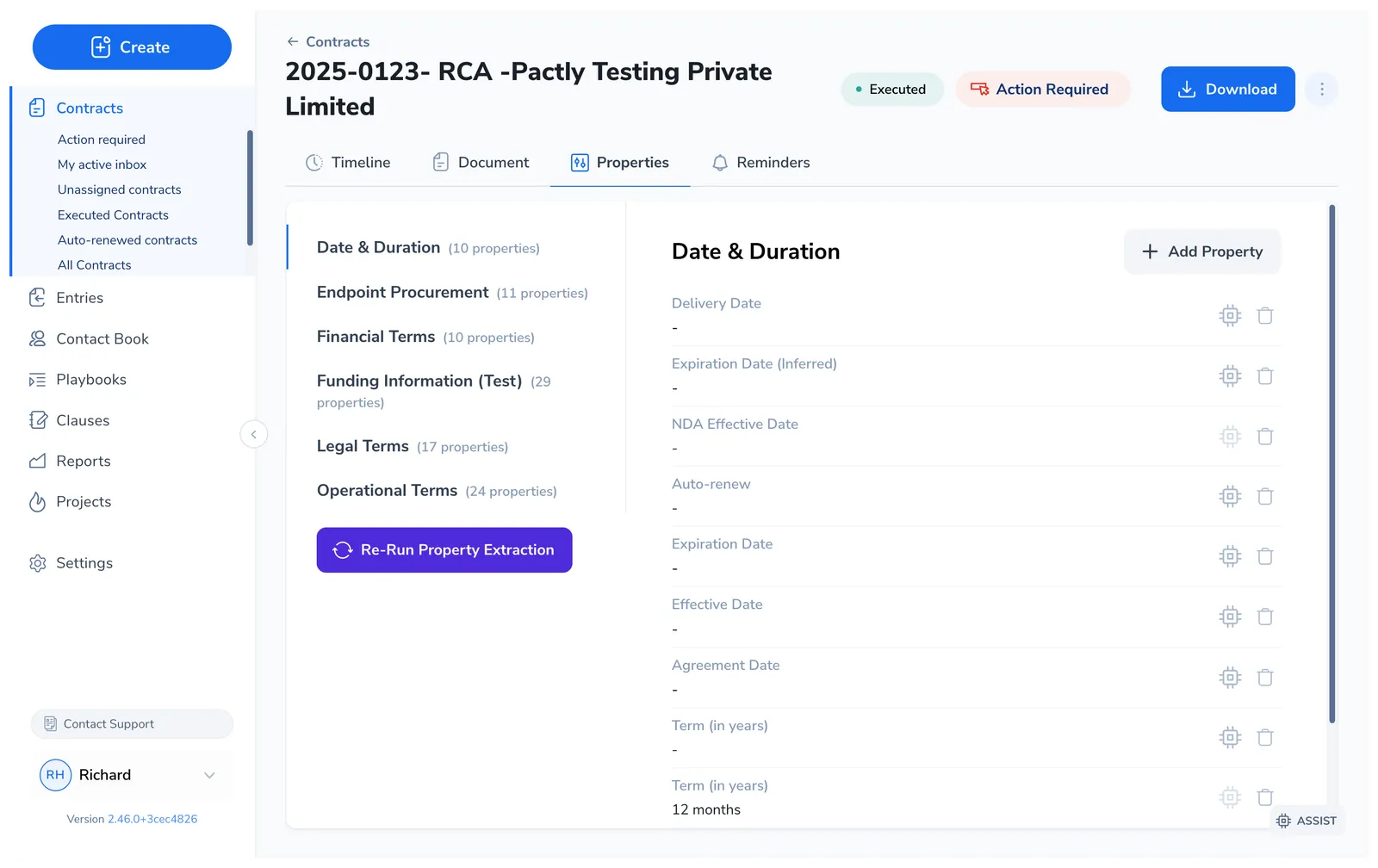
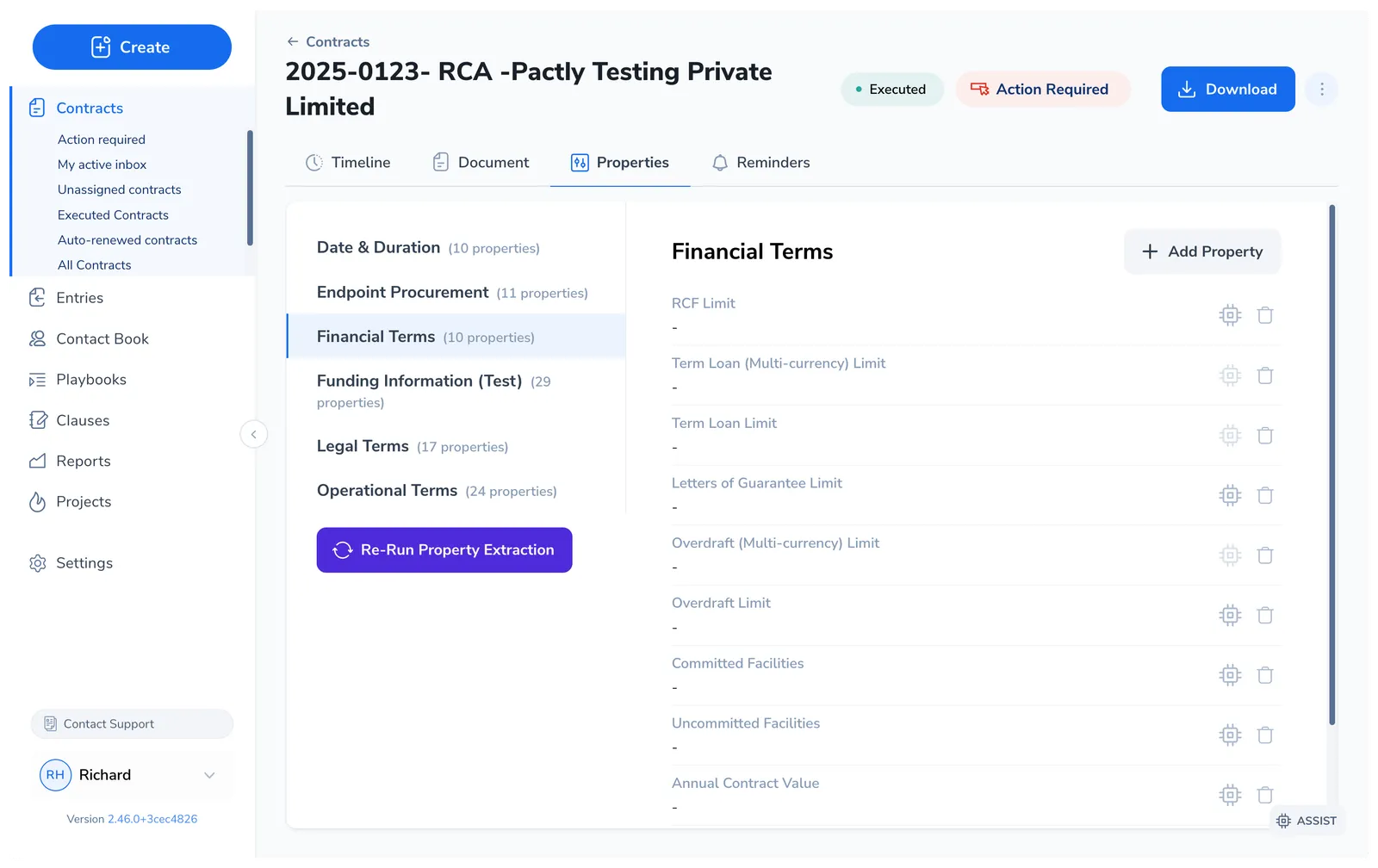
Select a different group on the left to switch categories. Each group’s field count appears beside its name, and a Search properties… box above the list jumps you to any property by name without scrolling.
See where a value came from
Section titled “See where a value came from”Populated properties show a source label beside the value. Hover over the label for an explanation.
| Label | What it means |
|---|---|
| AI-extracted | AI extracted the current value from the contract. |
| Manually updated | A person entered, changed, or confirmed the value. |
| From form | The value came from a form submission. |
| From workflow | A workflow set the value. |
| Source unavailable | Pactly did not record how the current value was added. Older values may predate source tracking. |
Empty properties have no source label. Editing a value changes its label to Manually updated. Source unavailable does not mean a value was entered manually or extracted by AI.
Edit a value
Section titled “Edit a value”Click any property value to edit it in place. Changes save automatically, there is no separate save button. Every value you set here is the same value the rest of the platform reads, so filters, custom views, sorting, exports, and approval routing all reflect the correction immediately.
The field type sets how you edit it: text fields accept typing, Date fields open a date picker, List fields show a dropdown of the allowed options, and Boolean fields toggle yes/no. Party and User fields let you pick from your Contact Book or workspace. You can only enter values the type allows, which keeps the data clean enough to filter and report on.
Add a property to one contract
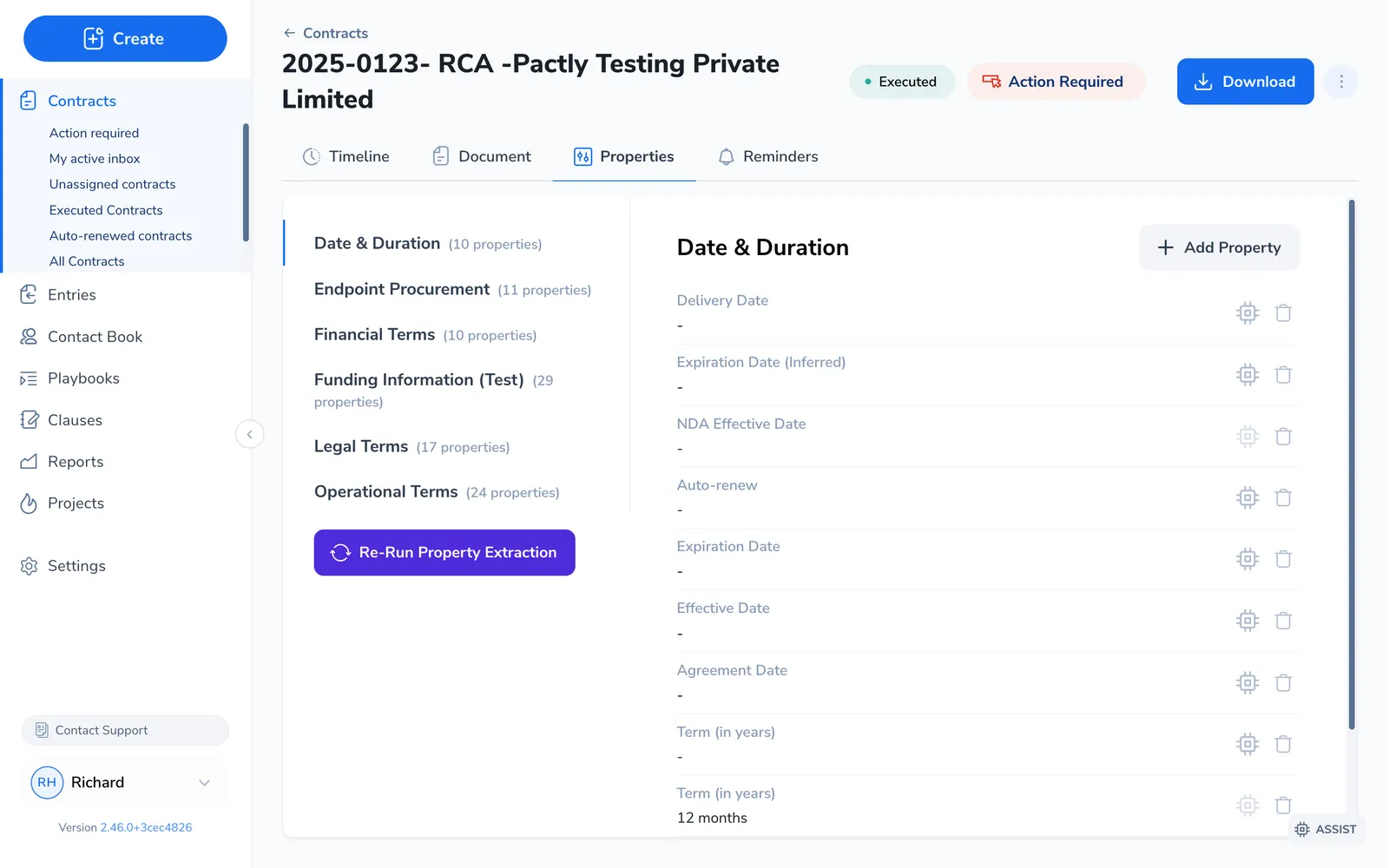
Section titled “Add a property to one contract”Most properties attach to every contract automatically, so the field is already on the tab waiting for a value. Some are Manual only: they exist in the system but only appear on the contracts where you add them. Click Add property (top right of the field list) when a property you need isn’t showing.
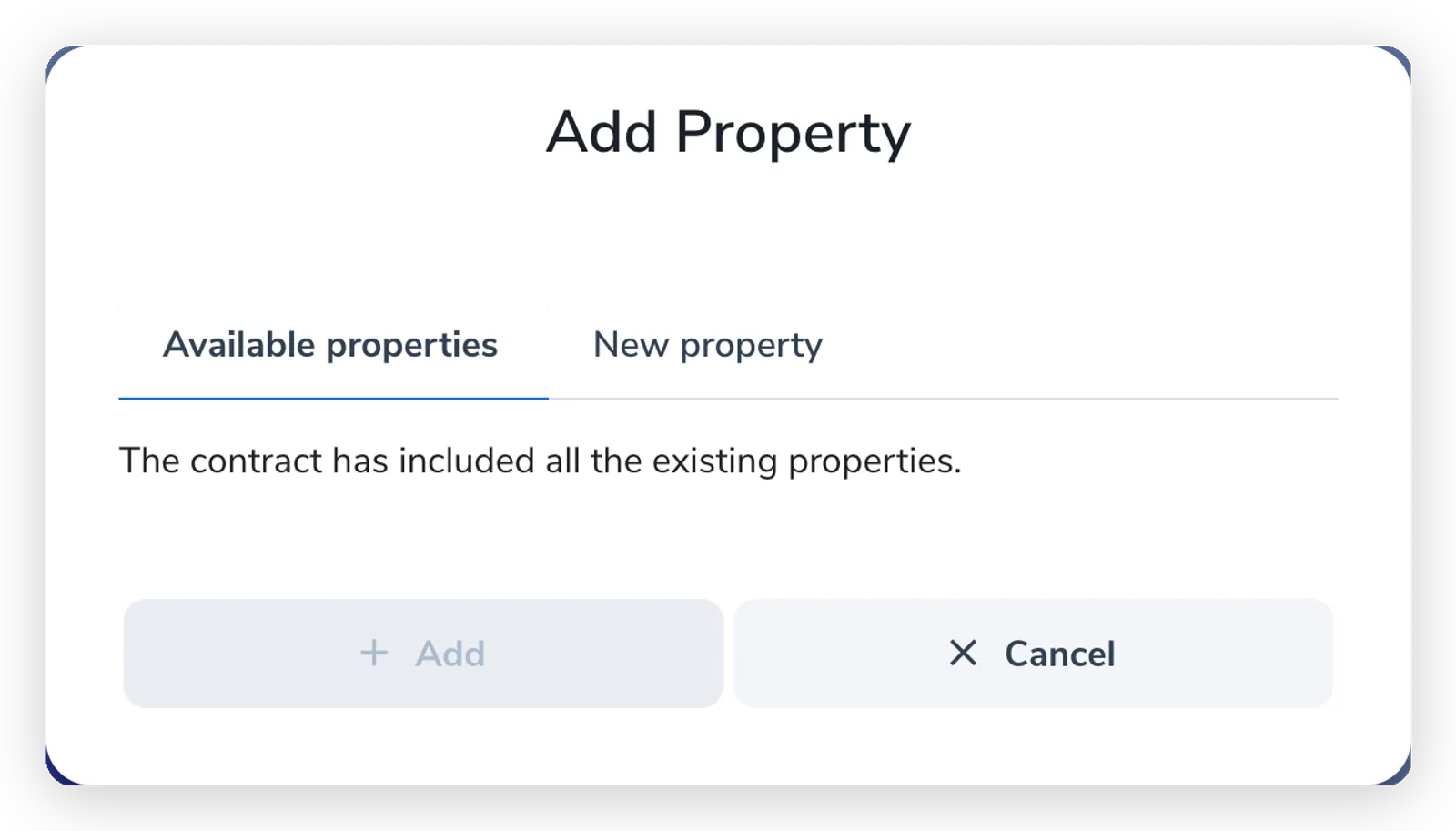
The dialog has two tabs:
- Available properties: attach a property that’s already defined for your company but isn’t on this contract yet. Pick it from the list. When every defined property is already on the contract, this tab shows nothing to add.
- New property: create a one-off property and set its value right here.
Re-run AI extraction
Section titled “Re-run AI extraction”When a contract is created from an uploaded document, Pactly can read the document and pre-fill property values for you to confirm. If the document changes, for example a revised draft during negotiation, the values may be out of date.
Click Re-run property extraction below the group list, or Extract properties with AI below the values. Choose how to update properties:
- Fill empty properties is the default. It fills empty properties and keeps every existing value.
- Replace existing properties allows new AI findings to replace existing values, including values entered by people, forms, or workflows.
- Under More choices, Update previously AI-extracted properties updates values marked AI-extracted and fills empty properties. It keeps all other existing values. This option is unavailable when Pactly cannot identify any current values as AI-generated.
A blank AI finding never clears an existing value, whichever mode you choose.
Choose document reading separately: Use existing document text reuses text Pactly has already read. Re-read the original file reads the file again, for example when the earlier document reading was incorrect. Click Extract to start.
You can also use the AI extraction control on a single property. Its choices apply only to that property. For several contracts, select them in the Contracts list and open AI Extract to choose the same update modes for the selection. In a mixed selection, AI-only updates preserve values from other sources and values whose source is unavailable.