Renewal & Expiry
A contract that auto-renews unless you give 60 days notice does not wait for you. Miss the notice window and you are locked into another term, or a deal you meant to keep lapses because nobody was watching the expiry date. Tracking those dates by hand in a spreadsheet is exactly how they get missed.
Every contract has a Renewal & expiry tab that tracks its renewal and expiry dates and automatically reminds the right people before the deadline. You do not set the dates or the schedule by hand on the contract: Pactly reads the dates from the document and applies your organization’s renewal rules.
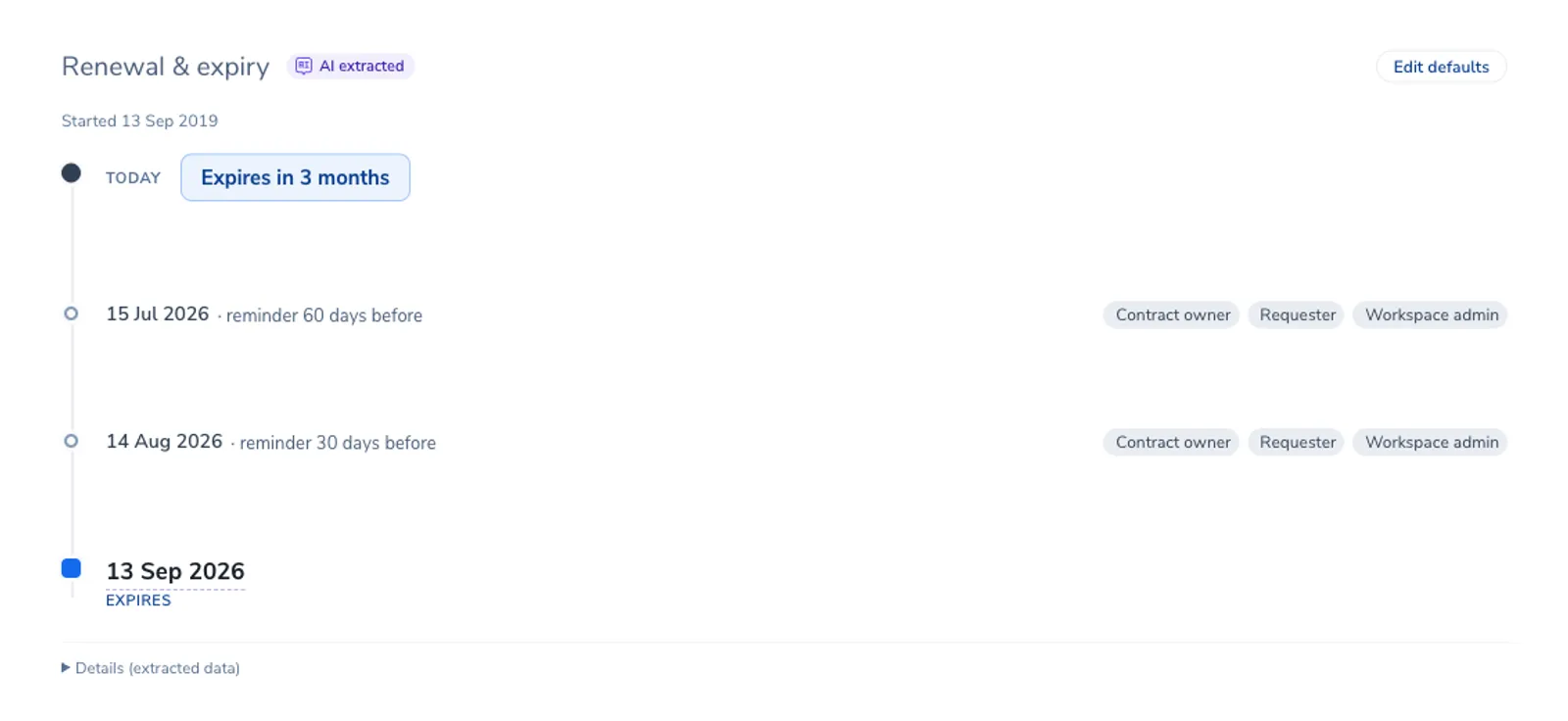
What the tab shows
Section titled “What the tab shows”The Renewal & expiry tab lays the contract’s future out as a single timeline, top to bottom: Today, then each upcoming reminder, then the decision or notice deadline, then the date the contract renews or expires. A countdown next to Today tells you how long is left.
The dates come from the document. Pactly’s AI extracts the effective date, the expiry date, whether the contract auto-renews, the notice period, and the notice type, and the tab carries an AI extracted badge to make that clear. Because these are read from the document, check them on the contract’s properties if anything looks wrong.
Reminders are scheduled automatically
Section titled “Reminders are scheduled automatically”Out of the box you do not add reminders to a contract one by one. Pactly schedules them for you, a set number of days before the deadline that matters for that contract:
- For a contract that auto-renews with a notice period, reminders count back from the notice deadline (the last day to give notice of renewal or non-renewal), not the renewal date itself.
- For a contract that simply expires, reminders count back from the expiry date.
By default, reminders fire 60 days and 30 days before that deadline. Your organization can change these offsets, and set different ones for different kinds of contract, through renewal notification rules (below). Reminders that fall in the past are not sent; the tab shows only the ones still to come.
Who gets reminded
Section titled “Who gets reminded”Each reminder names its recipients right on the timeline. By default recipients come from your organization’s renewal rules, and a reminder goes to the contract owner, the requester, and a workspace admin. You can change both the schedule and the recipients on an individual contract, covered below.
The dates a contract can have
Section titled “The dates a contract can have”Not every contract has a renewal date, and the tab reflects that. The states you will see:
The contract renews for another term unless someone gives notice. The timeline anchors on the notice deadline, and the final milestone reads "Renews".
The contract ends on a fixed date with no automatic renewal. The timeline anchors on that date, and the final milestone reads "Expires".
No end date. The agreement continues indefinitely until terminated, so no renewal reminder is scheduled.
No contract end date, but an obligation such as confidentiality lasts a set period from disclosure. No reminder is scheduled by default.
No end date could be identified, or it is set by a linked agreement. Flagged for review, with no reminder until an end date is confirmed.
Customize reminders for one contract
Section titled “Customize reminders for one contract”A contract used to follow only your organization’s renewal rules, with no way to adjust a single agreement without changing the rule for everyone. Now the Renewal & expiry tab has a Customize reminders control that tailors the schedule and recipients for just that contract, while every other contract keeps the company default.
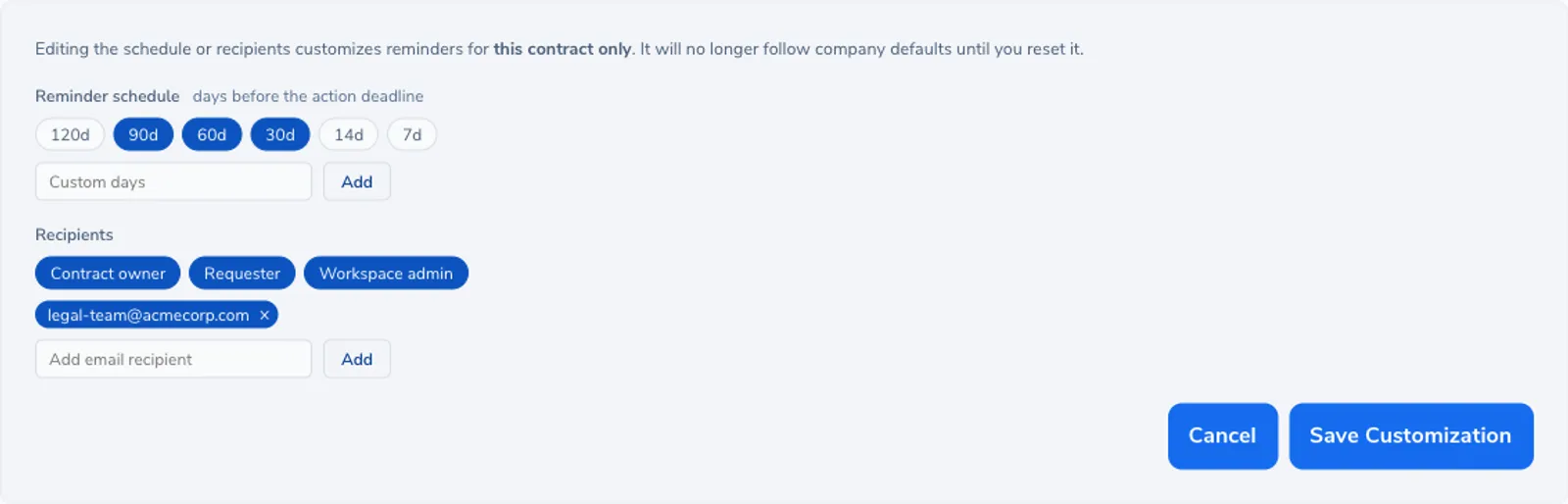
Set the schedule by turning reminder points on or off. Chips cover 120, 90, 60, 30, 14, and 7 days before the deadline, and a custom field adds any other number of days. Each chip you enable schedules one reminder, counted back from the notice deadline for an auto-renewing contract or the expiry date for one that simply expires.
Set the recipients from two sources at once. Pick contract roles (Contract owner, Requester, Workspace admin) so the reminder always reaches whoever holds that role, and add specific email addresses for anyone else, including people who do not log in to Pactly.
The extracted dates are never frozen by customizing. Whether a contract is detached or not, Pactly keeps reading the effective date, expiry, notice period, and renewal terms from the document, so the countdown and deadlines stay live and customizing only changes when reminders fire and who receives them.
To change the schedule or recipients for every contract at once, an administrator edits the renewal notification rules; those apply to all contracts that have not been individually customized. To see the underlying dates Pactly extracted, open the Details (extracted data) section at the bottom of the tab.