1
Create a project
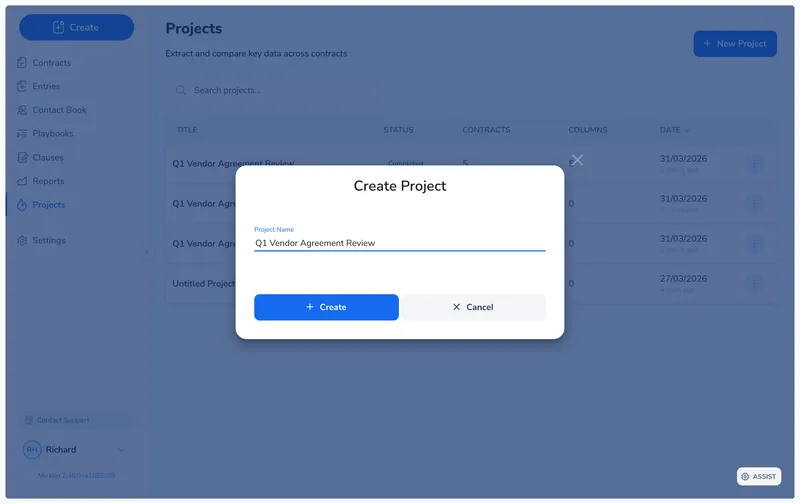
On the Projects page, click New Project, enter a name, and click Create.
Reviewing terms across a portfolio usually means opening each contract, hunting for clauses, and transcribing values into a spreadsheet. A contract analysis project does it for you: pick the contracts, define the data points you want, and let Pactly extract everything into a grid you can sort and export.
On the Projects page, click New Project, enter a name, and click Create.
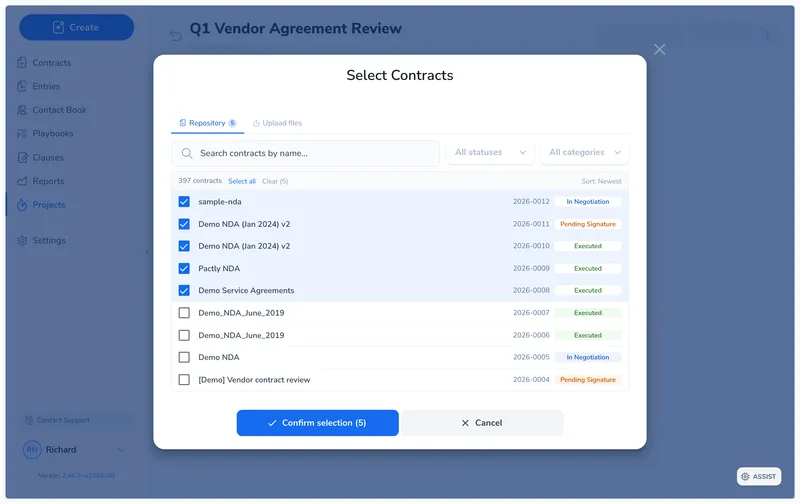
Open the contract picker, search and filter your repository, select the contracts you need, and click Confirm selection.
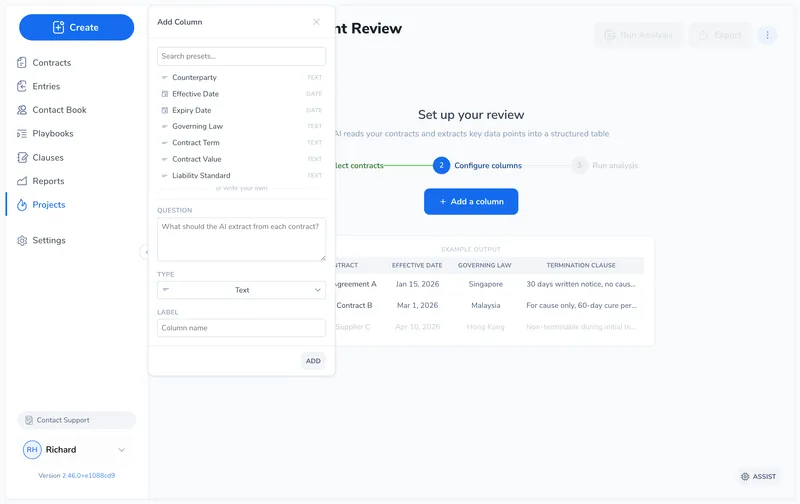
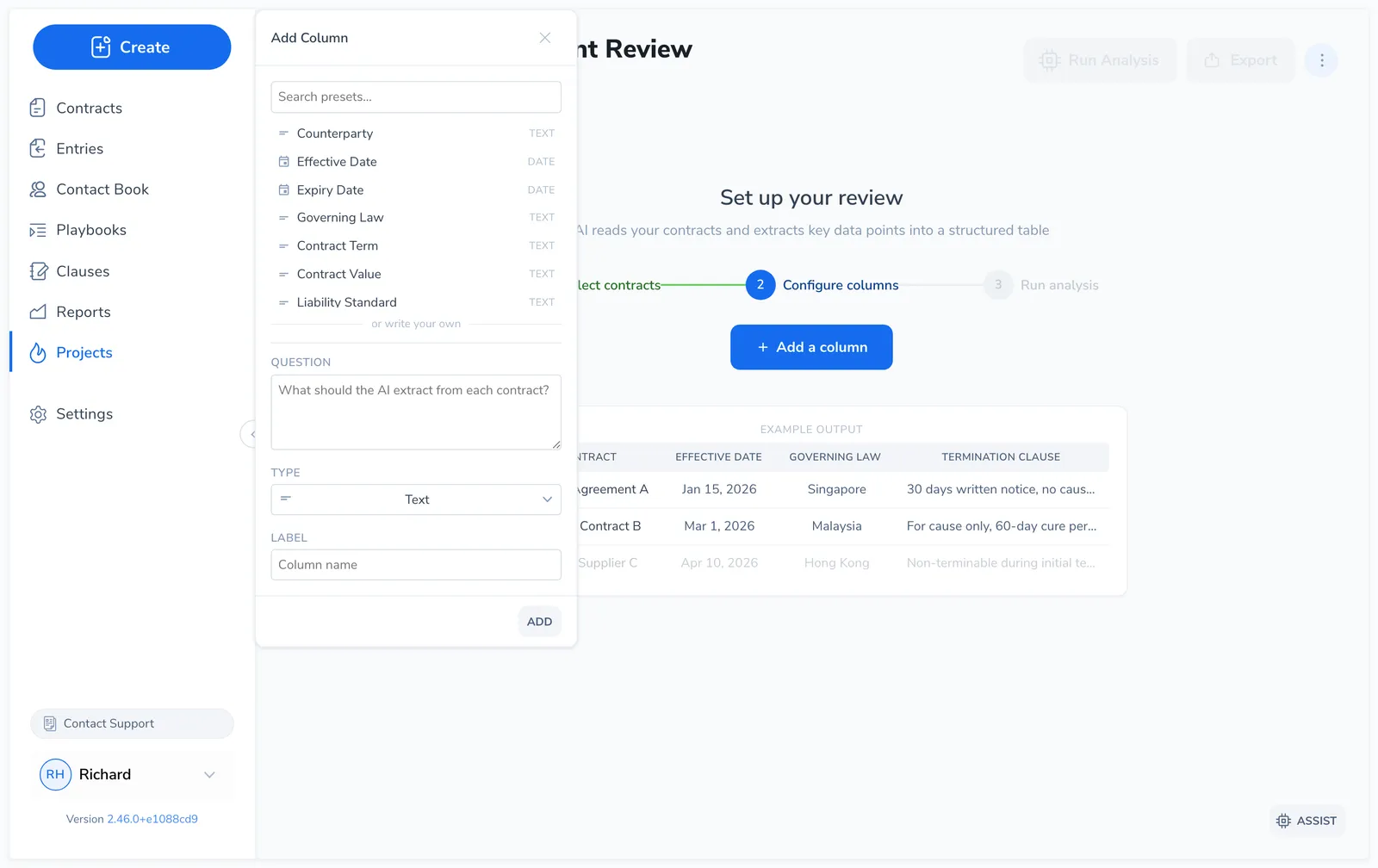
Click the + at the end of the column headers. Pick a preset or write your own question, set the type, and click Add.
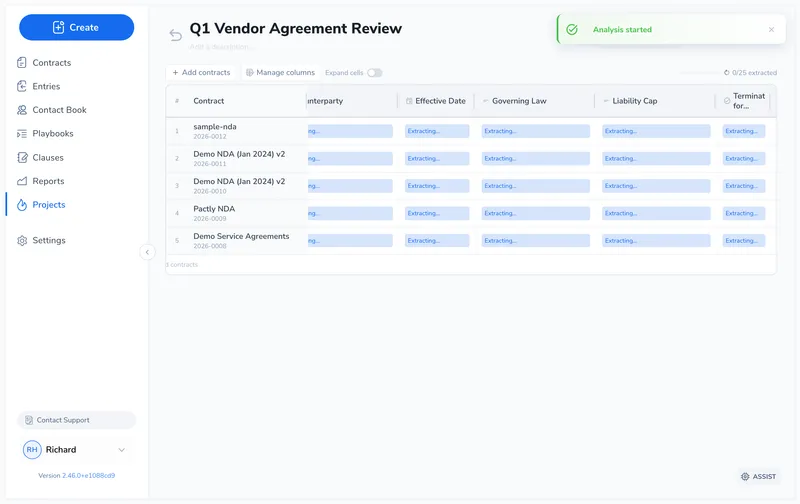
Click Run Analysis. Pactly reads each contract and fills in every column. Cells update as results come in.
Hover any cell to see the AI reasoning and the source clause, or click View in document to verify it.
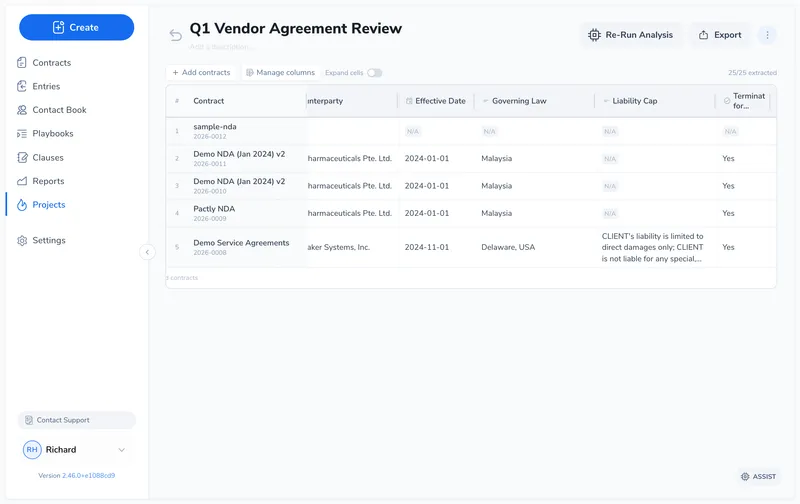
The rest of this guide covers the details that the walkthrough above glosses over: the picker’s two sources and its result cap, how columns work, and what re-running does.
The picker has two tabs. Repository selects contracts already in Pactly: search and filter by status or category, then check the ones you want. You can mix contract types (template, playbook, and external), and click any row to toggle it. Upload drops in new files, which are added to your repository as external contracts and attached to the project in one step.
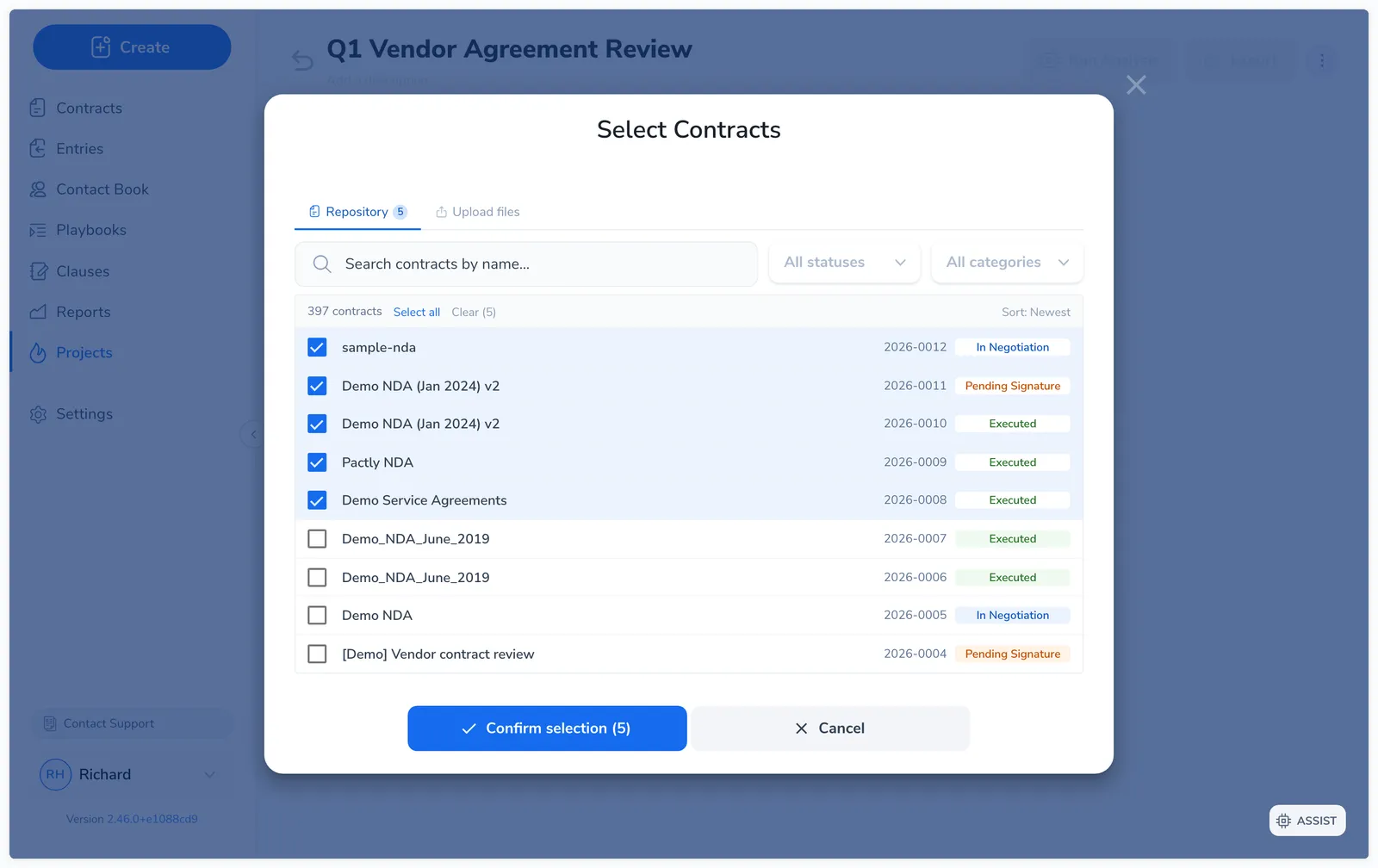
You can add more contracts later. Removing a contract deletes its extracted results.
Each column is one data point, defined by a Question (what Pactly extracts from each contract), a Type (the output format), and a Label (the column header).
Five types are read out of the document by the AI: Text, Number, Date, Yes / No and List. Two more are derived from what you already have: Computed status scores other columns into a compliance rating, and Compare to reference classifies each contract against a template you nominate. Both are covered in Classification and Scoring Columns.
When you add a column, you can start from a preset instead of writing the question yourself. The presets cover the data points most teams need, grouped into four categories.
| Category | Example columns |
|---|---|
| General | Counterparty, Effective Date, Expiry Date, Governing Law, Contract Term, Contract Value |
| Liability | Liability Standard, Liability Cap, Liability Carve-outs, Indemnification |
| Termination | Termination for Convenience, Termination Triggers, Notice Period |
| IP & Confidentiality | IP Ownership, Confidentiality Term |
Click a preset to fill in the question, type, and label, then edit the question if you like and click Add. To extract anything else, write your own question instead. How you phrase that question drives the quality of the result, so see Writing Column Questions before you write your own.
Some types carry extra settings. Date and Number columns have a display format (for example DD MMM YYYY, or a thousands separator), and Text columns have Clean up capitalization, which tidies ALL-CAPS answers such as “SDN BHD” to “Sdn Bhd” for display without changing the stored value.
When a column should land on one of a few known answers, choose the List type and enter the options you want, for example Assignable with consent, Assignable with notice, and Not assignable. Pactly then classifies each contract into one of your options rather than free-texting, and returns blank when none apply. A list column can allow a single option or several, and the values render as colour-coded pills so the column reads at a glance. Recolour any option if you want a specific value to stand out.
When the options are really a checklist of requirements, switch the column’s display to checklist: each cell shows an X / N coverage badge (how many of the points were met), with the met and unmet items listed on hover. This suits “how many of these protections does the contract have?” style reviews.
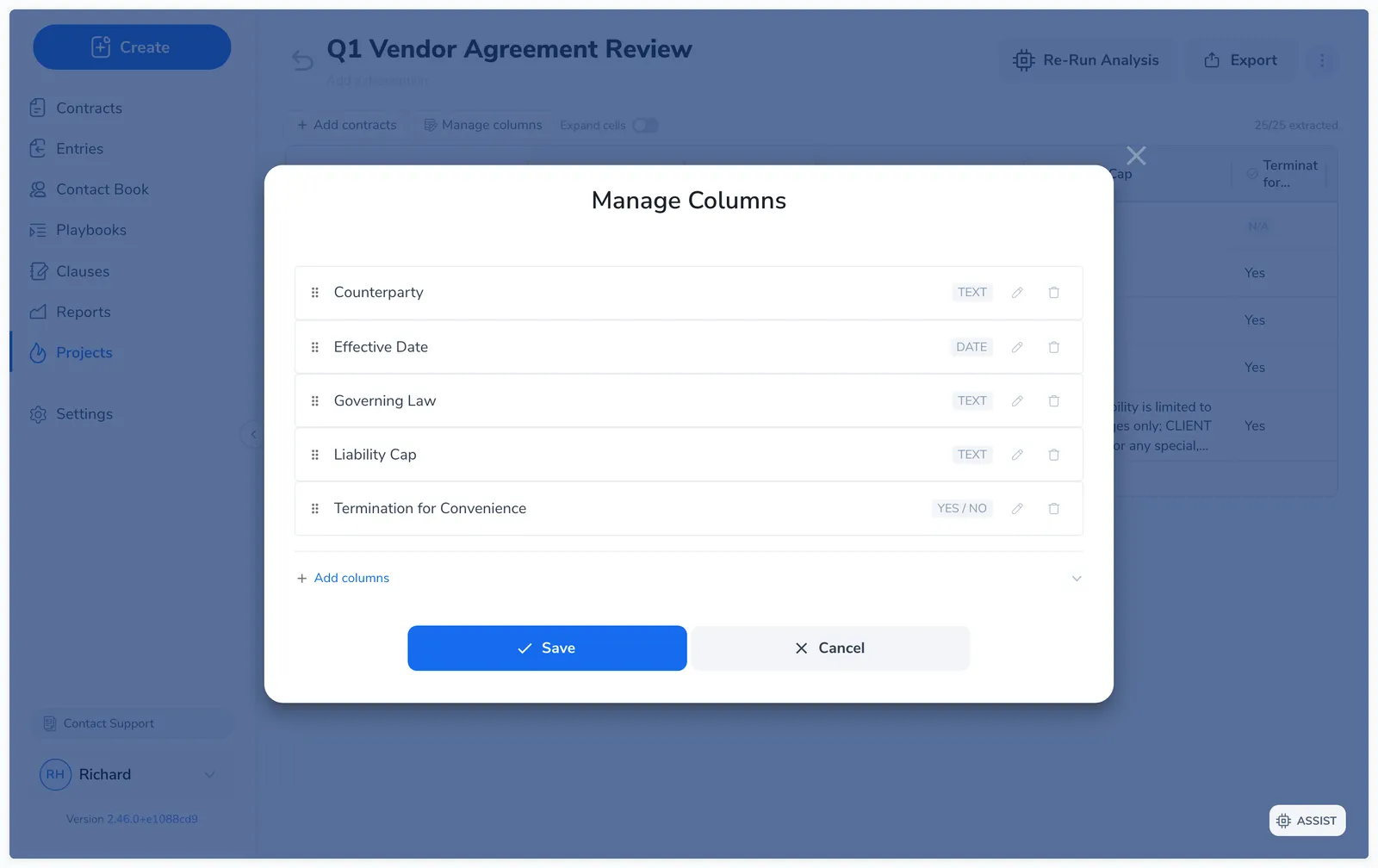
Manage columns also lets you reorder columns by dragging, edit a column’s question, or delete one (which removes its data). Editing a column’s question after a run flags that column’s cells for re-extraction: they keep their old value with a “Column prompt was changed” banner when you hover, and the toolbar shows how many need refreshing. Run analysis again to update them.
With at least one contract and one column, click Run Analysis. Analysis runs in the background, one contract at a time, so you can keep working in Pactly. An Analysis started notification confirms it began, cells show Extracting… while they process, and the grid refreshes automatically as results land.
To halt a run in progress, click Stop Analysis. Cells that already finished keep their values; cells still in flight return to their previous state, and you can run again whenever you’re ready.
For each cell, Pactly returns the value, the source clause it came from (with a verbatim quote), and its reasoning. If it can’t find a relevant clause, the cell shows N/A. Before you rely on any value, check the reasoning and source quote: see Checking and Trusting Results.
Click Re-run Analysis to fill in only the cells that need it: cells flagged for re-extraction (the question changed), error cells, and pending cells (new contracts or columns). Cells with a good result are skipped, so re-runs are faster than the first pass. Cells you have edited or verified by hand are never overwritten by a re-run. You can also re-run a single column from its editor, or retry one error cell from the grid.