1
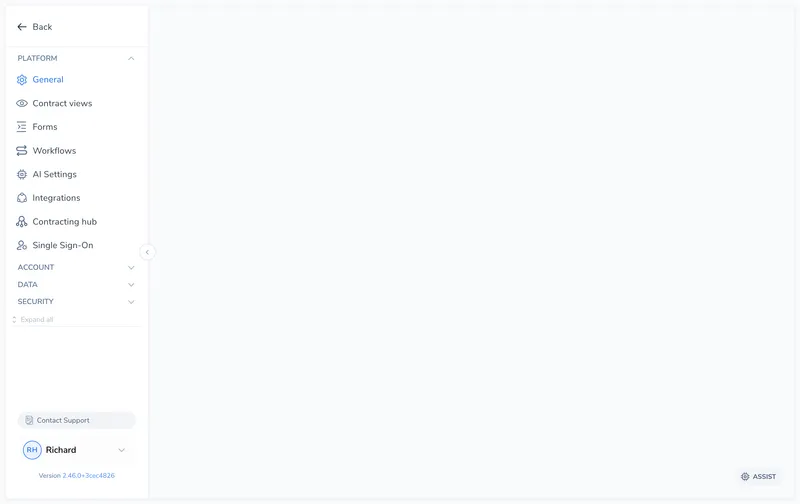
Open Settings and select General
Click Settings in the left sidebar, then General under the Platform section.
When you manage dozens of contracts at once, it is easy to miss an incoming email, a new internal note, or a contract that was just assigned to you. By the time you notice, the other party has been waiting days.
Action Required flags the contracts that need your attention and collects them in a dedicated sidebar view, so nothing slips past you.
Action Required is personal to each user. When a trigger event happens, Pactly adds the relevant person to that contract’s list of flagged users. The contract then appears in their Action Required sidebar view and carries an Action Required badge in the repository list and on the contract header.
Because the flag is per user, two people looking at the same contract may see different flags depending on their role in the event that raised it.
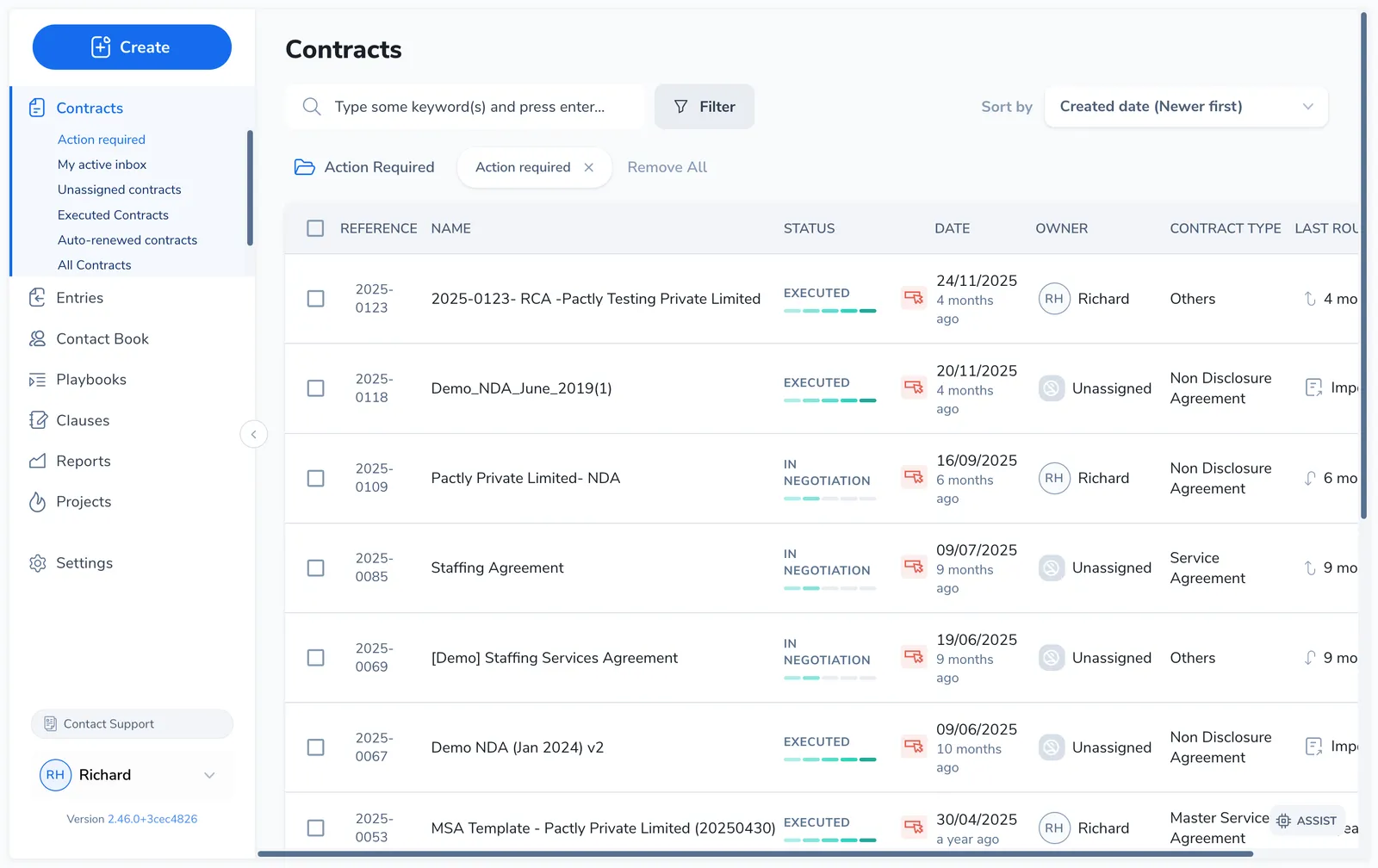
Three events can flag a contract for you. An admin can switch each one on or off (see Configure the triggers).
An email arrives at the contract’s Pactly email address. The contract owner is flagged, or a company admin if the contract is unassigned.
Someone adds an internal message and selects recipients. Each recipient is flagged. (Plain notes, with no recipients, do not raise a flag.)
A contract is assigned to a user. That user is flagged, unless they assigned it to themselves, since they already know about it.
Once you have dealt with the contract, click the Action Required badge on the contract to clear your flag and remove it from your view. Clearing is manual, so a flagged contract stays put until you act on it, rather than disappearing before you have looked at it.
You can also raise the flag yourself: open the contract’s actions menu and choose Action required to add it to your own view as a reminder. Setting it this way ignores the company trigger settings.

Admins control which triggers are active for the whole organization, from the General settings page.
Click Settings in the left sidebar, then General under the Platform section.
Scroll down the General page to the Action required section. The table lists each event, who gets notified, and a toggle for its current status.
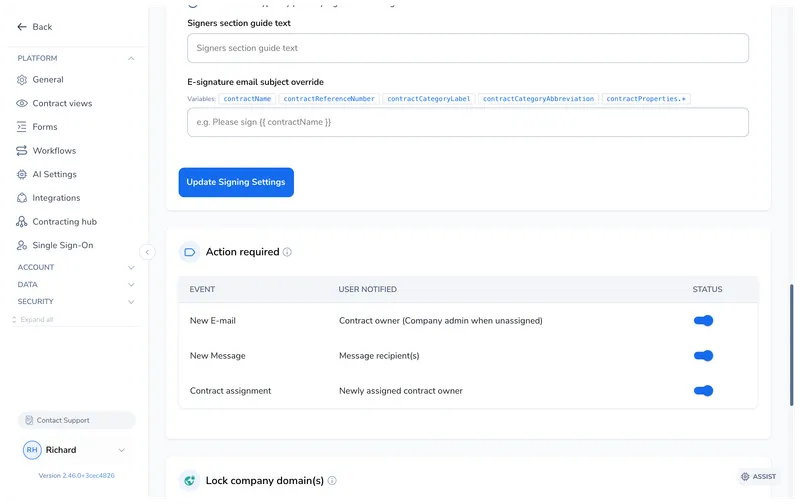
Use the Status switch on each row to turn that trigger on or off for the whole organization.
A team that does not use internal messages, for example, might turn New Message off to avoid flags it does not need.