Negotiation is done and both sides agree on the terms. Before the contract can go for approval or signature, you finalize it: that locks the document so no one keeps editing the negotiated version, and moves it to the next stage. If the counterparty slipped in a last-minute change, finalization catches it.
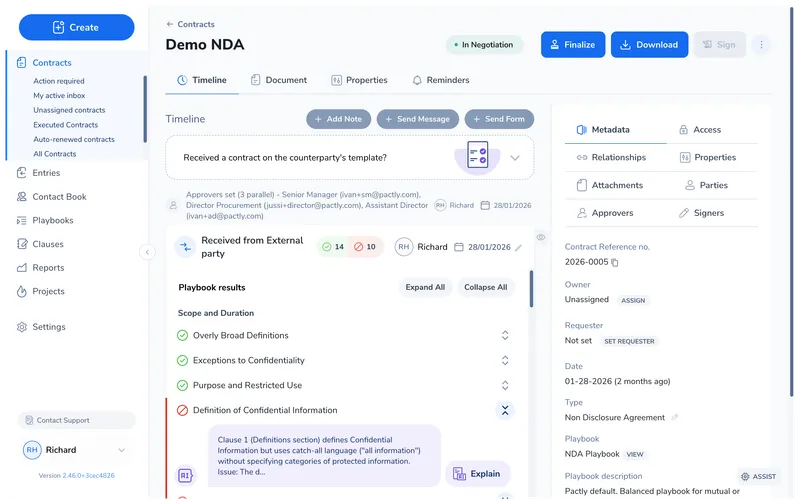
Open the contract you want to finalize and click Finalize in the contract header. The button appears once the contract is finalizable: Draft or In Negotiation for a template contract, In Review for a playbook contract.
2
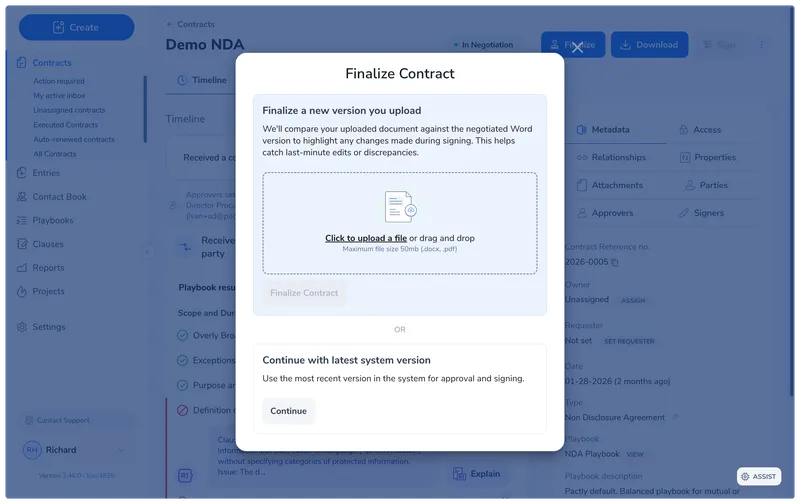
Choose how to finalize
Upload the final Word (.docx) version to run the discrepancy check against the last negotiated round, or continue with the latest version already in Pactly. Upload when the counterparty sent a clean final copy; continue when nothing changed outside Pactly.
Step 1 of 2
After you confirm, the contract advances to Pending Approval if approvers are configured, or straight to Pending Signature if none are. The finalization event is recorded on the contract timeline.
Choose whether to keep comments and tracked changes
If the Word document contains comments or tracked changes, the same dialog shows a cleanup step before finalization. It lists only what the document contains, with two choices for each item.
Comments shows how many are open and how many are resolved. Delete removes both kinds from the finalized copy, and Keep leaves them in.
Tracked changes offers Accept all, which applies the edits and removes their revision markup, or Keep.
Resolved comments are listed because they stay in the finalized Word file, where anyone who opens it can read them. When every comment is resolved, Comments starts on Delete. Otherwise both items start on Keep, so open comments and tracked changes stay available for approval and other steps before signing. Earlier document versions stay unchanged. If neither comments nor tracked changes are present, finalization proceeds without this extra step.
Comments are hidden by default in the document viewer. Use the comments button beside search to show them; hiding comments does not delete them.
Pactly e-Sign warns about any remaining comments or tracked changes before preparing the signing PDF. It removes comments and accepts tracked changes automatically for that PDF. Review the PDF before sending.
If the contract has outstanding work when you click Finalize, for example a form request awaiting completion, a pending approval, or an active signature request, Pactly first shows a warning that names what is still pending. Finalizing does not complete or cancel that work. Click Dismiss to review the pending items first, or Finalize Anyway to continue deliberately. The same reminder appears when you send an approval request while a form request is still open.
If you upload a final version, Pactly extracts its text and compares it against the last negotiated round, listing anything that was added, removed, or changed. The check runs in the background and the result appears on the contract record, usually within 10-20 seconds.
Upload a Word (.docx) file whenever you have one: the comparison is most accurate from Word. If your organization allows PDF finalization, you can also upload a PDF, but extracted text can be less precise, so review its results more carefully.
Occasionally Pactly cannot read an uploaded PDF, usually because the file is damaged or password-protected. The check then does not run, and the contract record says so instead of showing a result.
Read that as “not checked”, not as “nothing changed”. A file Pactly could not open tells you nothing about whether the document was edited, which is why no comparison is reported.
Replacing the executed file on a contract that is already finalized does not start the check again. Compare that version by hand, or finalize from a copy that opens without a password.
Your organization can require certain conditions before a contract finalizes, for example that key properties are filled in or parties are verified. If a required condition is not met, Pactly blocks finalization and shows which conditions failed.
When this happens, the contract shows a banner reading “Required tasks for finalisation not completed” with a View Checklist button. Open the checklist to see exactly which conditions are still unmet.
To clear a block, update the contract to satisfy the conditions and finalize again. If the block does not apply to this contract, ask an administrator to override it. The override is logged on the timeline.
If you finalized by mistake or need to keep negotiating, open the contract and click the more-actions menu (the ⋯ icon) in the contract header, then choose Undo Finalization. The contract returns to active negotiation: back to In Negotiation or In Review if it had rounds, or to Draft if it did not.