Review Analysis Results
Once analysis finishes, the results land in a grid. The work now is checking them: reading what the AI extracted, verifying each value against the source document, and dealing with any cells that errored or fell out of date.
The results grid
Section titled “The results grid”The grid is a spreadsheet: one row per contract, one column per data point. Each cell holds the value the AI extracted.
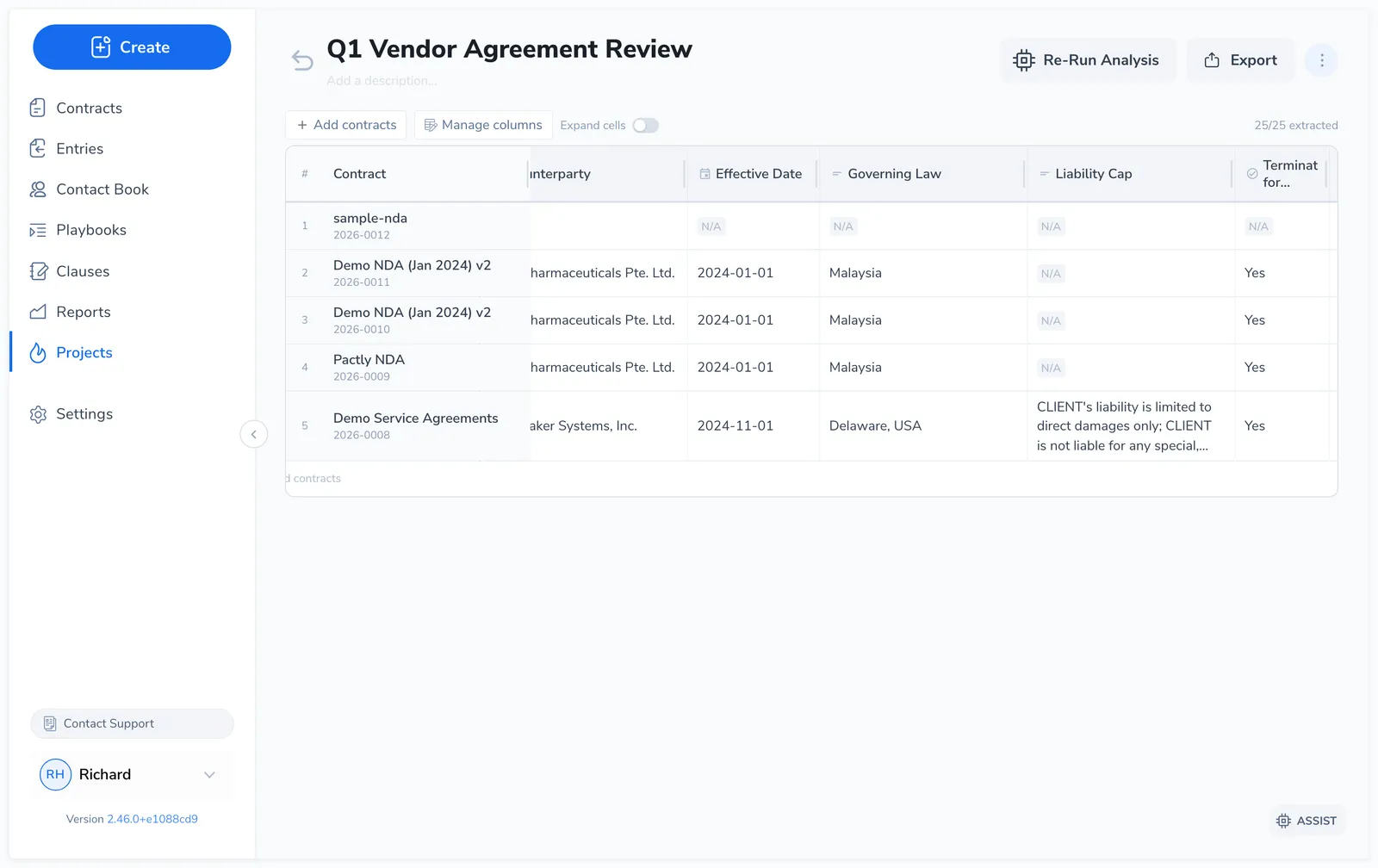
A cell can be in one of these states:
| State | What you see |
|---|---|
| Completed | The extracted value |
| N/A | The AI searched but found no value in the contract |
| Extracting | ”Extracting…” while the cell is being processed |
| Error | An error icon with a Retry button (the extraction failed) |
| Outdated | The value greyed out, because the column’s question changed after this cell ran |
| Edited | A pencil marker, because someone replaced the AI’s value by hand |
| Verified | A green tick, because someone opened the cell and saved the AI’s value unchanged |
The toolbar above the grid tracks progress with an X / Y extracted counter, and the Run Analysis button becomes Re-run Analysis once every cell is filled. While a run is in progress, Stop Analysis halts it and keeps the cells that already finished. Use Expand cells to wrap long values instead of truncating them.
Read and verify a cell
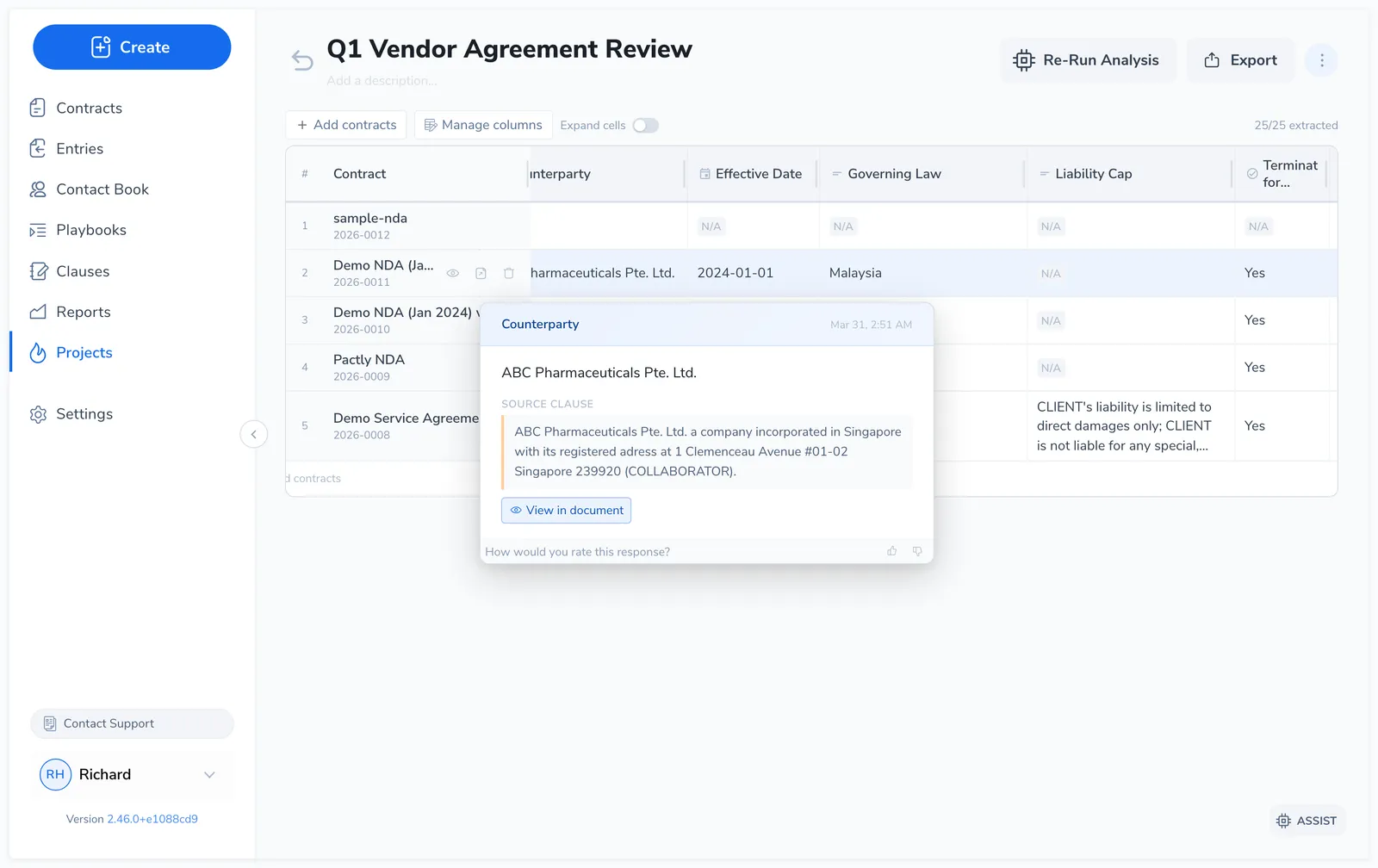
Section titled “Read and verify a cell”Hover any completed cell to open its popover. It carries the extracted value, a verbatim source quote from the contract, the AI’s reasoning, and a View in document action. Thumbs up / down buttons at the bottom rate the extraction for the Pactly team; they do not change the cell or re-run anything.
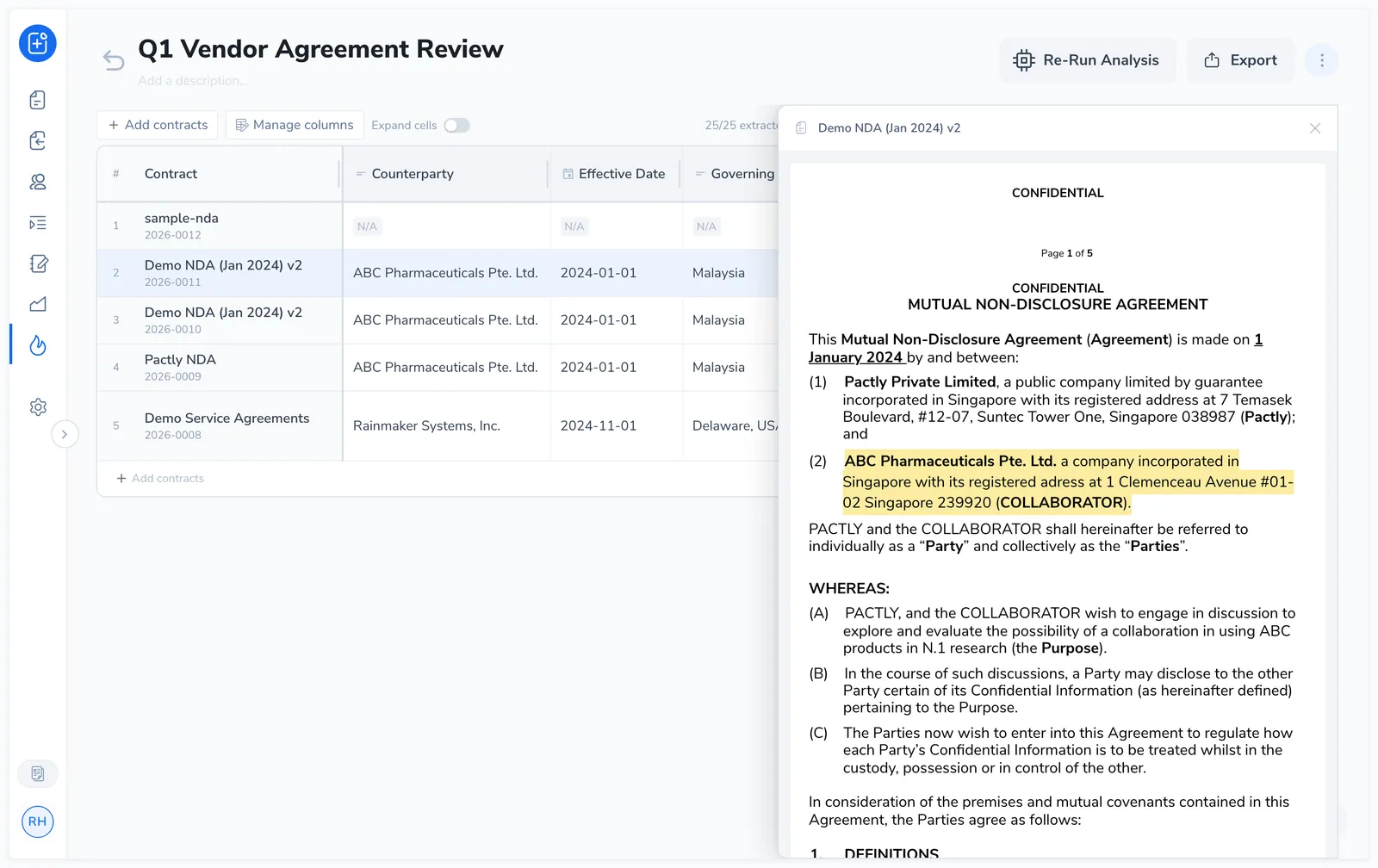
Click View in document on a cell, or the eye icon on a contract row, to open the document preview panel. It slides in from the right with the full contract. When you opened it from a cell, the source quote is highlighted in place. Close it with the X or by pressing Escape.
Search within the preview: with the document open, press Ctrl-F (Cmd-F on Mac) or click the search icon to find a keyword in it. Pactly highlights every match and moves between them with the arrows or Enter / Shift-Enter, and a counter shows where you are. It searches both Word-converted contracts and PDFs, including scanned PDFs with an OCR text layer. If a scanned PDF has no readable text, it tells you search isn’t available. Press Escape to clear.
For how to read the reasoning and source quote, where extraction is most likely to slip, and how far to verify before relying on a value, see Checking and Trusting Results.
Handle errors and outdated cells
Section titled “Handle errors and outdated cells”Errored cells show an error icon. Hover for the reason, then click Retry to re-run that one cell. Errors usually mean the document is unreadable: a corrupted file, a scanned image with no text layer, or a brief service interruption during extraction.
Outdated cells appear when you edit a column’s question after running analysis. Every existing value in that column is marked outdated: it greys out, and its popover shows the banner “Column prompt was changed. Re-run analysis to update this result.” The old value stays visible, but it answers the previous question. Click Re-run Analysis to refresh them. Re-running only touches outdated, errored, and empty cells, so it won’t overwrite values that are still good.
Correct or confirm a cell
Section titled “Correct or confirm a cell”Double-click any cell to open its editor. What you get matches the column type: a Yes / No toggle, the option pills for a list column, a date or number field, or a text box. Save writes your value; Cancel leaves the cell alone.
What you saved decides how the cell is marked:
- Save a changed value and the cell is marked Edited, with a pencil icon. Its popover shows who edited it and when, plus the AI’s original value under “Originally extracted”.
- Save the AI’s value unchanged and the cell is marked Verified, with a green tick. This is the sign-off signal: a person opened the cell, checked it, and confirmed it. The popover shows who verified it and when.
Revert to AI in the editor restores the extracted value and clears the marker.
Edited and verified cells are protected: a re-run will not overwrite them, and any computed column reading that cell uses the value you saved. Computed cells themselves cannot be edited, because they are calculated from other columns. Fix the input cell and the rating recalculates.
The marker lives in the app, not in the Excel export. If you need the sign-off in a report, keep the project as the record and export the values alongside it.
Row actions
Section titled “Row actions”Hover a contract name to reveal its row actions:
- Preview (eye icon): open the document in the side panel.
- Open document (external-link icon): open the full contract record in a new tab.
- Remove (delete icon): take the contract out of the project. This deletes its extracted data and asks you to confirm first.
Drag the border between column headers to resize a column. Widths save automatically and persist when you return to the project.