Navigate and Search Contracts
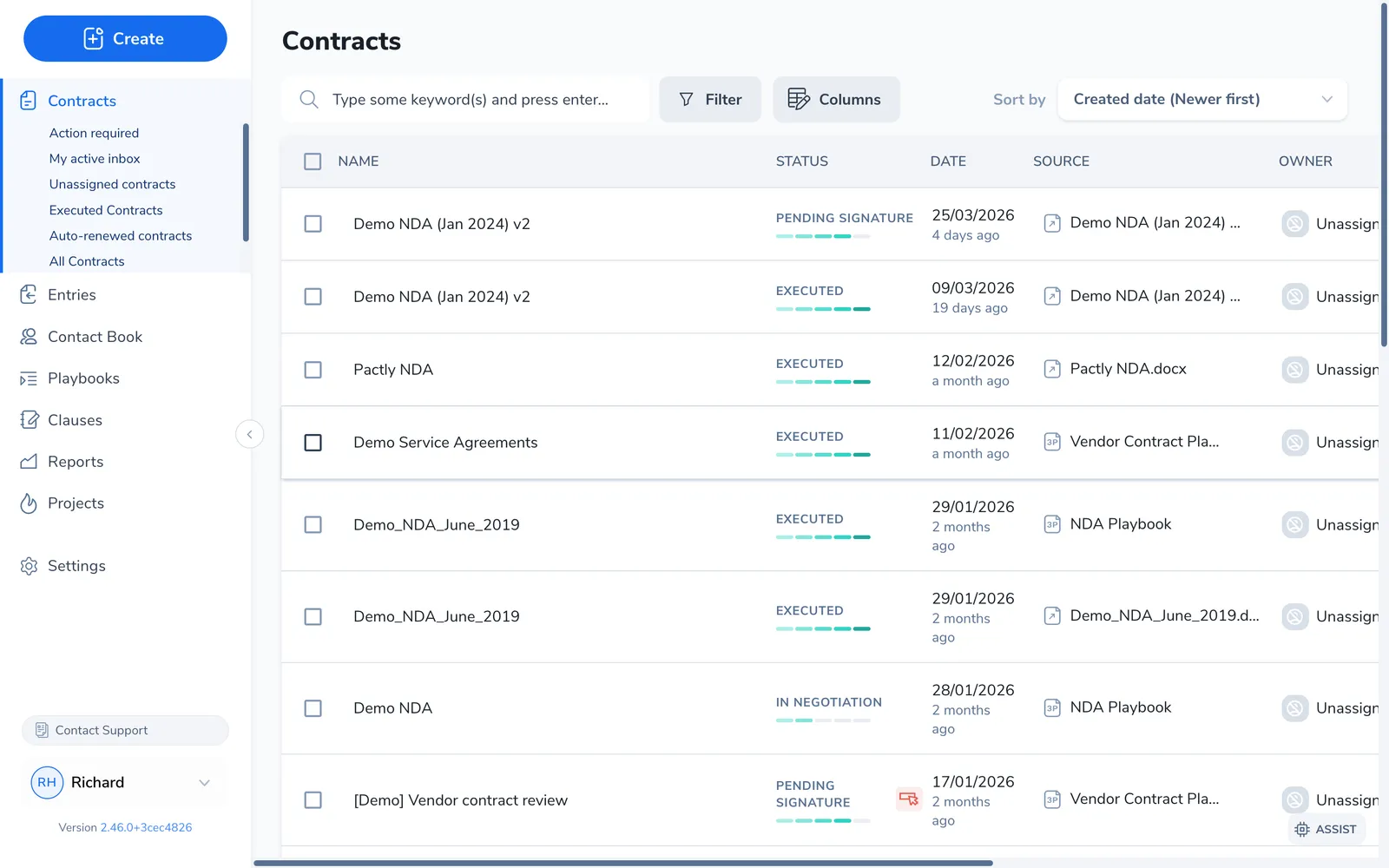
The fastest way to find a contract is its reference number, but you will not always have it. The repository gives you a view to scope the list, search and filter to narrow it, and sort and columns to shape what you see.
Find a contract by keyword
Section titled “Find a contract by keyword”Type into the search box at the top of the list and press Enter. The search matches across each contract’s:
- Name and reference number
- Text-based property values (text, multi-line, and multi-option properties)
- Party names and emails, for both companies and individual contacts
- The requester or external form submitter who started the contract
Search is case-insensitive. Standard search matches partial words, so part of a company name or a fragment of a reference is enough. To clear it and return to the full list, clear the search box.
The default list hides archived and aborted contracts, but the moment you search or apply a filter they are included automatically, so a contract you are actively looking for never stays hidden.
When full-text search is enabled and its index is ready, the contracts-list search also searches document content and can find close spelling matches. Results default to Relevance, with exact reference and name matches first. You can still choose a date sort. Workspaces without full-text search keep standard search across the fields above.
If your workspace has it enabled, a separate Full-text search button sits at the top right. It shows matching passages from the contract documents. If that page reports that search is unavailable, use the contracts-list search, which continues searching contract fields while the index is rebuilt.
The search box here works within the contract list, for filtering and sorting a set of contracts. To jump straight to one contract from anywhere in Pactly, including other screens, use global quick search: press Ctrl+K (Cmd+K on Mac) to open a palette that searches across contracts, parties, forms, and templates at once, plus your settings pages if you administer the account. See Find Anything with Quick Search.
Scope the list with a view
Section titled “Scope the list with a view”A view is a saved scope for the list. Click a view in the left sidebar and the table reloads to match it. Your workspace starts with a set of built-in views:
| View | What it shows |
|---|---|
| Action required | Contracts flagged for your attention (a new email, message, or assignment). See Action Required. |
| My active inbox | Contracts you own that are still in progress (Draft through Pending Signature) |
| Contracts in my groups | Contracts in the groups you belong to (shown when you are in at least one group) |
| Unassigned contracts | Contracts with no owner yet |
| Pending approvals | Contracts waiting on your approval (shown for roles that approve) |
You can save your own views on top of these. A custom view remembers its filters and its columns, so a view like “NDAs pending approval” can pin a status filter, a category filter, and a tailored column set in one click. Custom views appear below the built-in ones and can be dragged to reorder. See Custom Views for how to create and manage them.
Filter the list
Section titled “Filter the list”Click Filter above the table to open the filter panel. Pick a filter category on the left, then choose values on the right. Each filter you add narrows the results further, so combining a status and a category gives you the intersection of the two.
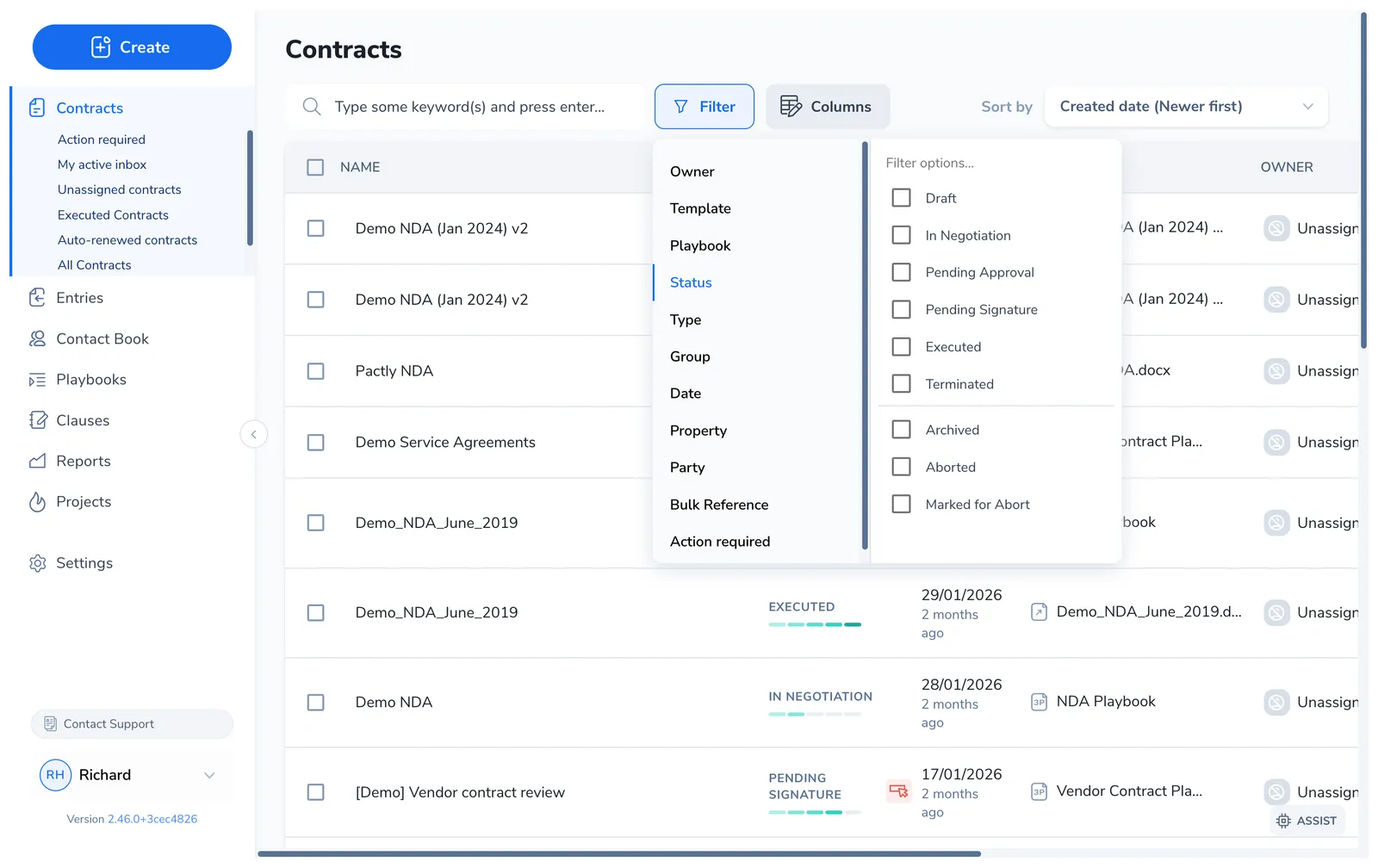
| Filter | What it does |
|---|---|
| Owner | Contracts owned by specific people, plus an Unassigned option |
| Template | Contracts drafted from a specific template |
| Playbook | Contracts reviewed against a specific playbook |
| Status | Lifecycle statuses (Draft, In Negotiation, Pending Approval, Pending Signature, Executed, Terminated), plus Archived, Aborted, and Marked for Abort |
| Type | The contract’s category (NDA, Service Agreement, and so on) |
| Group | Contracts in a specific group. You only see groups you have access to. |
| Date | Contracts created within a date range |
| Expiring soon | Contracts whose renewal date falls in the next 30, 60, or 90 days (when renewal dates are tracked), plus a Needs review option for contracts with no confirmed end date (for example when the end date depends on a linked agreement). Combine Needs review with the day windows to catch both. |
| Property | Any custom property value, including date properties as a range |
| Party | Contracts with a specific party, or by party attributes such as company name, email, or phone |
| Bulk Reference | Paste a list of reference numbers, separated by commas, line breaks, or tabs, to pull up exactly those contracts |
| Action required | Show only contracts flagged for your attention (when this feature is enabled) |
Bulk Reference is the one to reach for when someone hands you a list of references for an audit: paste them all in at once instead of searching one by one.
Sort the list
Section titled “Sort the list”Use the Sort by control above the table to reorder the rows. You can sort by created date (newer or older first) and, when renewal dates are tracked, by expiry (soonest or latest first). Sorting by soonest expiry is the quickest way to surface contracts coming up for renewal.
Choose your columns
Section titled “Choose your columns”Click Columns to open the Edit Columns dialog and decide what the table shows.
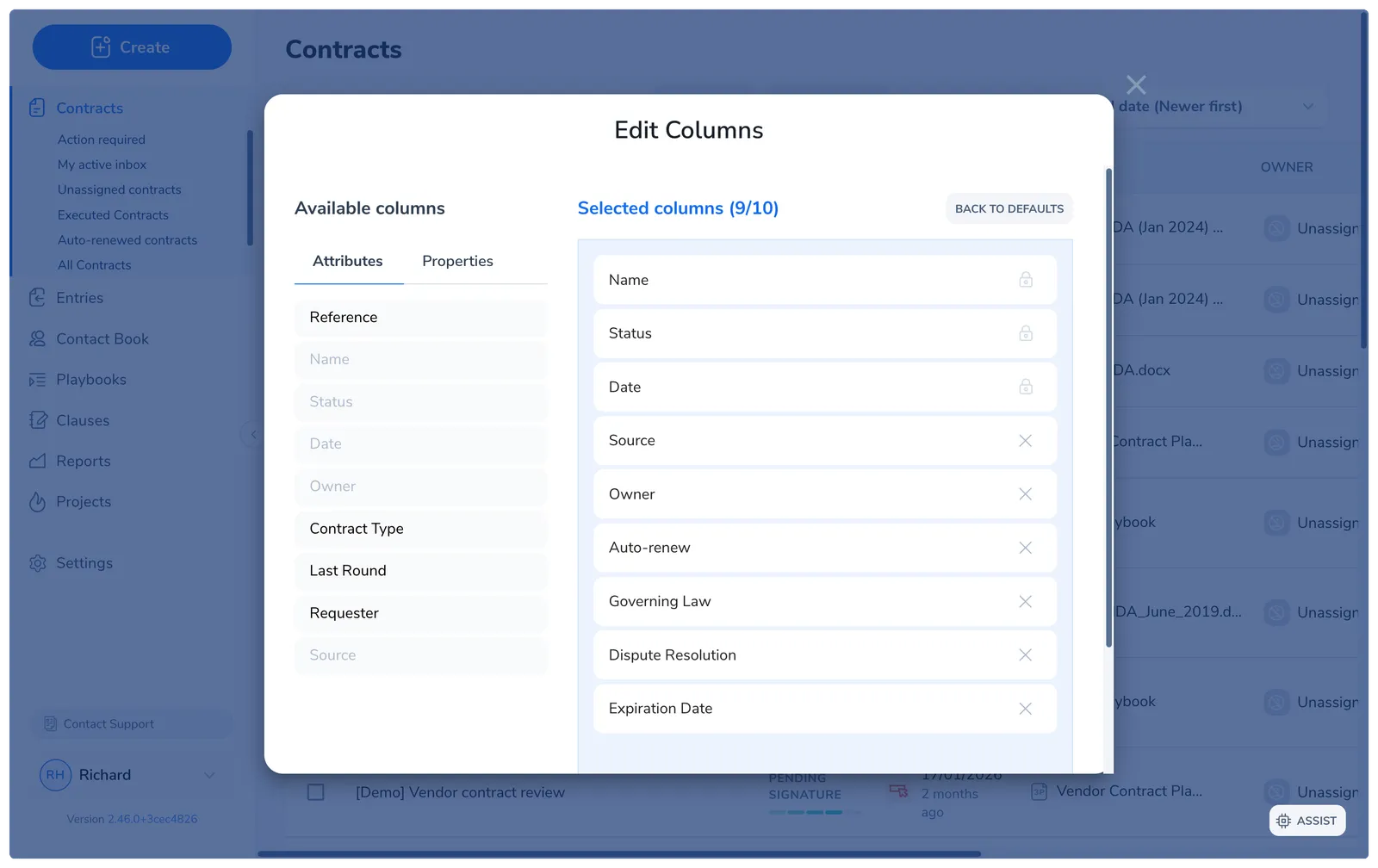
The table starts with Reference, Name, Status, Date, Owner, Contract Type, and Last Round. Name, Status, and Date are locked and always shown. From the Attributes tab you can add Reference, Requester, Source, Expiring in, and Group; the Properties tab lists every custom property your workspace tracks, grouped so they are easy to find. You can have up to 10 columns at once, and Back to defaults resets the set.
Columns are saved per view, so each view can show a different set, for example a renewals view that shows party and expiry while everyday views stay lean.