1
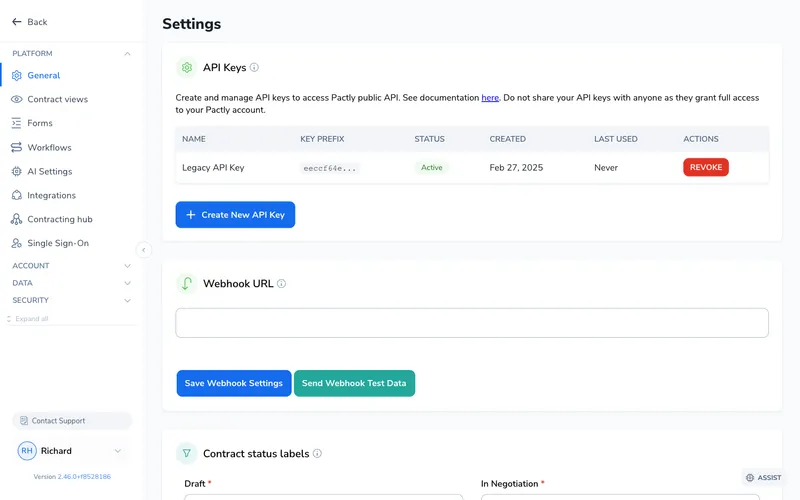
Open Settings and select Contract views
Click Settings in the left sidebar, then Contract views under the Platform section.
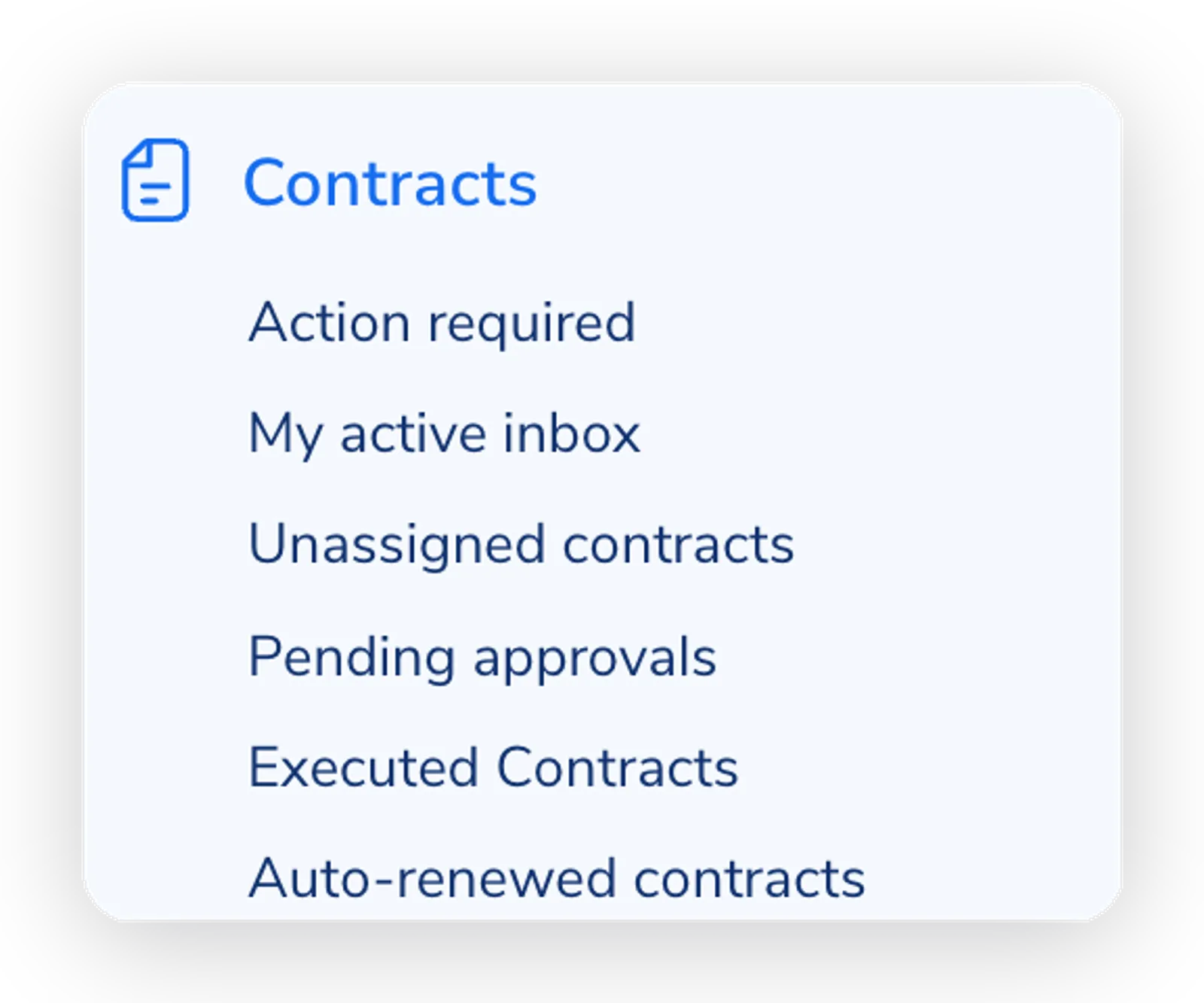
You probably open the repository looking for the same slice every time: your active contracts, items waiting on approval, NDAs expiring this quarter. A custom view saves that combination of filters and columns as a named shortcut. Click the view name, and the repository shows exactly those contracts, with no filters to reapply.
Above your saved views, the sidebar shows built-in views that Pactly maintains for you. Which ones appear depends on your role, your groups, and how your company is set up:
These cannot be edited or deleted. They stay current automatically as your contracts change.
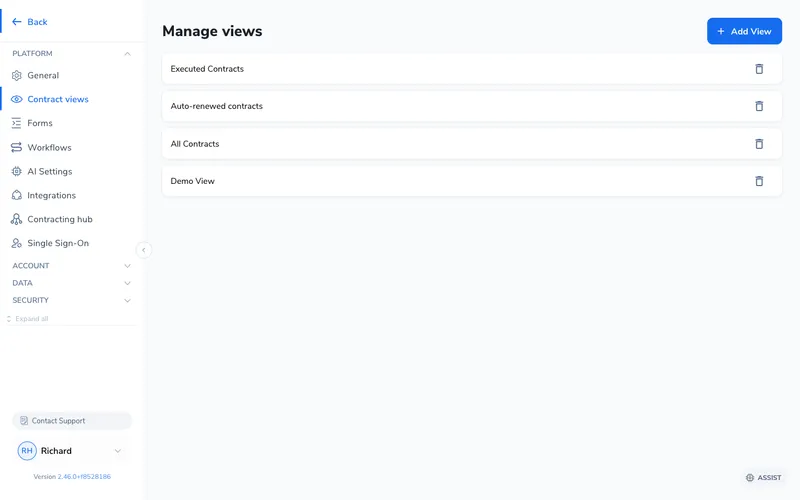
Click Settings in the left sidebar, then Contract views under the Platform section.
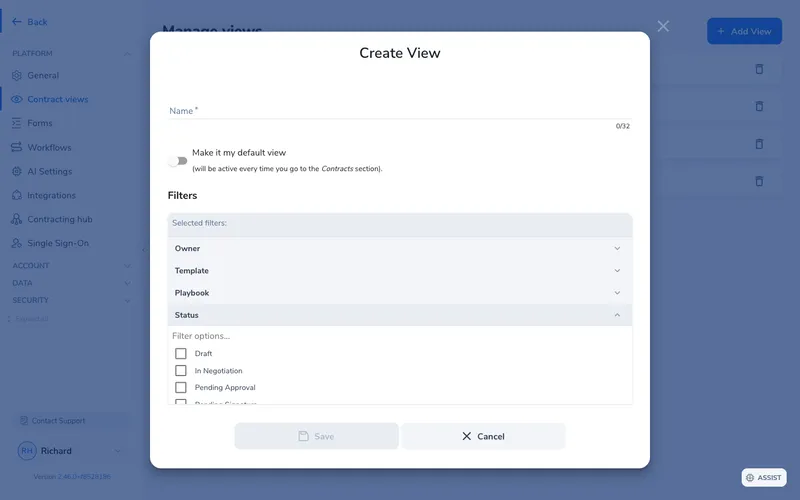
The Manage views page lists your existing views. Click Add View in the top-right corner.
Enter a name (up to 32 characters). Toggle "Make it my default view" if you want it to load automatically every time you open the Contracts section.
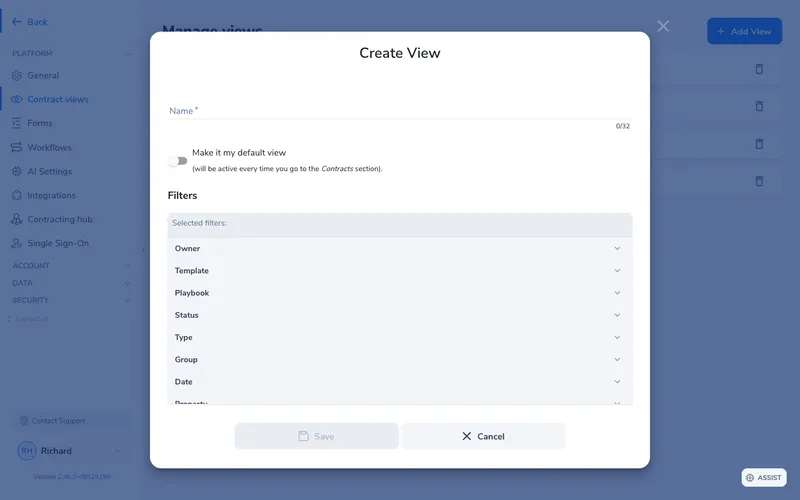
Expand a filter category, such as Status, and check the values you want. Combine filters across categories to narrow the list further, then click Save.
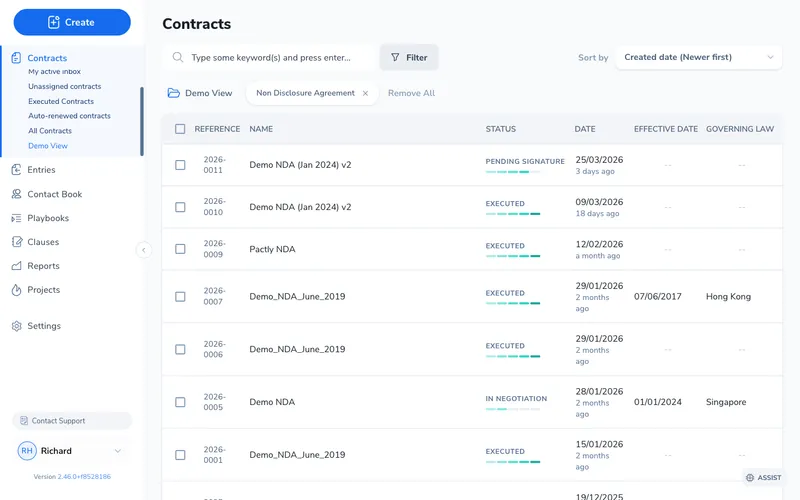
Your view now appears in the repository sidebar below the built-in views. Click it to apply its filters and columns instantly.
On the Manage views page (Settings > Contract views), click a view name to open its edit panel on the right. There you can:
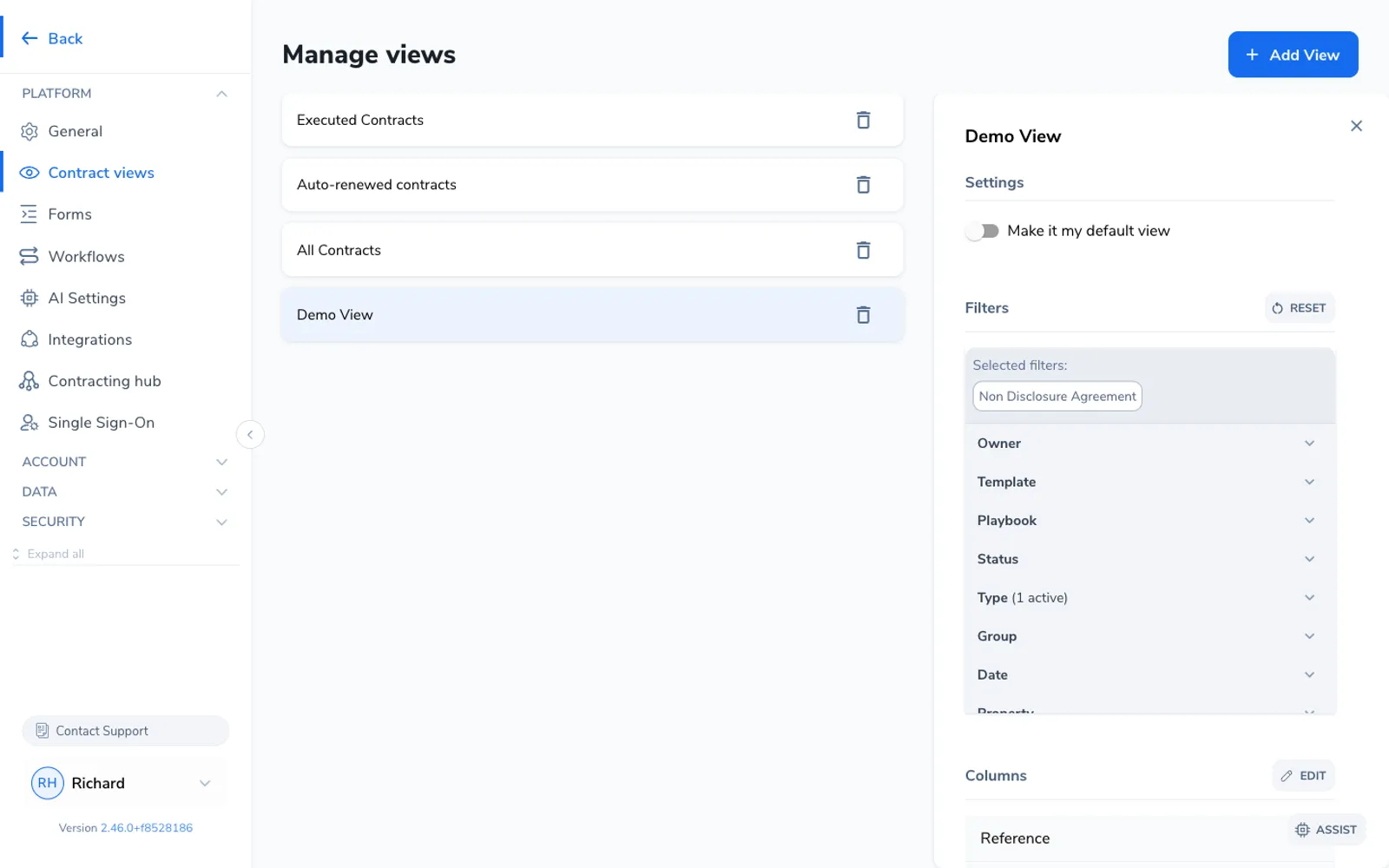
To reorder views, drag and drop them on the Manage views page; the order carries over to the repository sidebar. To delete one, click the trash icon next to it. Built-in views cannot be reordered or deleted.