1
Click Export in the toolbar
Open your project, then click Export in the actions at the top right of the project, next to Run Analysis.

When the analysis is done, the results live in Pactly’s grid. To put them in a report, a finance request, or a deal-room summary, export the project to an Excel file and send that file wherever you need it.
Export when the run is finished, not before. The export captures whatever is in each cell at that moment, so any cell still showing Pending, Error, or Not found is written into the spreadsheet as that text. Wait for a clean run, then export.
Open your project, then click Export in the actions at the top right of the project, next to Run Analysis.
In the Export to Excel dialog, pick the optional columns. Include AI reasoning columns (on by default) adds a Reasoning column after each data column, carrying the AI's explanation for that value. Include source reference columns (off by default) adds a Source column with the clause reference each value came from. Both apply to every column in the project.
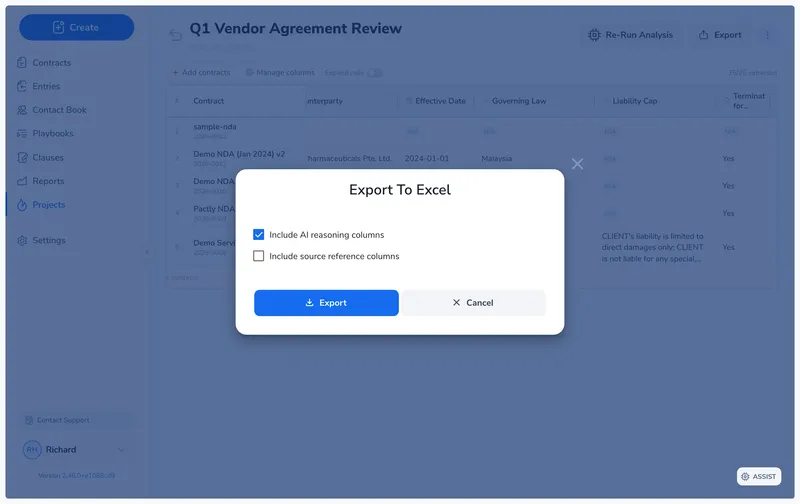
Click Export in the dialog. The file downloads to your browser as an .xlsx spreadsheet named after the project (with an _export suffix), ready to open in Excel, Google Sheets, or any spreadsheet tool.
The spreadsheet has one row per contract and a Contract column with each contract’s name, followed by one column per data column, plus any reasoning or source columns you included.
Values export close to how they read in the grid: Yes/No columns export as “Yes” or “No”. Cells without a clean value carry their state as text rather than a blank: Not found when the AI found nothing, Error when extraction failed, and Pending when the cell has not been analyzed yet. One wording difference to expect: a cell the grid shows as N/A is written into the spreadsheet as Not found.
A multi-select or checklist cell exports as its selected options, comma separated. A cell whose column question changed after the cell ran exports as Outdated — re-run required, or Outdated — review required if that value had been set by hand.
The export carries the values, plus whichever of the reasoning and source-reference columns you ticked in the dialog. It does not carry the edited-by or verified-by stamp from the grid, so where a review needs to show who signed off, the project itself is the record.
The More actions menu (the three dots in the project header) covers what to do with the project once you have what you need: