1
Open the Relationships tab
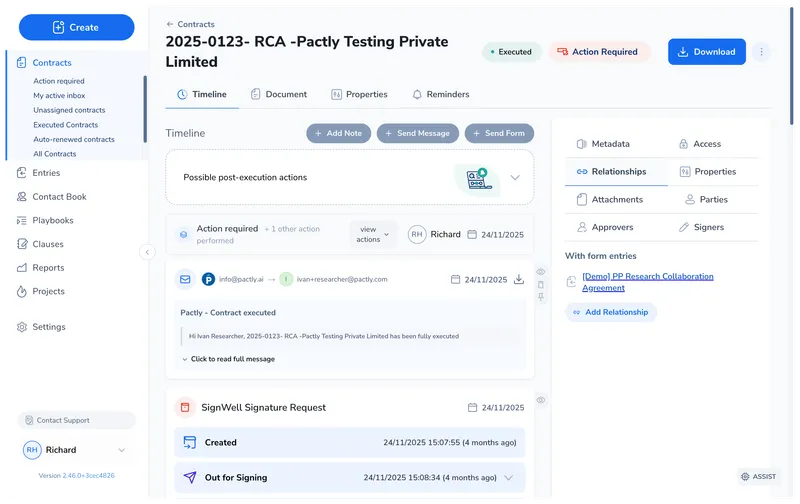
Open the contract you want to link from. In the right sidebar, click the Relationships tab. Any existing linked contracts and form entries appear in a list.
A master services agreement has three statements of work, one of which was amended last quarter. An NDA was signed before a vendor agreement, and a renewal replaced the original term. If these connections only exist in someone’s memory or a spreadsheet, anyone picking up the file has to reconstruct the picture from scratch.
Contract relationships let you link any two contracts in Pactly and label how they relate. You create the link once, from either contract, and pick the label that reads correctly from where you started. It then shows on both contracts: the side you started from shows the label you chose, and the linked contract shows the matching opposite label, so navigating from an amendment back to the original agreement (or from a parent to its children) is one click from either side.
Relationships fall into six directional pairs. The type dropdown lists both directions of each pair, so you can pick whichever label reads correctly from the contract you started on. Whichever you choose, the link is stored once and the linked contract shows the opposite label of the pair. is related to is the symmetric case: both sides show the same label.
| Pair | Opposite label | Use for |
|---|---|---|
| renews | is renewed by | A new-term agreement that replaces an expiring one |
| amends | is amended by | A formal amendment that modifies terms within the current term |
| terminates | is terminated by | A termination agreement that ends a contract early |
| is a child of | is the parent of | A hierarchy where one agreement governs several sub-agreements (MSA to SOW, framework to order) |
| is added info for | has added info in | A schedule, exhibit, side letter, or reference document supporting a main contract |
| is related to | is related to | A general association that does not fit the other types (an NDA tied to a later commercial agreement) |
The full dropdown lists all eleven labels (both directions of each pair, plus the single is related to). Starting from a master agreement, you can label the link is the parent of the work order directly, rather than opening the work order to say it is a child of the master. Either choice produces the same single link, shown with its opposite label on the other contract.
If a new document restates the entire agreement rather than modifying specific clauses, renews usually fits better than amends.
Open the contract you want to link from. In the right sidebar, click the Relationships tab. Any existing linked contracts and form entries appear in a list.
Click Add Relationship. Choose the label from the dropdown that reads correctly from this contract (e.g., "renews", "amends", "is a child of", or the opposite direction like "is the parent of"). Search for the target contract by name, reference number, or party name. Click Create to save.
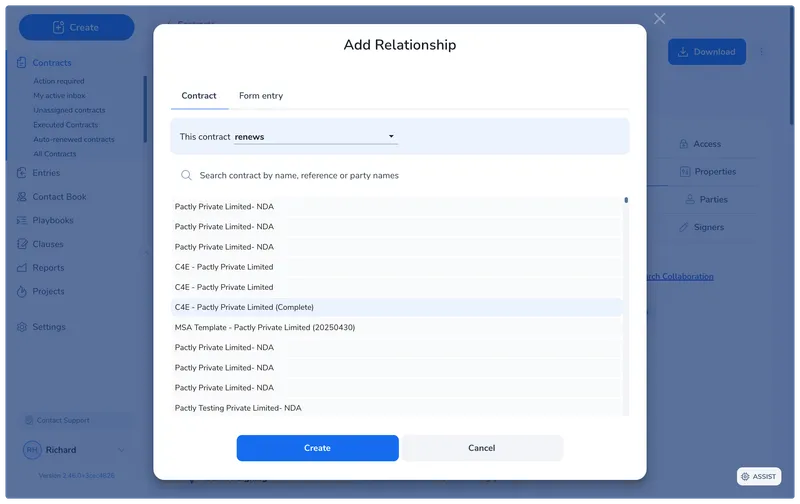
The relationship shows in the Relationships tab of both contracts right away. The linked contract displays the opposite label: if you selected “amends” on Contract A, Contract B shows “is amended by.” It is a single link viewed from two sides, not a separate entry on each contract.
There is no limit on the number of relationships a contract can have, and you can link any combination of contract types (template, playbook, or external).
When a signed amendment or termination lands in Pactly, it finds the contract it changes and suggests the new date here. A purple dot on Relationships means there is something to check. Confirm links the two contracts and updates the date in one go.
See Date Changes From Executed Agreements for the full walkthrough.
When a form has the duplicate request check turned on, we link two contracts whose requests closely match as is a possible duplicate of. You never add this one yourself, and it is not in the dropdown. It shows on both contracts with a Needs review label and a one-line reason, and both timelines get a Possible duplicate request entry.
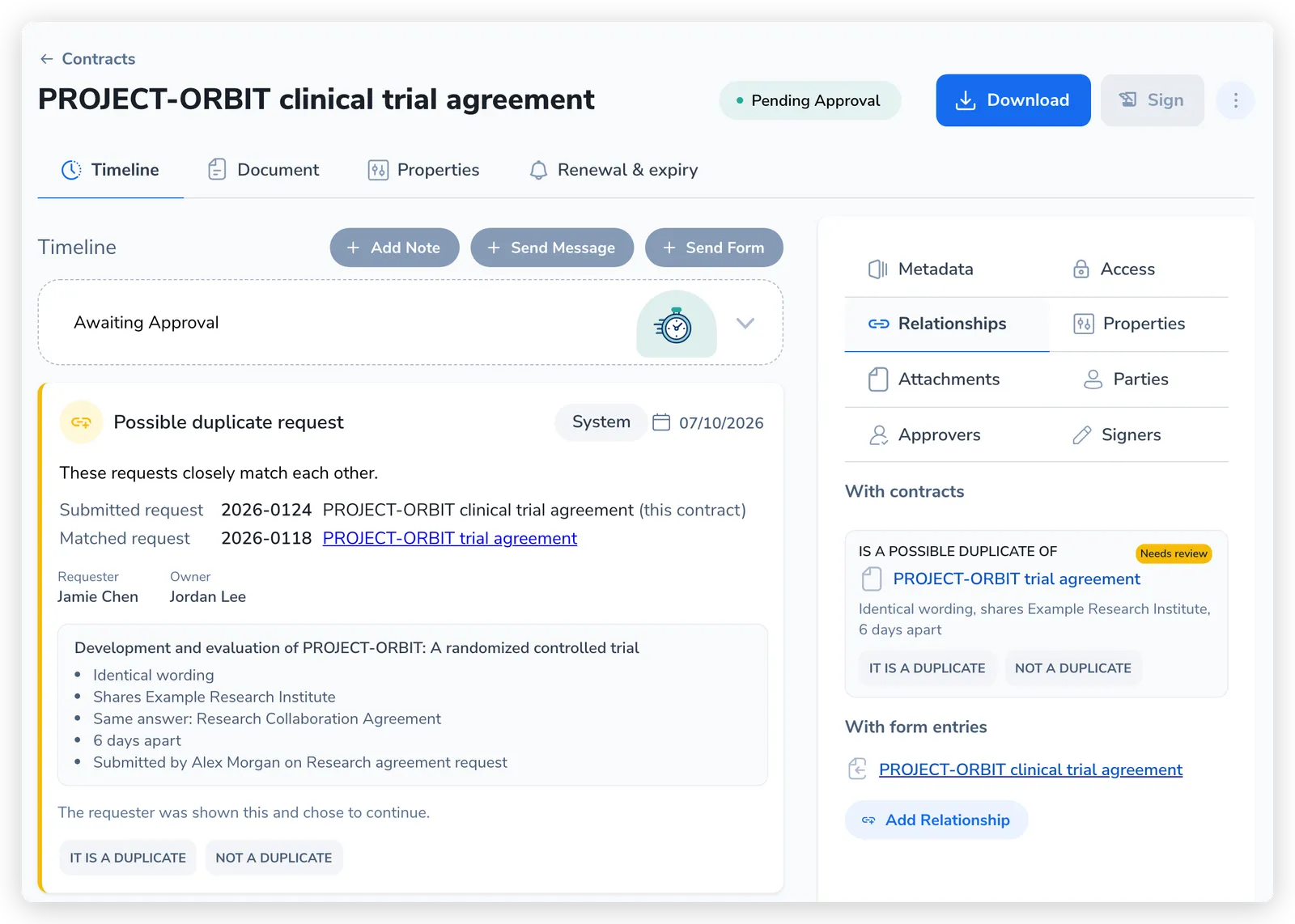
Open the other contract to compare, then click It is a duplicate or Not a duplicate. Dismissing asks for a reason and covers that pair only. Confirming records your decision without changing either contract. Once reviewed, the decision stands and the flag collapses to one line on both timelines.
You can review a pair when you can open both contracts and manage relationships on at least one. If you cannot open the other contract, the pair is not listed here. There is no remove icon on these links, so use the review buttons.
See Duplicate Request Check for setup and what the requester sees.
To remove a manually added relationship, open the Relationships tab on either contract and click the remove icon next to the linked contract. Because it is one link, removing it from either side clears it from both.
Once relationships are in place, the Relationships tab becomes a navigation hub: each linked contract is listed with its relationship label and name, and clicking one opens it directly. During a review you can read an amendment, jump to the original agreement, check a related NDA, and come back, all without leaving the record or running a search.