Contracts Data Exports
When finance needs a spreadsheet of every active contract, or an auditor asks for all executed agreements from last quarter, you need to get that data out of Pactly without downloading contracts one at a time.
Two exports cover both jobs: a metadata export produces a CSV of contract details, and a quarterly bundle packages the contract files themselves into a ZIP.
Where exports live
Section titled “Where exports live”Open Settings, then the Exports page. It has two tabs: Contracts (metadata CSV and quarterly bundles) and, if your workspace uses forms, Forms entries.
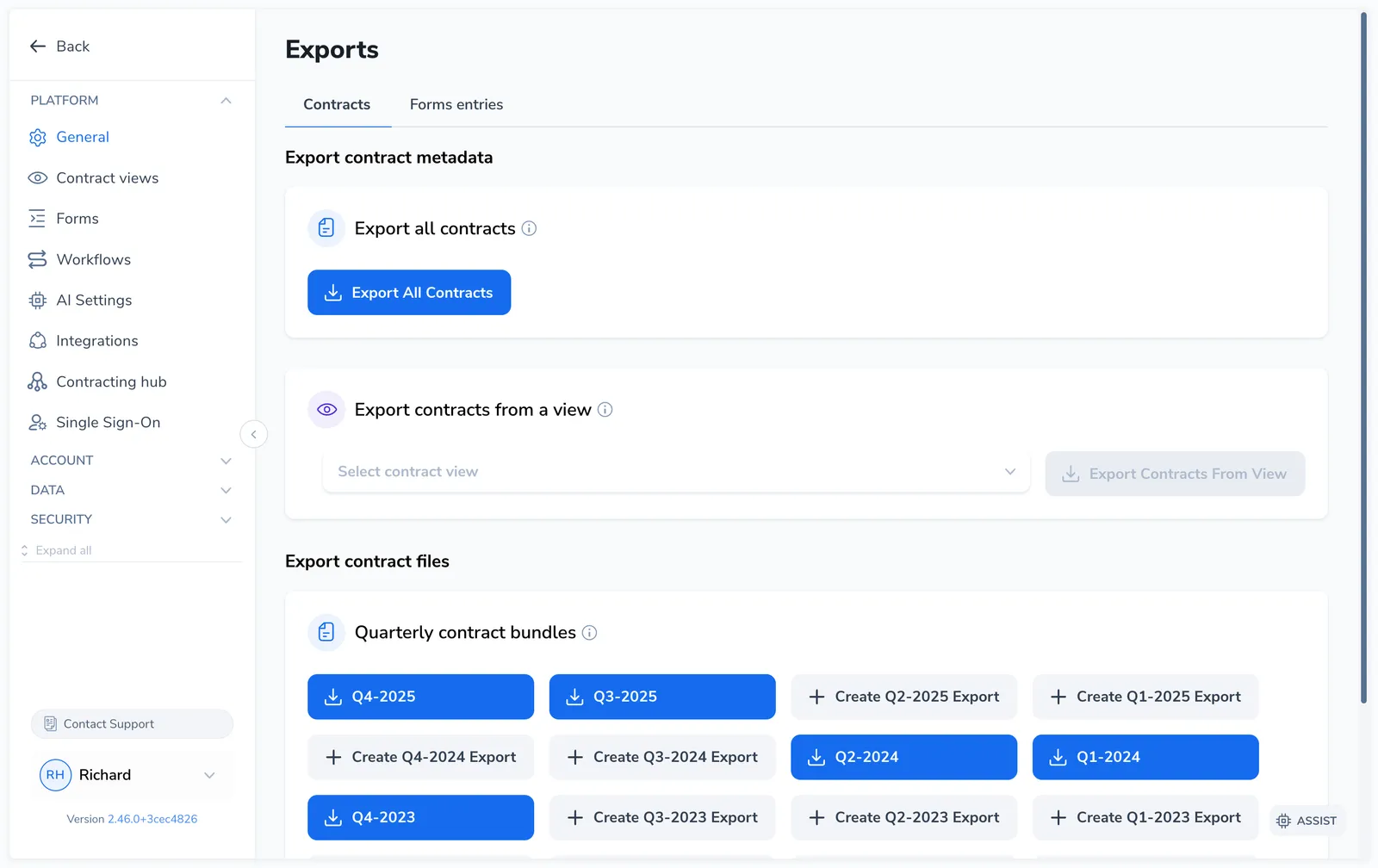
Export contract metadata to CSV
Section titled “Export contract metadata to CSV”The Export contract metadata section gives you two options:
- Export all contracts downloads a CSV of every contract in your repository.
- Export contracts from a view exports only the contracts matching a saved view. Pick the view from the dropdown, then click Export contracts from view. The button stays disabled until a view is selected.
Both start the download from your browser. The CSV opens cleanly in Excel (UTF-8 BOM, so no garbled characters).
What’s in the CSV
Section titled “What’s in the CSV”A full export includes one row per contract with these columns:
| Column | Description |
|---|---|
| Name | Contract name |
| Reference | Reference number |
| Status | Lifecycle status |
| Category | Contract category (NDA, MSA, and so on) |
| Owner | Assigned owner |
| Date | Contract date |
| Finalized at | When the contract was finalized |
| Approved at | When approval completed |
| Executed at | When the contract was executed |
| Source | How the contract was created |
| File | Document filename |
A view export drops the Reference and Category columns; the rest are the same.
Export contract files as a quarterly bundle
Section titled “Export contract files as a quarterly bundle”A quarterly bundle is a single ZIP of the contract files executed in one quarter. For each contract it includes:
- The executed document (PDF), named by reference and contract name.
- Every negotiation round that was exchanged.
- Any attachments added to the contract.
Only contracts executed within that quarter are included. Contracts still in draft or negotiation are not.
The Export contract files section lists every quarter back to your account’s start date:
- A quarter shown as a solid button (for example, Q4-2025) already has a bundle. Click it to download.
- A quarter shown as Create Q1-2025 export has no bundle yet. Click it to generate one.
After you click Create, Pactly builds the ZIP, which can take a few minutes for a large quarter. Keep the page open while it generates. When it’s ready, the button switches to a download button for that quarter.
Form entry exports
Section titled “Form entry exports”If your workspace uses forms and your role allows it, the Forms entries tab exports all form submissions to CSV. This is useful for reconciling intake responses against the contracts they created.
Bespoke and scheduled exports
Section titled “Bespoke and scheduled exports”Some organizations have custom export formats configured by Pactly, tailored to a specific reporting system or a recurring tracker. These are set up on the back end and aren’t part of the self-service Exports page. If you need a column that isn’t in the standard CSV, a different file layout, or a recurring export, contact your Pactly administrator or support.
Related
Section titled “Related”- Custom Views: build the filtered views you export from
- Navigate and Search Contracts: find contracts before exporting
- Contracts overview: back to the section