1
Click Create and select Draft a contract from my Template
Click the Create button in the top-left corner, then choose "Draft a contract from my Template" from the menu.
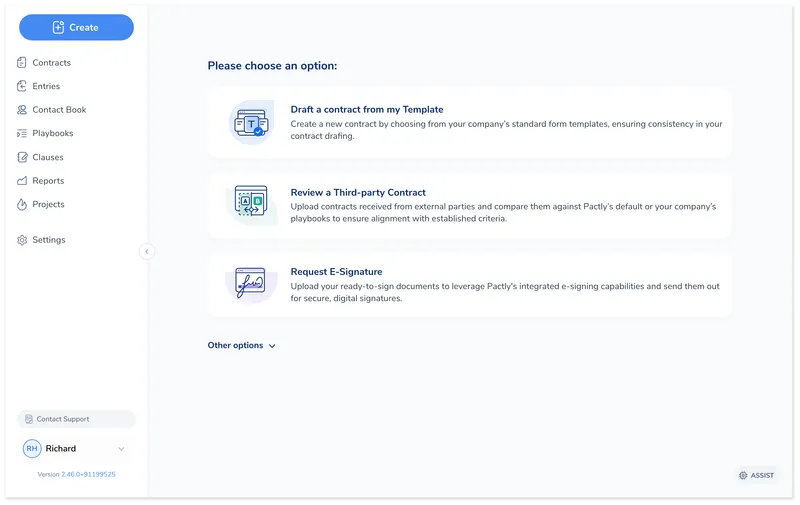
How a contract enters the repository depends on whose paper you start from and what needs to happen next. The Create menu gives you one path for each situation.
Click Create in the top-left corner. The menu has three main paths plus two more under Other options.
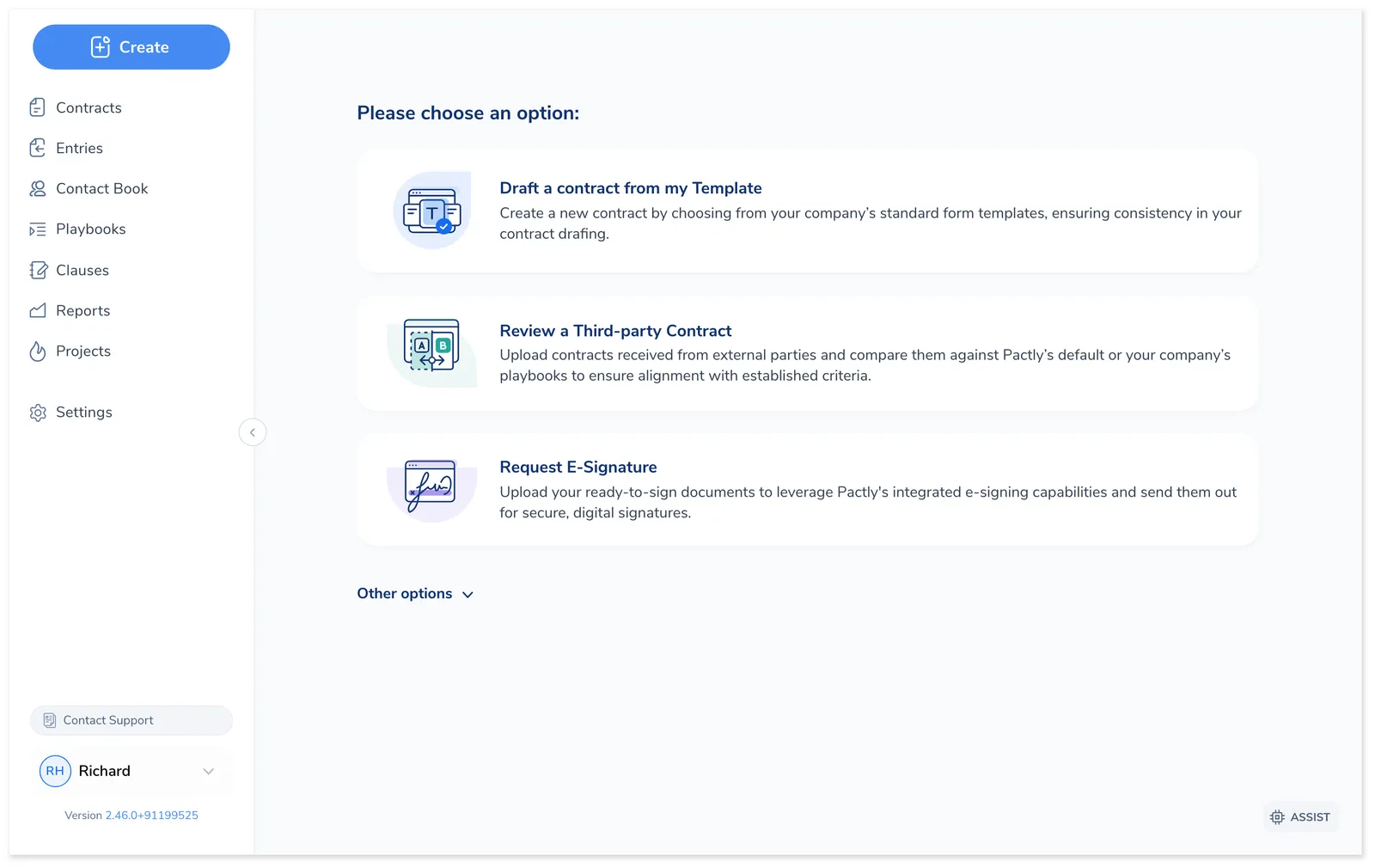
| Path | Whose paper | Enters as |
|---|---|---|
| Draft a contract from my Template | Yours | Draft |
| Review a Third-party Contract | Theirs | In Review |
| Request E-Signature | Agreed, ready to sign | Pending Signature |
| Import Historical Contract (Other options) | An already-executed agreement | Executed, or Archived per file |
| Request Approval (Other options) | A finished document needing sign-off | Pending Approval |
Your paper. Use this when you are initiating the contract from your organization’s standard language.
Templates contain pre-approved language with variables (party names, dates, deal terms) that get filled in through an intake form. Your admin configures which templates and forms are available.
Click the Create button in the top-left corner, then choose "Draft a contract from my Template" from the menu.
Choose the intake form linked to the template you need. Each form shows a title and description to help you pick the right one. Use the search bar to filter by name if your organization has many templates.
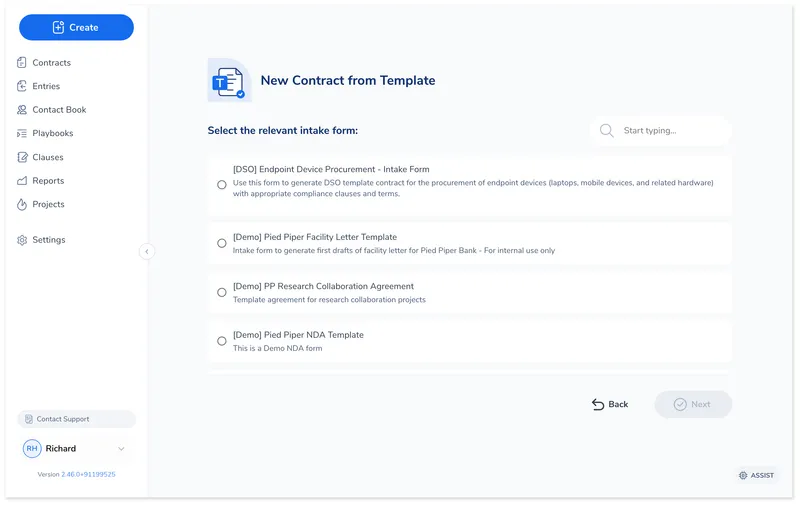
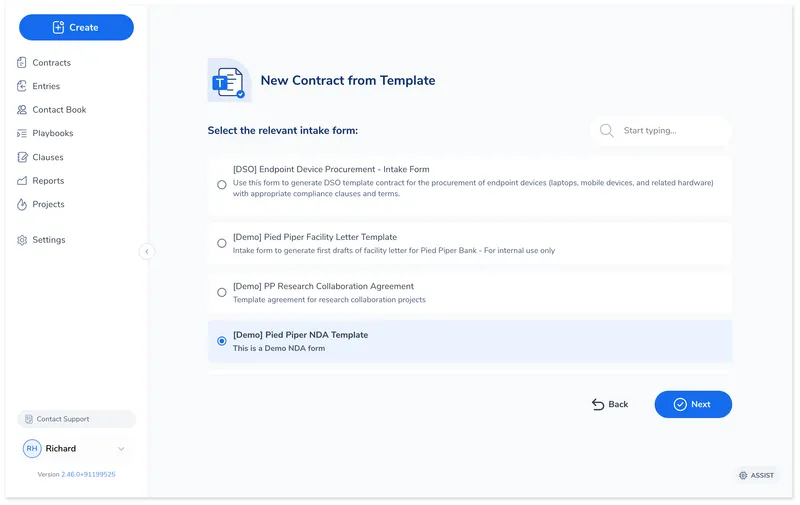
The selected form is highlighted. Click Next to open the intake form. The Back button returns to the Create menu if you need to change your selection.
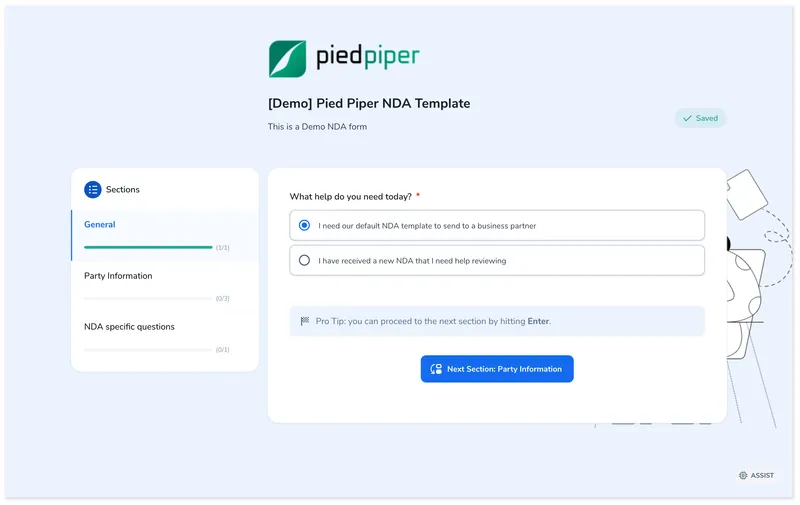
The intake form opens with sections listed in the left sidebar. Start with the first section and answer each question. In this example, the General section asks what type of NDA you need. Select the appropriate option and click Next Section to continue.
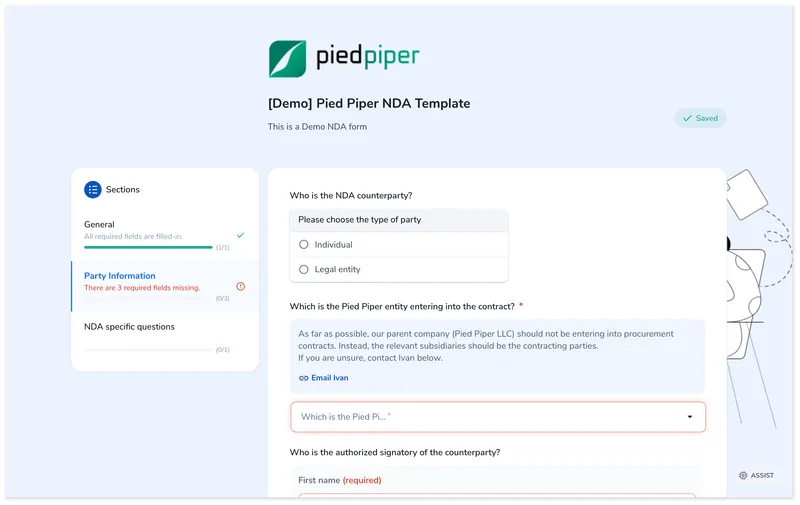
The Party Information section collects the other party's details: party type (Individual or Legal entity), the contracting entity on your side, and the authorized signer. Fields marked with a red asterisk are required.
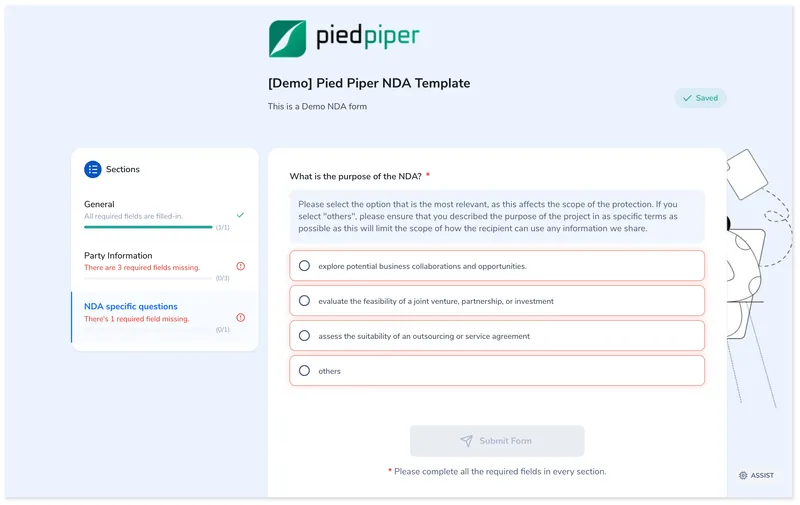
Continue through any remaining sections (here, NDA-specific questions about the purpose of the agreement). The sidebar shows completion status for each section. When all required fields are filled, click Submit form to generate the contract.
After you submit, Pactly generates the document with your standard language and the values you entered. The contract enters the repository in Draft status, ready to send to the party, route for approval, or keep editing.
Their paper. Use this when a party has sent you a contract and you want to review it against your standards using a playbook.
Click the Create button, then choose "Review a Third-party Contract" from the menu.
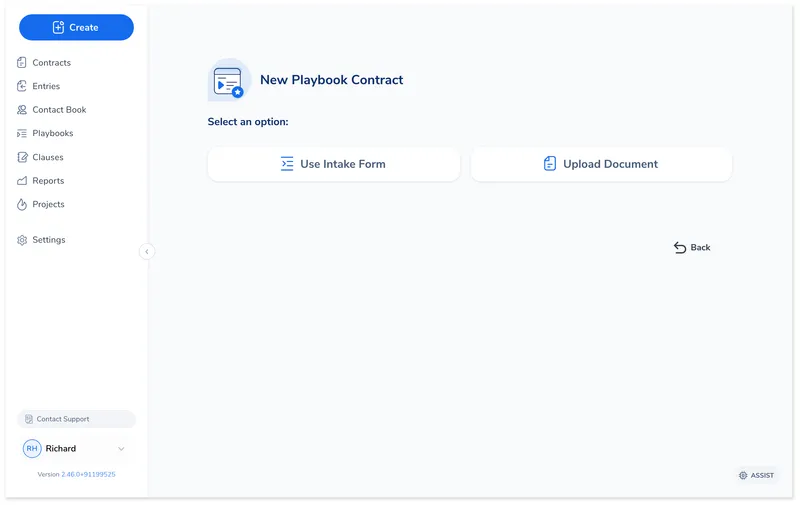
Select how you want to create the contract. Use Intake Form if your admin has configured a structured intake process. Upload Document lets you upload the file directly and fill in details manually.
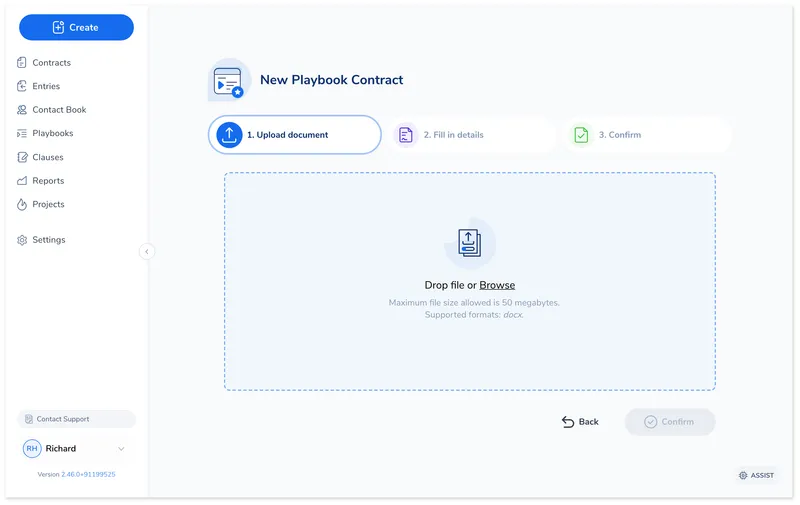
Drag and drop the contract file or click Browse to select it. Accepted format: .docx, up to 50 MB. Password-protected files are not accepted, and neither are scans or image-only documents: playbook review needs text it can read, so the document must have selectable text.
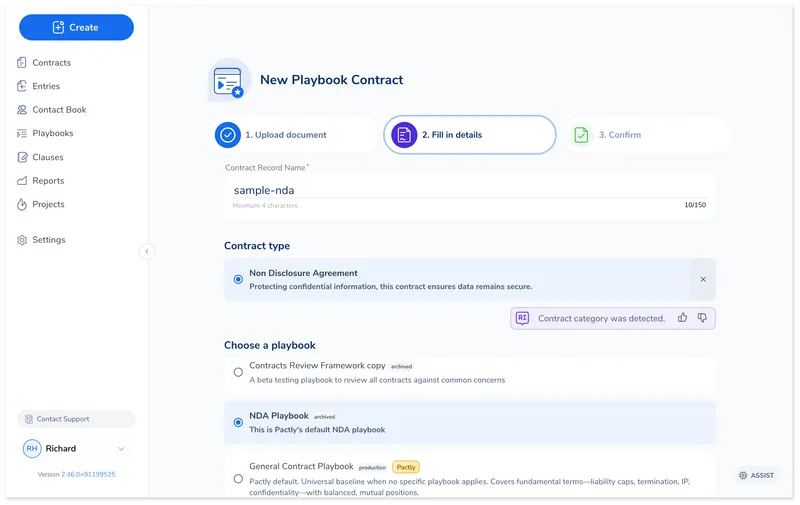
After the file uploads, the wizard advances to Fill in details. Pactly uses AI to detect the contract category (shown with a "Contract category was detected" badge). Enter a contract name, verify or change the category, and select the playbook to review against. The playbook list is filtered to show playbooks matching the selected category.
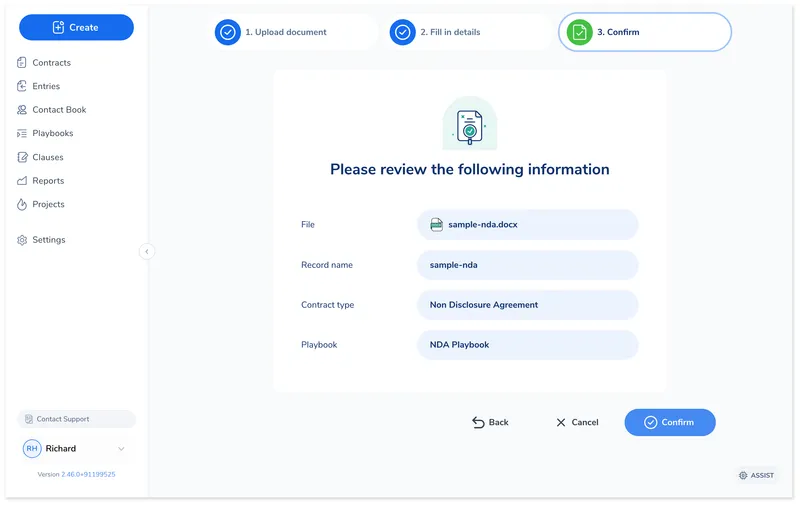
The confirmation screen summarizes everything: uploaded file, record name, contract type, and selected playbook. Verify the details are correct and click Confirm to create the contract.
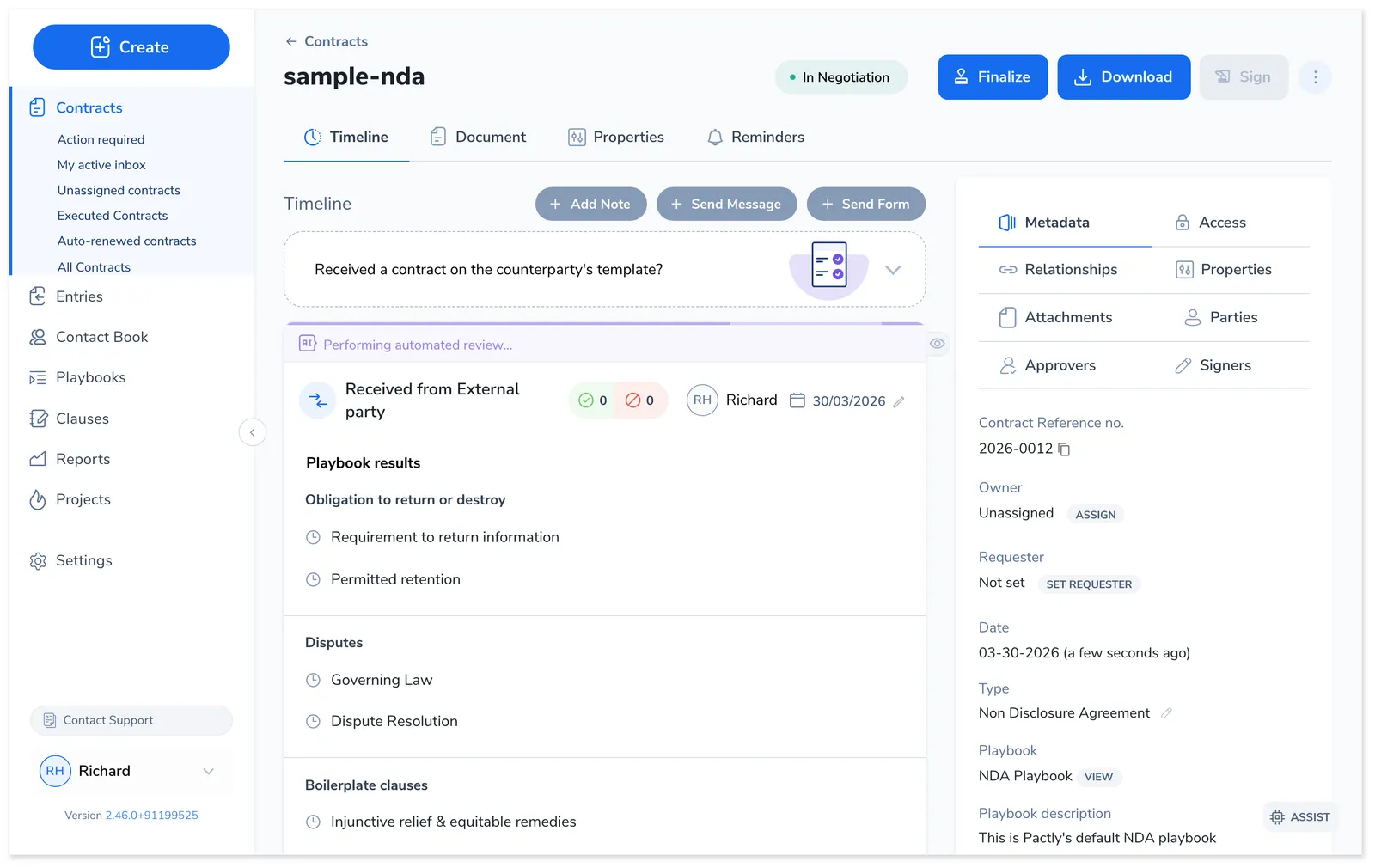
The contract enters the repository in In Review status. Pactly runs an automated playbook review against the document, flagging positions that deviate from your standards, and the results appear on the contract timeline.
Open the contract in Microsoft Word with the Pactly Word Plugin to review the flagged positions and begin negotiation. See Running a Playbook Review for the next steps.
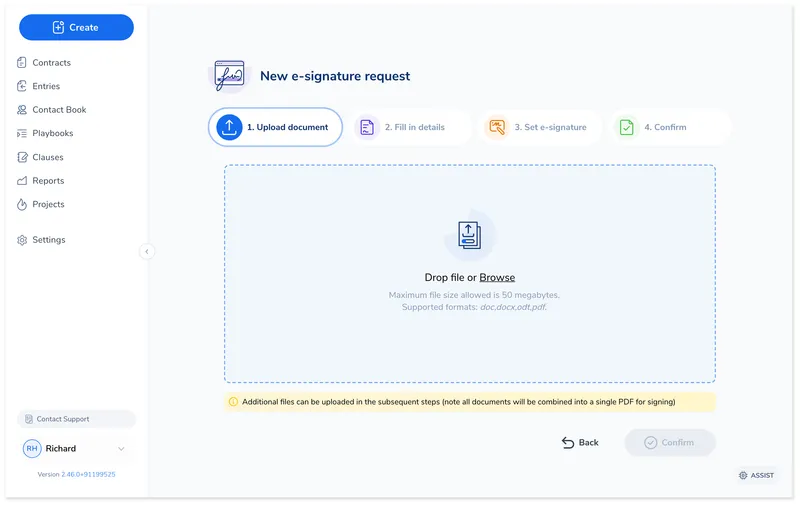
Ready to sign. Use this when you have a finalized document that needs signatures, with no further review or negotiation. The e-signature wizard walks you through uploading the document, adding signers, and sending the request.
Click the Create button, then choose "Request E-Signature" from the menu.
Drag and drop the document or click Browse to select it. Accepted formats: .docx, .odt, and .pdf. Save a legacy .doc file as .docx first. The wizard shows a four-step progress bar at the top: Upload document, Fill in details, Set e-signature, and Confirm.
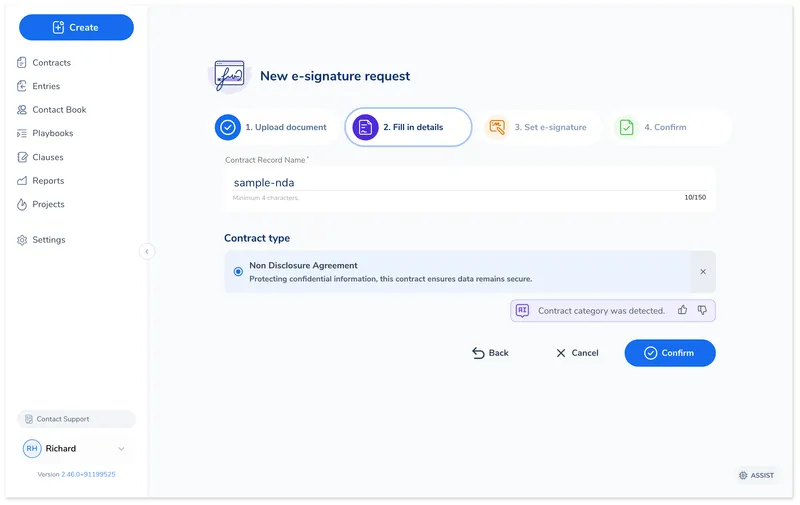
Enter the contract record name and select the contract category. If the AI detects the category from the document content, it is pre-selected automatically (shown with a "Contract category was detected" badge). Click Confirm to proceed to signature settings.
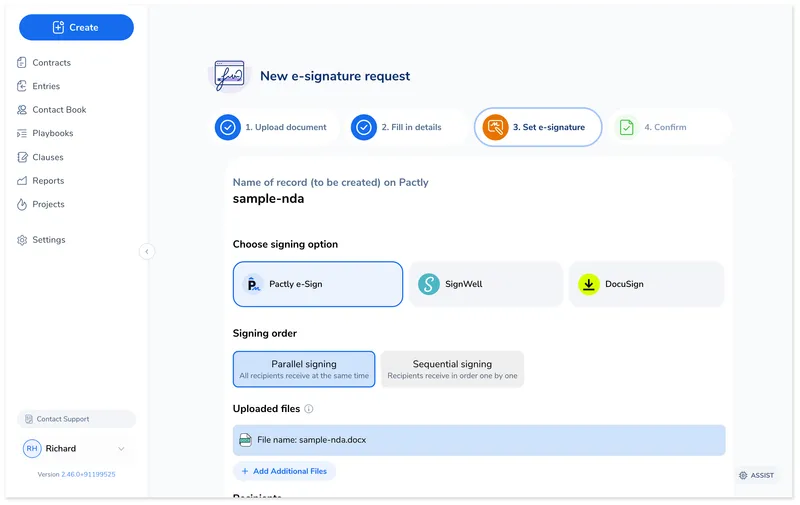
Choose your e-signature provider, set the signing order (Parallel sends to all signers at once, Sequential sends to one after another), and review the uploaded files. You can add more files to combine into the signing package.
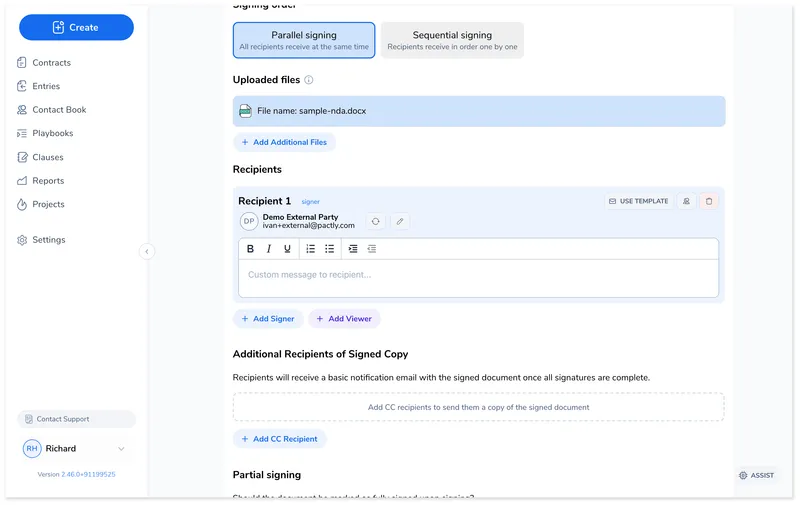
Scroll down to the Recipients section and click Add Signer. Search for contacts from your contact book or click New signer to enter details manually. Each signer shows their name, email, and a message field for personalized instructions. You can also add Viewers (who see but do not sign) and CC Recipients (who receive a copy after signing completes). Choose whether the document should be marked as Fully Signed or Partially Signed upon completion.
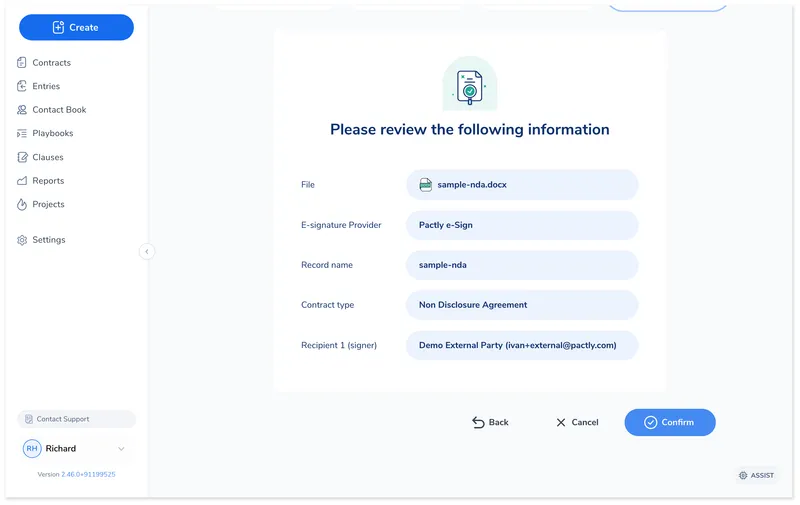
The confirmation screen summarizes the file, e-signature provider, record name, contract type, and all recipients. Verify everything is correct and click Confirm to send the signature request.
If using Pactly e-Sign, a signature editor opens after confirmation where you place signature fields, date fields, and initials on the document. Click Continue to Send when the fields are positioned.
The contract enters the repository in Pending Signature status. Signature progress is tracked automatically on the contract timeline.
The two remaining paths sit under Other options in the Create menu. Both take a finished document and file it into the repository, and neither runs negotiation or playbook review. You upload the document, enter its details, and the contract enters at the status shown in the path table above.
Bring agreements signed outside Pactly into the repository for tracking, search, and renewal reminders. You can import a whole backlog at once: Pactly stages the files in a review table and classifies and names each one as it imports. Each file is filed as Executed or, for agreements that are already expired or inactive, straight into the archive, with no further workflow either way. See Import Historical Contracts for the full walkthrough.
Route a finished document for internal sign-off before it is considered done. It enters as Pending Approval and goes to the approvers your workflow defines.
After creation, every contract gets:
The contract appears in the repository, visible to anyone with the right group permissions. From there you can track its progress and move it through its lifecycle.