1
Open the message dialog
On the contract record, click Send message in the header to open the composer.
You need to send a counterparty the latest draft and ask them to confirm the payment terms, but you also want the next colleague who opens the contract to see what was sent and when. Send that email from your own inbox and the conversation lives outside the record, invisible to whoever picks up the negotiation later.
Send message emails an external party directly from the contract. The message, recipients, and attachments are recorded on the timeline, and replies route back to the same contract.
The Send message action sits in the header of the contract record, alongside Add Note. For where it lives on the timeline, see Contract Timeline.
On the contract record, click Send message in the header to open the composer.
In the To field, search your contacts or type any email address. Use the quick-add chips to add the owner, approver, or requester in one click, and Add CC to copy others. CC myself adds you to the copy line.
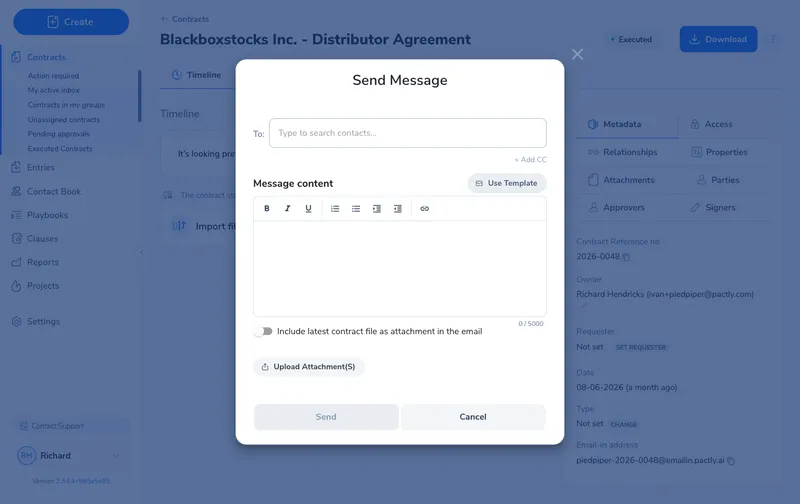
Compose under Message content in the rich text editor (bold, italic, underline, numbered and bulleted lists with indenting, and links). Optionally pick a saved template from Use template to fill the body, then edit it for this contract.
Turn on "Include latest contract file as attachment in the email" to attach the current document automatically, and upload supporting files if needed. Click Save to send.
The saved message appears on the timeline with the recipient list, body, and attachments, so the whole team can see the exchange.
If Pactly warns that an email notification was not sent, the message is still saved on the timeline. The warning names the affected recipients. If email notification could not be confirmed, check with those recipients before sending again to avoid duplicate emails. See Notifications and Emails Not Arriving for further checks.
If your team sends the same kinds of messages, review requests, follow-ups, or signing instructions, templates keep the wording consistent and save retyping.
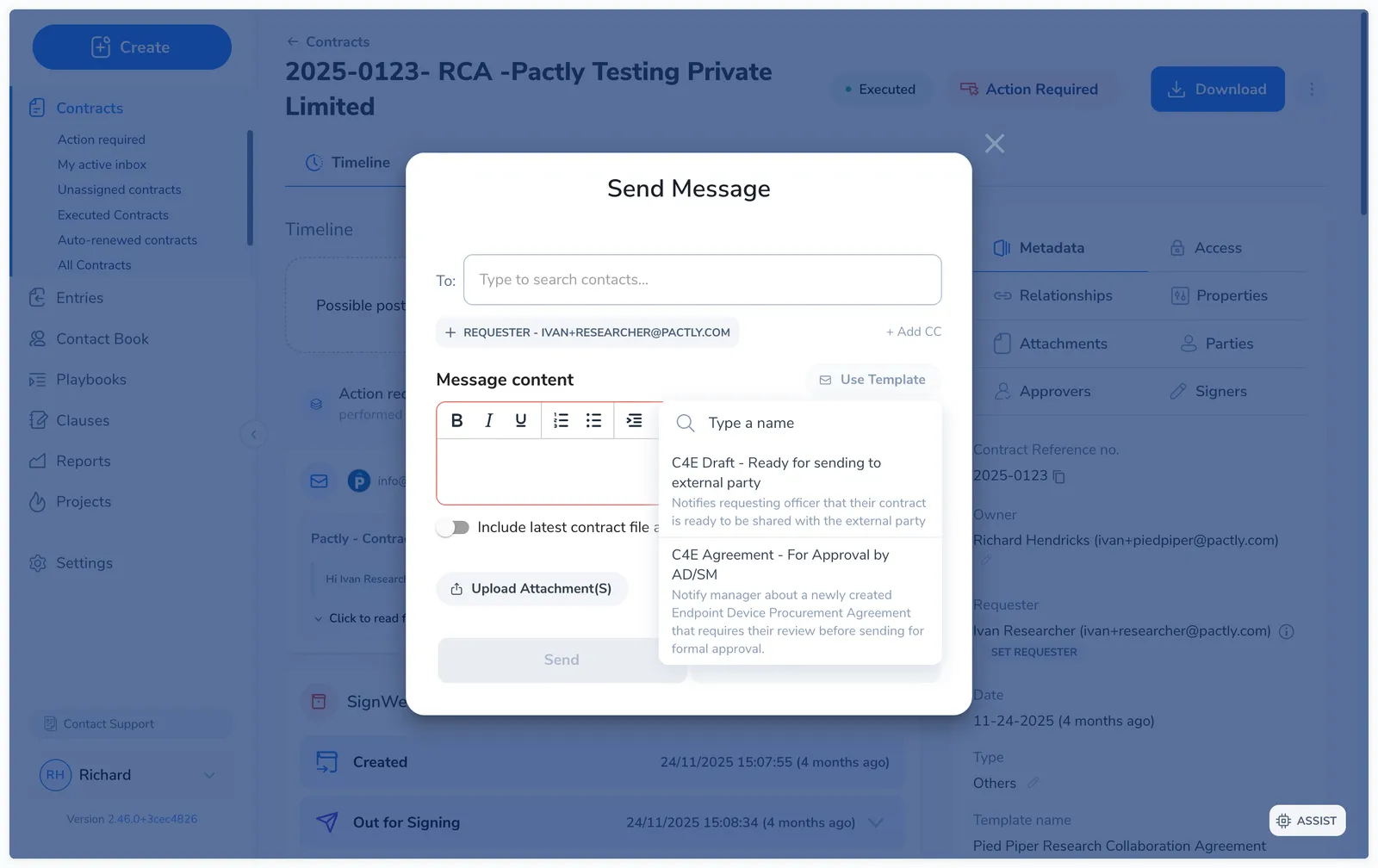
Pick a template from Use template and the body is populated. Templates are most useful when the core message is fixed but details like party names, clause references, or deadlines change between contracts. Templates are set up by administrators; if the one you need is missing, ask your admin to add it in settings.
A message takes up to 10 attachments (.doc, .docx, .odt, .pdf, .zip, .xls, .xlsx). There are two ways to attach:
Recipients receive a standard email from Pactly with your message and any attachments. They do not need a Pactly account to read or reply. The sender name is your name from your Pactly profile, and if your organization has set a company logo it appears in the email header. See Company Logo on Emails.
Each contract has its own Email-in address, shown on the contract record with a copy button. Copy it from there rather than typing it out, because the domain depends on which Pactly region hosts your organization. Messages you send use it as the reply-to, so replies land both in your inbox and back on the contract as an incoming email event. You never forward or paste them in by hand.
Two cases still need a manual step. For a thread that started outside Pactly, forward the key emails to the Email-in address to add them and their attachments to the timeline. For a phone call or meeting, there is nothing to forward, so add a note summarizing what was agreed.
Over time this builds the full back-and-forth on the timeline. If the Email-in address isn’t on the contract record, your organization may not have contract email-in enabled; check with your admin.
A sent message behaves like other timeline items: you can pin it to the top or hide it from specific roles. Messages cannot be edited or deleted once sent, since they have already gone out by email. See Managing notes and emails.