Track Contract Progress
When someone asks “where is this contract, and is it with us or with them?”, the answer is on the contract record. Open the contract from the repository and it tells you where it stands, what has happened, and which draft is current.
Three signals to read
Section titled “Three signals to read”Every contract record answers three questions, each with its own signal:
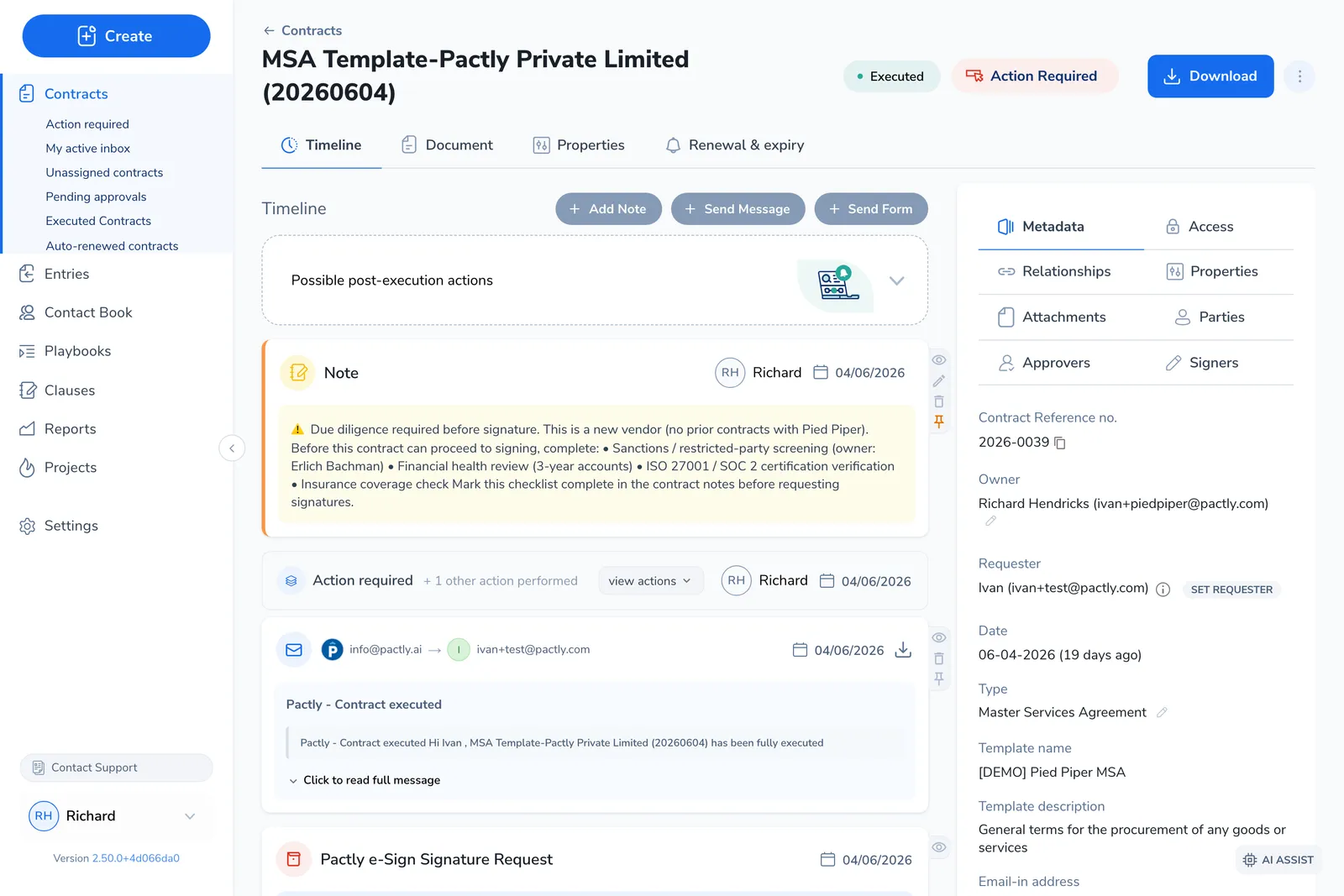
- Where does it stand? The status badge in the header.
- What has happened? The Timeline tab.
- Which draft is current? The negotiation rounds, shown on the Document tab.
Where it stands: status
Section titled “Where it stands: status”Every contract carries a status that moves forward through its lifecycle: Draft → In Negotiation → Pending Approval → Pending Signature → Executed, then Terminated at end of life. The status badge sits in the header at the top of the record.
The badge tells you the lifecycle stage. Approval and signature progress (who still needs to sign off or sign) live separately, in the Approvers and Signers panels on the right of the Timeline tab.
For what each status means and how a contract moves between them, see Contract Status Reference.
What has happened: the timeline
Section titled “What has happened: the timeline”The Timeline tab is a chronological feed of every event on the contract. Status changes, approvals, signature events, rounds, notes, and messages all land here, most of them recorded automatically as the contract moves.
When a counterparty returns a marked-up draft after weeks of silence, the timeline is faster than digging through email: scroll back to see the last round, who sent it, and what was discussed.
For adding notes, sending messages to external parties, and managing timeline items, see Contract Timeline.
Which draft is current: rounds and documents
Section titled “Which draft is current: rounds and documents”Contracts that go through negotiation track each exchange as a round (what customers also call a version or draft). The Document tab shows them as a version history in the Versions panel, from the generated or uploaded original through each round to the executed copy.
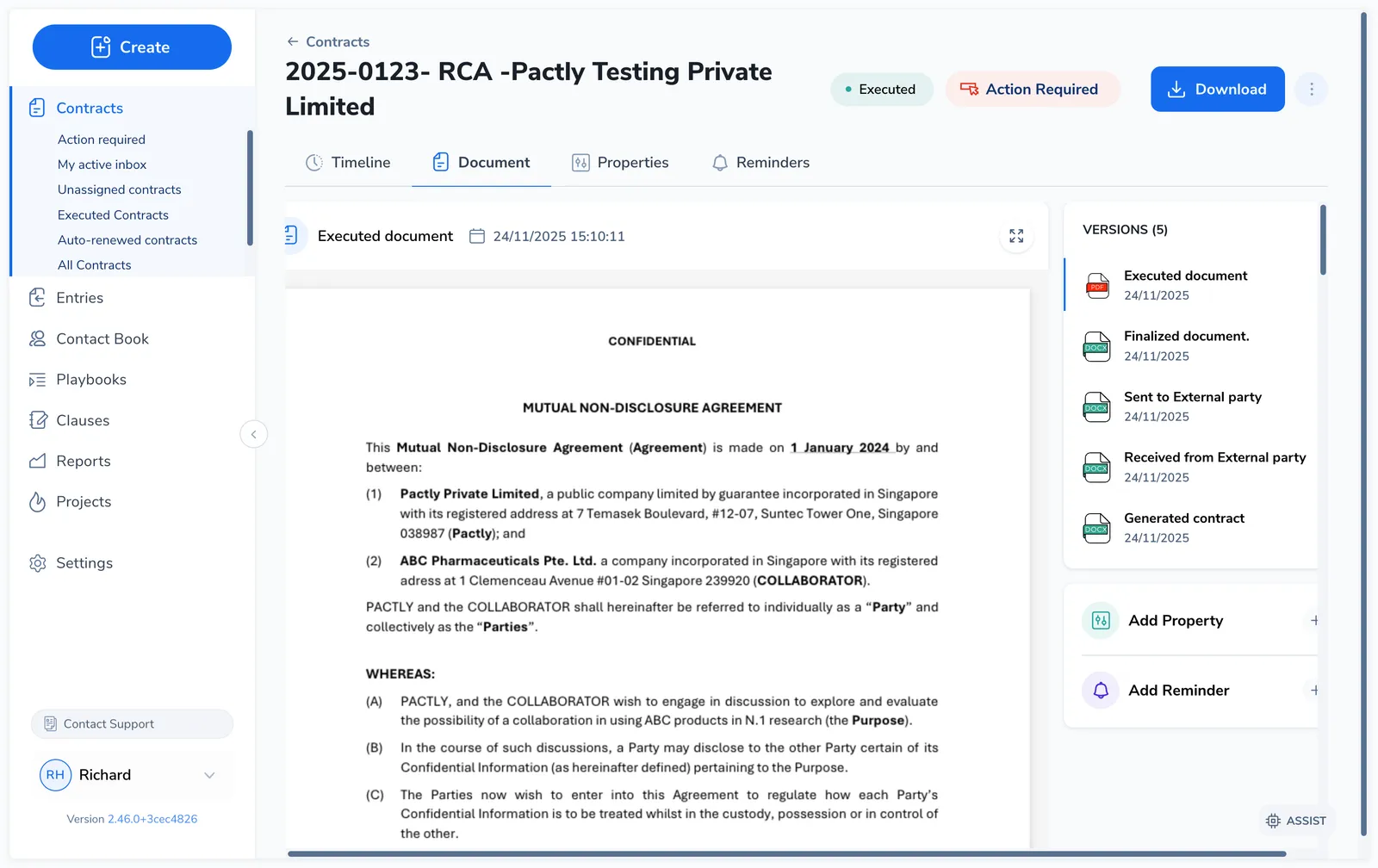
Each round records its direction (sent to the party or received from them), the party, the date, the document at that point, and its source (the Word add-in, a manual upload, or the web app). Click any version in the panel to preview it in the browser or download the file.
For Word and PDF documents, use + and − to zoom or Fit width to fit the page to the viewer. Fit width adjusts when the window changes size. On a phone, you can scroll sideways inside an enlarged document. Opening another document resets the view to fit its width.
For Word documents, comments are hidden by default in the document viewer. Click the comments button beside search to show or hide them. Both the comments and search buttons are highlighted while open. Hiding comments changes only the view; it does not remove them from the document.
For recording an exchange yourself, see Create Contract Rounds.
See what changed between rounds
Section titled “See what changed between rounds”Pactly builds the differences for you rather than asking you to pick two files. As each new round comes in, it is compared against the round before it, producing a word-level redline (removed text in red, added in blue) and a variation log of the clause changes. You read those on the round in the timeline, not by selecting versions yourself.
The rest of the record
Section titled “The rest of the record”A few more tabs and panels round out the record, each with its own guide.
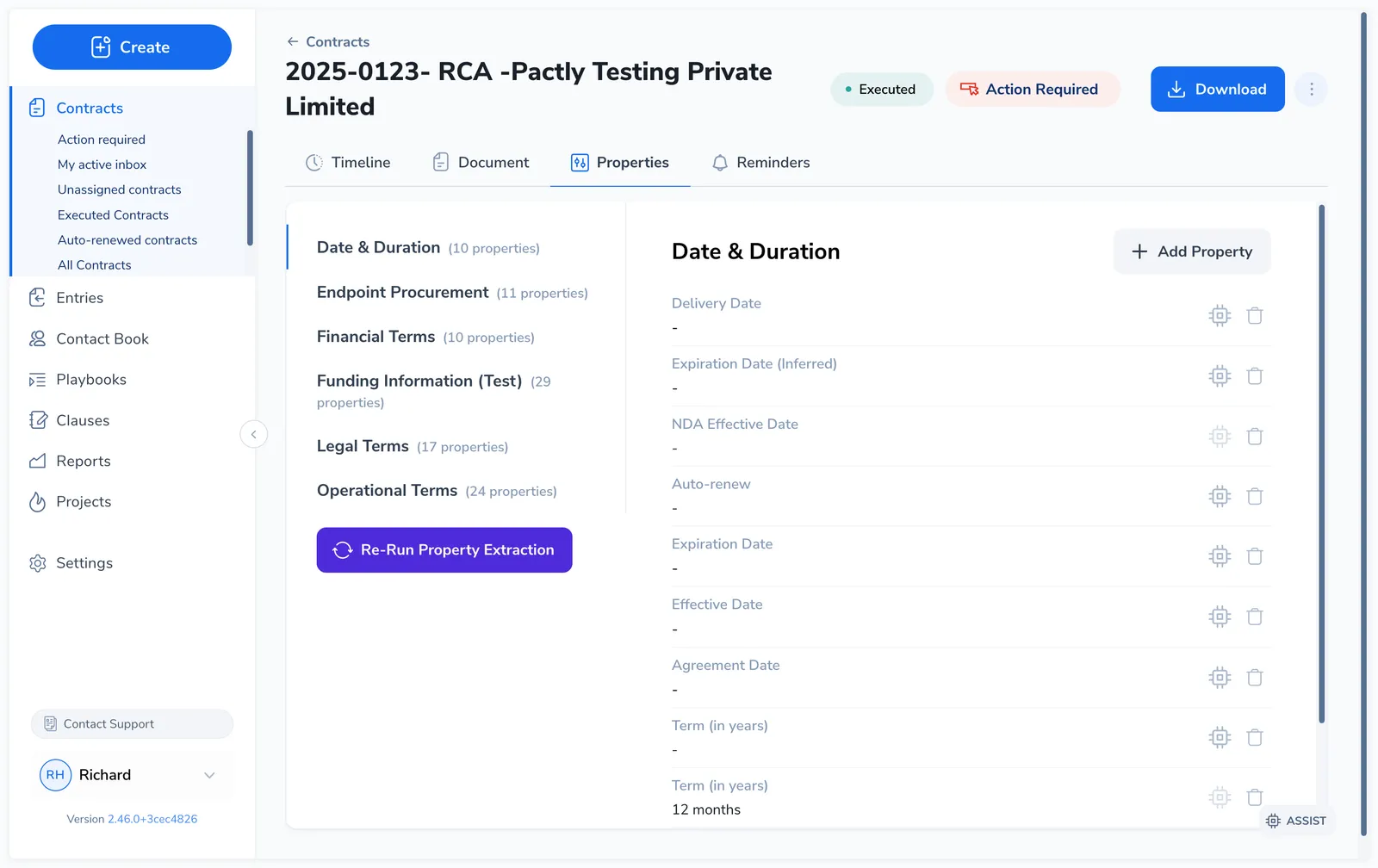
The Properties tab holds the contract’s metadata (dates, financial terms, legal terms, and any custom fields), grouped and editable inline where your permissions allow. See Manage Contract Properties.
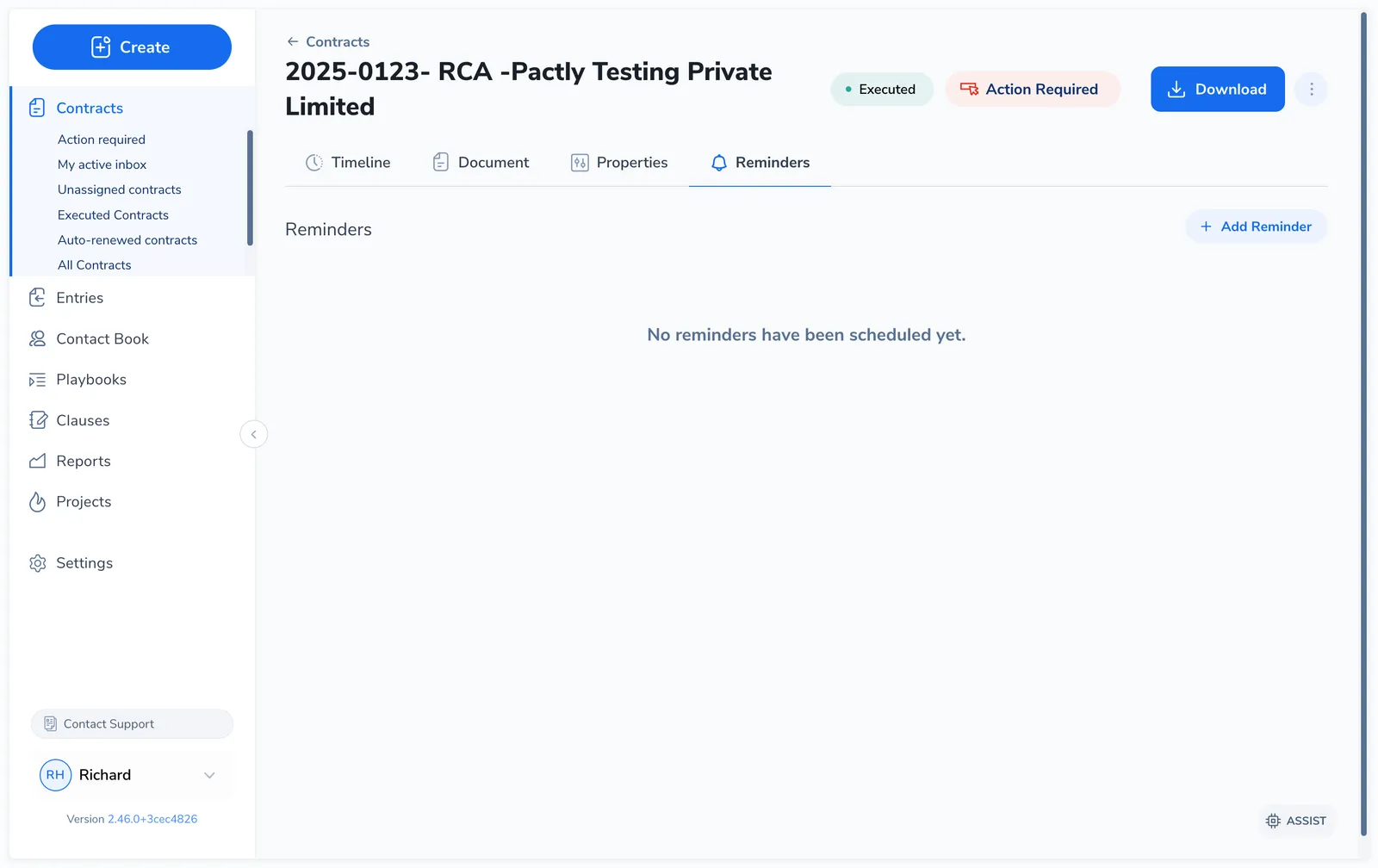
The Renewal & expiry tab tracks renewal and expiry dates and the reminders tied to them, so a renewal deadline does not slip past. Reminders are scheduled automatically before the deadline, and their recipients are emailed whether or not they are Pactly users. See Renewal & Expiry.
The Relationships panel, on the right of the Timeline tab, links a contract to others, an amendment to its original, a renewal to its parent, or any related agreement. See Contract Relationships.
Related
Section titled “Related”- Contract Status Reference - Every status and how contracts move between them
- Contract Timeline - The event feed, adding notes, and sending messages
- Create Contract Rounds - Recording a negotiation exchange
- Finalize a Contract - Closing negotiation and the discrepancy check
- Manage Contract Properties - Property types, values, and configuration
- Contract Relationships - Linking amendments, renewals, and related agreements
- Contracts Overview - How a contract moves through its lifecycle