Contract Timeline
When a counterparty returns their markup after two weeks of silence, you need to rebuild context fast: what was discussed, who approved what, and where things left off. Digging through email threads and shared drives wastes time and risks missing something.
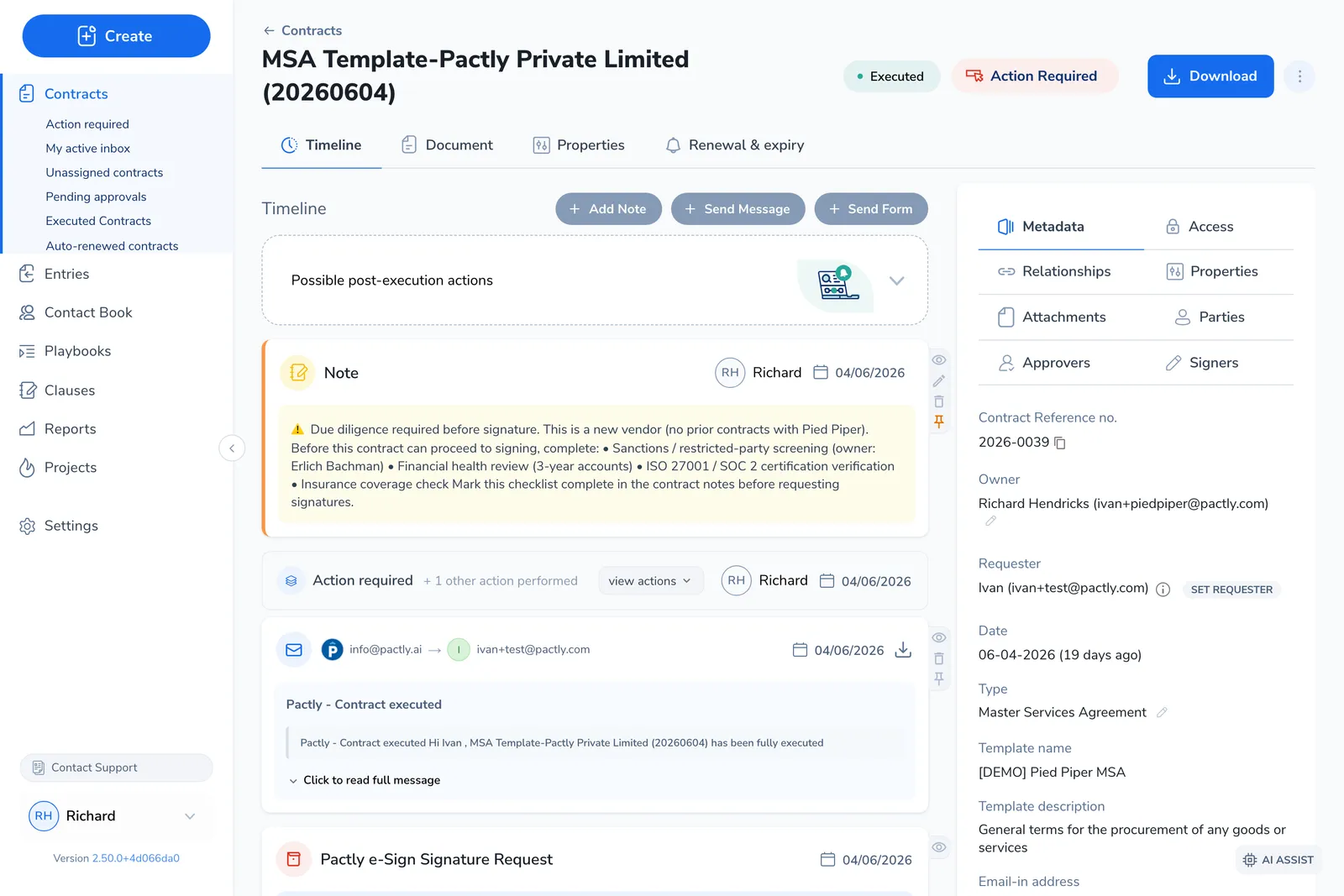
The timeline is a single chronological feed of everything that has happened on a contract, its complete record. Every status change, approval decision, signature event, note, and message lands in one place, so regaining context takes less time.
Where the timeline lives
Section titled “Where the timeline lives”Open any contract to see its record. The Timeline tab is the event feed; the other tabs hold the document and its rounds, the contract’s properties, and reminders. The sidebar shows status, owner, category, and parties at a glance.
For what the other tabs do, see Track Contract Progress.
Adding to the timeline
Section titled “Adding to the timeline”Above the feed, three buttons let you add context. Each one creates a timeline event visible to everyone with access to the contract.

Add Note leaves an internal comment, visible to anyone who can open the contract. Use it to record a decision (“Accepted their liability cap because deal value is below threshold”), flag an issue, or hand context to the next person. Notes take formatted text and up to 10 file attachments (80 MB each), and they do not email anyone.
Send message emails someone directly from the contract. The message, its recipients, and any attachments are recorded on the timeline, so your team keeps full visibility into the conversation.
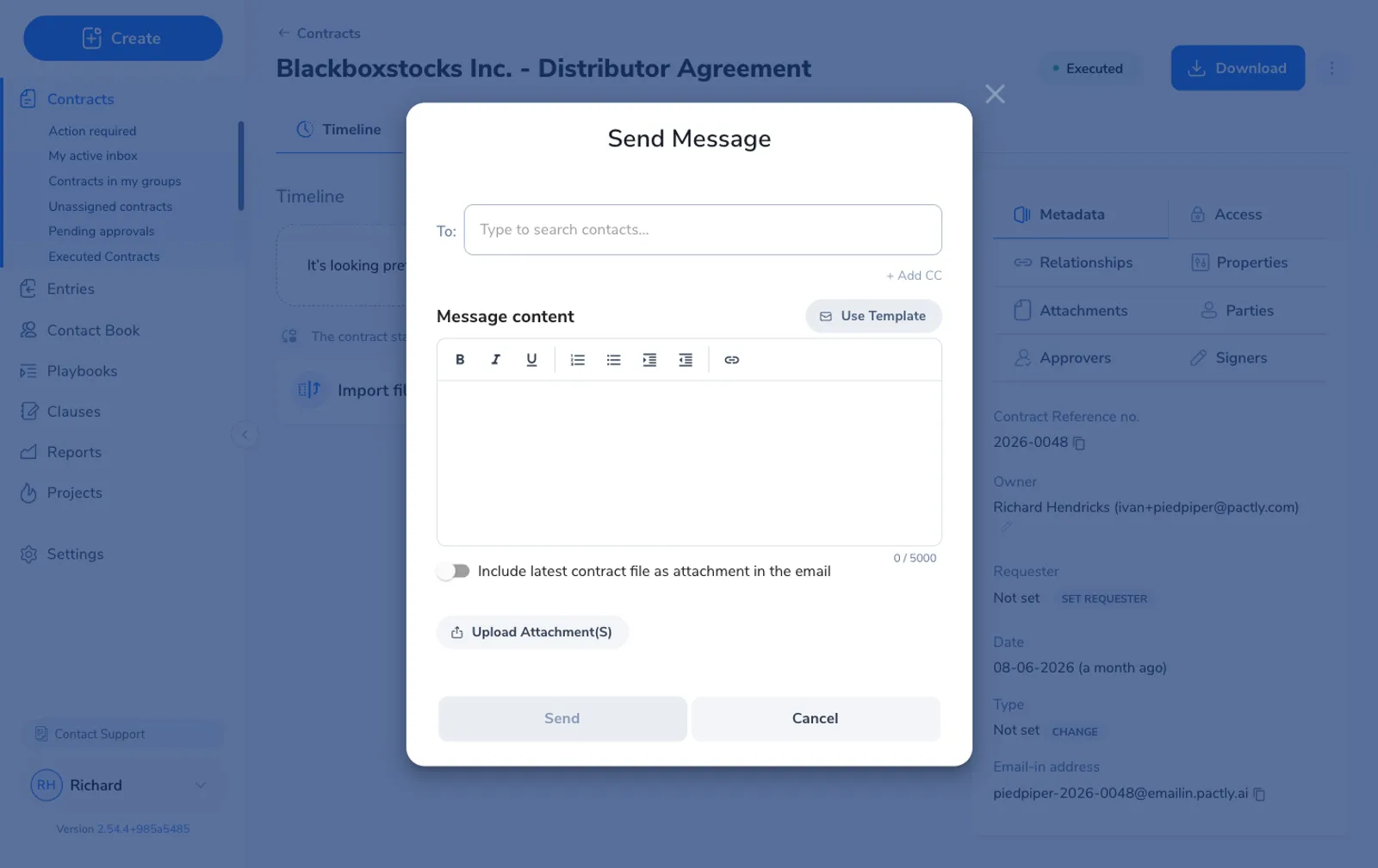
Recipients can reply straight from their inbox, and their replies appear on the timeline automatically, routed through the contract’s dedicated Pactly email address. For composing, templates, attachments, and reply tracking, see Send Messages to External Parties.
Send form sends a form sequence to one or more recipients, useful when you need more information before progressing a contract, such as a compliance questionnaire during approval.
What the timeline records
Section titled “What the timeline records”Most events are captured as they happen: status changes when a contract advances, approval decisions when an approver responds, signature events from your e-signature provider. Notes and messages are the events you add by hand.
Incoming email is the one exception worth knowing: Pactly only captures a message when it is sent to (or CCs) the contract’s dedicated email address. If a conversation happens in a separate thread outside Pactly, forward it to that address or add a note summarizing it to keep the timeline complete.

Every transition is logged, from Draft to In Negotiation, Pending Approval to Pending Signature, and so on. The event shows the previous status, the new status, and who triggered the change.
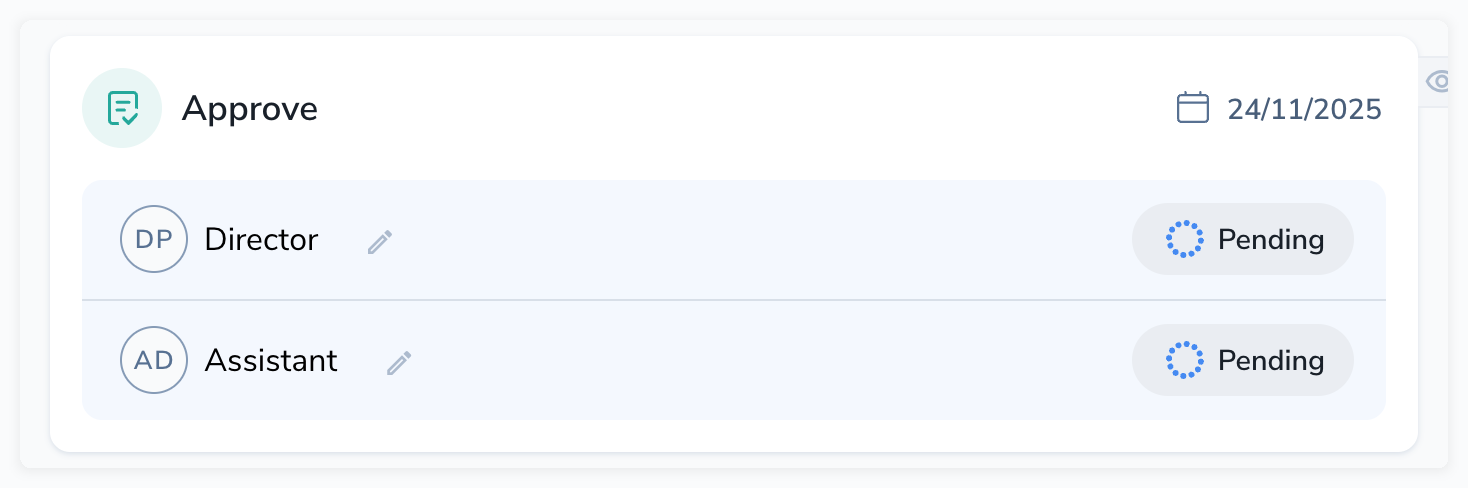
When approvers are assigned, the timeline records who was added and the approval mode (sequential or parallel). Each decision, approved or rejected, is its own event with the approver, timestamp, and any comments. Reassignments and unblocks are tracked too.
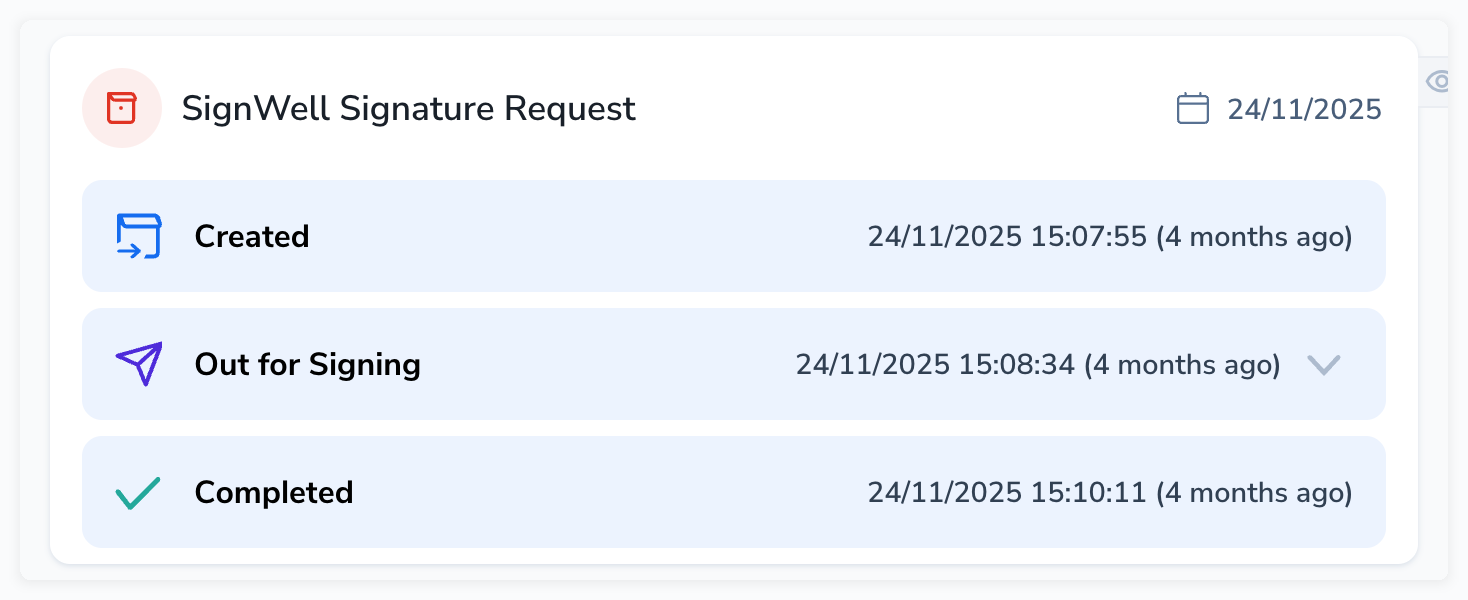
Signature events cover signers assigned, request sent, completed, declined, and cancelled. When you use a third-party e-signature provider, envelope status changes are tracked as well. If a Pactly e-Sign request is waiting on your own signature, the Out for Signing event shows a Sign contract button that takes you straight to the signing view.
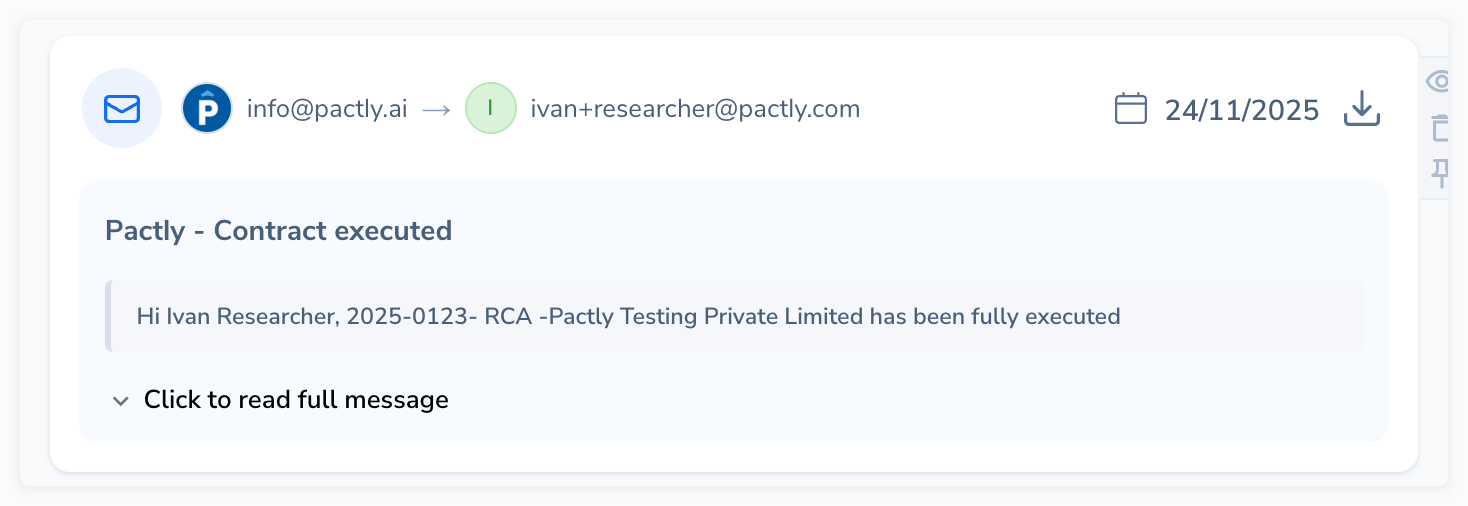
Notes are internal comments visible to anyone who can open the contract, and never email anyone. Emails cover the messages sent from the contract record and the replies that come back, tracked with their recipients and attachments. Consecutive messages from the same conversation are collected into a single item you expand to read. Both notes and emails can be pinned to the top of the feed.
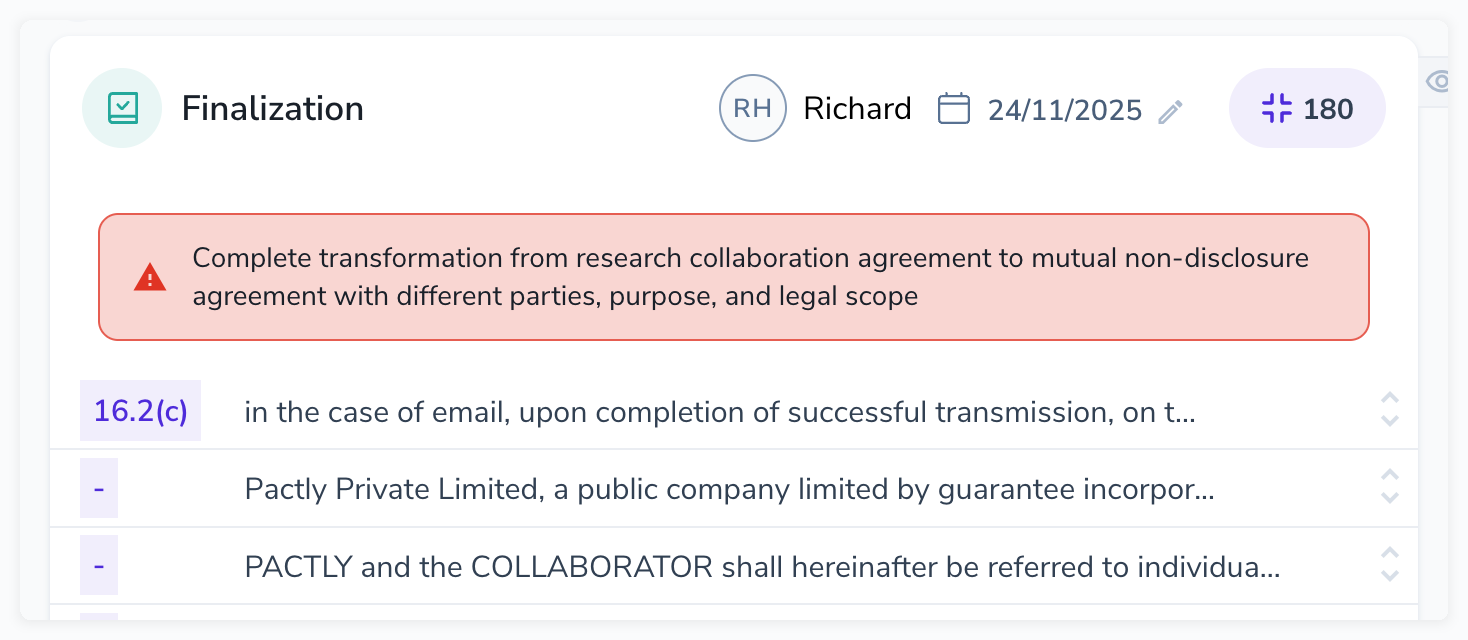
Each exchange of a document during negotiation creates a round, showing the party and the version. Changes to ownership, requester, group access, and user authorizations are recorded as well, so you always know who had access and when.
Email conversations
Section titled “Email conversations”A long exchange used to fill the feed with one entry per message. Consecutive emails that belong to the same conversation are now collected into a single item, titled with the subject of the thread. Nothing is hidden by this: click view all messages to read each one in order, and hide earlier messages to fold the thread back up.
An email that arrived with files carries a paperclip, with the number of files in its tooltip. Open it and you see everything the message carried, whatever its type. Tick the ones you want and choose Copy to contract attachments. Documents are listed above images, and on a long forwarded chain the images the message displays inline are folded behind a Show embedded images link so they do not bury the real attachments. For the full picture, including what Pactly saves on arrival, see Email a Contract into Pactly.
Managing notes and emails
Section titled “Managing notes and emails”Hover over a note or email to reveal its action buttons along the right edge: pin, delete, and visibility. You manage each item without leaving the feed.
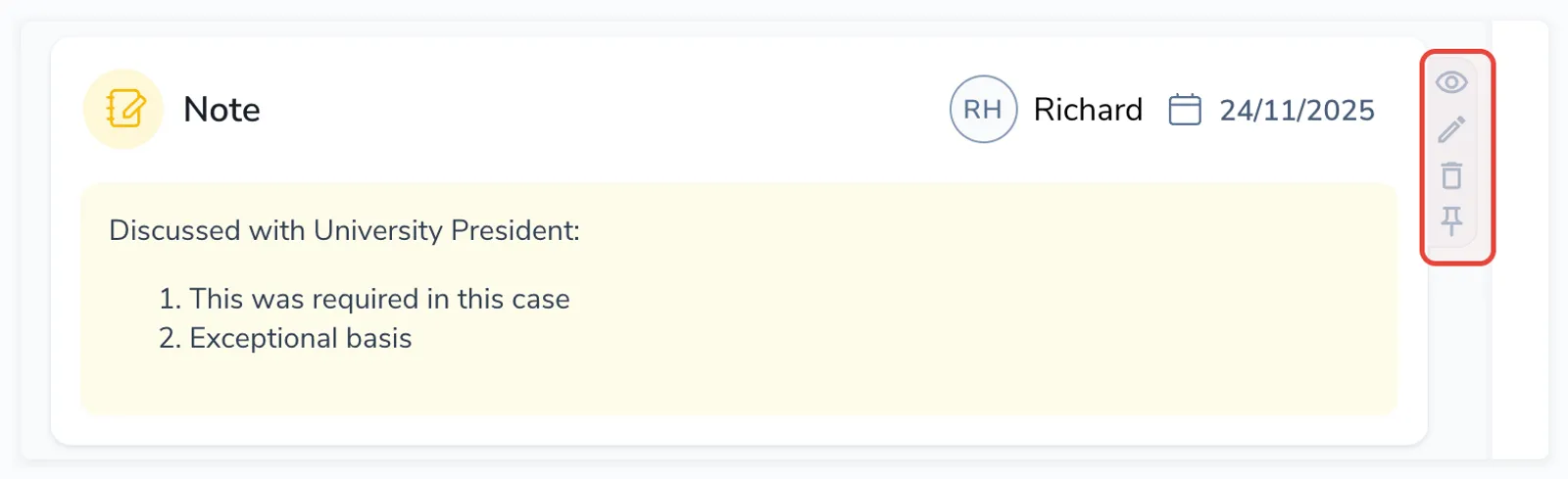
Pin keeps an item at the top of the feed regardless of date, marked with an orange left border, useful for a key decision or a caveat the next person should see first. Click the pin again to unpin.
Delete removes an item from the feed but does not undo the underlying action. The deletion is itself recorded as a separate event, so there is always a record of what was removed and by whom.
Edit is available only on notes you create. System-generated events and messages cannot be edited.
Limiting who can see an item
Section titled “Limiting who can see an item”When a contract is shared broadly but a note or email is sensitive (internal strategy, a privileged note), you can hide it from specific roles. Hover over the item, click the visibility icon, and select the roles that should not see it. The item stays visible to everyone with unrestricted access and disappears for the rest.
An email conversation has its own visibility icon on the conversation header. Hiding the conversation there covers every message in it, and replies that arrive later are hidden from the same roles as they come in. The icon on a single message changes that message only.
Deleting items requires the Manage Timeline permission, and limiting visibility requires Manage Visibility, both set through role-based access control.
- Add notes during negotiation, not after. Record a concession or a non-standard term the moment you agree to it. A note like “Accepted a 12-month limitation period because contract value is under $50K” saves hours of context-rebuilding later.
- Pin the non-obvious. If a contract has an unusual approval path or an important caveat, pin a note explaining it so the next person sees it first.
- Keep external email on the timeline. Use Send message so the exchange is tracked. If you reply from your own inbox instead, CC the contract’s Pactly email address or forward the thread to avoid gaps.
Related
Section titled “Related”- Track Contract Progress - The contract record: status, documents, rounds, and the sidebar
- Send Messages to External Parties - Composing messages, templates, attachments, and reply tracking
- Setting Up Reminders - Renewal and obligation reminders on the Reminders tab
- Contract Status Reference - Every status and how contracts move between them
- Contracts overview - The repository and the full contract lifecycle