Contract Status Reference
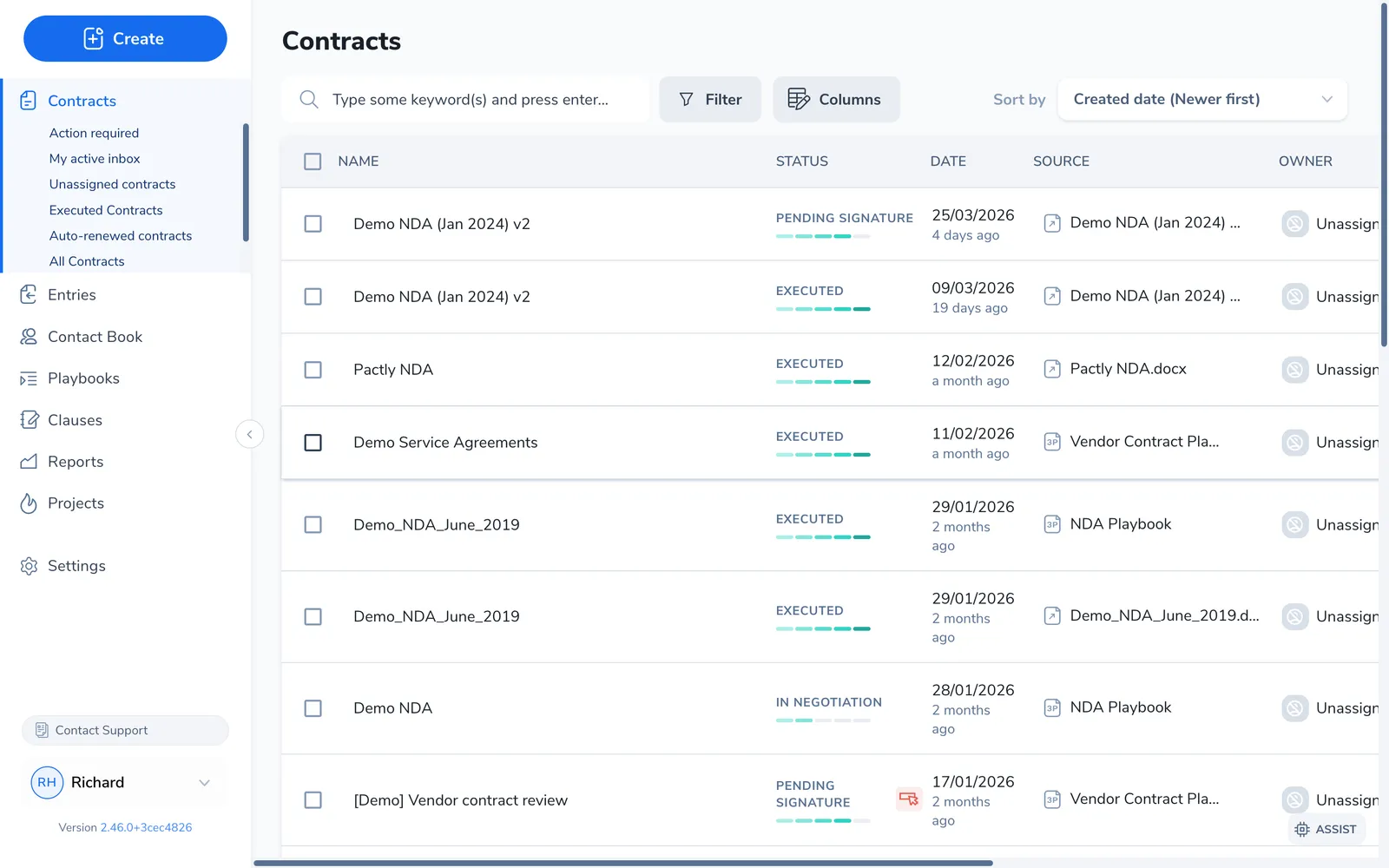
Every contract carries a status that shows where it sits in its lifecycle. Status decides what actions are available, where the contract appears in views and reports, and what the badge next to its name reads.
This page lists each status and how a contract moves between them, plus the end-of-life flags and block indicators that sit alongside status without replacing it.
The lifecycle statuses
Section titled “The lifecycle statuses”A contract moves forward through these six statuses. Not every contract hits every one. A straightforward agreement can go from Draft to Pending Signature to Executed with no negotiation or approval in between.
| Status | What it means | Where it starts |
|---|---|---|
| Draft | The document is being prepared internally and has not gone out. | Start for Template Contracts (drafted from your own paper). |
| In Negotiation | The document is being exchanged with the other party. Each exchange is recorded as a round. | A Template Contract sent for negotiation. |
| Pending Approval | The contract is waiting for internal sign-off before it can proceed. | Start for External Contracts sent for approval. |
| Pending Signature | The agreed document is out for electronic signature, waiting for all signers to complete. | Start for External Contracts sent for signature. |
| Executed | Every signature is collected and the signed PDF is stored on the contract record. | Not a starting point |
| Terminated | An executed contract that was ended early, before its natural expiry. Recording it requires a reason and an effective date. | Not a starting point |
How a contract moves between statuses
Section titled “How a contract moves between statuses”The path depends on whose paper the contract started from. A Template Contract starts at Draft and moves Draft → In Negotiation → Pending Approval → Pending Signature → Executed. A Playbook Contract starts at In Review and joins the same path at Pending Approval. An External Contract enters directly at Pending Approval (sent for approval) or Pending Signature (sent for signature), depending on how it was created.
From any active status a contract can also be aborted; an executed one can be terminated or archived.
External Contracts cannot be finalized. Finalization (closing negotiation) applies only to Template and Playbook Contracts, since those are the ones negotiated inside Pactly.
End-of-life flags
Section titled “End-of-life flags”These are not statuses. They are flags that sit on top of the lifecycle status to mark a contract as out of active management. A contract keeps its underlying status (often Executed) while carrying one of these flags.
| Flag | What it means | Reversible? | In the default list? |
|---|---|---|---|
| Archived | Complete or no longer actively managed. Fully preserved and searchable. | Yes (unarchive) | Hidden; shown with the Archived filter |
| Aborted | Negotiation abandoned before execution. The contract never became active, but is kept for the audit trail. | Yes (undo abort) | Hidden; shown with the Aborted filter |
| Marked for Abort | Scheduled to abort automatically after a 30-day grace period. | Yes (cancel) | Shown with the status filter |
| Deleted | Permanently removed. For mistakes, duplicates, or test contracts. | No | Removed everywhere |
For help choosing between these actions, see Abort, Archive, Terminate, Delete.
Block indicators
Section titled “Block indicators”A contract can also show a block indicator. Like the end-of-life flags, these are not statuses. The contract keeps its current status (Draft, In Negotiation, and so on); the indicator flags that something must be resolved before it can move forward.
| Indicator | What it means |
|---|---|
| Finalization blocked | Data-completeness rules prevent finalization until specific conditions are met, such as required properties filled or party verification complete. An admin can override the block. |
| Approval blocked | The approval workflow cannot start because its configuration is invalid, for example no approvers set for the matching rule. |
Reversing a status change
Section titled “Reversing a status change”Some moves can be undone. Each undo is recorded on the contract timeline for the audit trail.
| Action | Effect |
|---|---|
| Undo Finalization | Reopens negotiation. Returns to Draft (if no rounds exist) or In Negotiation / In Review (if they do). Destroys all approval requests and decisions made during finalization. |
| Undo Execution | Reverts Executed back to Pending Signature. Use when a signature was recorded in error or the wrong signed file was uploaded. |
| Undo Abort | Restores an aborted contract to its previous active state. |
| Cancel Mark for Abort | Cancels a scheduled abort before the 30-day grace period ends. |
Visibility and reporting by status
Section titled “Visibility and reporting by status”| Status | Default list | Reports | Search |
|---|---|---|---|
| Draft, In Review, In Negotiation, Pending Approval, Pending Signature, Executed | Visible | Included | Yes |
| Terminated | Visible | Included | Yes |
| Archived | Hidden (Archived filter) | Included | Yes |
| Marked for Abort | Hidden (status filter) | Included | Yes |
| Aborted | Hidden (Aborted filter) | Excluded | Yes |
| Deleted | Removed | Excluded | No |
A Marked for Abort contract has not aborted yet, so it stays in reports until its grace period elapses and the auto-abort fires. It is only hidden from the default list. Once it becomes Aborted, it drops out of reports.
When a filter or search keyword is active, archived and aborted contracts are included in the results by default. Use the Archived and Aborted toggles to hide them.