Reviewing a Vendor NDA
A vendor sends you their standard NDA on their own paper. You need to check it against your organization’s requirements, push back on the clauses that fall short, get internal sign-off, and return it signed. This walkthrough follows one NDA from upload to execution, and points to the detailed articles for each step.
1. Upload the vendor’s NDA
Section titled “1. Upload the vendor’s NDA”Click Create in the contract repository and choose Review a Third-party Contract. You can either fill in an intake form or upload the document directly.
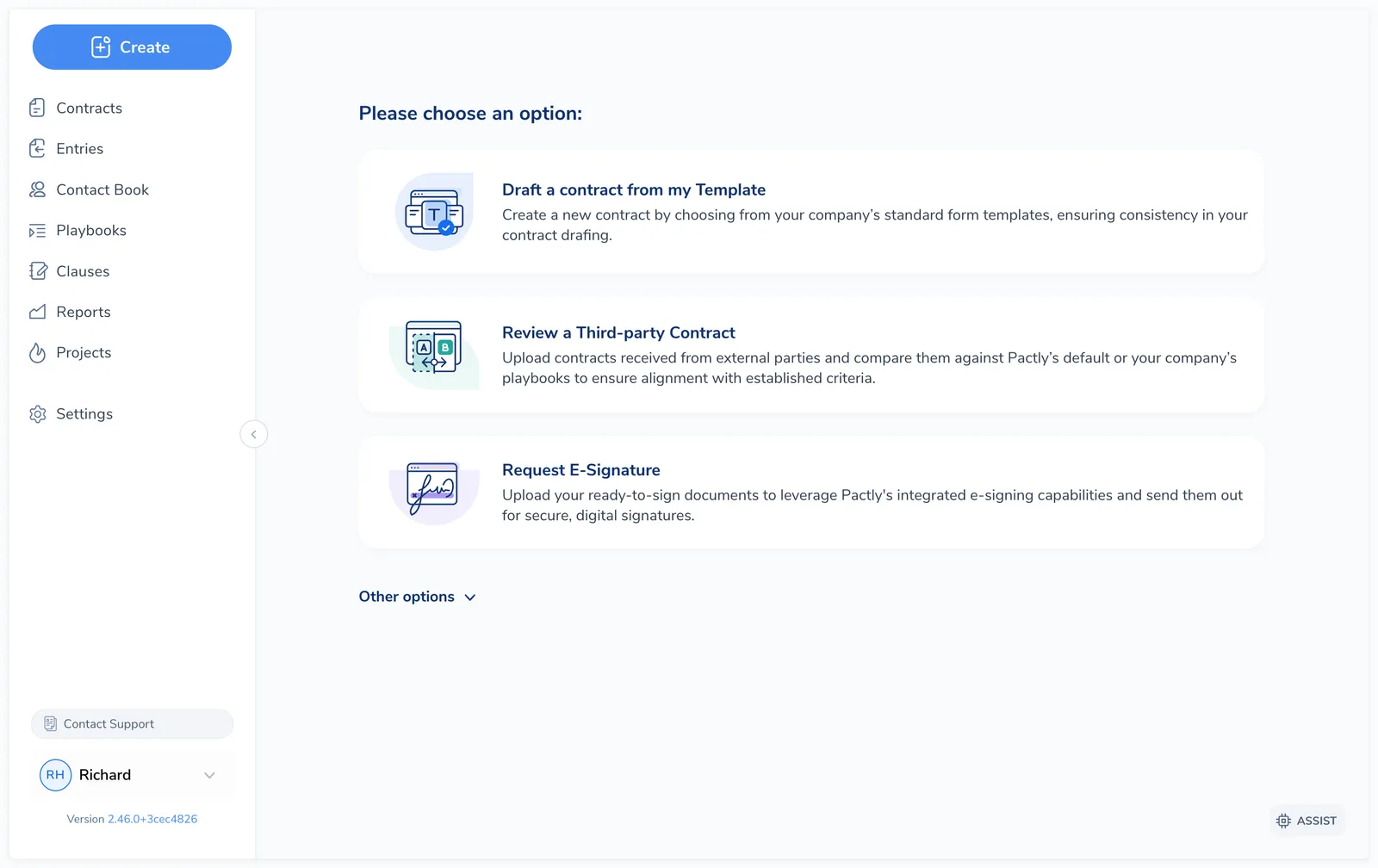
Upload the vendor’s .docx, give it a clear name, set the NDA category, and pick the playbook to review against. The contract lands in the repository as a playbook contract with In Review status.
2. Run the playbook review
Section titled “2. Run the playbook review”Open the contract in Microsoft Word and run the review from the Pactly Word Plugin. The review reads the whole document and scores each clause against every position in your playbook.
Each position comes back as Compliant, Non-Compliant, Uncertain, or Not Applicable. For a non-compliant clause, the review shows what is wrong and offers replacement language from your clause library, which you can insert in place.
See Running a Playbook Review for the full add-in flow.
3. Redline and record a round
Section titled “3. Redline and record a round”Mark up the document in Word: accept the compliant clauses, redline the rest using your clause library language or your own edits, and comment where you want to explain a change.
When your edits are ready, create a round from the Pactly Word Plugin. This captures the current document as a negotiation round and records it on the timeline.
4. Negotiate and track rounds
Section titled “4. Negotiate and track rounds”Send your marked-up version to the vendor. Use Send Message to email it from the contract so the exchange stays on the timeline, or send from your own email client.
Each exchange is a round, alternating Sent and Received as the document goes back and forth until terms are agreed. At any point you can compare two rounds to see exactly what changed; the Document tab holds every round and the side-by-side comparison.
5. Get internal approval
Section titled “5. Get internal approval”If your organization uses approval workflows, finalizing routes the contract to the right approvers based on your rules (for example, a non-standard liability cap might need director sign-off). The contract moves to Pending Approval while it waits.
Approvers see the full picture: the current document, the negotiation history, the playbook results, and any timeline notes. They can approve, reject with comments, or reassign. Once every required approval is in, the contract advances to Pending Signature.
6. Finalize and send for signature
Section titled “6. Finalize and send for signature”When both sides agree, finalize the contract. You can continue with the latest version already in Pactly, or upload the final agreed document.
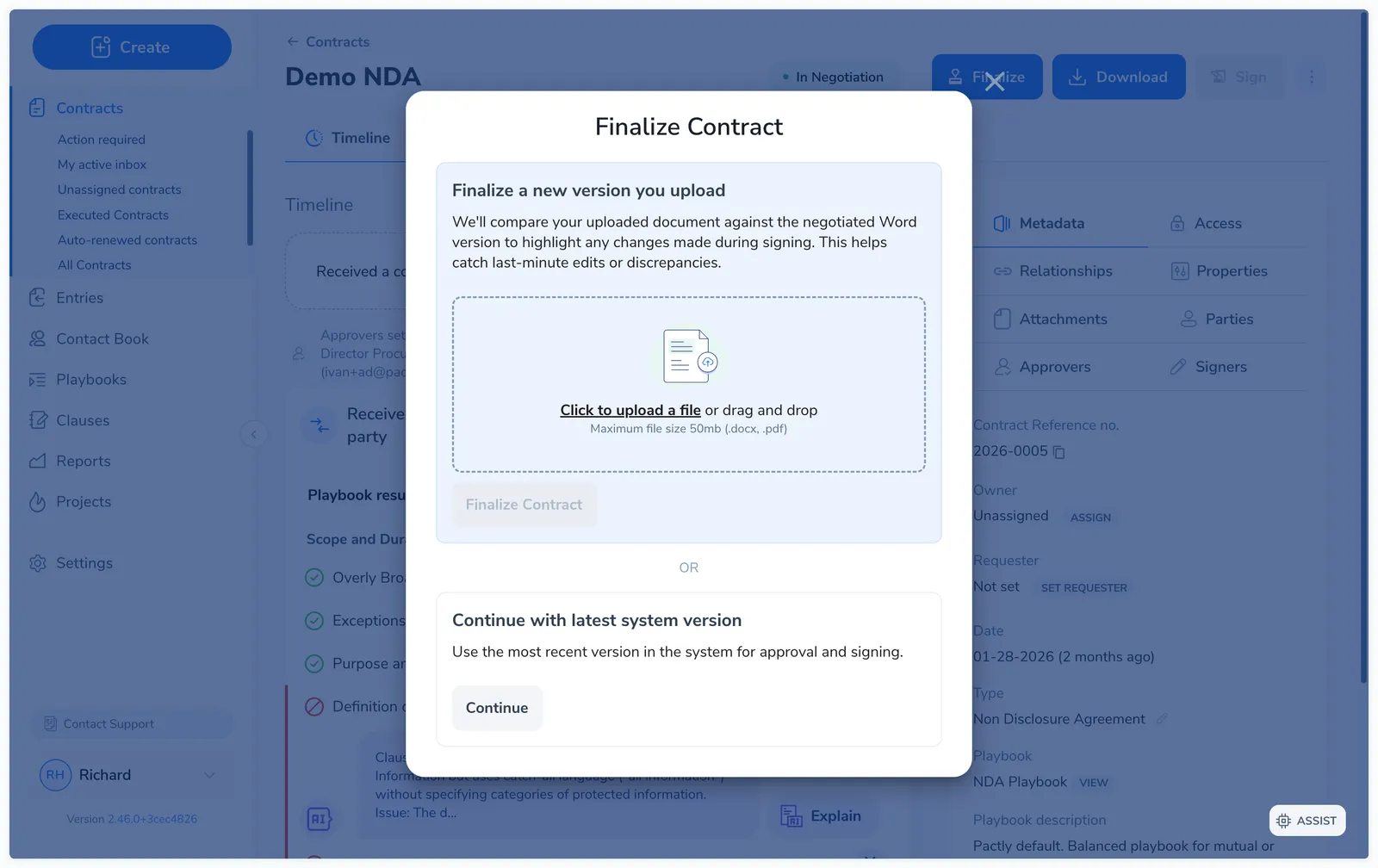
Uploading a new version triggers an automatic discrepancy check against the last negotiated round, catching any unexpected changes slipped into the clean copy. Review it before you send.
Then send for e-signature: choose your e-signature provider, add the signers, and send. Signature events post to the timeline, and once everyone signs the contract moves to Executed with the signed PDF stored on the record.