E-Signatures
When a contract is ready to sign, getting signatures from every party can mean emailing PDFs back and forth and chasing people manually.
Pactly handles signing directly from the contract record. You add signers, place signature fields on the document, and send. Each signer gets a link to review and sign, and you can track who has signed, who hasn’t, and send reminders.
What’s Covered in This Section
Section titled “What’s Covered in This Section”- Create and Send a Signature Request - Add signers, place signature fields, choose a signing order, and send the request
- Complete a Signature Request (Signer Guide) - What signers see and how they complete the signing process
- Cancel or Abort a Signature Request - How to cancel an in-progress signature request
- Upload a Signed Document Manually - For contracts signed outside Pactly, upload the executed document to complete the record
- Send Signature Reminders - Nudge signers who have not yet completed their signatures
- Fully Signed vs Partially Signed - Understand the two execution modes and when to use each
- Pactly e-Sign Settings - The company-wide defaults behind every request: dates, completion emails, link expiry, and automatic reminders
- Signature Validity and the Trusted Seal - How a signed contract proves it is genuine, and keeps proving it years later
E-Signature Providers
Section titled “E-Signature Providers”Pactly supports three e-signature providers. You choose which provider to use when creating a signature request.
Pactly e-Sign is the built-in provider. It works out of the box with no additional setup or licensing. Signers receive an email with a link to review and sign the document in their browser.
DocuSign is available as an enterprise integration. Your organization’s admin connects DocuSign at the account level, then each user activates their own DocuSign account in their profile settings. When you create a signature request, you can select DocuSign as the provider.
Adobe Sign works the same way as DocuSign. Admin connects the integration, users activate individually, and you select Adobe Sign when creating a request.
All three providers follow the same workflow in Pactly: add signers, place fields, send. The signing experience for the signer differs depending on the provider, but tracking and status updates in Pactly are consistent across all three.
 Built-in
Native provider. Works out of the box, no setup or licensing.
 Integration
Admin connects the integration, users activate individually.
 Integration
Admin connects the integration, users activate individually.
How E-Signatures Fit the Contract Lifecycle
Section titled “How E-Signatures Fit the Contract Lifecycle”By the time you send a contract for signatures, it has already been drafted (or uploaded), reviewed, negotiated, and approved. Collecting the signatures is the final step before the document is fully executed.
When all required signatures are collected, Pactly automatically moves the contract to Executed status. The signed document is stored on the contract record alongside the full timeline of signature events: who signed, when, and in what order. Every signer, viewer and CC recipient also receives the signed document by email, and a signer’s own signing link keeps offering it for download, so people outside your organization get their copy too.
If your organization uses workflows, you can configure rules that trigger after execution, such as notifications, archival, or renewal reminders.
Collecting signatures is the final step before a contract is Executed.
Key Concepts
Section titled “Key Concepts”Signing Envelope
Section titled “Signing Envelope”A signing envelope is the container for a single signature request. It tracks the document being signed, the list of signers, their completion status, and the signing order. A contract has only one active envelope at a time: if you cancel a request and start a new one, the new envelope replaces the old, so there is always a single signing version on the contract.
Signing Order
Section titled “Signing Order”When you create a signature request, you choose between two signing orders. Parallel sends the request to all signers at the same time. Sequential sends it to one signer at a time, in a defined order. The next signer only receives their request after the previous signer completes theirs.
Signature Fields
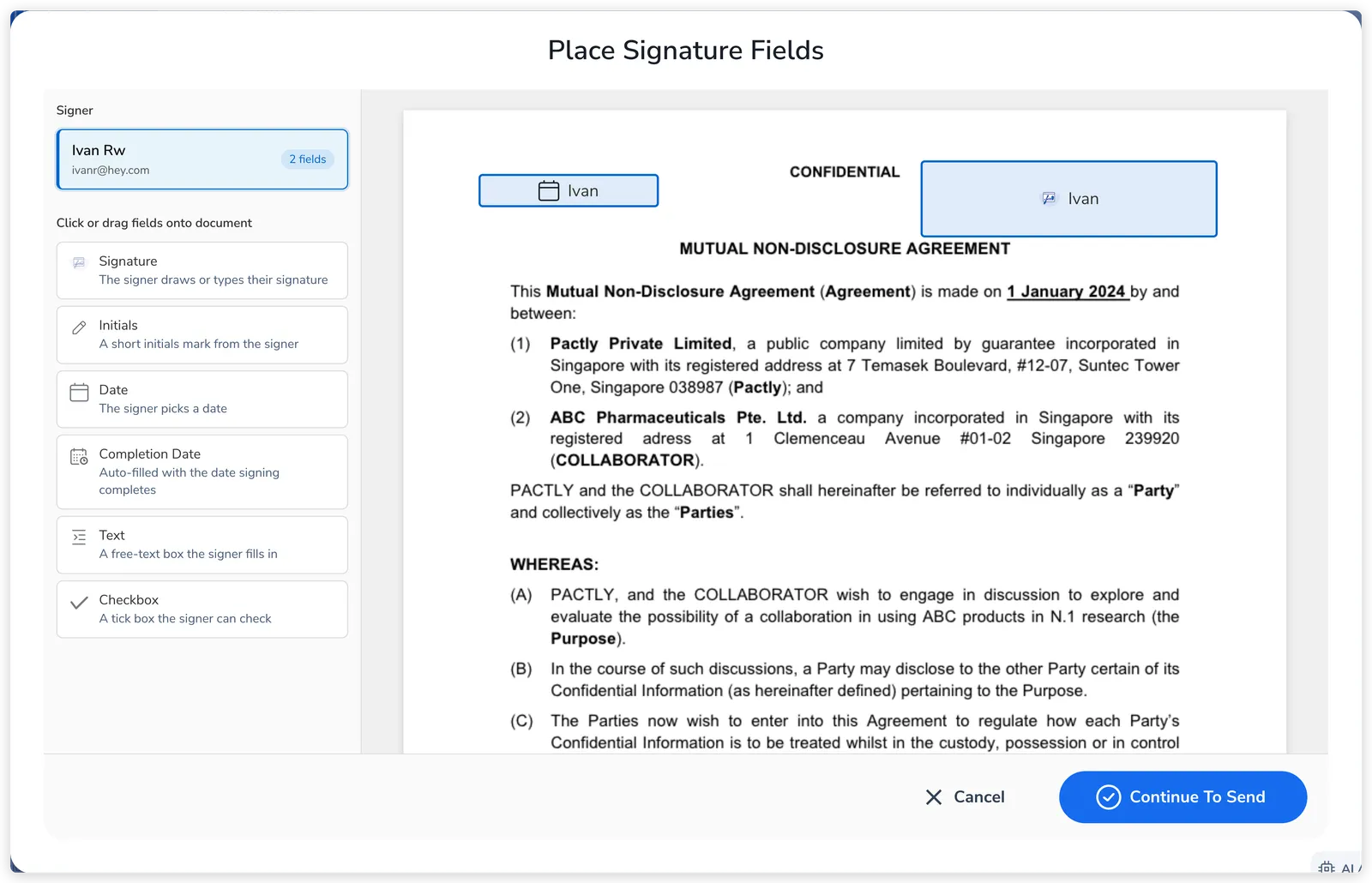
Section titled “Signature Fields”Signature fields are zones you place on the document before sending. Each field is assigned to a specific signer. Field types include signature, initials, date signed, text input, checkbox, and company stamp. Signers can only interact with fields assigned to them. A company stamp accompanies the signer’s personal signature.
Execution Mode
Section titled “Execution Mode”Execution mode tells Pactly whether the signatures collected in a request fully execute the contract or only partially. Fully signed means every required party signs through this request, and when signing completes Pactly runs the automated next steps for an executed contract. Partially signed means only some signatures are collected here and more will be added separately, so Pactly records the signed document but holds back the post-signature automation.
See Fully Signed vs Partially Signed for details on when to use each mode.