How to Create and Send a Signature Request
This guide walks you through creating and sending a signature request in Pactly. By the end, you’ll be able to upload your documents and request electronic signatures.
Video Walkthrough
Section titled “Video Walkthrough”Step-by-Step Instructions
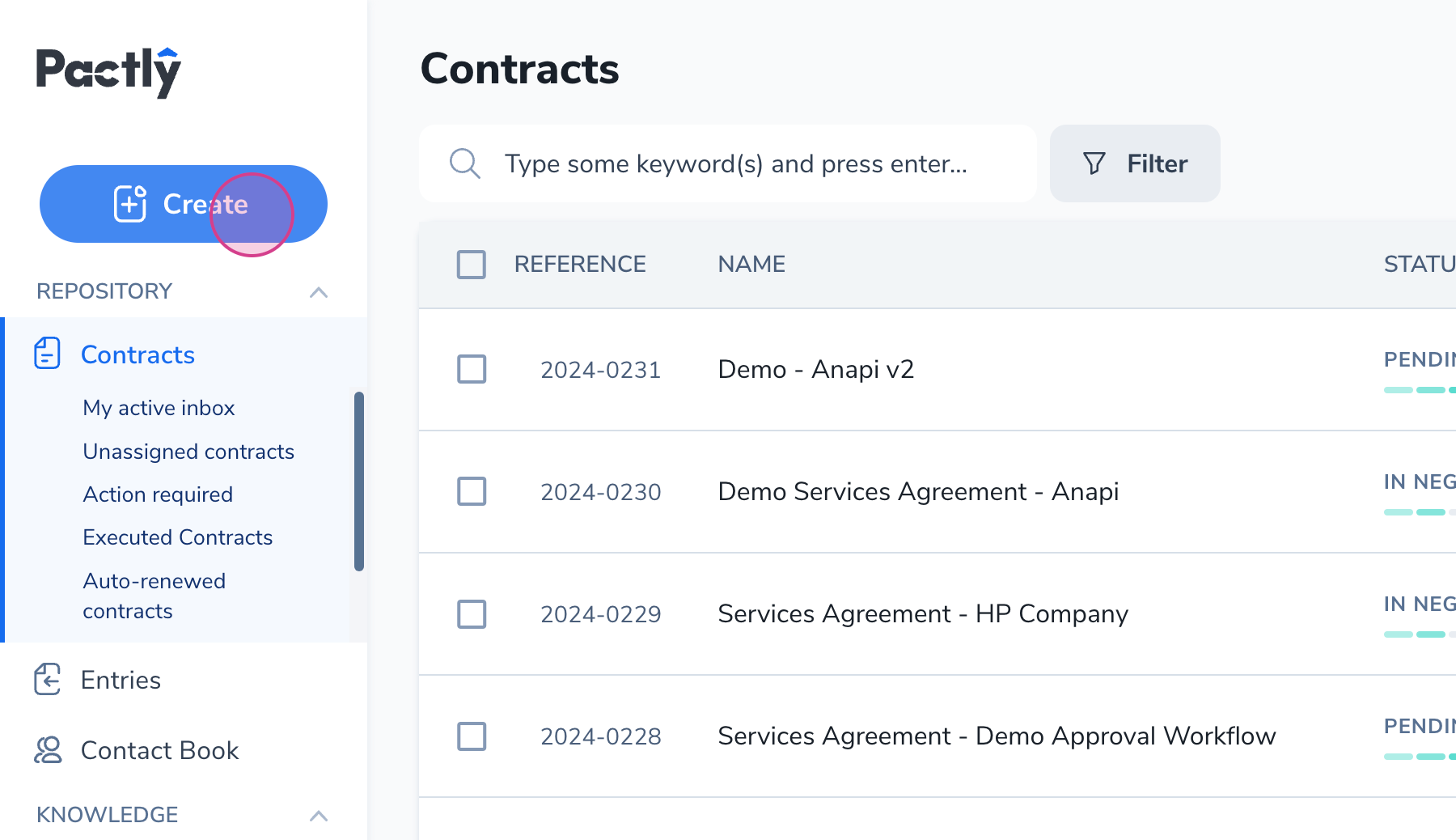
Section titled “Step-by-Step Instructions”Step 1: Log into Pactly and click on the Create button on the main contract listing screen.
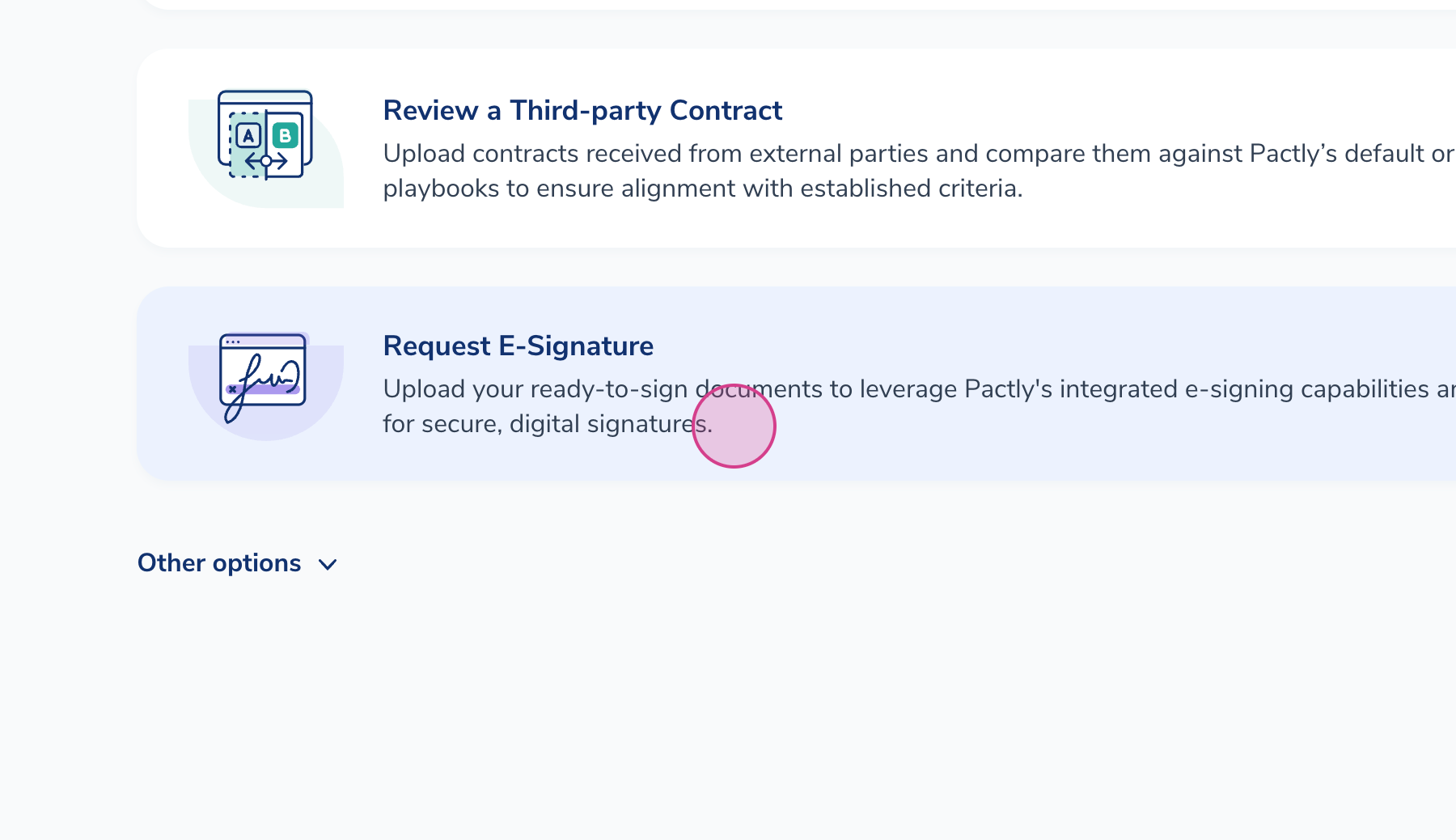
Step 2: Select the Request E-Signature option. This allows you to upload your ready-to-sign documents and use any of our e-signature integrations or Pactly e-Sign to get your document signed.
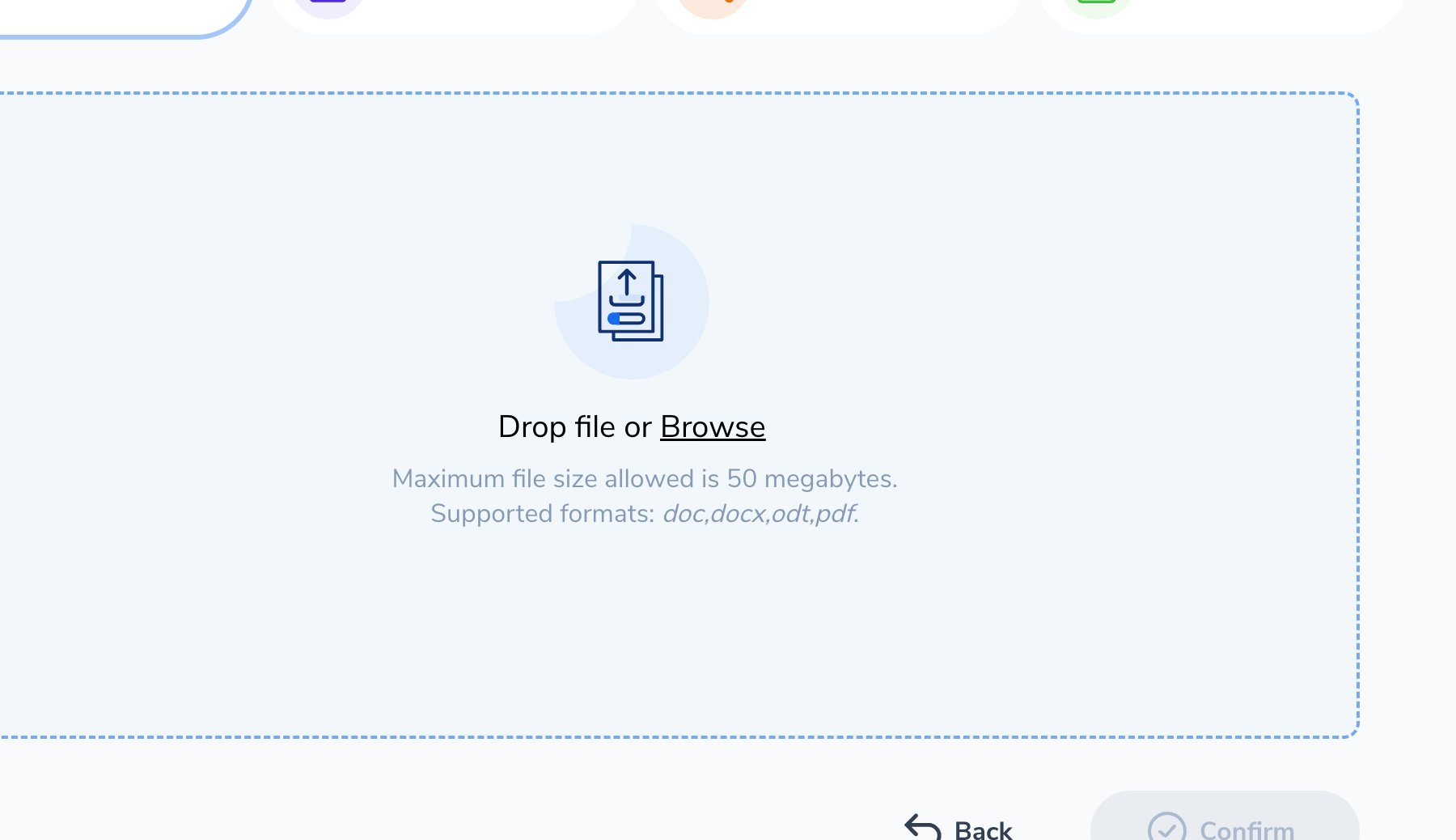
Step 3: Upload your document. Accepted formats include .pdf, .docx, .doc, and .odt (Open Office document file).
Step 4: Rename your document (if you wish), select the relevant contract category, and click Confirm.
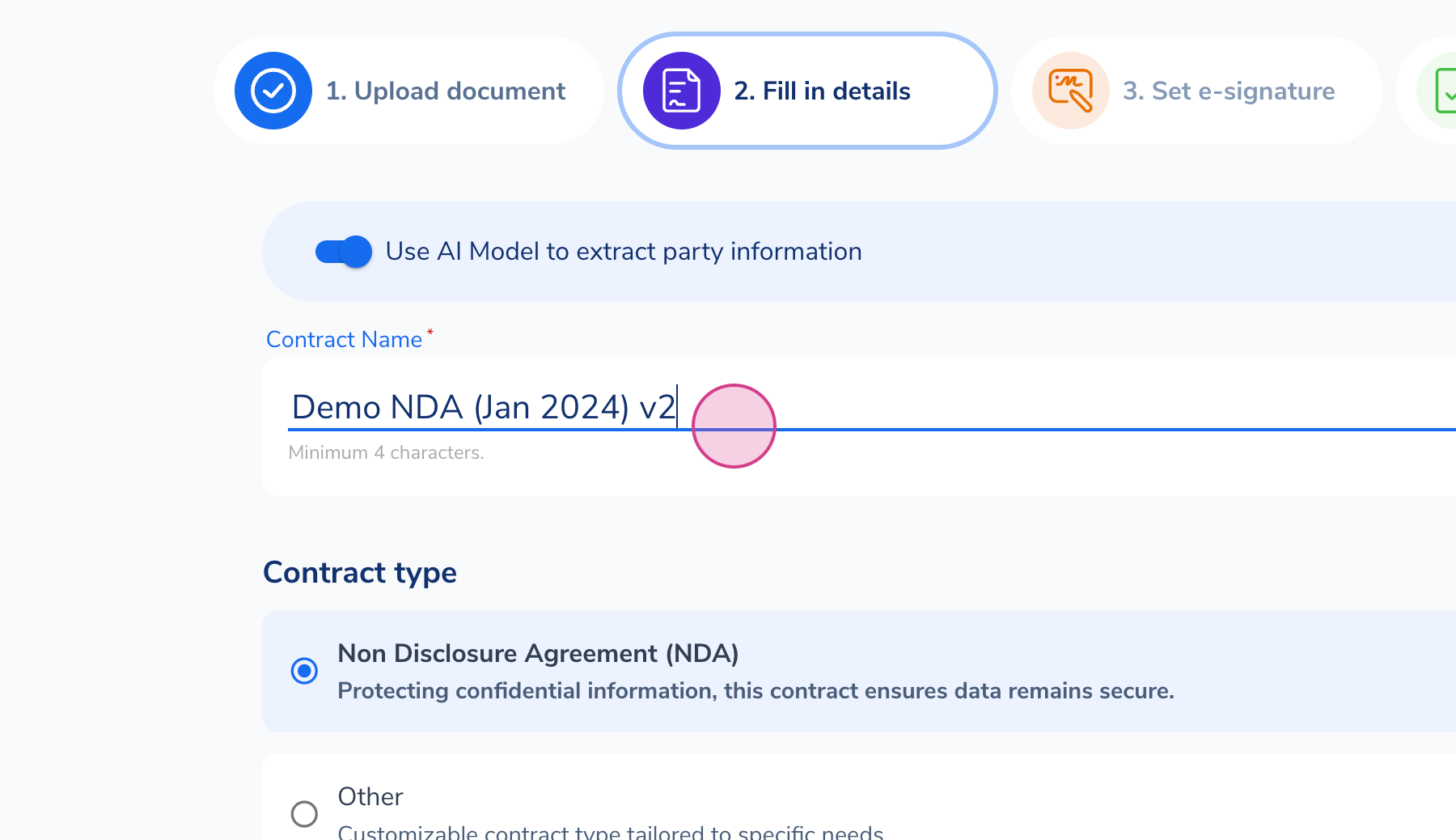
Step 5: Choose your e-signature provider. If you have more than one set up, you’ll see those options here. Otherwise, your default option will be selected.
Step 6: Decide whether signers will sign in parallel or sequentially:
- Parallel signing: All signers can sign at any time. The document is considered complete only when everyone has signed.
- Sequential signing: The second signer only receives the signing request after the first signer has completed signing.
Step 7: Add your signers.
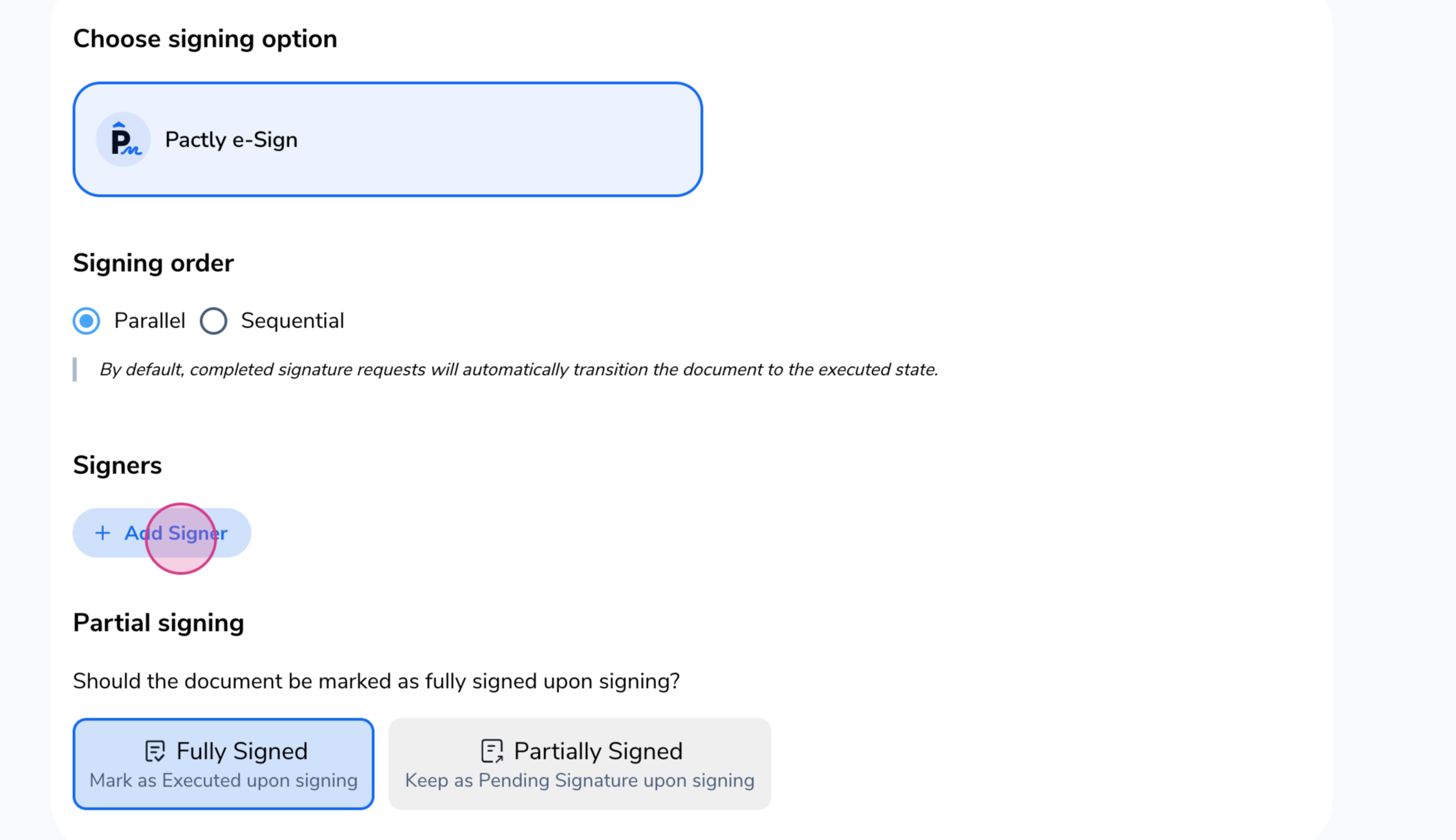
Step 8: Choose whether the document should be marked as fully signed or partially signed when this signature request is finished:
- Fully signed: The contract shows as “Executed” once everyone has signed. Select this when sending to all parties, or if you’re the last person to sign.
- Partially signed: The document stays as “Pending signature” after signing. Select this if you’re the first person to sign and need to send to another party afterward.
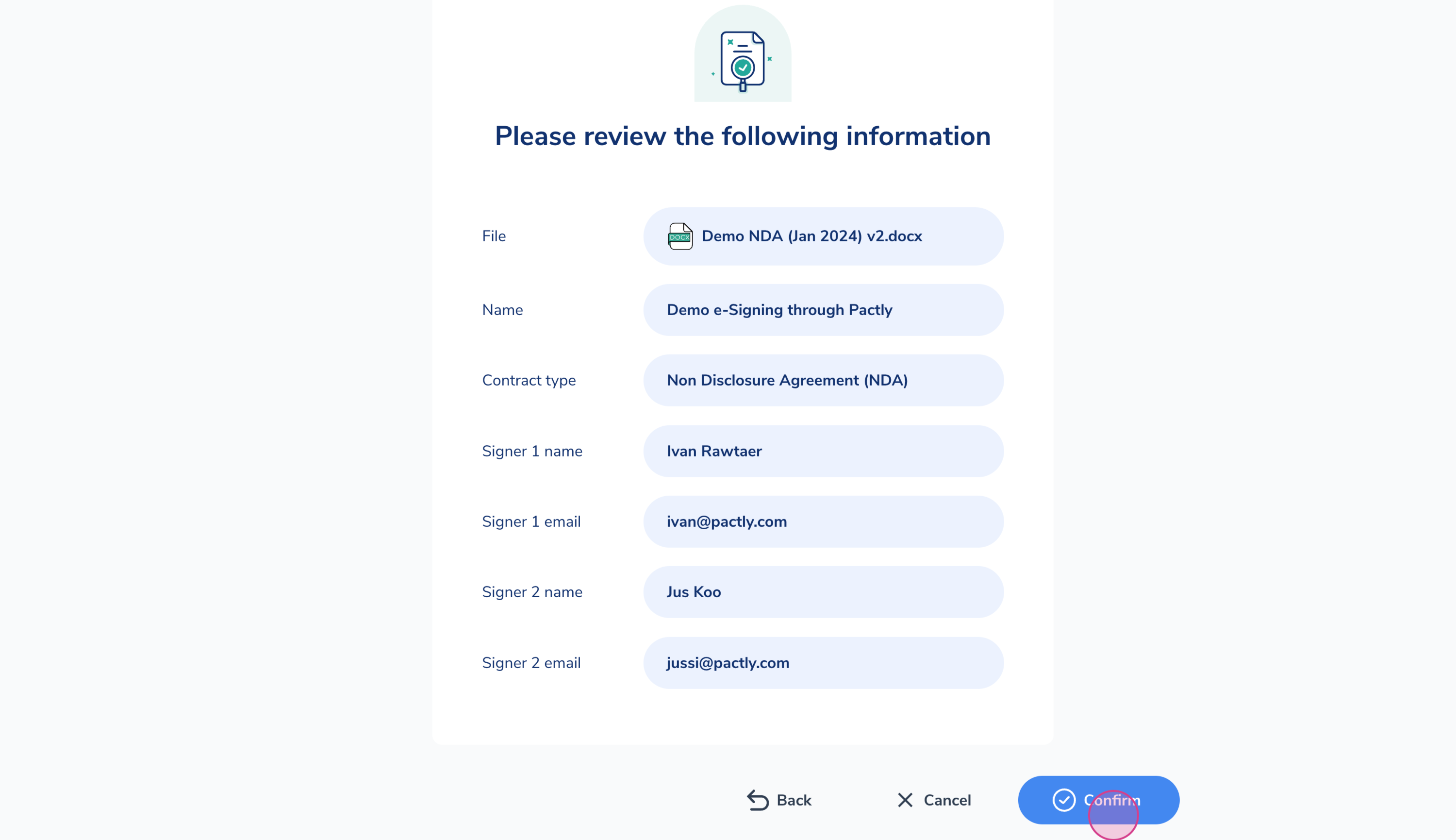
Step 9: Review the information and click Confirm.
Step 10: The Pactly e-signature editor will open where you can add signature fields, text fields, date fields, or initial fields to the relevant parts of the document.
Note: Pactly e-Sign is powered by Signwell.
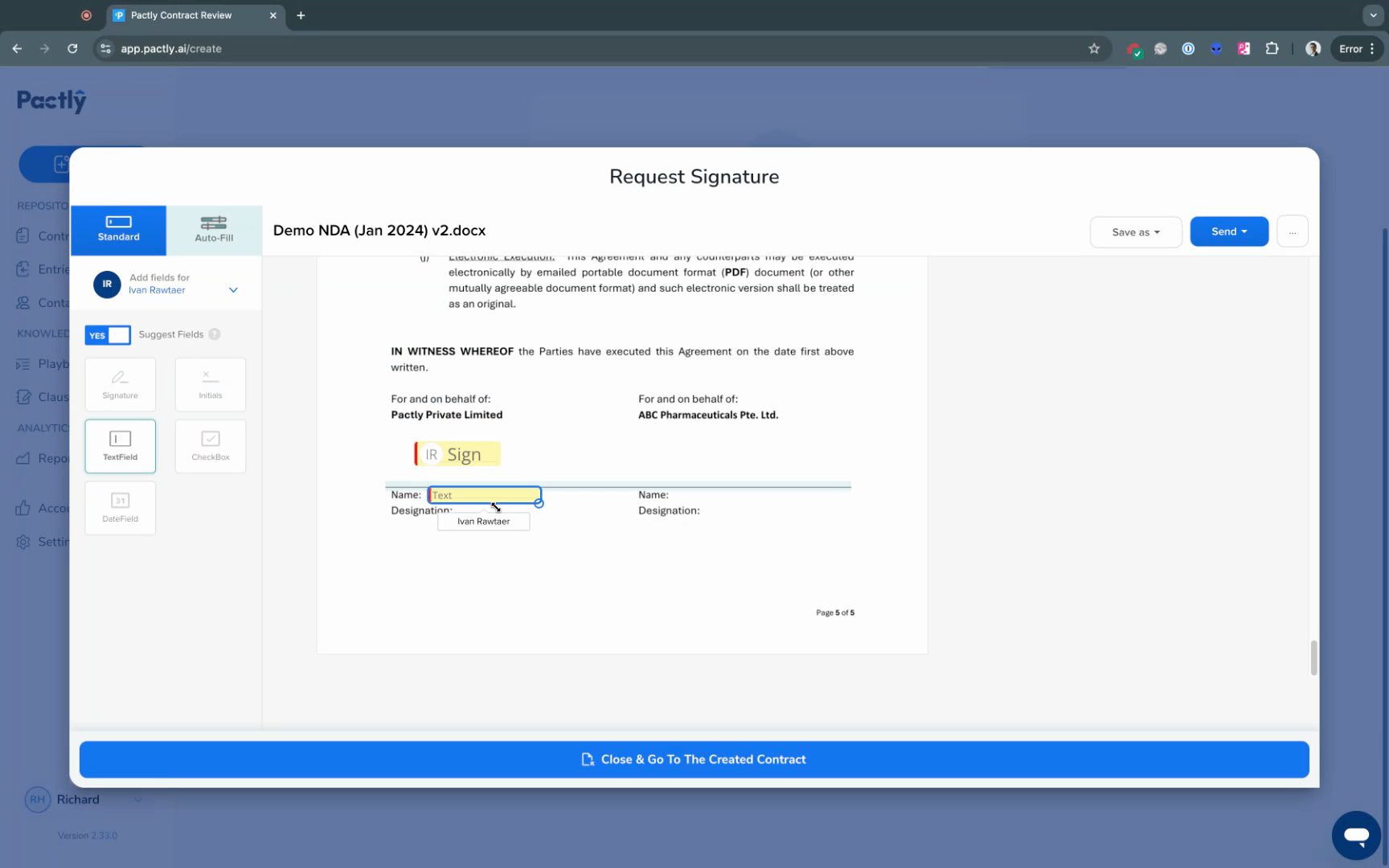
Step 11: Once you’re done placing the fields, click Send Document. You can customize the email title and message (though if you have workflow presets, we recommend keeping the defaults). Click Send to complete.
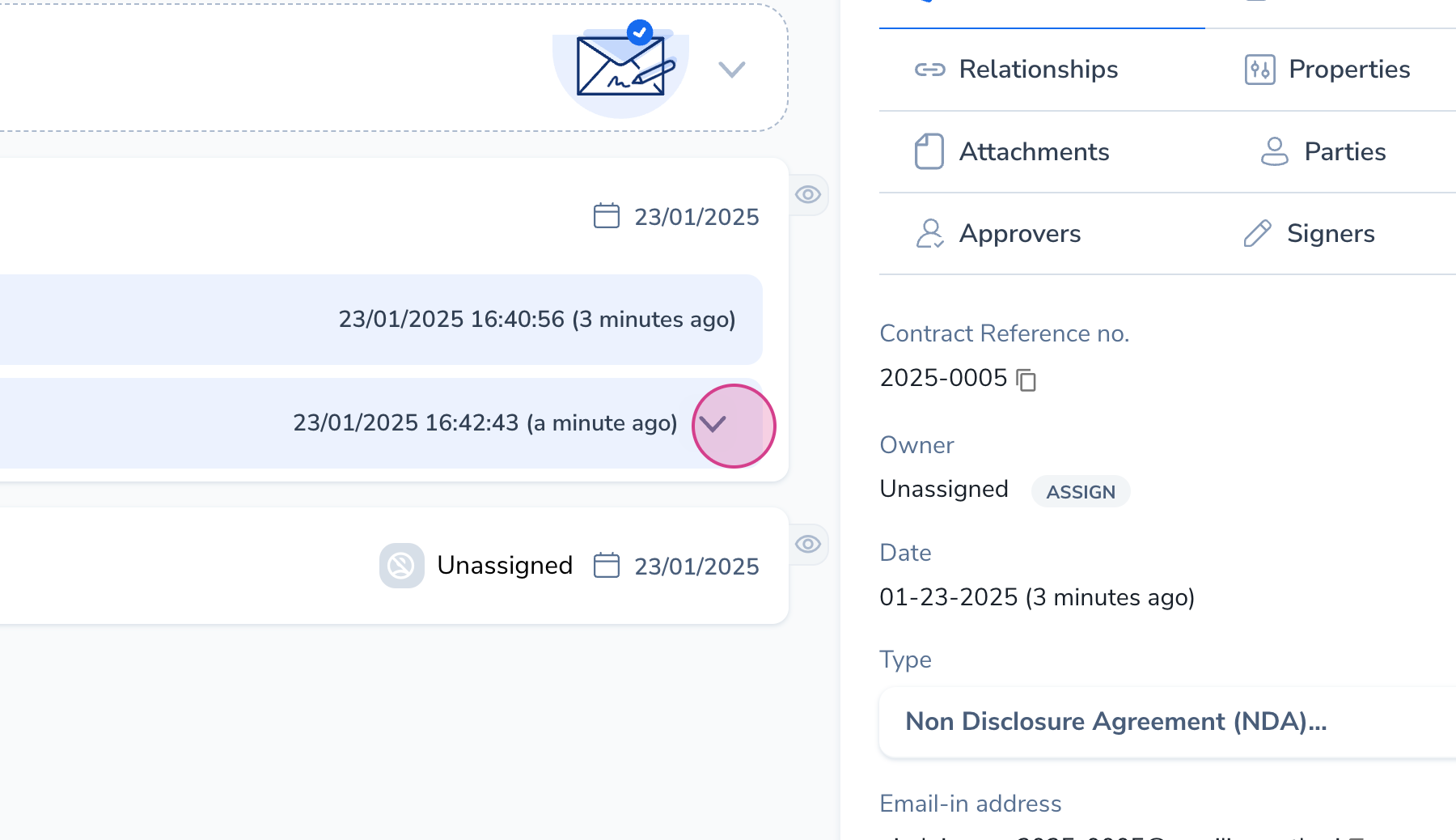
After sending, you’ll be redirected to the contract record in Pactly.
Step 12: On the contract record, you’ll see the e-signature request logged in the timeline. The status updates automatically as signatures are completed. Once all signatures are collected, the contract moves to “Executed” status.