1
Open the Sequences tab
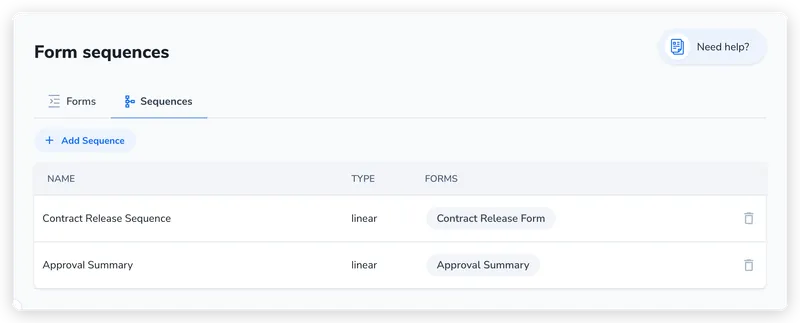
Go to Manage Forms and click the Sequences tab. Any existing sequences are listed here, then click Add Sequence.
Some contracts can’t be set up from a single submission, because different people hold different pieces of the information you need. Before a request can proceed, finance might have to confirm there’s budget for it, and a conflicts or compliance check might have to clear. These aren’t approvals to enter into the agreement. They’re prerequisites: separate inputs from separate people that all feed the same contract context.
You can capture some of that directly in one form. When the information has to come from different people, a form sequence routes a separate form to each of them and ties their submissions together, so the values they enter populate the same contract rather than living in disconnected emails.
A form sequence is an ordered list of forms that execute as a workflow. Each form in the sequence is sent to a specific user (or role), and the sequence tracks which forms are completed and which are pending.
Sequences are managed in the Sequences tab on the Manage Forms page.
There are three execution patterns:
Forms are sent one at a time, in order. The second form is only sent after the first is submitted, the third after the second, and so on.
Use when: Each step depends on the previous step’s output. The reviewer needs to see the requester’s answers before filling their portion.
All forms are sent simultaneously. Each recipient can fill their form independently, in any order.
Use when: Multiple people need to provide information, but their answers don’t depend on each other. For example, collecting inputs from legal, finance, and compliance at the same time.
The first form is sent first. Once it’s submitted, all remaining forms are sent simultaneously.
Use when: The initial request needs to be completed before others can respond, but the subsequent steps are independent of each other. For example, a requester fills intake details first, then legal and compliance review in parallel.
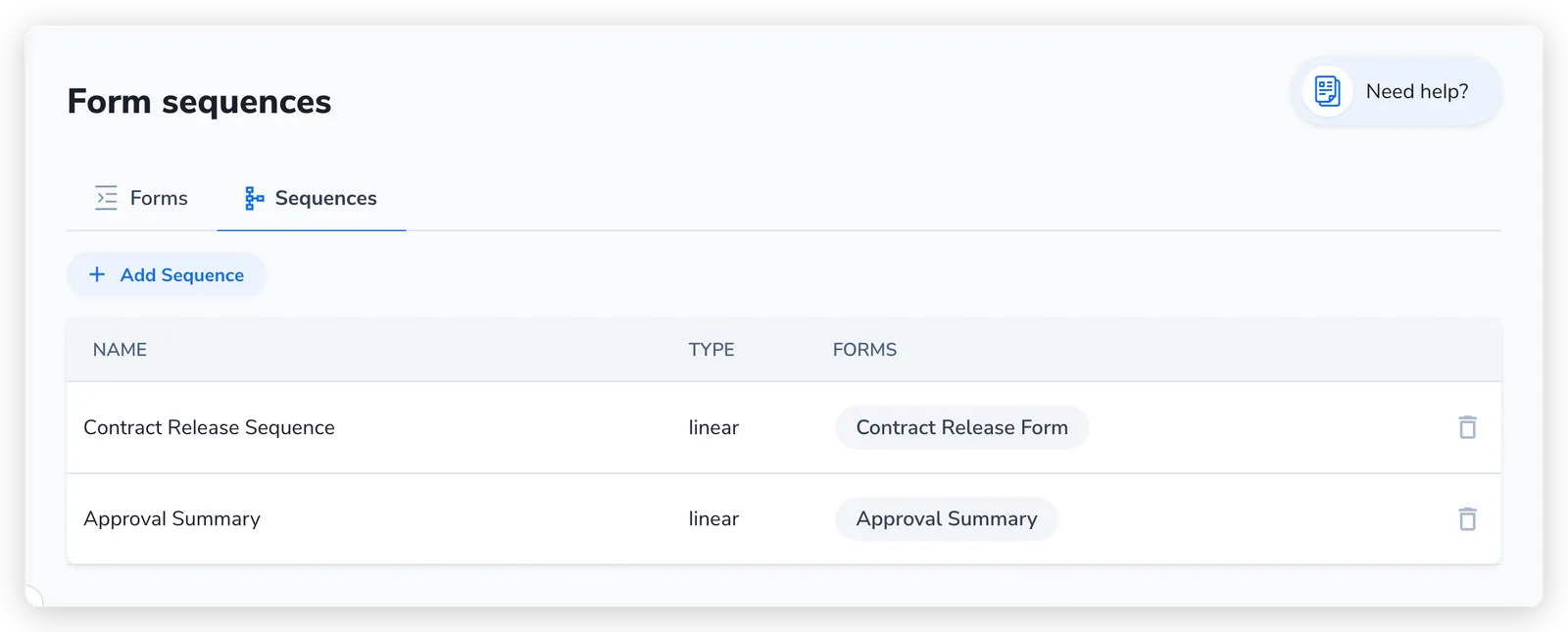
Go to Manage Forms and click the Sequences tab. Any existing sequences are listed here, then click Add Sequence.
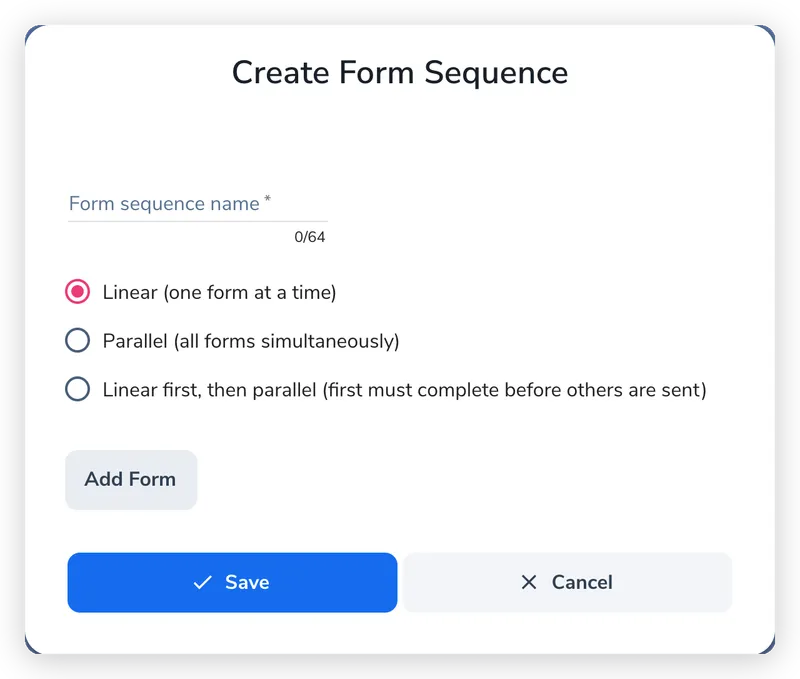
In the dialog that opens, enter a Form sequence name, then choose the Type: Linear (one form at a time), Parallel (all forms at once), or Linear first, then parallel. Click Add Form to start adding forms.
Each form you add appears in order. Set a per-form email template, toggle Hide form in summary for internal-only steps, and choose a Pinned form if needed. For linear sequences the order is the order forms run. Click Save when done.
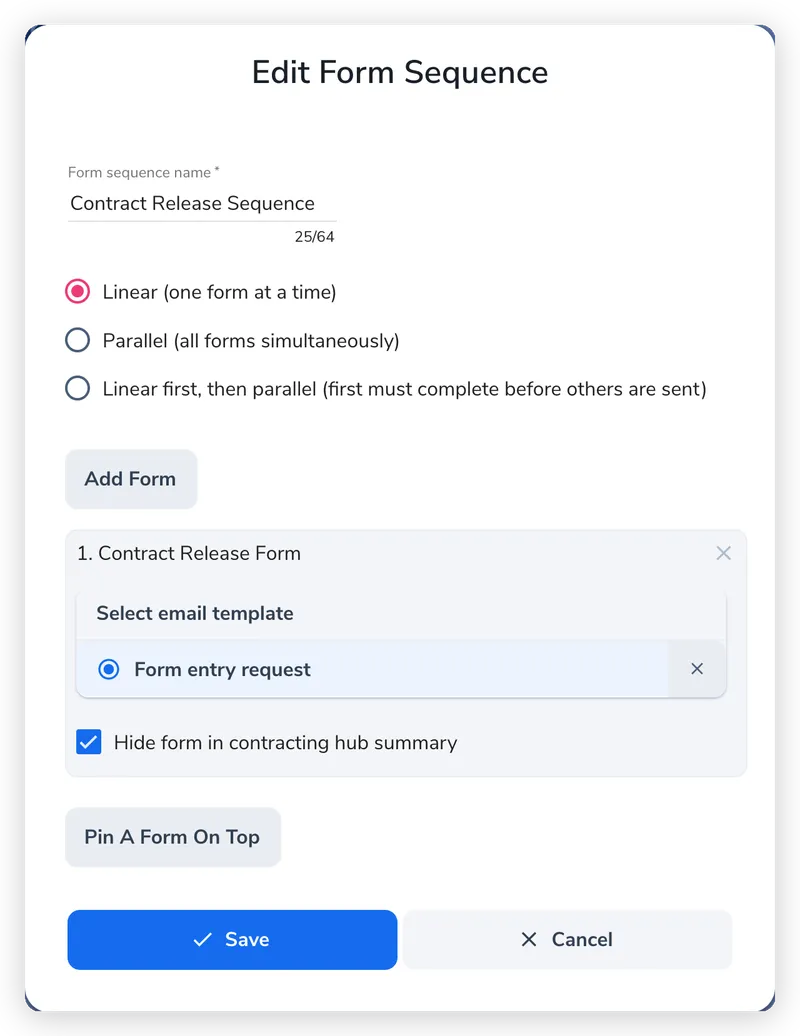
By default, each form in a sequence uses the standard notification email. You can override the email template per form to customize the message each recipient receives.
For each form in a sequence, you can toggle Hide form in summary. Hidden forms are left out of the sequence’s entry summary view. This is useful for internal review forms that the requester shouldn’t see.
Select one form as the Pinned form. This form’s entry is highlighted in the contract summary view, making it easy for approvers to see the most relevant information at a glance.
The sequence itself only defines which forms run and in what order. The recipient of each form is chosen when the sequence is triggered, either on the workflow rule that starts the sequence or in the “Send form” dialog when you start it manually. For each form you pick who it goes to:
Each step gets its initial recipient when the sequence starts. You can assign or reassign a pending step from the contract timeline. A ready step sends its new recipient an invitation unless you opt out of that immediate email. A queued step waits until its turn, then emails its current recipient. Skipping an immediate email does not cancel that later invitation.
Open the form sequence on the contract timeline and choose Cancel Form Request for the relevant recipient. The dialog names the form and recipient and warns that the form link will stop working immediately.
Every form in the sent sequence still needs at least one completed answer. Cancelling its only unanswered request does not satisfy that requirement. Use Add form to sequence to send it again. Changing the reusable sequence definition does not remove a form that was required when this sequence was sent.
If every required form already has an answer and you cancel the last extra pending request, choose whether to finish the sequence. Yes, finish the sequence runs its completion workflow. No, keep the sequence open leaves it open for further requests.
If a submitted form needs correcting, choose Void and reissue on its Done row in the contract timeline. Enter a reason, check the recipient, then confirm. The original recipient is selected by default; you can choose someone else.
The original submission becomes Cancelled and its link stops working. Its answers remain available as a read-only record, and the timeline records who voided it, when and why. A replacement for the same form is added to the sequence. Other submissions stay unchanged. The recipient receives the replacement invitation when the sequence is ready to send it; no separate cancellation email is sent.
Contract properties keep their current values until the replacement is submitted. Any active approval keeps running, and completing the replacement does not start another approval while one is active. If the correction requires a fresh approval, cancel and reissue that approval separately.
When you delete a sequence:
These options pass data between the forms in a sequence. They’re powerful but rarely needed for a standard sequence, and they’re best set up with your account manager, who can map them to your specific process.
Later forms in a sequence can display values from earlier forms using output fields configured with:
This lets a reviewer see what the requester entered without switching between screens.
If an earlier form in the sequence generates a contract, later forms can pre-fill fields with that contract’s property values. This is configured via the reverse contract property setting on individual fields.
For example, if Form 1 creates a contract with a “Governing Law” property set to “Singapore,” Form 2 can display a pre-filled “Governing Law” field showing “Singapore” for the reviewer to confirm or update.
When a form in a sequence is submitted, any fields with contract property mappings update the existing contract’s properties. This means each form in the sequence can add or modify contract metadata.