Field Types Reference
Pactly forms support 14 field types. Each collects a different kind of data and renders a different input. The table below is the quick reference; the sections that follow add configuration detail for the types that need it.
Field types at a glance
Section titled “Field types at a glance”| Field type | What it collects | Key options | When to use |
|---|---|---|---|
| Text | Free-form text, single or multi-line | Rich text, default value | Descriptions, instructions, addresses |
| Number | Integers and decimals | Display locale | Contract values, quantities, percentages |
| Yes/No | A true/false answer | Default value | Compliance questions, feature toggles |
| Dropdown | One or more choices from a fixed list | Multi-select, display as radio, default | Any fixed-answer question; drives routing |
| Date | A single date | Format, default to today, locked | Effective, expiry, and execution dates |
| Duration | A time span (number + unit) | Allowed units | Contract terms, notice and renewal periods |
| File upload | One or more uploaded files | File types, upload limit | Third-party contracts, supporting documents |
| Party | A linked company or individual | Party type, roles, attributes, sanctions check | Counterparty, signer, internal representative |
| User | A Pactly user from your org | Role filters | Contract owner, reviewer, internal contact |
| Signature | A drawn or uploaded signature | None | In-form acknowledgment signatures |
| Search | A value looked up from a dataset | Data source, search options | Project codes, departments, cost centers |
| Output | Nothing (display only) | Message, type, custom logic, block submission | Summaries, computed values, warnings |
| Create Contract | A file and category (auto-added) | Category IDs, descriptions | Created with a Create or External action |
| Request Contract | An existing contract (auto-added) | Category IDs, property IDs | Created with a Request action |
The Common Properties table at the end lists the options that every field type shares (question, required, help text, mapping, and conditions).
A single-line or multi-line text input for free-form answers.
When to use: Contract descriptions, special instructions, party names, addresses, or any open-ended question.
Configuration:
- Rich text - Show a formatting toolbar (bold, italic, lists, links). When disabled, renders as a plain text input. The link button appears only for people signed in to your company, and only once an admin has named the allowed hosts in the hyperlink allowlist; external parties filling the form cannot add links, and a link to any other host renders as plain text.
- Default value - Pre-populate the field with a value the requester can change.
Number
Section titled “Number”A numeric input that accepts integers and decimals.
When to use: Contract values, quantities, percentages, or any numeric data point.
Configuration:
- Display locale - Show localized number formatting (e.g., 1,234.56 vs 1.234,56). Works with the form-level currency setting.
Yes/No
Section titled “Yes/No”A radio button pair for true/false questions.
When to use: Simple yes/no decisions that may drive conditional logic. Common for compliance questions and feature toggles.
Configuration:
- Default value - Pre-select Yes or No.
Dropdown
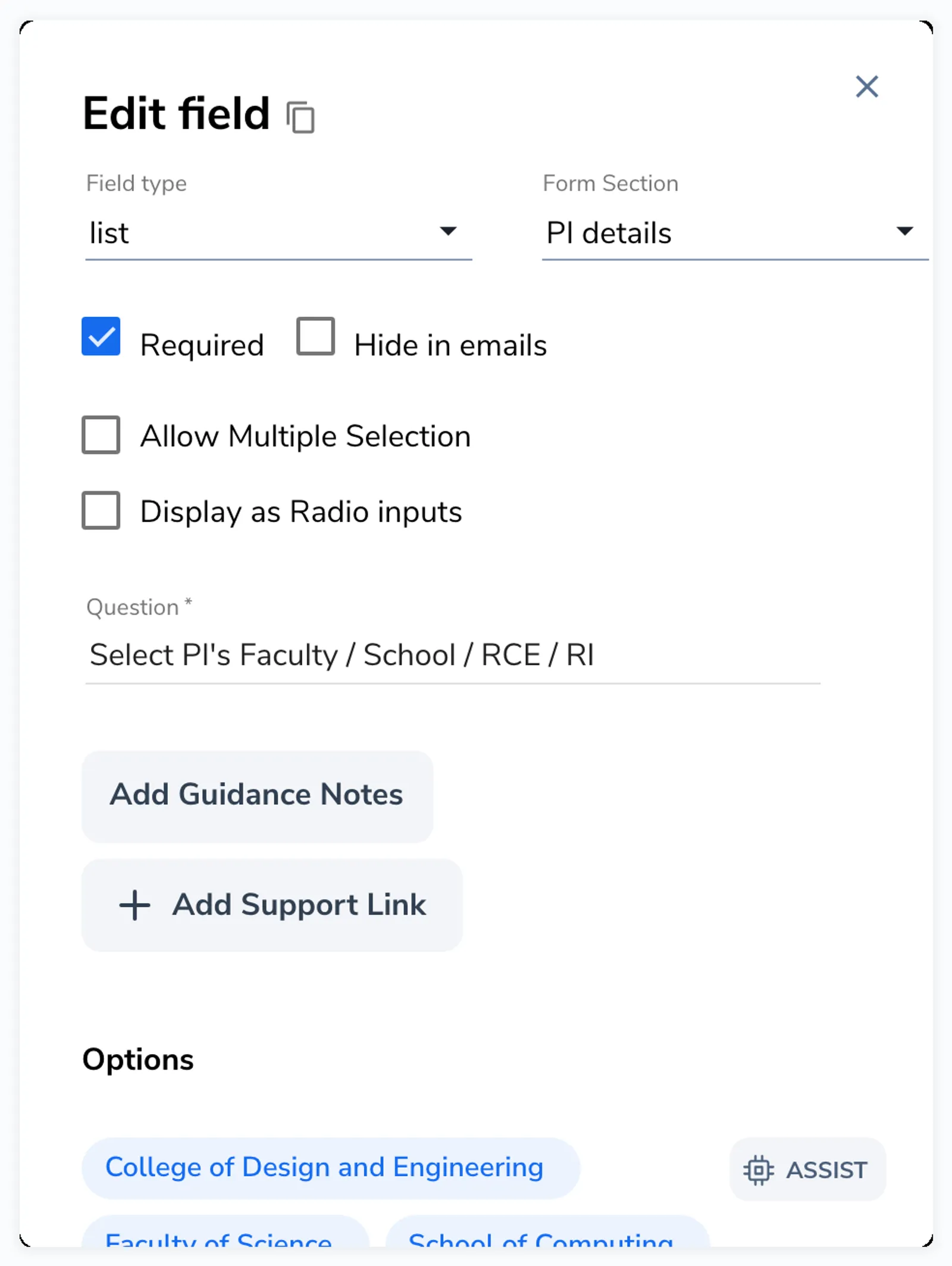
Section titled “Dropdown”A selectable list of predefined options. Can render as a dropdown, radio buttons, or multi-select checkboxes. This is the most common field type for driving conditional logic and action routing.
When to use: Any question with a fixed set of answers, such as “What type of agreement do you need?” (NDA, MSA, SOW) or “Which jurisdictions apply?” (multi-select).
Configuration:
- List options - Define the available choices. Each option is a text value.
- Allow multiple selection - Let the requester pick more than one option (renders as checkboxes).
- Display as radio - Show options as radio buttons instead of a dropdown (useful with 2-5 options).
- Default value - Pre-select an option.
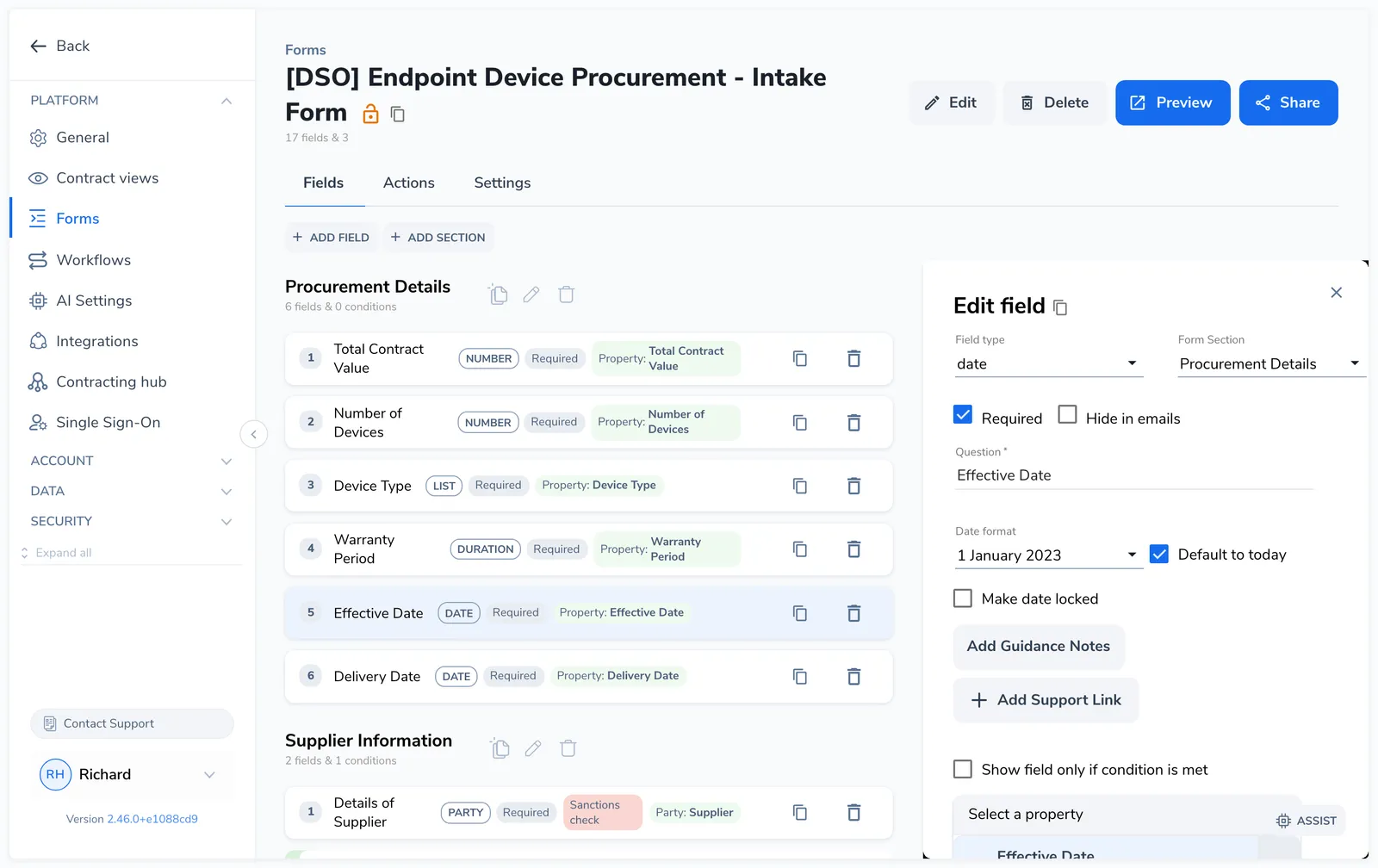
A date picker powered by a calendar widget.
When to use: Effective dates, expiry dates, execution dates, or any date-based question.
Configuration:
- Date format - The display format (e.g., YYYY-MM-DD, DD/MM/YYYY).
- Default to today - Pre-populate with the current date.
- Locked - Prevent the requester from changing the date (useful when you want “today” as a fixed value).
Duration
Section titled “Duration”A number-and-unit combination for time spans.
When to use: Contract terms, notice periods, renewal periods, or any duration-based question.
Configuration:
- Unit options - Which time units are available (e.g., days, months, years). You can restrict to specific units.
File Upload
Section titled “File Upload”A drag-and-drop file upload area.
When to use: Collecting documents from the requester, such as a third-party contract for review, supporting documentation, or signed copies.
Configuration:
- File types - Restrict allowed file formats (e.g., PDF only, or PDF and DOCX).
- Upload limit - Maximum number of files that can be uploaded.
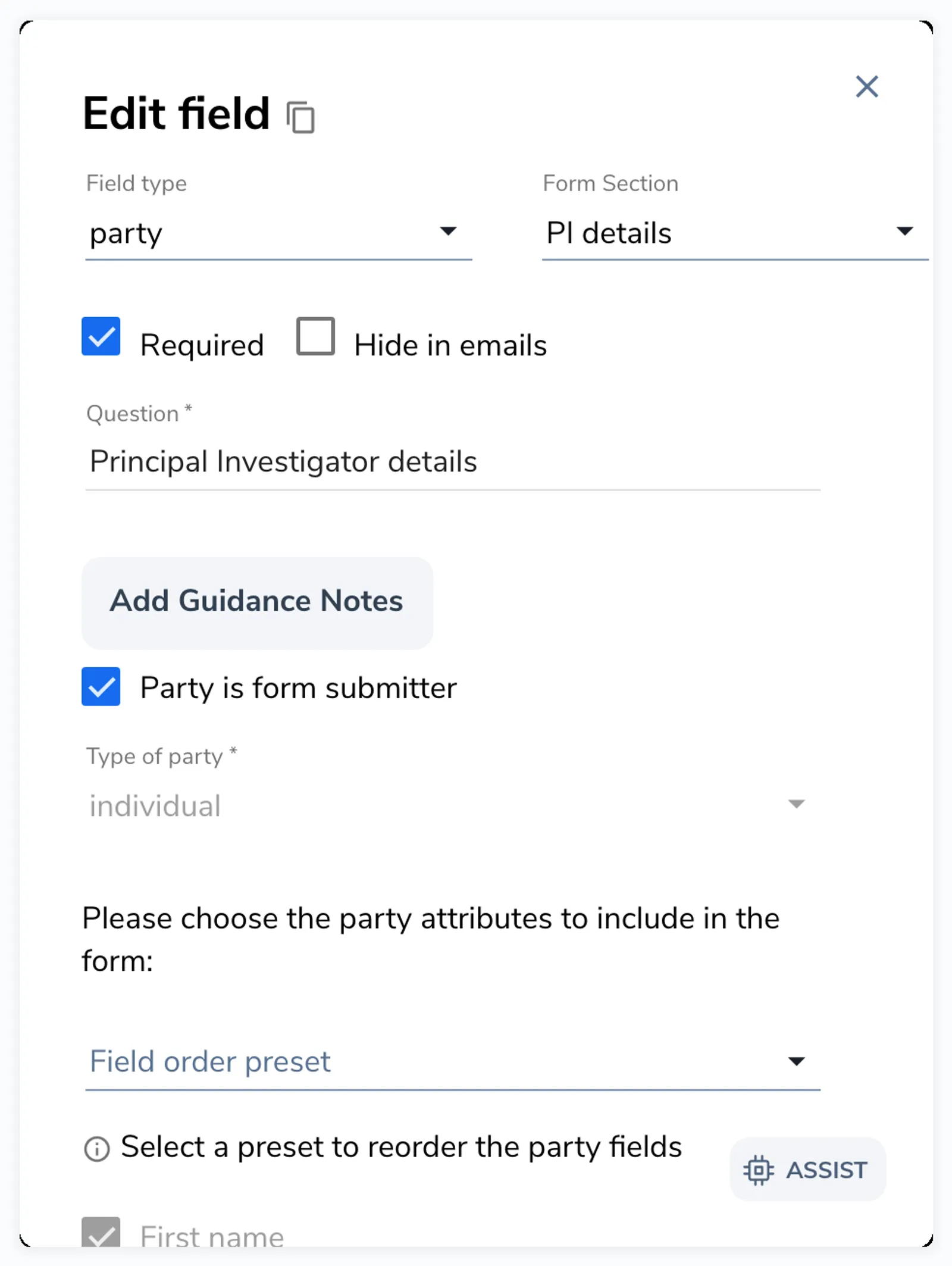
A specialized field for entering or selecting a party (company or individual). This is not a simple text field. It creates or links to a Party record in Pactly.
When to use: Collecting counterparty details, internal representative information, or any person or organization that should be linked to the contract.
Configuration:
- Party type - Restrict to “Individual,” “Entity,” or let the requester choose.
- Party roles - Assign roles to this party on the generated contract (e.g., counterparty, signer, our representative).
- Party attributes - Choose which of your organization’s party attributes to collect alongside the standard name and email, and mark each one required. Party attributes are defined separately in your party settings, not on the form. Their input type (text, a select list, a number, a date, or a multi-line note) is set on the attribute itself and determines how it renders.
- Pre-fill with submitter - Auto-populate with the form submitter’s email address.
- Sanctions check - Screen the party against sanctions lists on submission.
- Party mapping - Map party attributes to contract properties.
A dropdown selector for choosing a Pactly user from your organization.
When to use: Assigning a contract owner, selecting a reviewer, or picking an internal contact.
Configuration:
- User filters - Restrict the list to users with specific roles (e.g., only users with the “Legal Counsel” role).
Signature
Section titled “Signature”A signature capture field that allows drawing a signature on a canvas or uploading a signature image.
When to use: Collecting acknowledgment signatures within the form itself, separate from e-signature workflows.
Search
Section titled “Search”A searchable autocomplete field with custom data.
When to use: Looking up values from a predefined dataset, such as internal project codes, department names, or cost centers.
Configuration:
- Data source - The dataset to search against.
- Search options - How search results are formatted and displayed.
Output
Section titled “Output”A read-only field that displays information to the requester. Outputs do not collect data. They show computed values, guidance messages, or results from previous forms in a sequence.
When to use: Showing the requester a summary, a computed value based on their other answers, a warning or instruction, or contract data in a multi-form sequence.
Configuration:
- Output message - Static text or HTML to display.
- Output type - Visual style: success (green), warning (yellow), or info (blue).
- Output value - A preset value (string or boolean).
- Custom logic - Scripted logic that computes a value from other form fields. Define variable mappings (which fields to read) and a JavaScript expression that returns a value, message, and type.
- Block submission - Prevent the form from being submitted while this output is visible (useful for warning the requester about a condition that must be resolved).
- Show after submit - Only display after the form has been submitted.
- Show contract - Display the generated contract document inline (for form sequences).
- Reverse contract property - Display a value pulled from an existing contract’s properties (for form sequences).
Create Contract
Section titled “Create Contract”Automatically created when you add a “Create” (playbook) or “External” action. It provides the file upload and category selection interface for contract creation or import.
Configuration:
- Category IDs - Restrict which contract categories are available.
- Category description overrides - Custom descriptions for each category option.
Request Contract
Section titled “Request Contract”Automatically created when you add a “Request” action. It provides a search-and-select interface for choosing existing contracts from the repository.
Configuration:
- Category IDs - Restrict which contract categories are available for selection.
- Property IDs - Which contract properties to display as context when selecting.
Common Properties (All Field Types)
Section titled “Common Properties (All Field Types)”Every field type shares these configuration options:
| Property | Description |
|---|---|
| Question | The label/prompt the requester sees |
| Required | Must be filled before submission |
| Help text (Notes) | Guidance text shown below the field |
| Always show notes | Keep help text visible (not just on focus) |
| Links | Documentation links shown alongside the field |
| Default value | Pre-populated value |
| Hide in emails | Exclude from the submission notification email |
| Conditional | Show/hide based on other field values (see Conditional Logic) |
| Contract property | Map this field’s value to a contract property (see Field Mappings) |
| Section | Which form section this field belongs to |