1
Open the field editor
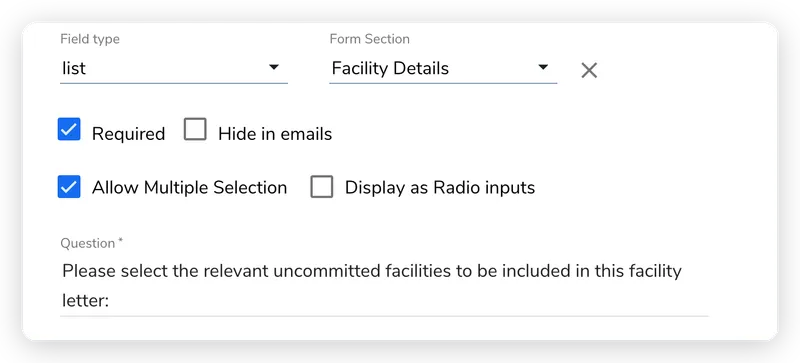
In the form builder, click the field you want to show or hide conditionally. Its editor panel opens on the right, with the field type, required setting, and question.
A form with 30 fields feels overwhelming to a requester, especially when half those fields don’t apply to their situation. If someone is requesting an NDA, they shouldn’t see fields about service scope or SLA terms.
Conditional logic lets you show or hide fields based on how the requester answers earlier questions, and route submissions to different outcomes based on the overall response. The same form can serve multiple contract types without exposing irrelevant questions.
Field conditions control whether a field is visible on the form. When a condition evaluates to true, the field appears. When false, it’s hidden and any value in it is ignored.
In the form builder, click the field you want to show or hide conditionally. Its editor panel opens on the right, with the field type, required setting, and question.
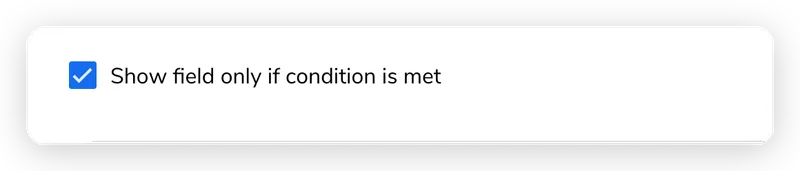
Scroll down in the editor and turn on Show field only if condition is met. The field will now appear only when its condition evaluates to true.
The condition builder appears. Click Add rule and pick the field to check, an operator, and a value. Use Add group and the Match type (Any or All) to combine rules with AND or OR.
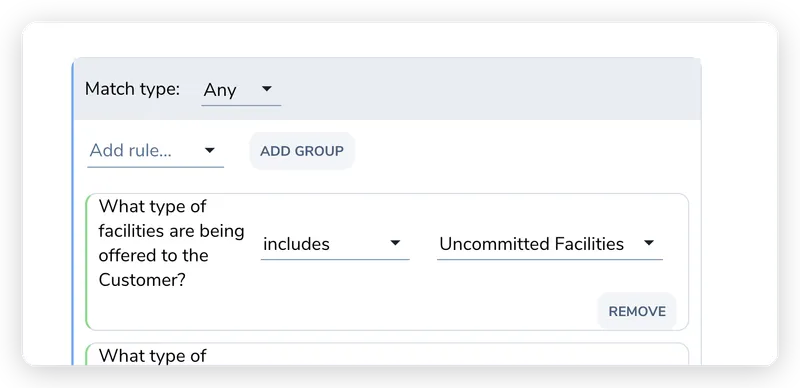
The condition builder uses a tree structure with rules and groups:
Rules are individual comparisons. Each rule has:
Groups combine multiple rules with AND or OR logic:
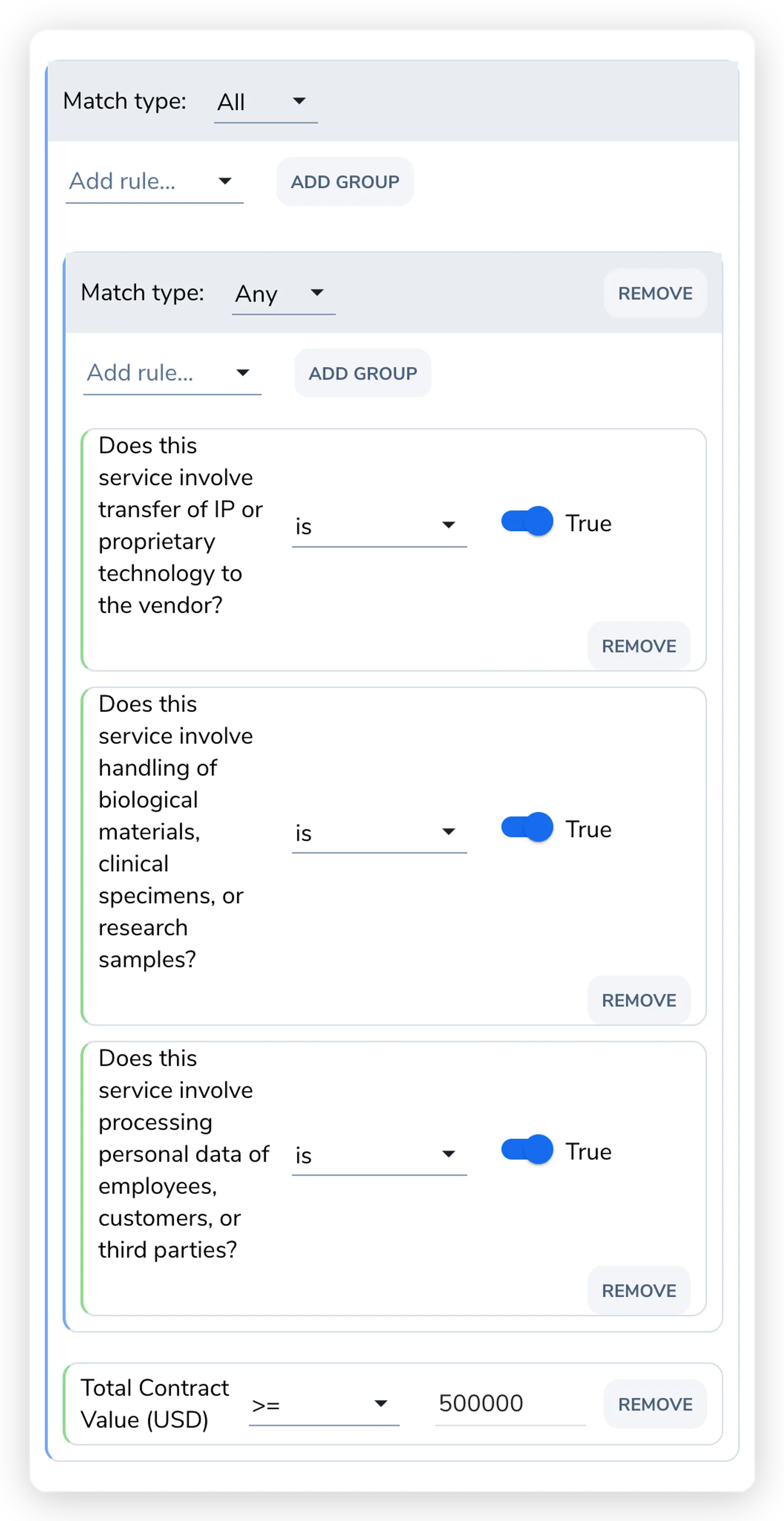
Groups can be nested inside other groups, so you can build logic like “show this field when (any one of several risk questions is answered Yes) AND the contract value is above a threshold.” The diagram below shows that shape: an outer ALL (AND) group holding an inner ANY (OR) group plus a value rule.
Reads top-down as one expression: (Data risk is Yes or Security risk is Yes) and Contract value ≥ 500,000. The match type on each group — ALL or ANY — sets whether its items join with AND or OR.
In the builder, the same condition looks like this:
The operator options change depending on the field type being compared:
| Field Type | Available Operators |
|---|---|
| Text | equals, does not equal, contains, does not contain, begins with, ends with, is empty, is not empty |
| Number | = (equals), ≠ (not equal), < (less than), ≤ (less than or equal), > (greater than), ≥ (greater than or equal) |
| Date | is before, is after, is on or before, is on or after, is on |
| Yes/No | is, is not |
| Dropdown | includes, does not include |
| Party | is sanctioned, is not sanctioned, is entity, is not entity |
For dropdown (list) fields, “includes” checks whether the requester’s selection matches the value. For multi-select dropdowns, it checks whether any of the selections match.
A party field holds more than one value, so when you build a condition on a party field, you first pick a sub-field to check. The options include the built-in party fields (entity name, email, registration number, and so on) as well as every custom party attribute your organization has defined in party settings. For example, you can show a follow-up field only when the party’s email domain matches your own, or when a custom “Region” attribute equals APAC.
The same condition builder also controls which submission action fires. Instead of attaching a condition to a field, you attach it to a form action, so one form can route to different outcomes (generate an NDA, generate an MSA, redirect to procurement) based on the requester’s answers. Because actions and their conditions live in the Actions tab, that behavior is covered in Form Actions.
The form builder automatically detects invalid conditions and shows a warning in the header. Common issues:
The warning shows the number of invalid conditions. Hover it to see each affected field and the reason it’s invalid. Fix these before sharing the form.
Use a dropdown field at the top of the form for “Agreement Type” with options like NDA, MSA, SOW, Employment. Then:
Use an output field with a condition checking whether a number field exceeds a threshold. Set the output type to “warning” and the message to explain the additional requirements (e.g., “Contracts above $100,000 require VP approval”).
Use a condition on a second dropdown that checks the first dropdown’s value. For example, show a “Region” dropdown only when “Jurisdiction” is set to a value that has regional sub-options.
Use conditions on additional fields that check whether the party field’s type is “entity” or “individual.” Show company registration fields for entities and personal ID fields for individuals.