1
Open Company settings
In the left menu, open Account settings and select Company.
When Pactly emails a counterparty or a colleague on your behalf, those messages carry Pactly’s default branding. To make them recognizably yours, you can show your own company logo instead.
This takes two steps in two places: upload the logo in Account settings > Company, then switch it on in Data > Email. Both require admin access.
company.update permission), and the Email page sits behind the same permission.In the left menu, open Account settings and select Company.
Scroll to the Company logo section. The tooltip beside it confirms the supported formats and the recommended 41px × 116px size.
Click Choose a logo to upload and select your file. Once it uploads, a preview of the logo appears, and the button changes to Choose a new logo to upload if you want to swap it later.

Your logo is now stored on your account, but it does not appear in emails yet. That is a separate switch.
The email setting lives under a different menu section. In the left menu, open Data and select Email, then use the Settings tab.
In the left menu, open Data and select Email, then open the Settings tab.
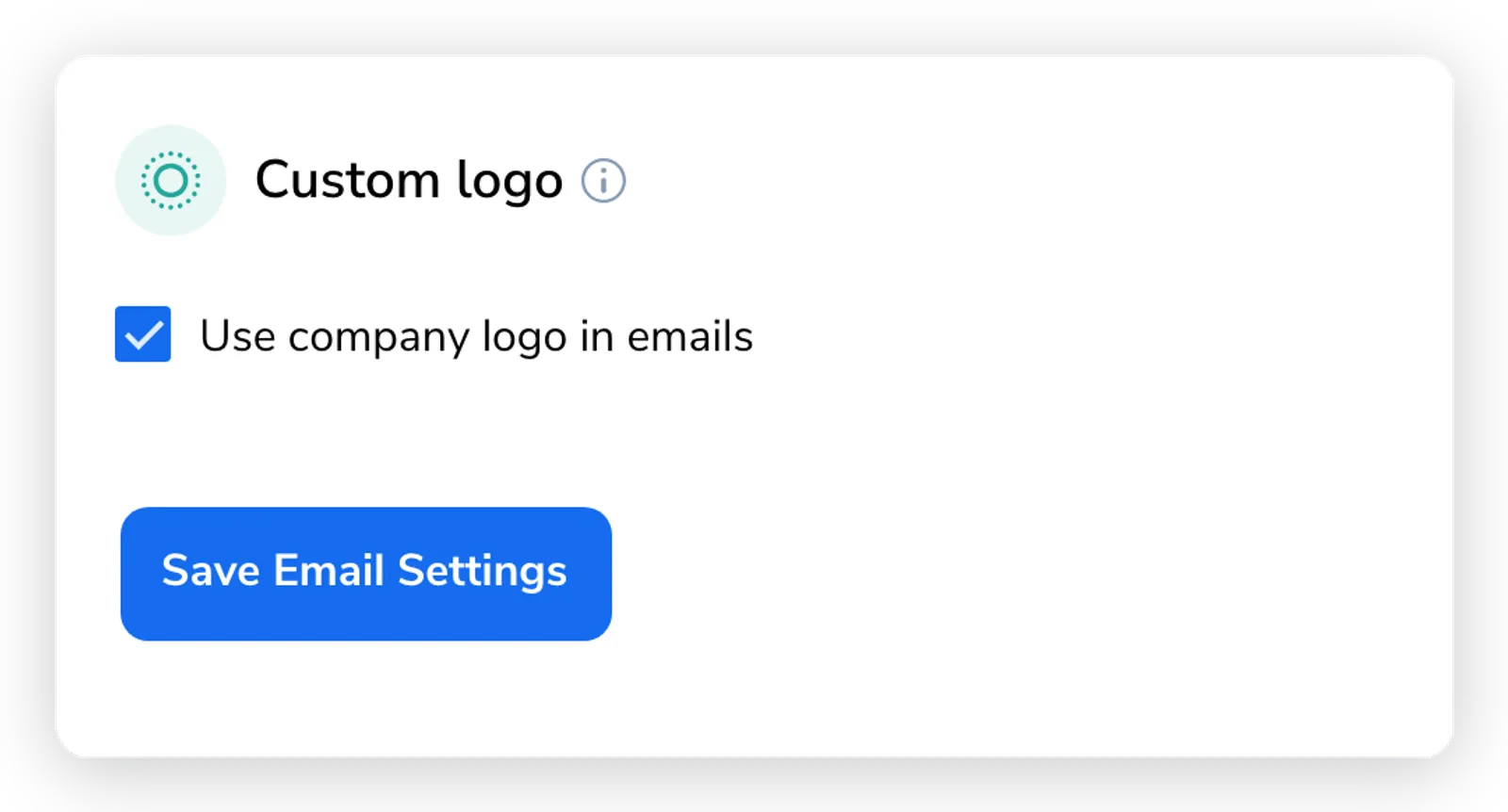
In the Custom logo section, tick Use company logo in emails. This checkbox stays disabled until a logo is uploaded under Company settings, so complete the upload first.
Click Save Email Settings to apply the change.
From now on, the emails Pactly sends on your behalf, such as signature requests and contract notifications, carry your logo in place of Pactly’s default branding. To change the logo, upload a new file in Account settings > Company; the email setting keeps pointing at whatever logo is currently stored.