1
Open the email invitation
Look for an email notifying you of a signature request. It displays the sender's name and a button to start the process.
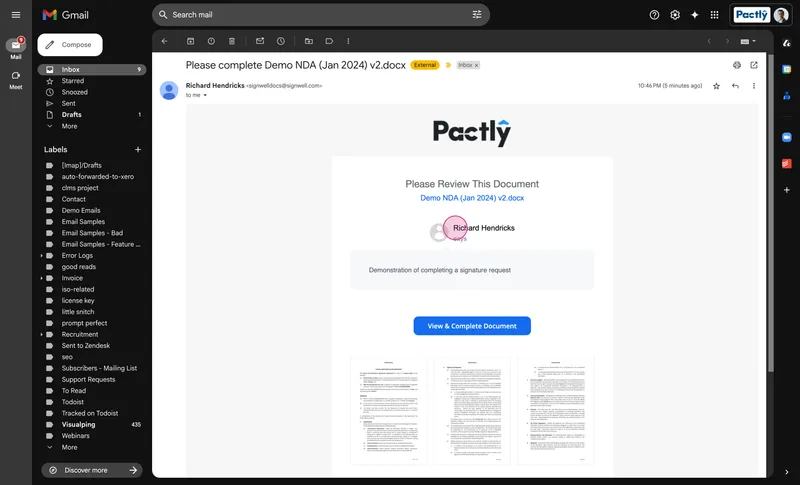
This guide is for signers. If someone has asked you to sign a document through Pactly e-Sign, it walks you through completing the signature request.
If you also have a Pactly account with the company that sent the request, you don’t need the email at all: open the contract’s Timeline tab and click Sign contract on the Out for Signing entry to jump straight to the signing view. The steps from there are the same as below.
Look for an email notifying you of a signature request. It displays the sender's name and a button to start the process.
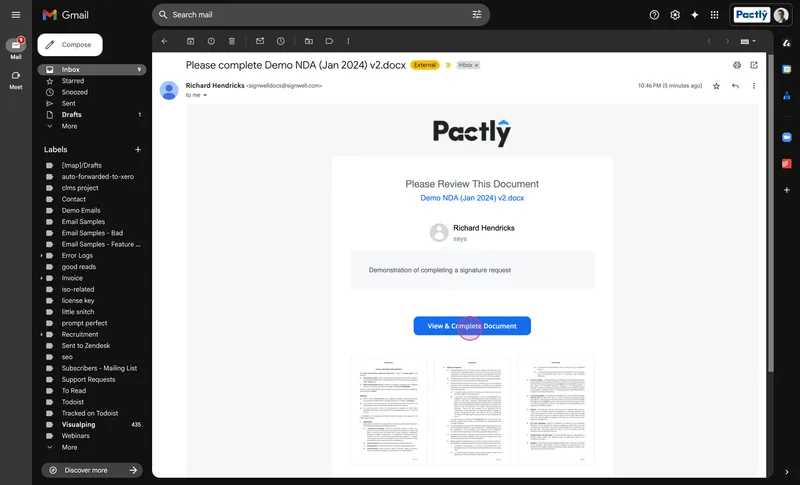
Click View to open the document.
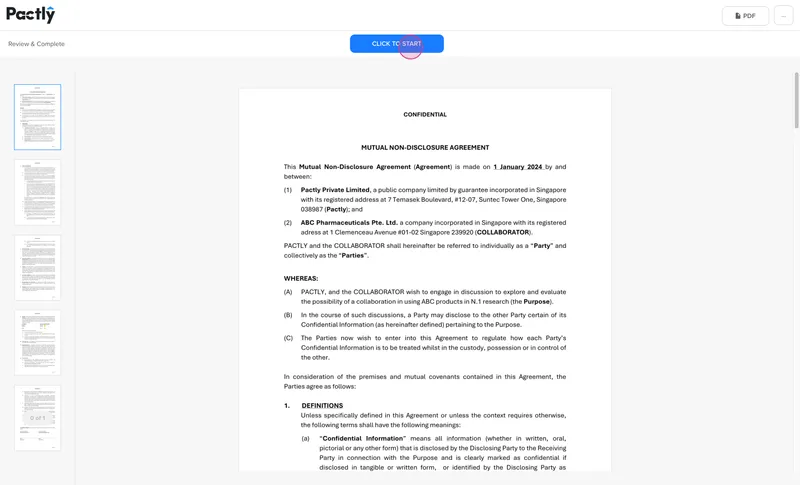
When the document opens, scroll to the signature area or click Start to jump directly to where you need to sign.
When prompted, choose how you want to provide your signature: type, draw, or upload an image.
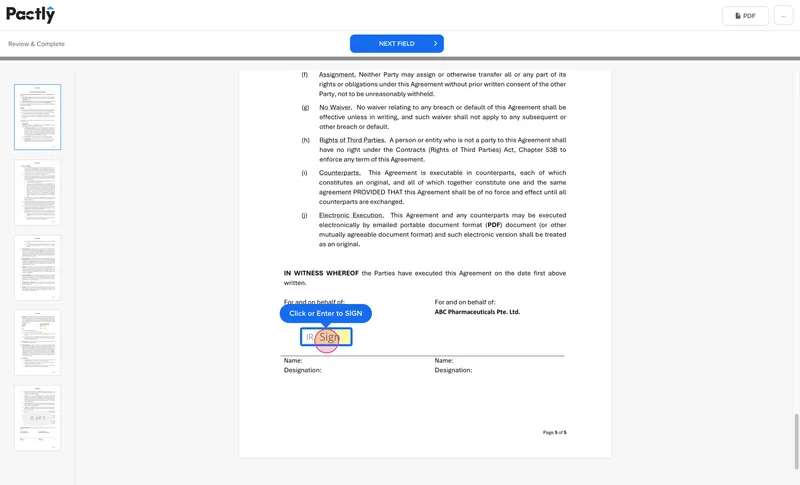
Provide your signature using your chosen method.
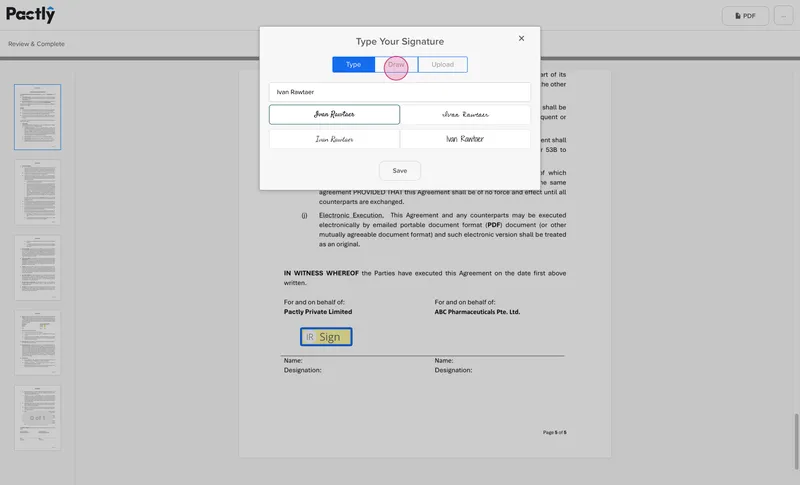
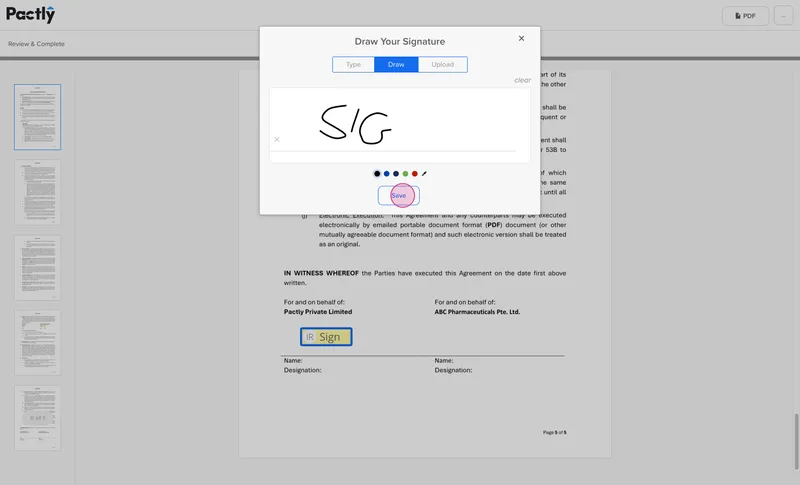
When satisfied with your signature, click Apply.
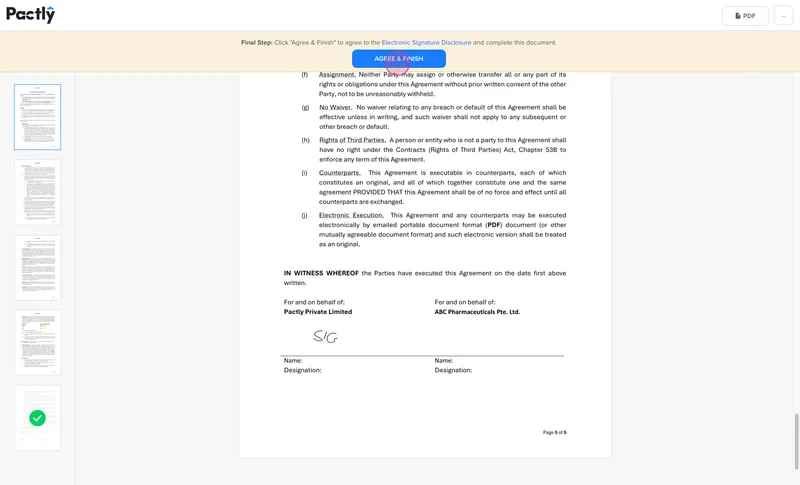
Confirm your signature by clicking Agree and Finish. Important: make sure you complete this step. If you close the window early or skip this, your signature will not be registered and you'll continue to receive reminders.
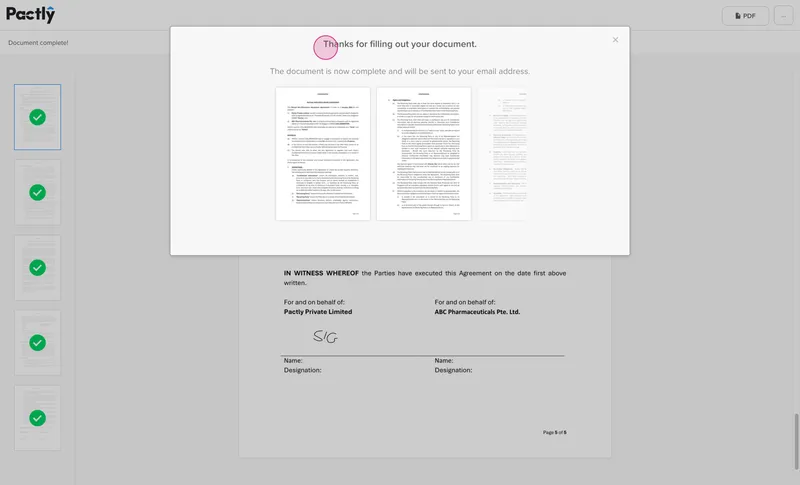
After submitting, wait for the confirmation screen. Delays might happen due to network issues, but don't close the window until you see a confirmation message. The confirmation screen means your signature has been recorded.
If the sender assigned you a Company stamp field, click it to choose your stamp:
When you are signed in to Pactly with the recipient’s email address, the generator starts with your own company’s details. You can select an internal legal entity or edit the details. If you are not signed in, enter them manually. Signed-in recipients can save a stamp for their own future use.
Complete your personal signature as well, then submit the request.
The sender can require you to confirm it is you with your Pactly password. Your email address is filled in for you; enter your password, and the code from your authenticator app if your account uses two-factor authentication. Depending on the request, Pactly asks before the document opens or when you start signing.
If you do not know your password, reset it from the Pactly login page, then open the signing link again. Too many wrong passwords lock your account for 15 minutes, the same as the login page.
If the sender has enabled completion emails, you receive a copy after everyone has finished signing. The confirmation screen tells you when to expect that email.
If the sender replaces you with another signer, you receive an email saying your signature is no longer needed. Your old link shows that you have been replaced and can no longer open the document or submit a signature. Contact the sender if you believe the change was a mistake.