Fully Signed vs Partially Signed Settings
When you set up a signature request, you mark it as fully signed or partially signed. Fully signed means every required party is signing through this request. Partially signed means only some signatures are collected here and more will be added separately. This choice controls whether the contract is marked Executed when signing completes, and whether Pactly runs the next steps that follow a fully signed contract.
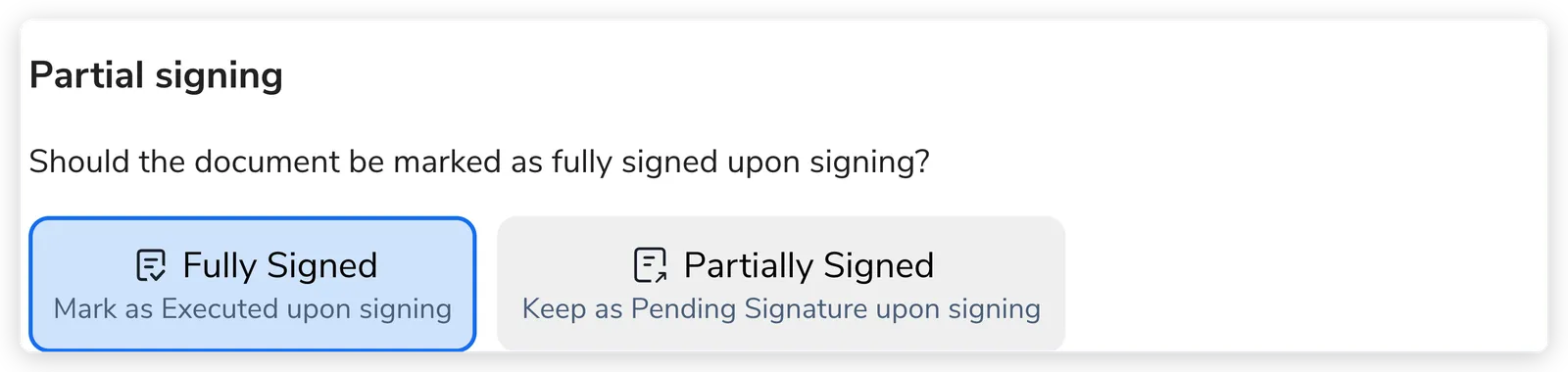
The Two Options
Section titled “The Two Options”Fully Signed (Default)
Section titled “Fully Signed (Default)”The signatures in this request complete the contract. Once all signers finish, Pactly marks the contract Executed and runs the next steps you’ve configured for an executed contract, such as workflow actions, notifications, and post-execution reminders.
Use when: all the required parties are signing through this request. This is the typical case for standard agreements.
Partially Signed
Section titled “Partially Signed”The signatures in this request are only part of the execution, and more will be collected separately (for example, your side signs in Pactly while the counterparty signs out of band). When the signatures in this request complete, Pactly records the signed document but keeps the contract at Pending Signature instead of marking it Executed, and holds back the post-signature steps, because more signatures are still expected.
Use when: only some parties sign through this request and you do not want the fully-executed workflows to fire yet.
Setting the Default
Section titled “Setting the Default”The fully-vs-partially choice appears as a Partial signing toggle each time someone sets up a signature request, and it can be changed on any individual contract before sending.
To set the default everyone starts from, an admin goes to Settings > Company Signing Settings, which has two separate defaults:
- When uploading a signed contract sets the default for the upload-signed flow.
- When e-signing a contract sets the default for e-signature requests.
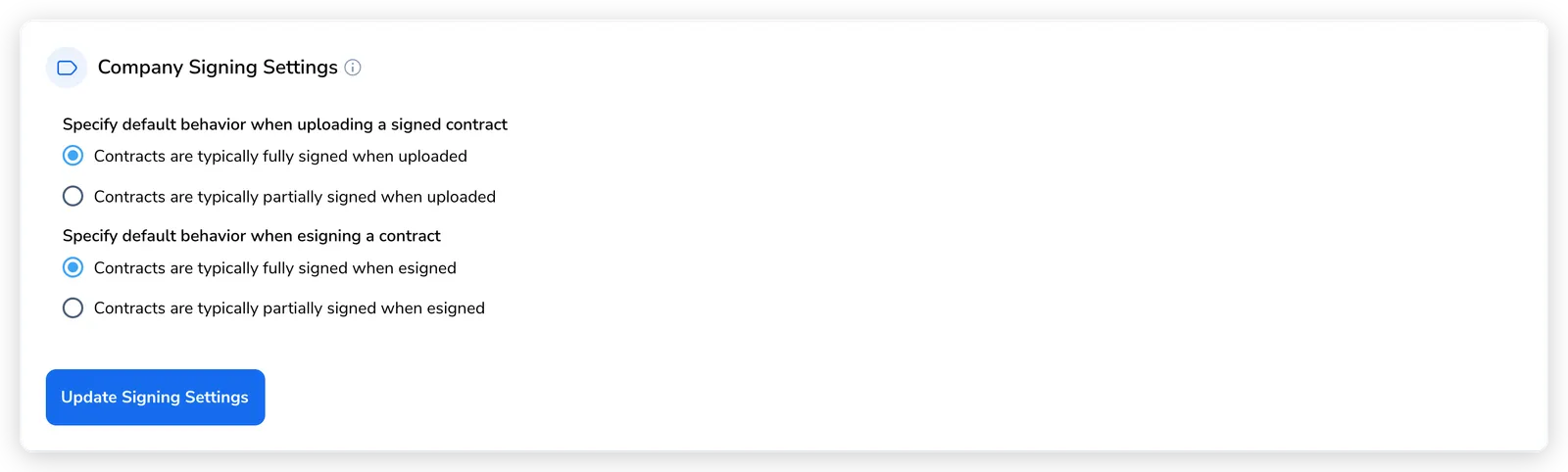
These defaults only pre-select the toggle to save a step. The person sending the request still makes the final choice on each contract.
Why set a default at all? Different organizations sign in different ways. Some collect their own internal signatures first and then send to the counterparty; some sign everything themselves; some need the counterparty to sign first before routing internally for signature. Setting the default to match how your team usually works saves a decision on every request, while the per-contract toggle handles the cases that do not follow it.
Important Considerations
Section titled “Important Considerations”- Defaults vs override: Company Signing Settings only sets the starting position. The person sending the request makes the final fully-vs-partially choice per contract.
- Automation: Choosing Partially signed holds back the post-signature workflows and notifications that fire for a fully executed contract. Choose Fully signed when this request completes the contract.
- Compliance: Make sure the option you pick reflects whether the contract is actually fully executed, so downstream reporting and automation stay accurate.