1
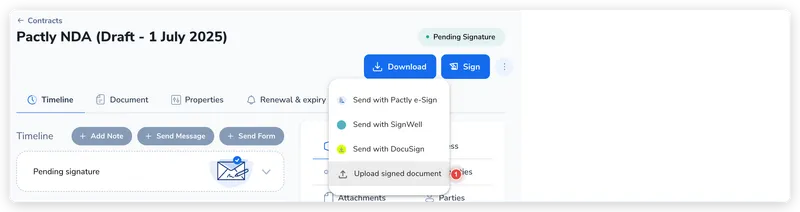
Open the Sign menu and choose Upload signed document
Open the finalized contract and click the Sign button in the top right. Alongside the options to send with a signature provider, choose Upload signed document.
Not every contract is signed inside Pactly. When a counterparty signs with wet ink, or signatures are collected through another platform, you still need the finished document on the contract record so the agreement is tracked and searchable. Uploading a signed document does that, and can mark the contract executed in one step.
The Upload signed document action lives in the contract’s Sign menu. It becomes available once the contract is finalized and past any approvals, the same point at which you could send it for signature. You do not have to send a signature request first.
If the contract has unfinished Pactly e-Sign setup, choosing Upload signed document asks what to do with it. Choose Discard and upload to remove the saved setup and open the upload dialog, or Resume unfinished signature to return to its saved fields.
Open the finalized contract and click the Sign button in the top right. Alongside the options to send with a signature provider, choose Upload signed document.
In the Upload Signed Contract dialog, click to upload or drag and drop the signed file. Only PDF files are accepted, up to 50MB.
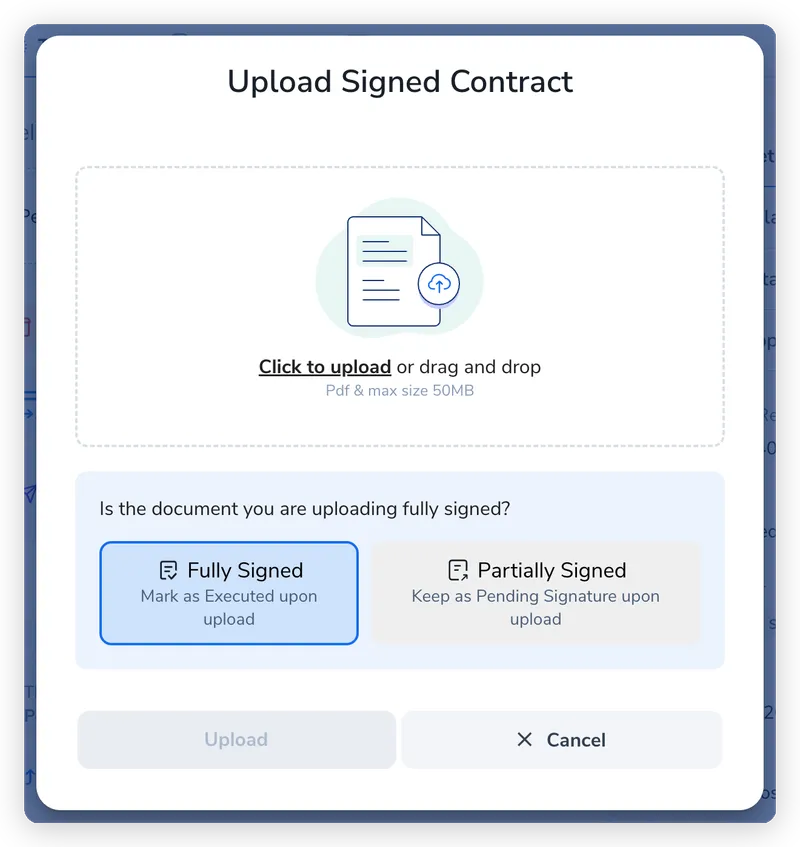
Choose Fully Signed (a) to mark the contract as Executed on upload, or Partially Signed (b) to keep it at Pending Signature, for example when you still need another party to sign. Click Upload to finish.
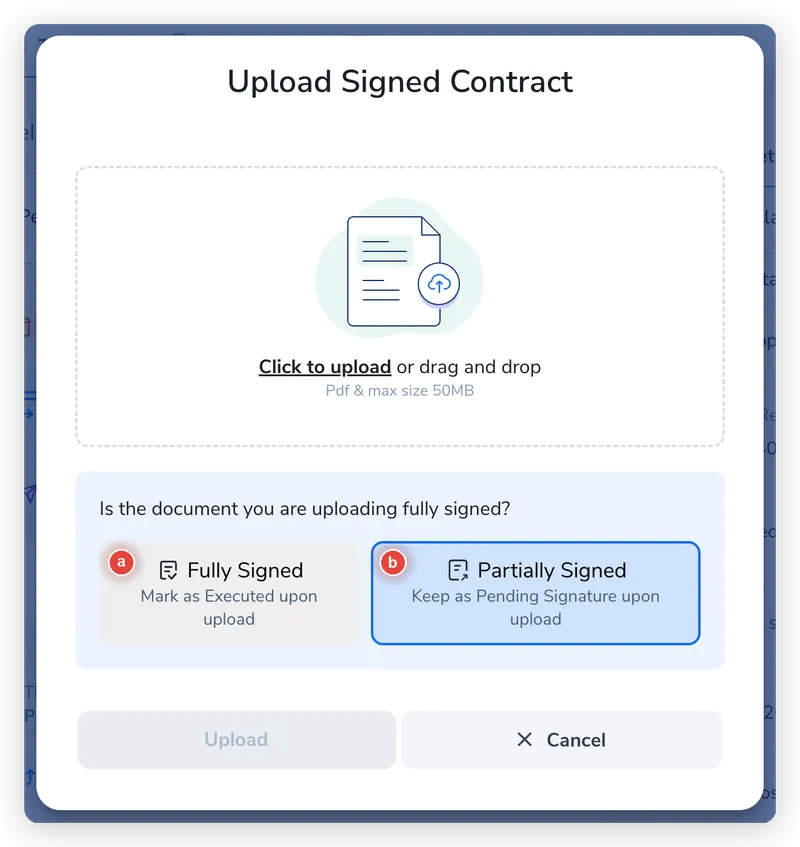
If you selected Fully Signed, the contract moves to Executed and the uploaded file becomes its signed copy, ready to download from the contract record. If you selected Partially Signed, the contract stays at Pending Signature so you can collect the remaining signatures and upload the complete version later. The upload is recorded on the contract timeline either way.