1
Open User management
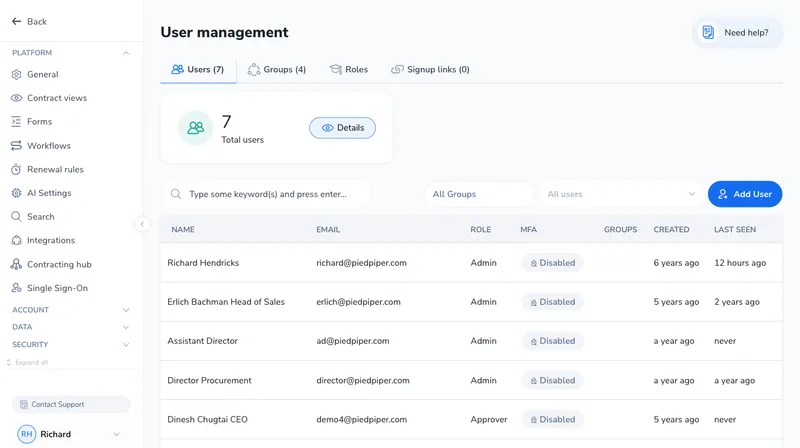
In the left menu, open Account settings and click User management. This is the list of everyone in your account.
When someone joins your team, they need their own Pactly login so their work, their contracts, and their permissions stay tied to them. When someone leaves, you need to cut off their access without losing the contracts they owned.
Both happen in one place: Account settings → User management. From there you add a user (Pactly emails them an invite), set what they can do (their role) and what they can see (their groups), and deactivate anyone who no longer needs access. Every account follows the same short lifecycle:
Admin users can't be removed. The Remove action is hidden for the Admin role, so a workspace can never lock itself out. Change the role first, then deactivate.
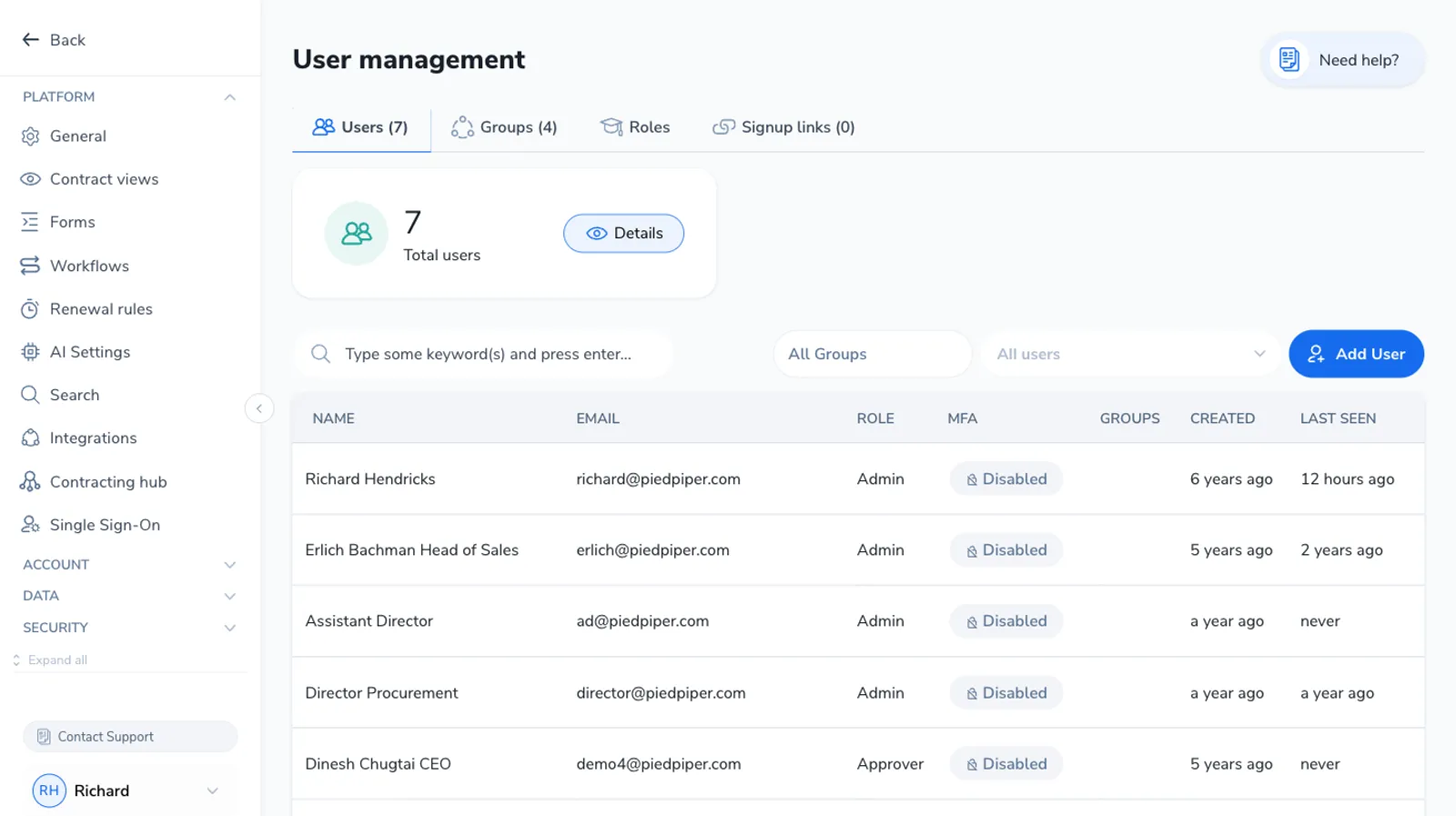
The toolbar above the table has three ways to narrow the list, and they combine. Type in the search box to match by name or email, pick a role in the role filter, and pick a group in the searchable All groups filter that sits next to it. Applying the group filter alongside the search and role filter shows only users who match all three, so you can, for example, find every Manager in a single group. Your selection is kept in the page URL, so a filtered view can be bookmarked or shared and it reopens with the same filters applied.
Adding a user sends them an invite. Pactly creates the account with a random password and emails the person a welcome message with a link to set their own password. There is no separate “invite” step: adding the user is the invite.
In the left menu, open Account settings and click User management. This is the list of everyone in your account.
Click Add User in the top right of the list. The Add User dialog opens.
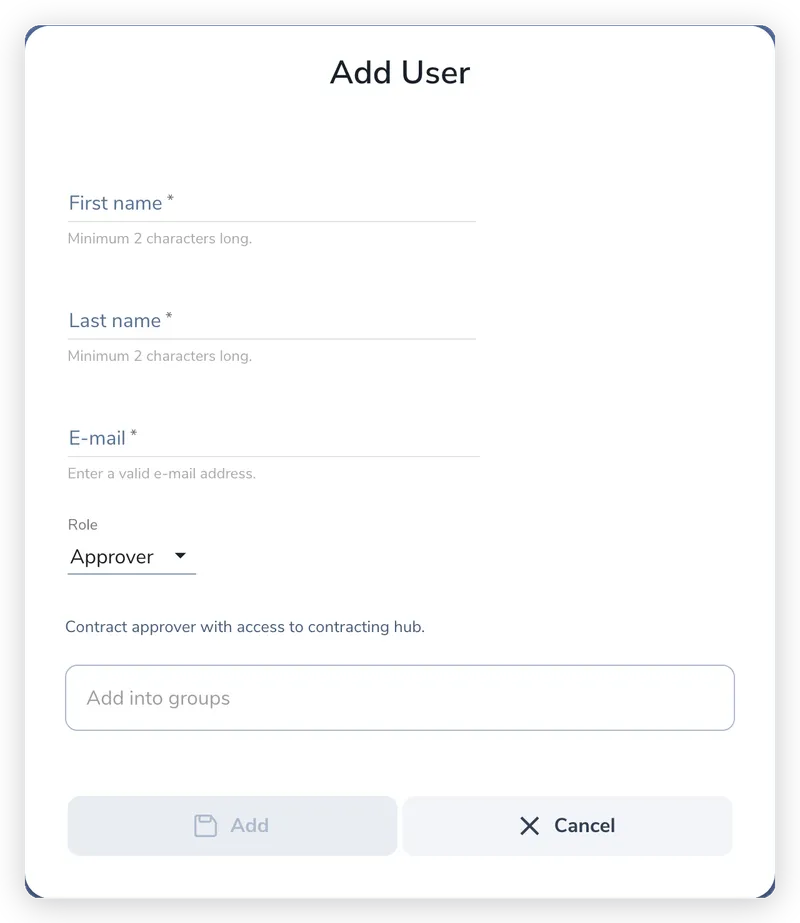
Fill in First name, Last name, and E-mail. The email is where the invite is sent, and it cannot be changed later, so check it carefully.
Choose a Role. The role controls what the person can do across Pactly. A short description appears under the dropdown to explain the role you pick.
Use Add into groups to put the user into one or more groups. Groups control which contracts they can see, especially for sensitive groups. You can change this later.
Click Add. Pactly creates the account and emails the welcome invite. The new user appears in the list right away, with Last seen showing "never" until they sign in.
The Role dropdown only appears for Admins. If you are a User Manager, new users are created with the standard User role and an Admin can adjust the role afterward.
To change someone’s name, role, or groups, hover over their row in the list and click Edit user. The same dialog opens with their details filled in.
One field is locked: the email address cannot be changed after the account is created. If someone’s email is wrong, deactivate the account and add them again with the correct address.
When someone leaves or no longer needs access, remove them from the list. Hover over their row and click Remove user, then confirm.
Removing a user is a deactivation, not a permanent delete. Their access is cut off and they are taken out of workflow and assignment options, but the account record is retained. The contracts they owned are not deleted.
The add is almost always blocked by one of two things:
For the full diagnosis of both, including how to clear a stray account and adjust your seats, see Why can’t this user do X?.
A new user gets a welcome email with a link to set their password, then signs in like anyone else. If your account uses SSO, they sign in with your identity provider instead of a password. For the sign-in experience itself, see Signing in to Pactly.