1
Open the Groups tab
In the left menu, go to Account settings → User management, then select the Groups tab.
Not every contract should be visible to everyone in your account. A team handling acquisitions, executive agreements, or HR settlements often needs those documents walled off from the rest of the company, even from other managers.
A group is Pactly’s document-access primitive. It is a named list of users, and any contract or form assigned to a group is scoped to that group’s members. Assign the right people, assign the contract, and everyone else stops seeing it in their repository.
Group membership is an access-control list layered on top of a user’s role:
Group membership narrows what a user sees; it does not grant powers their role lacks. A user still needs the relevant role permission to act on a contract they can see.
Groups control what people find on their own. Sharing one contract with a named colleague is a separate, deliberate grant, and it wins: someone who has been shared a contract can open it whatever group it belongs to, including a group they are not in.
The share does not widen anything else. It grants that one contract, to that one person, and it does not add them to the group or show them the group’s other contracts. The shared contract also stays out of their repository lists and search when it lives in a group they are not in, so they reach it from the link in the share email or from a link you send them.
Share a contract from its Access tab, under Shared with. You can also pick a group there to share with each of its current members at once; that is still a set of individual shares, resolved when you confirm, so later joiners are not included and later leavers keep access until removed. See Download and Share a Contract.
A normal group controls who can see a contract, but an admin can still see everything by default. A Sensitive group is stricter: its contracts are hidden from everyone outside the group, including admins who are not members.
Use Sensitive groups for the most confidential work, where even account administrators should not see the documents unless they are explicitly part of the team. It is the only thing in Pactly that hides a contract from an admin, so add at least one trusted member to every Sensitive group or its contracts can become unreachable. If an admin reports that a contract is “missing,” check whether it lives in a Sensitive group they do not belong to.
The Sensitive flag governs who finds the contract, not who can be given it. Someone who can share a Sensitive group’s contract can still share it with a colleague outside the group, and that person will be able to open it. Pactly warns the sharer before this happens: sharing out of a Sensitive group asks them to confirm, naming the group and the people who are not in it. The contract stays hidden from those people’s lists and search either way, so it does not become discoverable to anyone else.
The Sensitive flag is the only thing in Pactly that hides a contract from an admin. Always keep a trusted member in every Sensitive group, or its contracts can become unreachable.
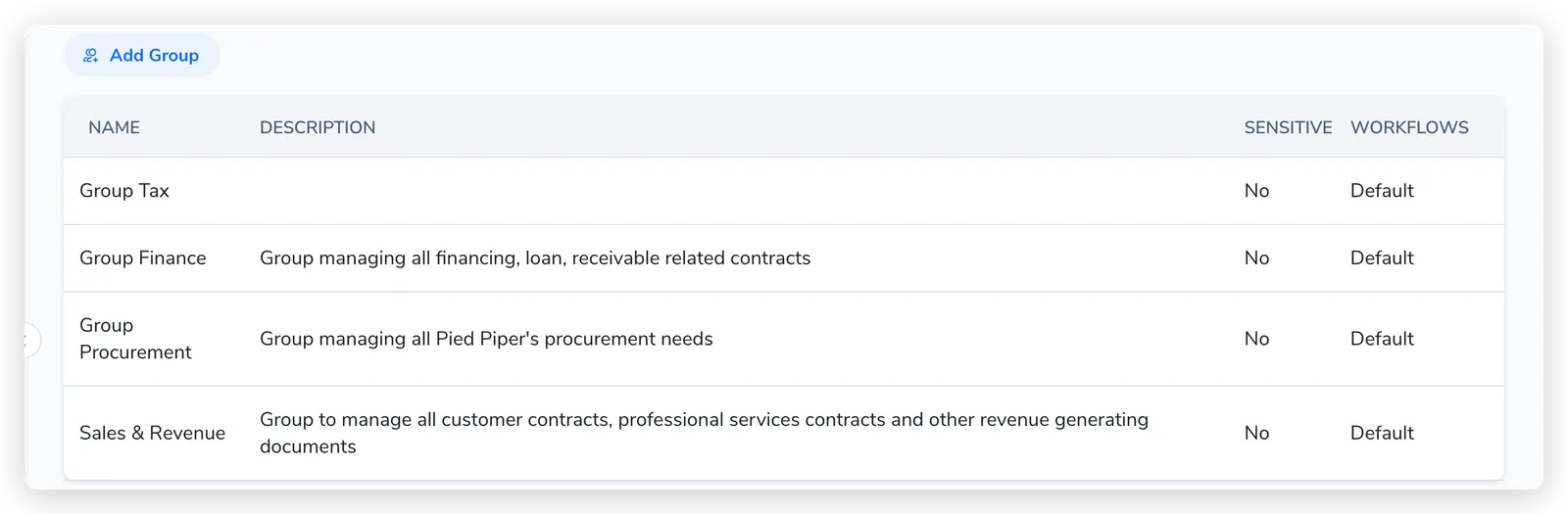
Groups live under Account settings → User management → Groups. The Groups tab appears for admins and for users whose role can manage groups.
In the left menu, go to Account settings → User management, then select the Groups tab.
Select Add Group to open the new-group dialog.
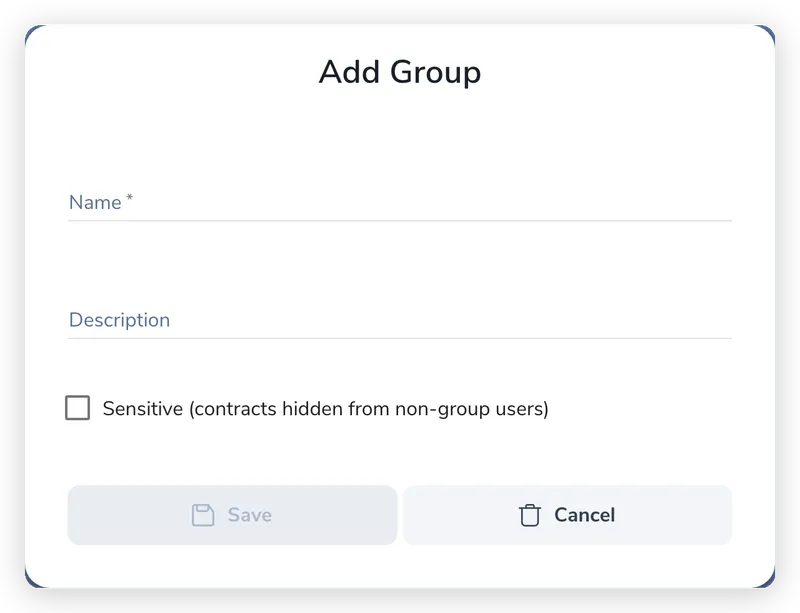
Give the group a clear Name (required) and an optional Description explaining who it is for.
Tick "Sensitive (contracts hidden from non-group users)" if this group should also be hidden from admins outside it. Leave it unticked for standard access control.
Click Save. The group appears in the list, ready to be assigned to users and contracts.
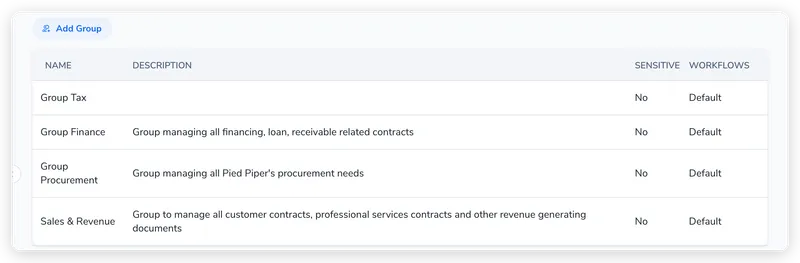
The Workflows column on each group is a separate, advanced setting that points the group at a non-default workflow view. Most accounts leave it as Default; see your workflow configuration if you need to change it.
You add and remove members from the user record, not from the group itself.
Go to Account settings → User management and stay on the Users tab.
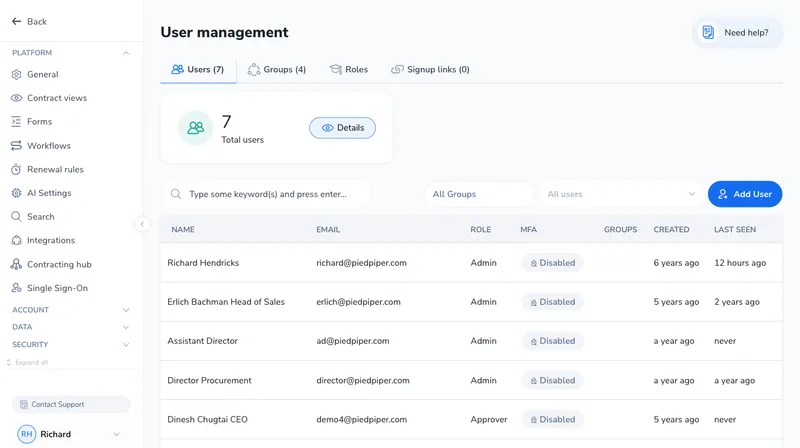
Open the user you want to add, using the edit action on their row.
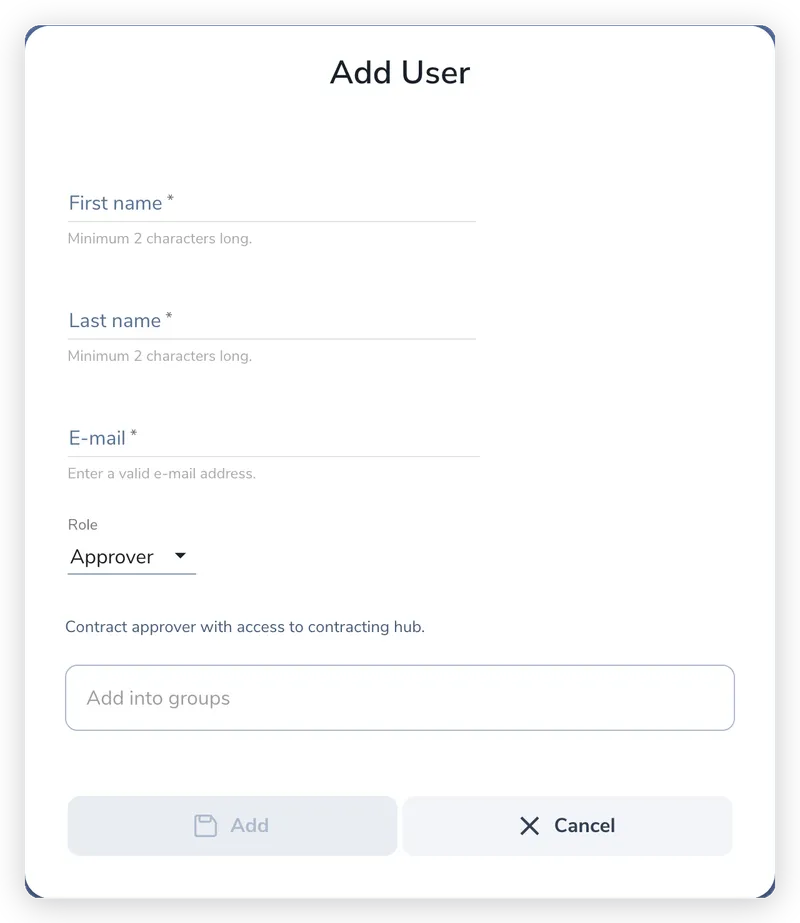
In the "Add into groups" field, select one or more groups. Remove a group chip to take the user out of it.
Save the dialog. The user gains access to every contract in the groups you assigned, and loses access to any group you removed.
Once a group exists, assign it to a contract from the contract’s Access tab, in the right-hand details panel. The Group field shows the current group (or “No group”); click Set group to choose one.
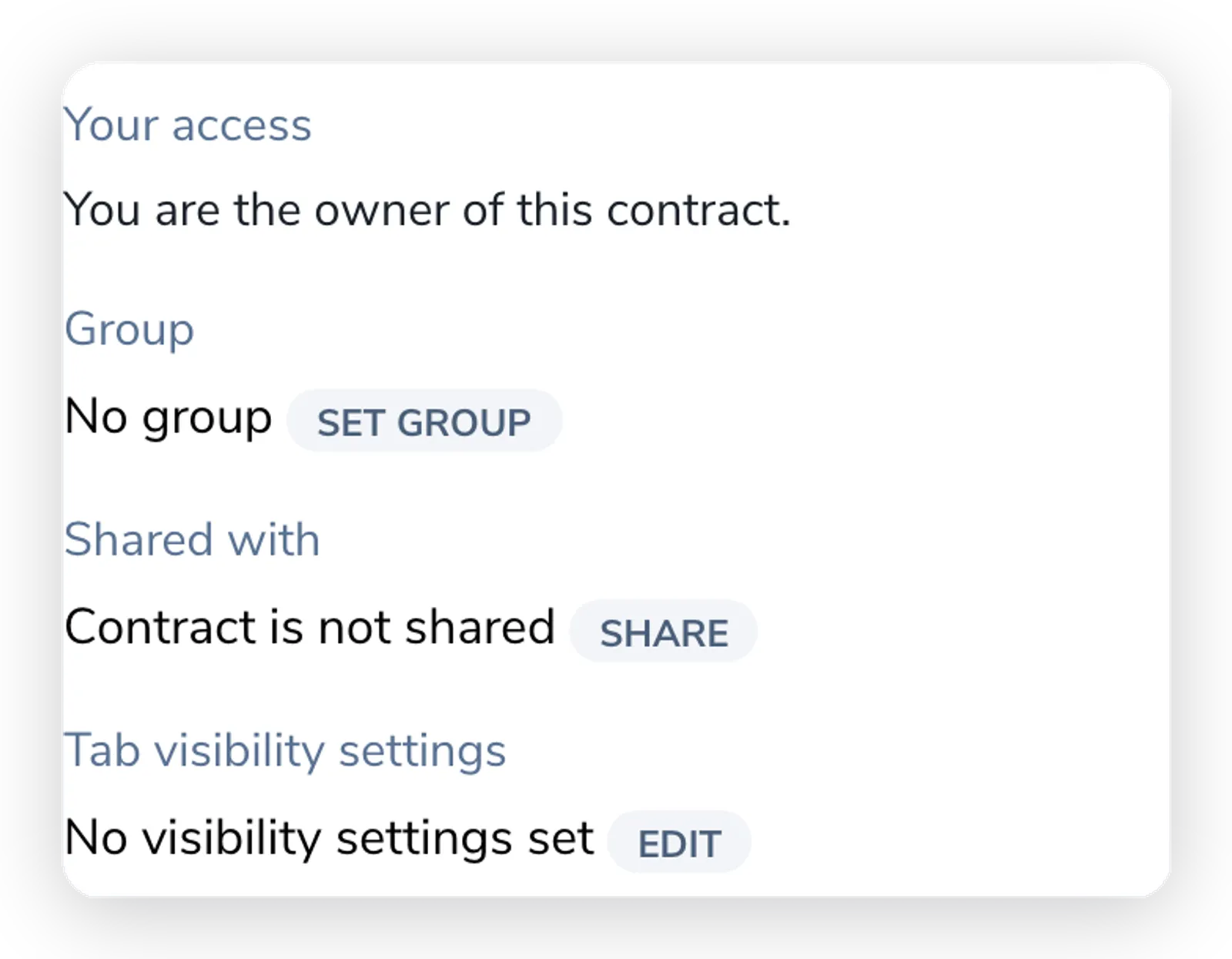
A contract can be assigned to one group at a time. Changing the group reassigns visibility to the new group’s members; clearing it returns the contract to your account’s default, role-based visibility.
Deleting a group does not delete or hide its contracts. When a group is removed, Pactly clears the group from every contract and form that referenced it. Those records fall back to your account’s default, role-based visibility rather than disappearing.
This makes a Sensitive group’s contracts visible again to the roles that would normally see them. Before deleting a Sensitive group, confirm that returning its contracts to default visibility is acceptable, or reassign them to another group first.
| Goal | Group setup |
|---|---|
| Keep a department’s contracts together | One group per department (Legal, Procurement, HR), members added per user |
| Wall off highly confidential deals | A Sensitive group so the documents are hidden even from non-member admins |
| Scope a manager to their own area | Assign the manager to their department’s group so their repository is filtered to it |
| Separate access by region or office | One group per region, with users added to the regions they cover |