1
Open Contract types and click Create Contract Type
In Settings, open Contract types and stay on the Contract Types tab. Click Create Contract Type in the top right.
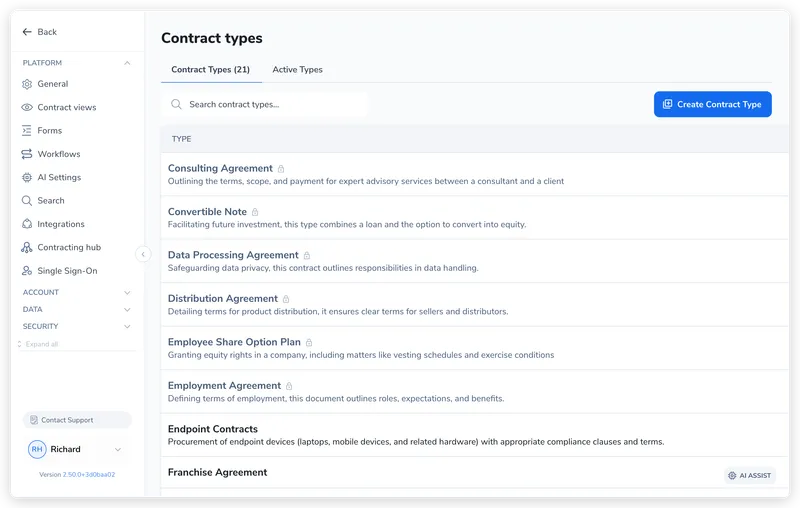
An NDA, a master services agreement, and a sponsorship deal don’t need the same approvers, the same template, or the same reporting. In Pactly, categories are your contract types (NDA, MSA, MOU, Sponsorship, Procurement), and the category you pick on a contract classifies it: it decides how the contract routes for approval, which template it starts from, and how it groups in your register. You manage them in Settings → Contract types.
This guide covers creating a contract type, choosing which types users can pick, and keeping the list short.
Categories are managed in Settings → Contract types. The screen has two tabs:
| Tab | What it does |
|---|---|
| Contract Types | Your full category library. Create, edit, and remove category definitions here. |
| Active Types | The subset users can actually pick. Governs what appears in the contract picker. |
The split matters: a category can exist in your library without being offered to users. It appears in the picker only once it is on the Active Types list.
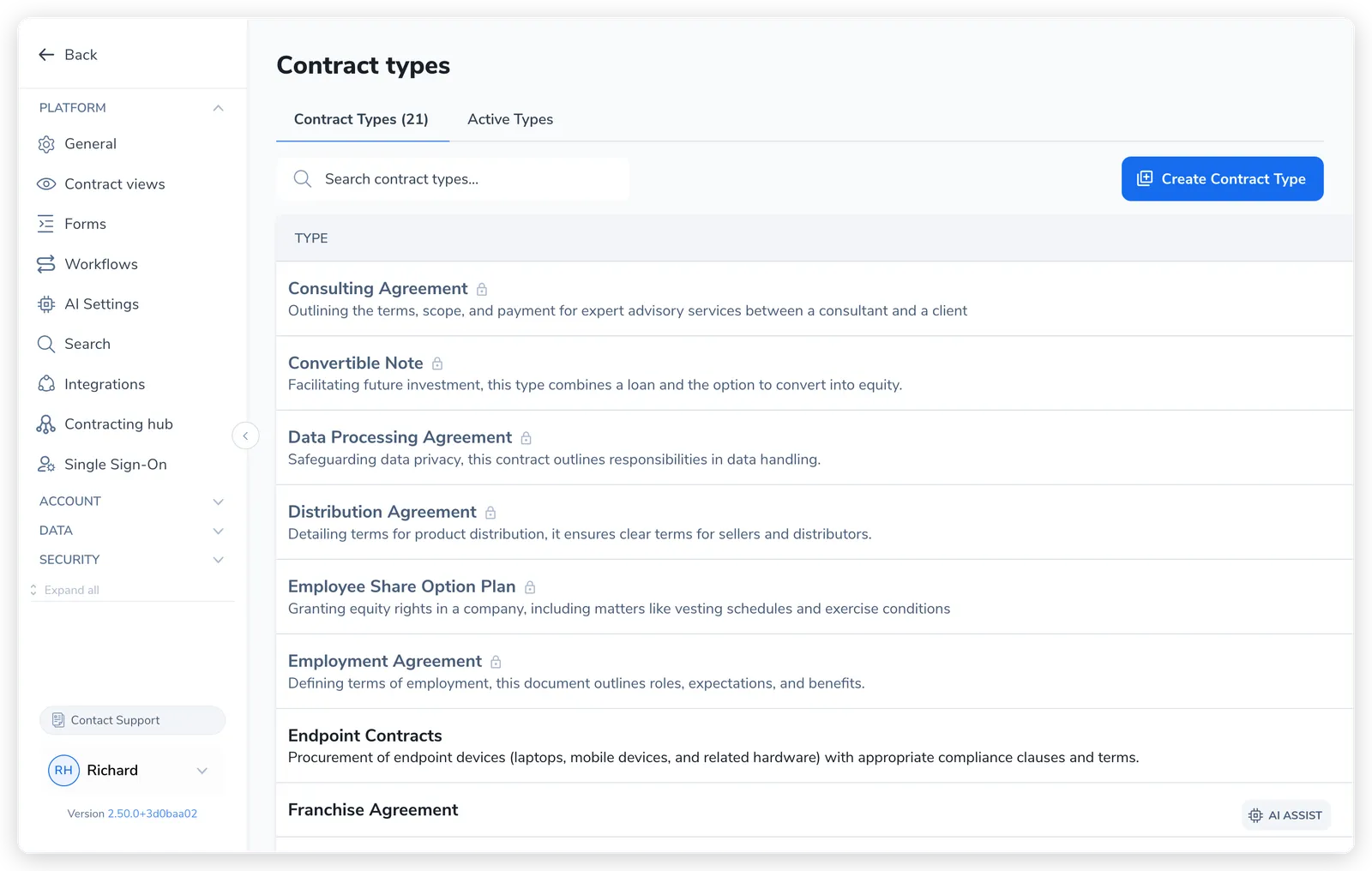
On the Contract Types tab, click Create Contract Type, fill in the fields, and save. Label and Description are required; Abbreviation is optional.
In Settings, open Contract types and stay on the Contract Types tab. Click Create Contract Type in the top right.
Enter a Label (the name users pick, 4-64 characters), an optional Abbreviation (a short code, up to 10 characters), and a Description explaining when to use the type (at least 4 characters).
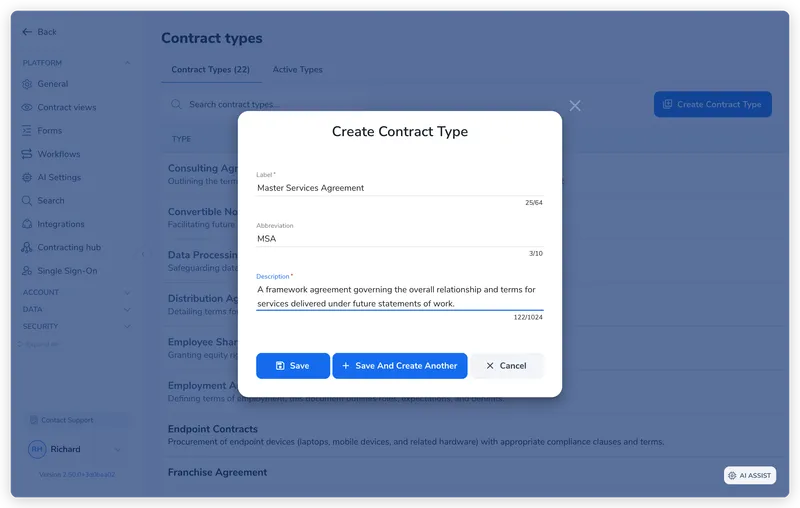
Click Save, or Save and Create Another to add several types in a row. The type joins your library but is not yet selectable.
| Field | Required | What it’s for |
|---|---|---|
| Label | Yes | The display name users pick (4-64 characters). Appears in the picker, emails, summaries, and exports. |
| Abbreviation | No | A short code (max 10 characters). Flows into exports, reporting, and document template tokens. |
| Description | Yes | Explains when to use the type, so whoever picks a category chooses the right one (at least 4 characters). |
The Active Types tab controls which contract types users can pick. It is an add/remove list:
Use this to roll out a new type only once it is fully configured (properties and routing built), or to retire a type from new use.
The effect is visible in the contract picker: only the types on Active Types appear, so users choose from a short curated list instead of your entire category library.
The common failure mode is proliferation: a new type for every slight variation, which scatters reporting and multiplies the properties and routing you have to configure.