1
Open the contract
Find the contract in the repository (search by its reference number, for example 2026-0499) and open it.
You need to send a contract to someone, and the hard part is rarely the download itself. It’s getting the right document, because one contract carries several: the version you are negotiating, the finalized version, and the executed (signed) file.
This article covers downloading the exact document you want, sharing a contract with someone, and fixing a shared link that opens to a blank page.
A single contract (sometimes called a case or record in your workspace) holds more than one file as it moves through its lifecycle. Before you download, decide which one you need.
| You want | This is | Download it from |
|---|---|---|
| The final signed copy | The executed file, created when signing completes | The Signed row in the download dialog |
| The locked, pre-signature version | The finalized document | The Finalized row in the download dialog |
| A specific negotiation draft | A round (Created, Sent to, or Received from a party) | That round’s row in the download dialog |
| The current working version | The latest round | The header Download button opens the dialog; pick the top negotiation round |
Pactly does not make you guess. The download dialog lists every version the contract has, newest stage first, so you choose the exact file by sight rather than by memory.
The most reliable way to get a document is to open the contract and download it yourself. You always have your own access, and you see every available version.
Find the contract in the repository (search by its reference number, for example 2026-0499) and open it.
Click the Download button in the contract record header. This opens the "Available versions" dialog rather than downloading a file straight away.
The dialog lists every version: Signed (the executed file) at the top, then Finalized, then each negotiation round (Created contract, Sent to, Received from). Each row shows who produced it and when. Click Download on the row you want.
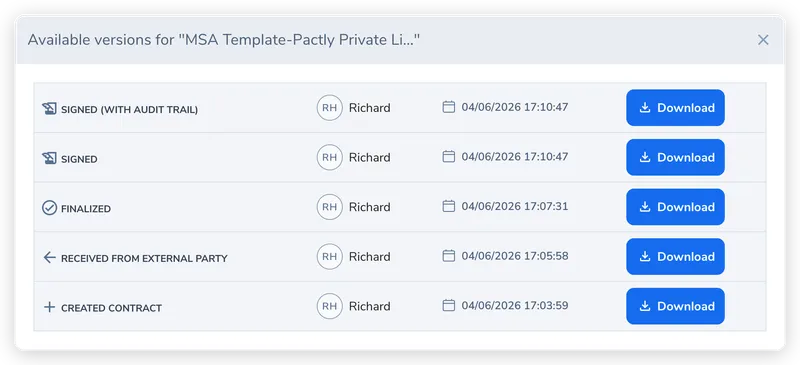
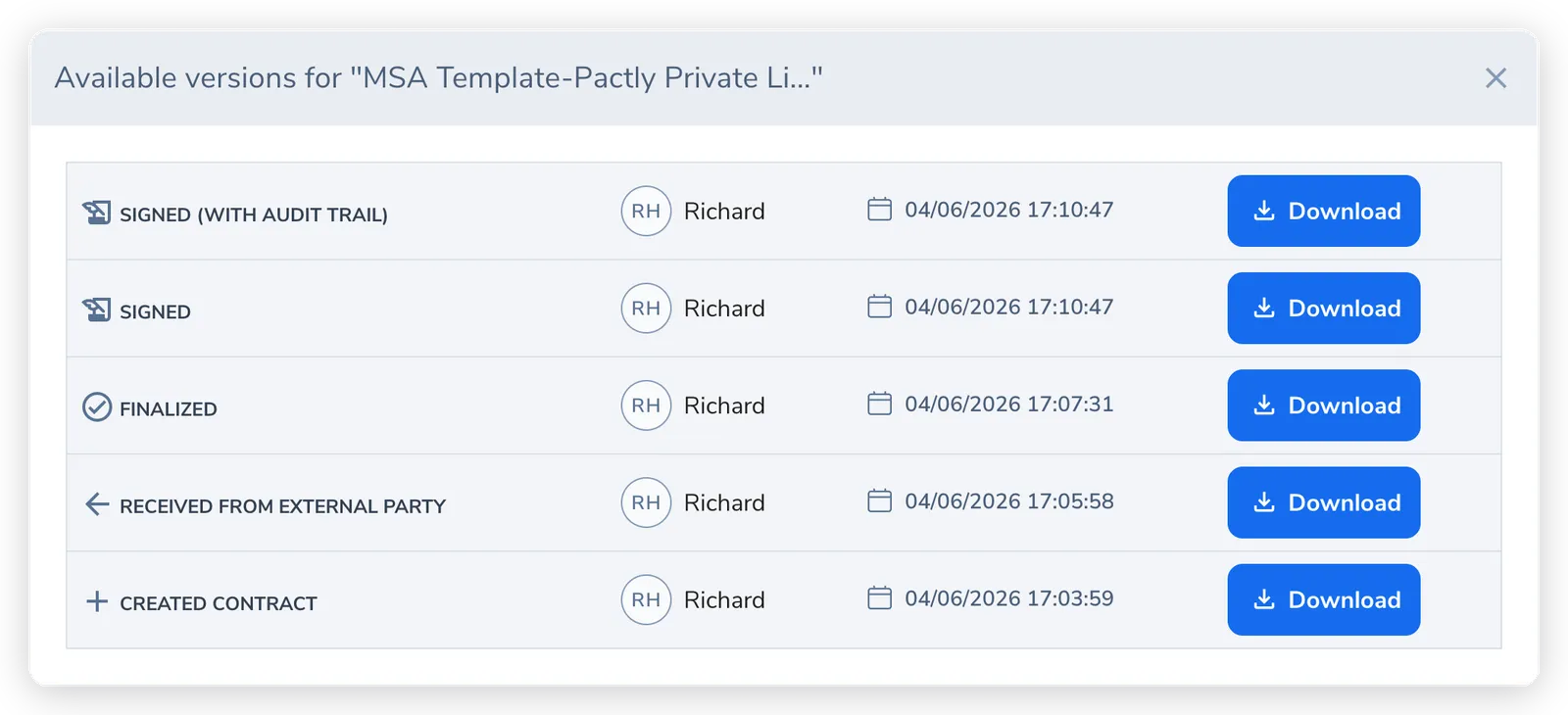
When a contract has been executed through e-signature, the Signed version may appear more than once in the dialog:
Both download the same agreement. The audit version simply adds the certificate page.
Contract files you download are named with the contract reference first, then the contract name, then the file extension. A contract with the reference 2026-0405 and the name Service Agreement ACME arrives as 2026-0405 Service Agreement ACME.pdf. Files from different contracts then sort into reference order in any folder you keep them in.
This applies to contract downloads, executed copies, eSignature files and export bundles.
The name is built at the moment you download, from the reference and the name the contract holds right then. A contract that is renamed, or given a new reference, downloads under its new details from that point on.
An admin can turn this off for the whole company in Account Settings, in the Download file names box. With it off, files download under the contract name on its own.
A contract created by a form keeps the file name the form gave it, so renaming that contract does not change its download name. If the file name already contains the reference, it is not added again. If it contains an older reference, you see both numbers, for example 2026-0405 2025-0112 Service Agreement ACME.pdf. The number in front is the reference the contract carries today.
If the person you are sharing with is a Pactly user in your workspace, you usually don’t need to download anything. Grant them access to the contract itself, and Pactly emails them a link to it.
Open the contract, then select the Access tab in the right-hand details panel.
Under "Shared with", click Share. A picker opens listing the people you can share with. Anyone missing from that list can already access the contract.
Select one or more colleagues, then click Share access. Each one receives an email with a link straight to the contract, and their name appears under "Shared with".
Sharing grants that one contract to that one person. It does not change what else they can see, and you can take the access away again from the same panel by removing them from the Shared with list.
When the right people are a whole group, pick the group under Or everyone in a group instead of adding them one by one. Pactly shows who in the group will gain access and who is left out (they already have access, own the contract, or their account is deactivated), and shares with each person individually once you click Share access. Every one of them then appears under Shared with and can be removed on their own.
The group is a shortcut for picking people, not an ongoing rule. Someone who joins the group later does not get the contract, and someone who leaves the group keeps it until you remove them from Shared with. Share again with the same group to reach members who joined since.
To do this for several contracts at once, select them in the Contracts list and choose Share with group from the bulk actions. Pactly previews the result per contract before you confirm, and each person receives one email listing every contract they gained rather than one email per contract.
An explicit share opens the contract for them whatever group it belongs to, including a group they are not in. The contract still stays out of their repository lists and search in that case, so the link in the share email is how they get to it. If the contract is in a Sensitive group, Pactly asks you to confirm before sharing it with anyone outside that group. See Groups & Document Access.
You can also just copy the page URL from your browser and send it. That URL is a logged-in link: it opens the live contract record, with its status, timeline, and every version, but only for someone who is signed in and already has access. Sharing from the Access tab is the more reliable route, because it grants the access as well as sending the link.
Some links Pactly generates are public links meant for people outside your workspace, most commonly a form link sent to a contact so they can complete a contract intake or signing form. These are generated when you assign or send a form, and you copy them with a Copy Link button.
A recurring confusion is a public link that opens to a blank form or blank page. This almost always has one cause: the link has been invalidated.
When you reassign a form to a different person, or regenerate a recipient’s link, Pactly invalidates the original link for security. The old URL still exists, but it no longer points at a live form, so it loads blank. Anyone holding the previous link sees an empty page.
To fix a blank link, generate a fresh one from the timeline and replace it:
Open the contract and find the form entry on the timeline.
Reassign or resend the form to the correct recipient. Pactly generates a fresh link and invalidates the old one.
Click Copy Link, send the new link, and tell the recipient to discard the old one.
After you reassign, the panel confirms the new recipient and shows the fresh link in a read-only field with a Copy Link button, alongside the note “The original form link has been invalidated for security.” Copy that link and send it on; the previous one is now dead.
If you are sending the document itself rather than a form, don’t reach for a link at all. Download the version you need and attach it, or use Send Message so the email and the file are tracked on the contract.