How Property Values Get Captured and Used
Defining a property gives you an empty field. The value is what you actually use: the effective date you sort renewals by, the contract value that decides who approves, the governing law that drops into the document. This article is about how that value gets onto a contract, and everywhere it goes once it’s there.
A property is captured once and then reused across the lifecycle. The same value fills the generated document, drives filtering and reporting, branches approval routing, and tracks renewals. Capture it cleanly, and the rest of the platform reads from it.
Party and User properties are never AI-extracted. They are resolved live against the linked record, so their value stays current rather than being frozen as text.
Capturing values
Section titled “Capturing values”Values arrive three ways. One path covers most contracts; the other two handle uploads and automation.
Path 1: a form field mapped to a property
Section titled “Path 1: a form field mapped to a property”The main path. A form field is mapped to a contract property, so when a requester submits the form, their answer is written straight onto the generated contract. It puts data entry where the data originates: the requester types the governing law or the contract value once, and it lands on the right property.
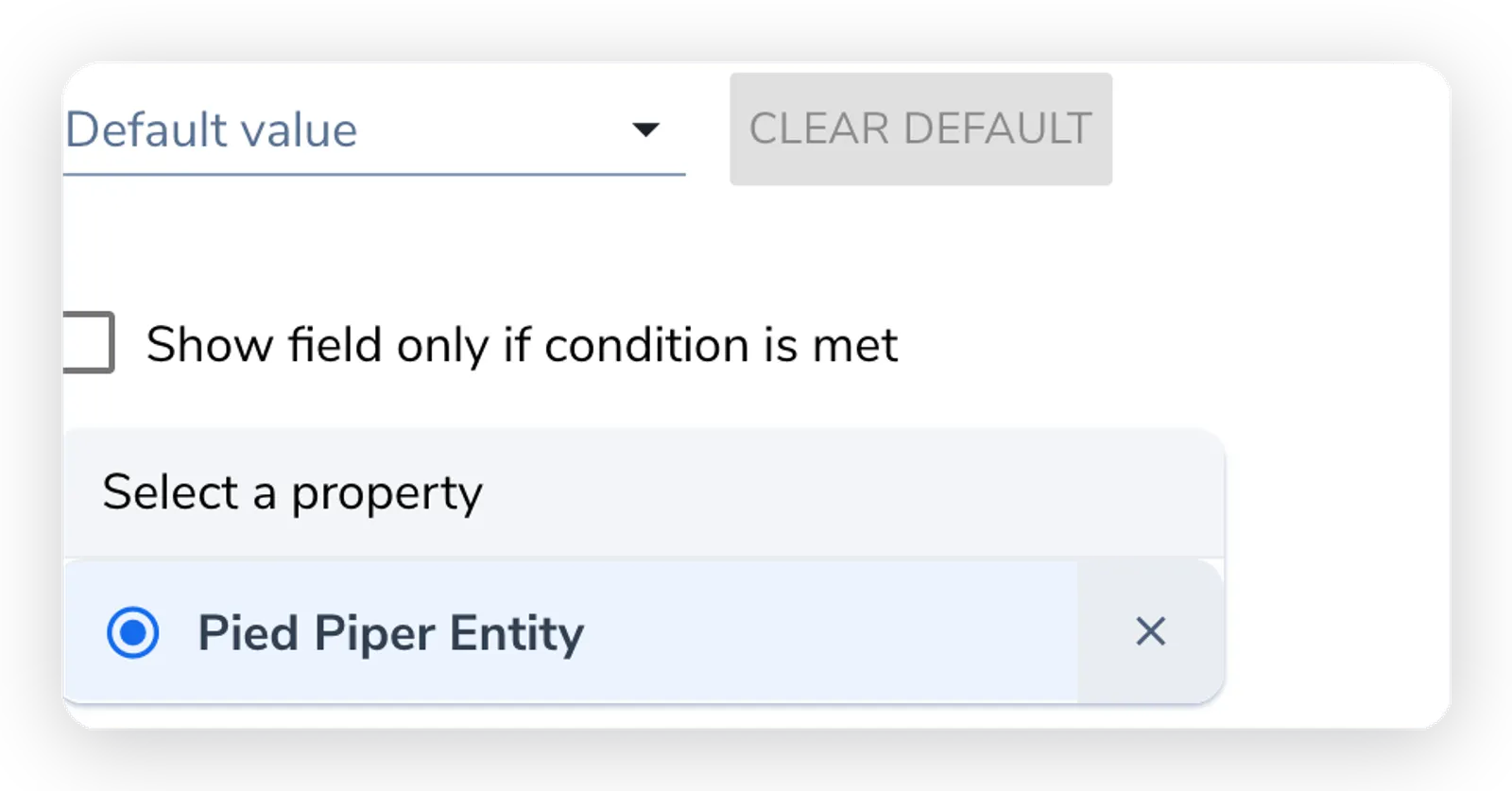
- The field type and property type must be compatible. The Select a property dropdown filters out incompatible types, so you cannot map a number field to a date property by accident.
- The mapping lives on the field, so every contract that form generates writes the same value to the same property.
- Because the value lands on a property, not just in the document, it is immediately available to filtering, reporting, and routing. This is what turns a form answer into reusable contract data.
Path 2: AI extraction from an uploaded document
Section titled “Path 2: AI extraction from an uploaded document”When a contract arrives as a finished document (a signed third-party agreement, a legacy contract loaded into the repository), there is no intake form to carry the values. A property’s prediction prompt lets the system read the value out of the uploaded document. Two things are needed, and they are configured in two different places:
- The prompt (the property definition): tells extraction what to look for, for example “the date the agreement takes effect.” It lives under Manage Properties → the property → Admin settings → Prediction settings → Prompt, master-admin only. Without it, extraction has nothing to find.
- The toggle (per contract type): the Auto extract with AI switch on the Settings tab must be on for that category. It is a company-level setting, separate from the property definition.
Once both are in place, processing a document fills those properties for you to confirm. Extraction defaults to filling empty properties, preserving existing values. When you re-run extraction, you can choose to replace existing values or, under More choices, update only previously AI-extracted values. Blank findings never clear an existing value. See Re-run AI extraction.
The Properties tab shows the current value’s source, such as AI-extracted, Manually updated, or From form. Older values without a recorded source show Source unavailable.
Path 3: a workflow action that stamps the value
Section titled “Path 3: a workflow action that stamps the value”Advanced. A workflow can write a property value automatically using a Set properties action. Instead of a person or a document supplying the value, the workflow stamps it as part of an automated step, for example setting a renewal owner into a User-type property when a contract reaches a certain point.
This is an automation feature most users never touch directly. An administrator configures it on the workflow, not on the contract. See Workflows.
If you came from a spreadsheet or another tool, here is how each capture path maps:
Reusing values
Section titled “Reusing values”Once a value is on a property, the rest of the platform reads it. This is the payoff of capturing it cleanly: one value feeds document text, filtering and views, reporting, routing, and renewal tracking.
Documents
Section titled “Documents”When a contract is generated, a template variable tied to a property is replaced with that property’s current value, wherever the matching variable appears. See Templates for how variables are placed.
Filtering, custom views, and reporting
Section titled “Filtering, custom views, and reporting”The contracts dashboard can filter on a property’s value, which is what powers saved Custom Views. A view like “active contracts in this category above this value” is built entirely from captured property values. A date property enabled for sorting can also be used as a sort key, so you can order contracts by effective date or expiry. In exports and reports, each property is a column.
Approval and workflow routing
Section titled “Approval and workflow routing”This is the highest-value reuse. Workflow conditions test property values to decide what happens, which is how “for this kind of contract, with these attributes, do this” actually works.
Approval here means an internal sign-off, a click to approve inside Pactly. That is separate from e-signature, the legal execution of the document. A property can route an internal approver, a signer, or both. See Approval Pathways.
| You want | The condition tests |
|---|---|
| Anything over a value threshold gets an extra approver | a Number property compared with greater-than / less-than |
| A risk flag triggers a due-diligence step | a Yes-No property that is true |
| University-wide vs faculty agreements route to different approvers | a List property’s selected value |
| One category routes to a different owner than the rest | the contract’s Category |
A clean, well-scoped property set is what makes routing reliable. For the full model, see Routing Approvals by Category, Value, and Properties.
Renewal tracking
Section titled “Renewal tracking”Date properties keep renewals visible. An effective or expiration date captured once feeds dated custom views and sorting, so expiring contracts surface in a list rather than being missed. This is the same captured value doing double duty: it dropped into the document at generation and now drives the renewal view, months later, all from the one value.