1
Open the Pending approval chain
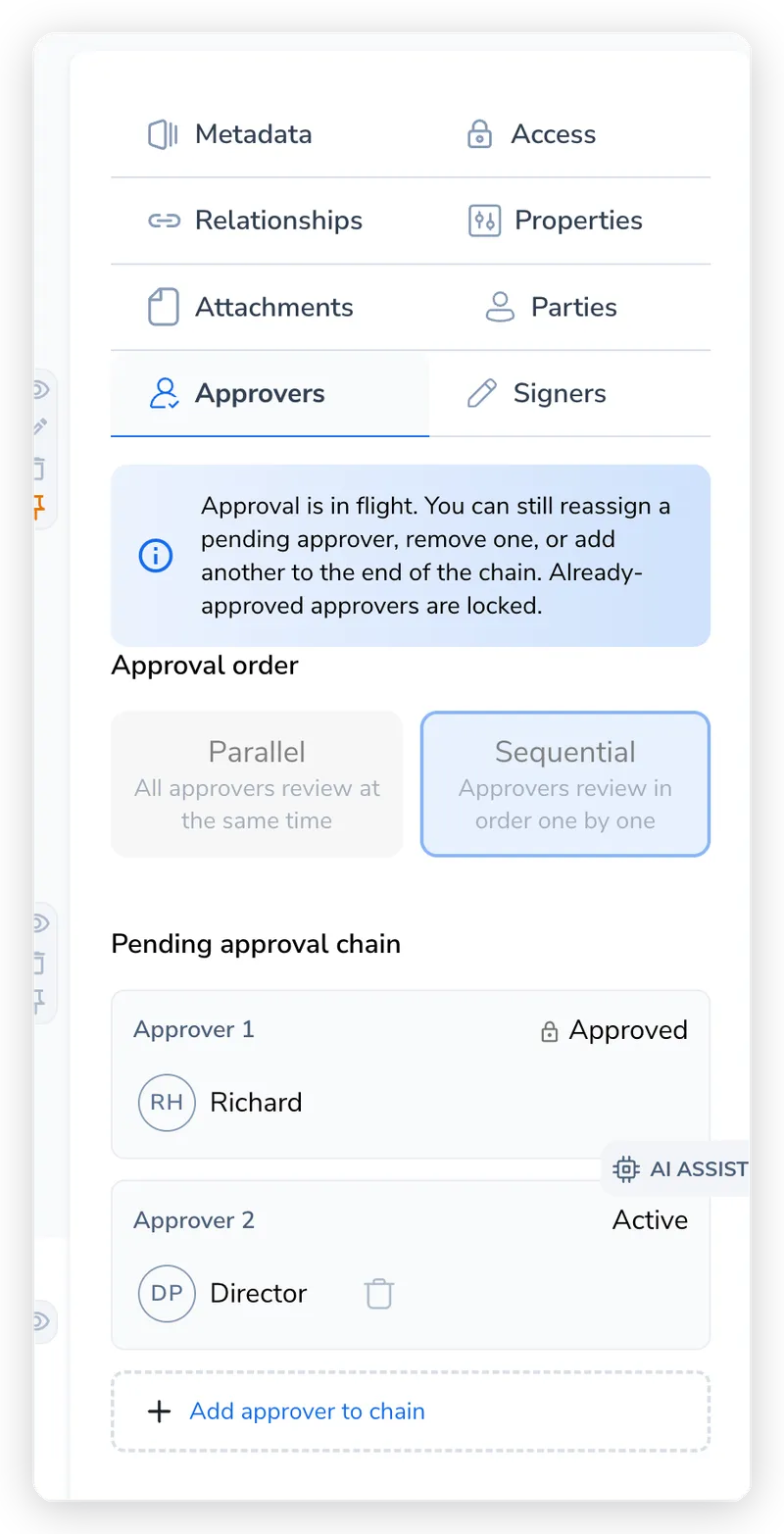
On the stalled contract, go to its approvers area. The Pending approval chain panel lists each step: approved steps are locked, one step is Active, and later steps sit Waiting.
Setting up an approval pathway is only half the job. Once requests start flowing, someone has to see what is waiting, fix the chain when an approver is on leave, and clear the request a dropped deal leaves behind before it lingers in everyone’s queue. Requests are raised when a contract is finalized or by a routing rule (see Approval Pathways).
When a request is assigned to someone, Pactly emails them a link straight to the contract. They can also find everything waiting on them in their Action Required list (see Action Required): there is no separate inbox to learn.
Either way, the approver reviews and approves or rejects on the contract itself. Approving the final step a contract is waiting on moves it to Pending Signature, ready to sign; rejecting sends it back to Negotiation. For what each decision does to the rest of the chain, see Approval Pathways.
A live chain stays editable: you can reassign, remove, or add an approver while the request is in flight. These controls live under the Pending approval chain heading in the contract’s approvers area, which only appears while an approval is open. Editing the chain is a contract-management action, available to the contract owner and administrators, not to a plain approver who only has a request to action. Every edit notifies the approvers it affects.
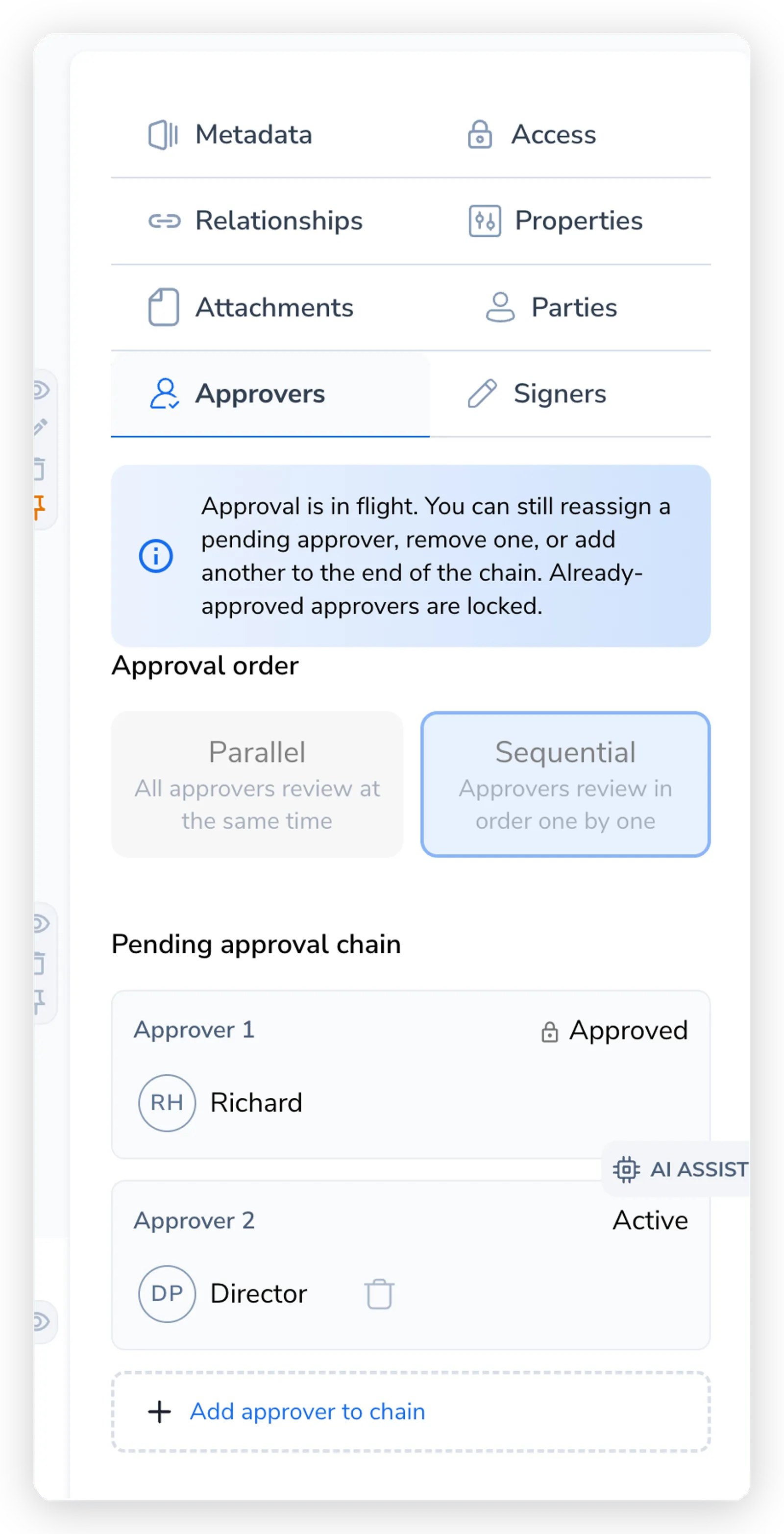
Three edits are available, each with a different effect on the chain:
On the contract timeline, the current parallel approval round offers Retry approval request beside declined and cancelled people. Confirming sends a new request only to that person and keeps everyone else’s decisions unchanged. If the person was previously removed, retrying adds that person back to the saved approver list. Use the history control beside a retried person to see their previous response.
A request cancelled when someone declined remains outstanding until you explicitly retry it. Retry is unavailable for approved, cancelled, or previous rounds. Start a new approval request if the document has changed or the approver is no longer available.
Editing the chain fixes who approves. Cancelling calls off the approval altogether, for example when a contract is being renegotiated and the current request no longer applies. Like chain edits, cancelling is available to the contract owner and administrators.
Cancelling acts on the entire approval, not a single approver. When you cancel:
A cancelled approval is marked cancelled and drops off everyone’s pending list. To approve the contract later, raise a fresh request; the cancelled one does not reopen.
Most “why won’t this go away?” questions come down to one rule: a pending request persists until it is explicitly resolved (approved, rejected, reassigned, removed, or the whole approval cancelled). The reminder digest lists every pending request, so an unresolved one keeps nudging until you resolve it.
When a deal is dropped without the approval being actioned, the pending request keeps showing in the approver’s Pending approval list and in the reminder digest until something resolves it.
If the contract itself is finished with, aborting, archiving, or deleting it automatically cancels every pending approval request on it, notifies the affected approvers, and records the cancellation on the contract’s timeline. So for a deal that is genuinely off, the cleanest fix is to abort the contract: the queue clears as a side effect. See Abort, Archive, Terminate, and Delete.
If the contract should stay active but this particular approval no longer applies, cancel the approval on the contract directly (a reason is required). Cancelling closes every pending request in the chain, drops them from the digest, and marks them cancelled. An approver who no longer needs to weigh in can also reject, but cancelling retires the approval for everyone at once.
A sequential chain advances one step at a time: one step is active, later steps sit waiting, and each activates only when the one before it completes. The question to hold onto is which approver is the current step?
If that step can never complete, for example the approver has left the company, the chain stalls and later approvers stay waiting indefinitely. To get it moving, act on the active step.
On the stalled contract, go to its approvers area. The Pending approval chain panel lists each step: approved steps are locked, one step is Active, and later steps sit Waiting.
Find the approver whose turn it is right now. That is the step blocking the chain, since waiting steps only activate after it completes.
Hand the active step to a valid approver. Reassign is the safe default because it always works. If a later waiting step exists, you can instead remove the active step to promote the next approver.
Reassigning re-activates the chain from the current step forward. Parallel chains do not stall this way, since every approver is active at once and there is no next step to wait on.
The Approvers sidebar shows the current approval round. Earlier rounds remain on the contract timeline under Previous approval round, with their outcome shown beside the heading. Use the chevron beside the outcome, labelled Show details on hover, to expand an earlier round without mixing its approvers into the current round. Select it again to hide the details.