Creating Your First Playbook
This guide walks you through building a playbook from scratch. By the end, you’ll have a working playbook your team can use to review contracts consistently.
Before You Begin
Section titled “Before You Begin”Permissions required: You need Admin or Playbook Editor access in Pactly.
What you should have ready:
- Your organization’s negotiation guidelines (formal or informal)
- Examples of contracts you commonly review
- A list of clauses that frequently cause issues
Don’t have written guidelines? That’s common. You can still create a playbook by interviewing experienced colleagues about what they look for during review.
Understanding the Building Blocks
Section titled “Understanding the Building Blocks”A playbook is made of positions. Each position represents one topic you want the AI to check—like “Limitation of Liability” or “Governing Law.”
For each position, you’ll define:
- Name: What topic this covers
- Guidance: Your requirements (the most important part)
- Keywords: Help the AI find relevant clauses
- Fallbacks: Alternative language to propose when the contract doesn’t comply
Start with a few critical positions. You can always add more later.
Step 1: Create the Playbook
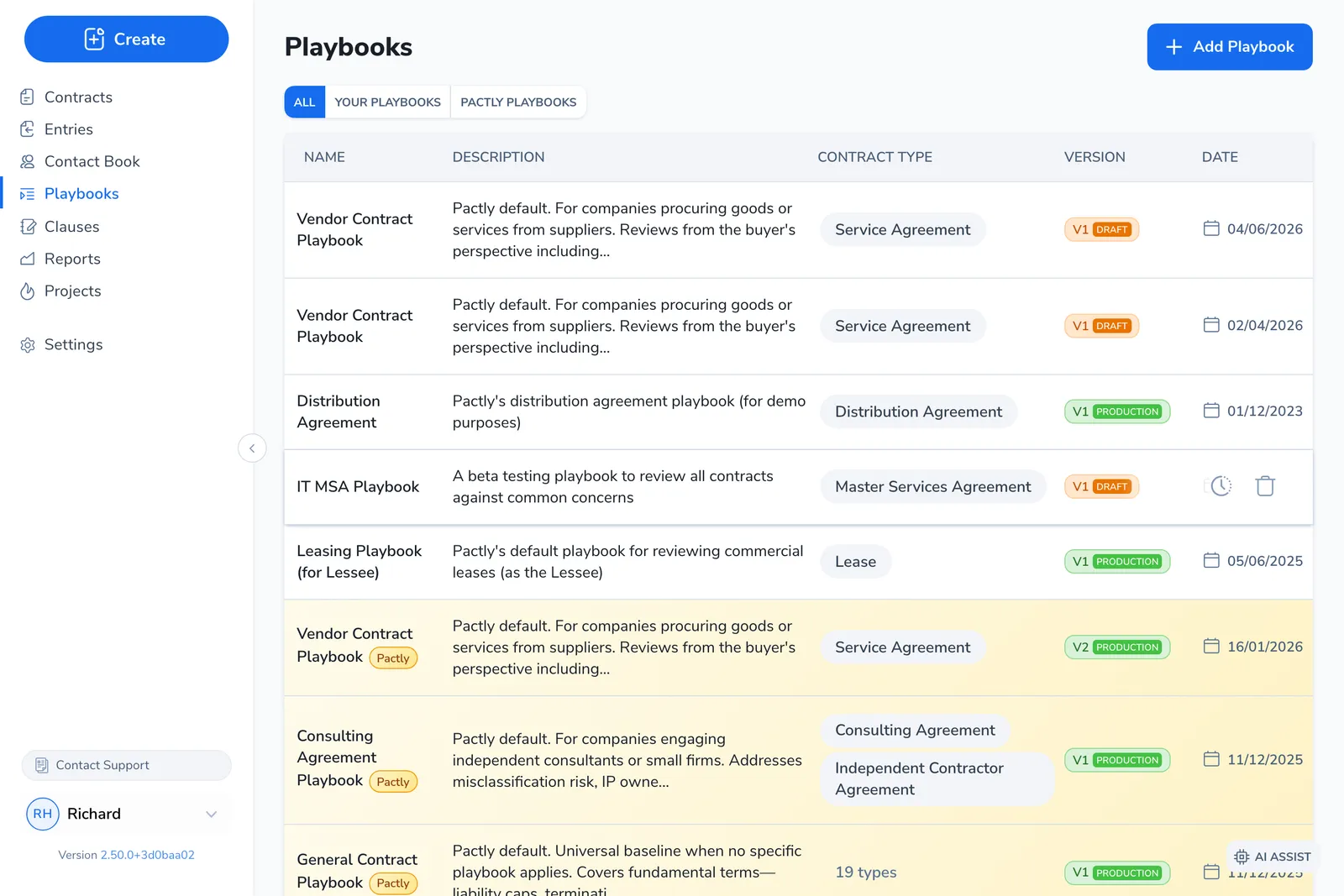
Section titled “Step 1: Create the Playbook”- In the Pactly web app, go to Knowledge → Playbooks
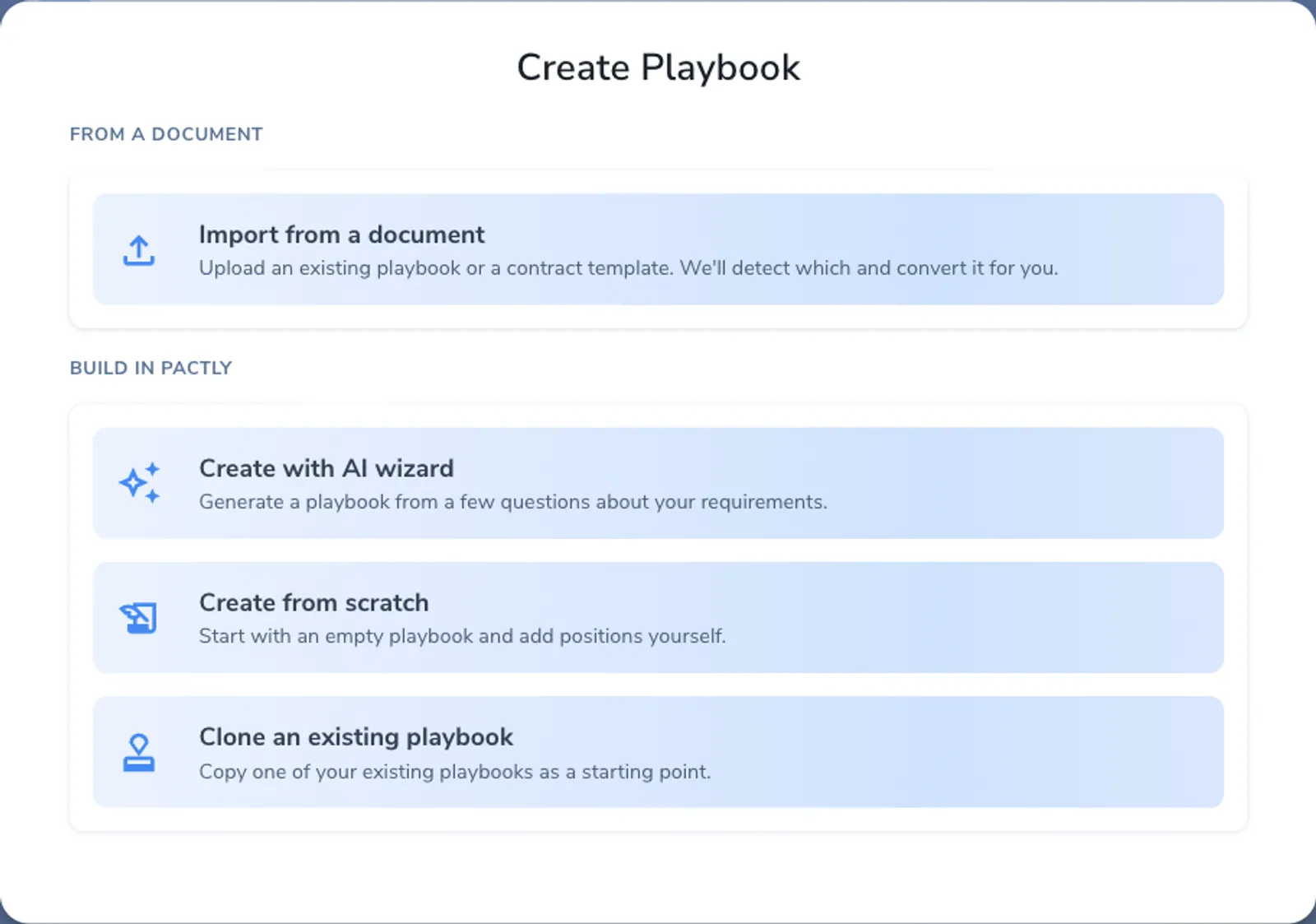
- Click Create Playbook
- Enter a name that describes when to use this playbook (e.g., “Vendor Agreement Review” or “NDA - Mutual”)
- Add a description explaining the contract types this playbook covers
- Click Create
Your playbook opens in Draft status. While in draft, only you can see and edit it. It won’t appear in the Word add-in until you publish it.
Step 2: Add Your First Position
Section titled “Step 2: Add Your First Position”Now add a position—let’s use Limitation of Liability as an example:
- Click Add Position
- Enter the Name: “Limitation of Liability”
Write the Guidance
Section titled “Write the Guidance”The guidance field is where you explain your requirements. This is the most important part of each position—it’s what the AI uses to evaluate the contract.
Write your guidance as if you’re explaining to a junior colleague what to look for:
Weak guidance:
Check the liability cap.
This doesn’t help. The AI doesn’t know what cap is acceptable or what to do if there’s a problem.
Strong guidance:
Our liability should be capped at the fees paid in the 12 months preceding a claim. Mutual caps are preferred—if only we are capped, flag for negotiation.
Acceptable alternatives:
- Caps up to 24 months of fees with business approval
- Separate caps for different damage types (but direct damages must be capped)
Never acceptable:
- Unlimited liability for direct damages
- Caps that only apply to one party (unless it’s the counterparty who is capped)
If unlimited liability is proposed, escalate to Legal Director before agreeing.
This tells the AI exactly what to evaluate, what’s okay, what’s not, and what to do when there’s a problem.
Guidance Writing Tips
Section titled “Guidance Writing Tips”Include your preferred position:
Our liability should be capped at 12 months of fees.
Include acceptable alternatives:
Up to 24 months is acceptable with business owner approval.
Include red lines:
Unlimited liability for direct damages is never acceptable.
Include escalation paths:
If counterparty insists on unlimited liability, escalate to Legal Director.
Be specific about numbers and thresholds:
“Reasonable cap” is vague. “12 months of fees” is actionable.
Step 3: Add Keywords
Section titled “Step 3: Add Keywords”Keywords help the AI locate relevant clauses in the contract. They’re search terms.
- Click the Keywords tab (or section) in your position
- Add terms that commonly appear in clauses about this topic:
- “limitation of liability”
- “liability cap”
- “aggregate liability”
- “total liability shall not exceed”
- “maximum liability”
Keyword types:
| Type | When to Use | Example |
|---|---|---|
| Pattern | Flexible matching (finds variations) | “liability” finds “liabilities” |
| Exact | Must match exactly | ”consequential damages” |
| Negative | Exclude clauses containing this term | Exclude “insurance” to avoid false matches |
Start with pattern keywords. Add exact or negative keywords if you’re getting too many false positives.
Step 4: Add Fallback Clauses
Section titled “Step 4: Add Fallback Clauses”Fallbacks are pre-approved alternative language. When the AI flags a non-compliant clause, reviewers can propose your fallback instead.
- Click the Fallbacks tab
- Click Add Fallback
- Enter a title describing this fallback (e.g., “Standard Mutual Cap - 12 Months”)
- Paste your preferred clause language
Example fallback:
Title: Standard Mutual Liability Cap
Language:
The total aggregate liability of either party arising out of or related to this Agreement, whether in contract, tort, or otherwise, shall not exceed the fees paid or payable by Customer in the twelve (12) months preceding the event giving rise to such liability.
Add multiple fallbacks if you have different versions for different scenarios:
- Standard position (your first choice)
- Compromise position (acceptable middle ground)
- Minimum acceptable (your final fallback before escalation)
Step 5: Add More Positions
Section titled “Step 5: Add More Positions”Repeat Steps 2–4 for each topic you want to cover. Start with your highest-risk areas:
Common positions for vendor agreements:
- Limitation of Liability
- Indemnification
- Governing Law / Jurisdiction
- Term and Termination
- Data Protection / Privacy
- Insurance Requirements
- Confidentiality
Common positions for NDAs:
- Definition of Confidential Information
- Permitted Disclosures
- Return/Destruction of Information
- Term of Confidentiality Obligations
- Residuals Clause
Tip: Don’t try to cover everything at once. Start with 5–10 positions for your most critical issues. Add more after testing.
Step 6: Organize Positions (Optional)
Section titled “Step 6: Organize Positions (Optional)”For playbooks with many positions, organize them into groups:
- Click Manage Groups
- Create groups like “Risk Allocation,” “Commercial Terms,” “Legal”
- Drag positions into groups
- Reorder positions by priority within each group
Groups make the review results easier to navigate—reviewers can focus on one category at a time.
Step 7: Test Your Playbook
Section titled “Step 7: Test Your Playbook”Before publishing, test your playbook against real contracts:
- Open a contract in Microsoft Word
- Launch Pactly Assist
- Start a review and select your draft playbook (draft playbooks are visible to their creators)
- Check the results:
- Does the AI find the right clauses?
- Are the compliance assessments accurate?
- Is the guidance clear and actionable?
Test against 2–3 different contracts of the type this playbook covers. Adjust guidance and keywords based on what you find.
Common issues during testing:
| Problem | Solution |
|---|---|
| AI doesn’t find a clause | Add more keywords |
| AI finds wrong clauses | Add negative keywords or make guidance more specific |
| Compliance assessment is wrong | Rewrite guidance to be clearer about what’s acceptable |
| Guidance is confusing | Simplify; use concrete examples |
Step 8: Publish Your Playbook
Section titled “Step 8: Publish Your Playbook”When you’re satisfied with testing:
- Return to the playbook in the web app
- Click Publish
- Add a version note describing this release (e.g., “Initial release - covers liability, indemnification, governing law”)
- Confirm publication
Once published:
- The playbook moves from Draft to Published status
- It appears in the Word add-in for all users
- Positions are locked—you’ll need to create a new version to make changes
Maintaining Your Playbook
Section titled “Maintaining Your Playbook”Creating New Versions
Section titled “Creating New Versions”To update a published playbook:
- Open the playbook
- Click Create New Version
- Make your changes (the new version starts as a draft)
- Test the changes
- Publish when ready
Version history is preserved. You can see how your playbook has evolved and revert if needed.
When to Update
Section titled “When to Update”Update your playbook when:
- Negotiation standards change
- You notice the AI consistently gets something wrong
- New clause types become relevant
- Laws or regulations change
- Reviewers frequently override the same assessment (suggests guidance doesn’t match reality)
Monitoring Effectiveness
Section titled “Monitoring Effectiveness”After deployment, track:
- Which positions generate the most issues?
- Are reviewers frequently overriding AI assessments? (May indicate unclear guidance)
- What questions do reviewers ask about positions?
Use this feedback to refine your playbook over time.
Common Mistakes to Avoid
Section titled “Common Mistakes to Avoid”Too vague: “Ensure liability terms are reasonable.” The AI can’t measure “reasonable.”
Too strict: Requiring exact language match. Different contracts use different wording for the same concepts.
Missing the “why”: Not explaining why something matters. Reviewers need context to make good decisions.
No fallbacks: Identifying issues without providing solutions. Give reviewers language to propose.
Too many positions too soon: Starting with 50 positions before testing any. Start small, refine, then expand.
Next Steps
Section titled “Next Steps”- Writing Effective Positions — Deep dive into crafting great guidance
- Quick Start: Reviewing Contracts in Word — Use your playbook
- What is a Playbook? — Conceptual overview