Checking and Trusting Results
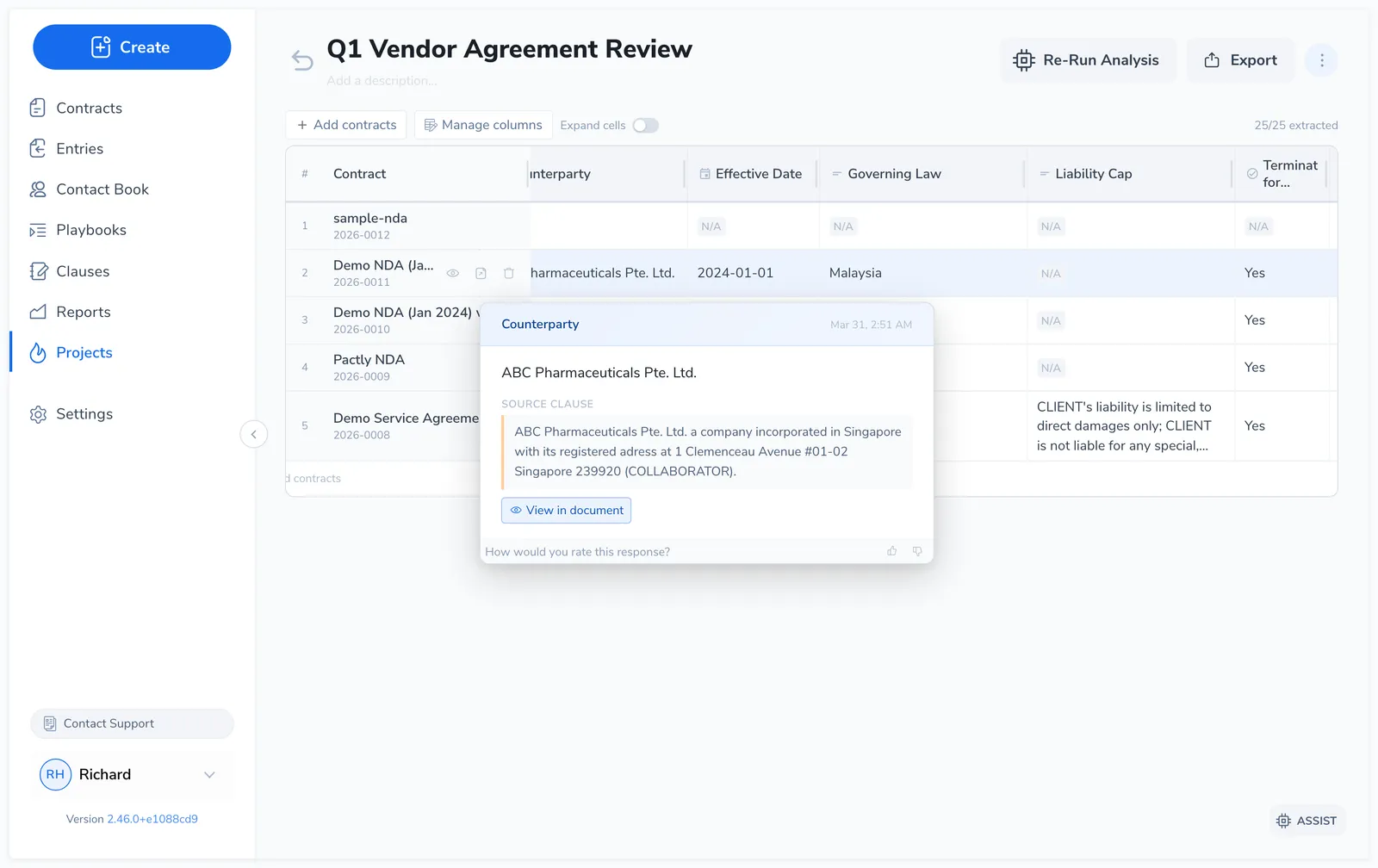
AI extraction is fast, but it is not infallible. Before a value from the grid goes into a report, a renewal calendar, or a due-diligence memo, you need to know whether to trust it. Pactly gives you three things on every cell to check that: the reasoning, a verbatim source quote, and a View in document highlight that takes you to the exact place in the contract.
This page is a reference for verifying results, fixing wrong output, and knowing where extraction is most likely to slip.
What every cell carries
Section titled “What every cell carries”Hover any completed cell to open its popover. Each cell is backed by evidence you can inspect:
| On the cell | What it tells you | How to use it |
|---|---|---|
| Value | What the AI extracted | The answer itself, in the column’s format |
| Reasoning | A short note on how the AI reached the value | Sanity-check the interpretation, not just the number |
| Source Clause | A verbatim quote of one to three sentences from the contract | Confirm the value actually comes from the document, not a guess |
| View in document | Opens the contract preview with the quote highlighted | Read the clause in full context, including qualifiers the value may not capture |
| Edited / Verified marker | Whether a person has corrected or confirmed this cell, and who | Tell an unchecked AI value apart from one someone has signed off |
A three-step check
Section titled “A three-step check”Work from the value outward. The further a value will travel, the more of these steps it deserves.
- Read the value. Does it look plausible for this contract and this column type? An expiry date in the past, a liability cap of zero, or a governing law that does not match the party should all draw a second look.
- Read the reasoning and the source quote. The reasoning tells you what the AI thought it found; the quote shows the actual contract text it pulled from. If the quote does not support the value, the value is suspect.
- View in document. Click View in document to open the preview panel with the source quote highlighted. Read the surrounding clause for exceptions, conditions, or cross-references that a one-line value cannot hold.
For a portfolio report, a quick read of the value across the grid is often enough, with spot-checks on outliers. For anything contractual or legal, verify the source quote in the document on every cell that matters.
Where extraction is most likely to be wrong
Section titled “Where extraction is most likely to be wrong”Some data points are inherently ambiguous in contract language, and these are the cells to double-check first.
| Watch out for | Why it slips |
|---|---|
| Effective date vs. commencement date | Contracts often state a signing/effective date and a separate commencement or start date. The AI may return one when you meant the other. Check the source quote to confirm which date the column actually captured. |
| Ambiguous or multi-component totals | A liability cap of “the greater of $5M or 15% of fees”, staged payment schedules, or values split across schedules can be reduced to a single figure that loses the qualifier. Read the clause for the full formula. |
| Values stated as placeholders | Bracketed placeholders like [Insert name] or [TBD] are treated as not found, so a draft contract may show N/A where a final one would have a value. |
| Anything the value summarizes | Text values are kept short by design. A short value can omit carve-outs, notice requirements, or conditions present in the clause. The document preview is where you see the rest. |
When a date or total matters, open View in document and read the clause yourself before relying on the cell.
Fixing a wrong value
Section titled “Fixing a wrong value”You have two ways to fix a value: correct the cell, or fix the Question behind the column. Which one depends on whether the problem is this contract or the whole column.
Correct one cell. Double-click it, change the value, and save. The cell is marked Edited with a pencil icon and records who changed it and when; the AI’s original value stays visible in the popover under “Originally extracted”, and Revert to AI puts it back. Use this for a one-off the AI got wrong on a single contract.
Fix the Question when the column is wrong across the board:
- Vague or off-target output usually means the Question is too broad or asks for the wrong thing. Refine the Question to be specific about what to extract and in what form, then re-run. See Writing Column Questions for how to phrase a Question that returns the value you want.
- A single bad cell in an otherwise good column can be re-run on its own with the cell’s Retry action, without touching the rest of the grid.
Verifying a cell you agree with
Section titled “Verifying a cell you agree with”Saving a cell without changing the value is not a no-op: it marks the cell Verified with a green tick, and records who confirmed it and when. That is the difference between a value the AI produced and a value a person has checked, and it is what makes a project usable as evidence in an audit or a management report.
For a portfolio-level number, spot-checking outliers is enough. Where a figure has to be right, work down the column, read the source quote, and save each cell you agree with so the sign-off is on the record.
Edited and verified cells are protected from re-runs, so confirming a cell does not put it at risk of being overwritten later. The marker lives in the app: the Excel export carries the values and the evidence columns, but not the sign-off.
Separately, the thumbs up/down buttons in the cell popover rate the extraction for the Pactly team. They do not change the value or the cell’s state.