Routing Approvals by Category, Value, and Properties
The approver is rarely the same for every contract. An NDA can be waved straight through, a six-figure services agreement needs Finance, and anything high-risk should reach an executive. One fixed approval chain can’t serve all three: it makes low-risk contracts crawl through needless sign-offs and lets high-risk ones slip past the people who should see them.
Pactly routes instead. You attach conditions (rules) to the Request approval action so it runs only for the contracts that match, and you add a separate action for each path. The approver set follows the contract.
How routing works
Section titled “How routing works”An approval workflow is an event plus a Request approval action. Finalizing a contract, when it leaves drafting and locks for approval, is the event most routing hangs on. To route, you attach conditions to the action so it fires only for matching contracts. See Workflows for how events fit the lifecycle.
Each condition tests one thing: the category, a property value, and so on. You group conditions into a rule set and set its Match to All (AND, every condition must be true) or Any (OR, at least one).
To send different contracts to different approvers, add more than one Request approval action on the same event, each with its own condition and approvers. Every action whose condition matches runs:
- Stacking: when two actions match the same contract, both fire and their approvers add together, so you can layer an extra reviewer on top of a base path.
- Overlap risk: overlapping conditions can route one contract down two paths at once, so design conditions so only the right actions match.
This is why categories and properties are worth setting up first: they are the conditions your approvals branch on. If a property isn’t captured, you can’t route on it. See Contract Types (Categories) and Creating Contract Properties.
The three conditions you’ll use most
Section titled “The three conditions you’ll use most”Almost all routing is built from three condition types, in this order of frequency.
1. By category. Route on the contract type (NDA, MSA, and so on). The most common condition by far. Point low-risk categories at a light path (or no approval) and everything else at a fuller review. One rule can list several categories.
2. By value threshold. Route on how much money is involved. A number property such as Total Contract Value is compared against a threshold. The common pattern is escalation: the normal review still runs, and a second action conditioned on value ≥ $100,000 adds an executive on top. Number properties support greater-than, less-than, the “or equal” variants, equals, and not-equals, so you can build tiers.
3. By property. Route on an attribute captured at intake. A “personal data processed” boolean, an “incoming funding” flag, or a “risk level” list routes the contract to the right reviewer. Booleans test true/false; list properties test the exact option string.
Worked example: a routing table
Section titled “Worked example: a routing table”Customers reason about routing as “for this type, with these attributes, send it to these approvers.” A table is the clearest way to design it, and it maps one-to-one onto the actions you create.
| Category | Condition | Approver(s) | Order |
|---|---|---|---|
| NDA, MOU | (none) | No approval, straight to signing | N/A |
| Services agreement | Value < $100k | Legal lead | Single |
| Services agreement | Value ≥ $100k | Legal lead, then an executive | Sequential |
| Vendor / procurement | Always | Finance and Procurement | Parallel |
| Research agreement | Risk level = High | Legal lead, then an executive | Sequential |
| Any category | ”Personal data processed” = Yes | Add a data-protection reviewer | N/A |
The Order column is the approval pathway set on each action (single, sequential, or parallel), configured separately from the condition. See Approval Pathways.
Each row is one Request approval action on the finalize event. The first row needs no action at all: with nothing matching NDAs and MOUs, no approval is requested and the contract advances. The two services rows are two actions on the same event, one per threshold. The last row is conditioned only on the property, so it adds its reviewer to whatever else matched.
That single event fanning out by condition looks like this:
Each branch is one Request approval action with its own condition. The coral branch matches nothing, so no approval is requested and the contract moves straight to signing.
The “same category routes differently” case
Section titled “The “same category routes differently” case”The most useful thing conditions unlock is sending the same category down different paths depending on its data. Funding is the classic example: an organization decides NDAs need no approval, except when money is attached.
| Category | Condition | Approver(s) |
|---|---|---|
| NDA | ”Funding attached” = No | No approval |
| NDA | ”Funding attached” = Yes | Legal lead approves |
Both actions live on the same finalize event and both test the NDA category. The difference is the funding property. An unfunded NDA matches the first row and skips approval; a funded NDA matches the second and routes to the approver. The category is identical; the captured data decides the path.
This is why properties and categories come before workflows: the funding boolean has to exist and be captured at intake before any approval can branch on it.
Setting it up
Section titled “Setting it up”- Open Workflows and select the event the approval runs on from the Workflow Events list. Approval routing usually hangs on the finalize event, under the Contracts group.
- Add a Request approval action and set its approvers and order (see Approval Pathways).
- On that action, open the Rules tab and choose Create a rule set.
- Set the logic to All (AND) or Any (OR), then add conditions: a category, a property comparison, or both.
- For paths that need different approvers, add another Request approval action on the same event with its own condition and approver list.
- Leave low-risk categories with no matching action. When nothing matches, no approval is requested and the contract moves straight to signing. See the no-approval pathway.
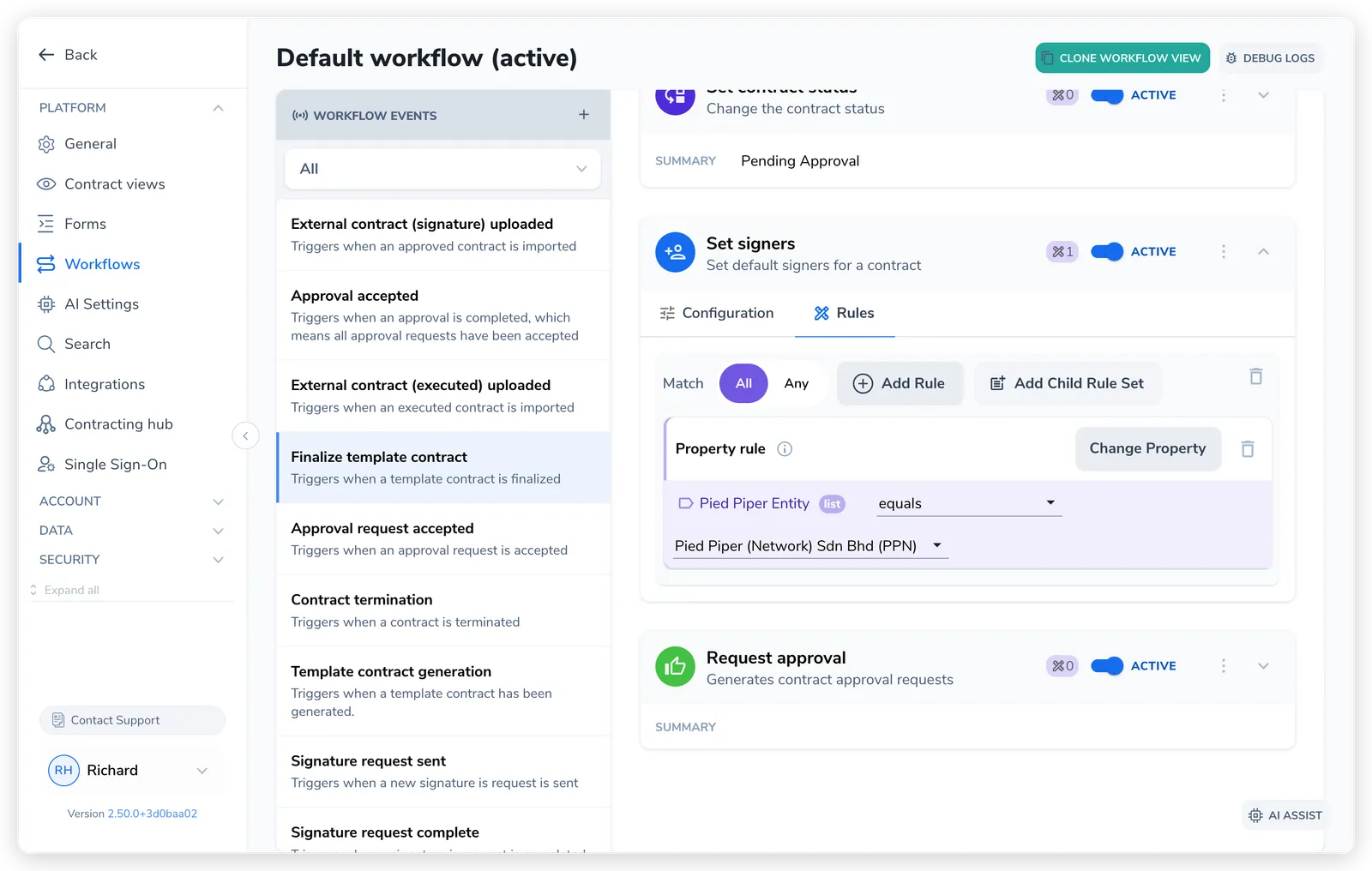
The full list of condition types (contract source, owner, status, counterparty attributes, and more) is covered in Advanced Workflow Actions and Conditions.
A note on terminology
Section titled “A note on terminology”Conditions reuse the words for categories and properties. Here’s how the routing terms map: