1
Open Renewal rules and click Add rule
In the left navigation, open Renewal rules, then click Add rule. A form opens below the table.
Every contract’s Renewal & expiry tab reminds people before a renewal or notice deadline, but the right people and the right lead time are not the same for every contract. A high-value agreement may need 90 days of warning and a finance contact looped in; a routine NDA may not. Renewal notification rules are where an administrator sets that, once, for the whole organization.
A rule answers two questions: who gets reminded, and how many days ahead. One default rule covers every contract, and you add narrower rules on top for the cases that need different handling.
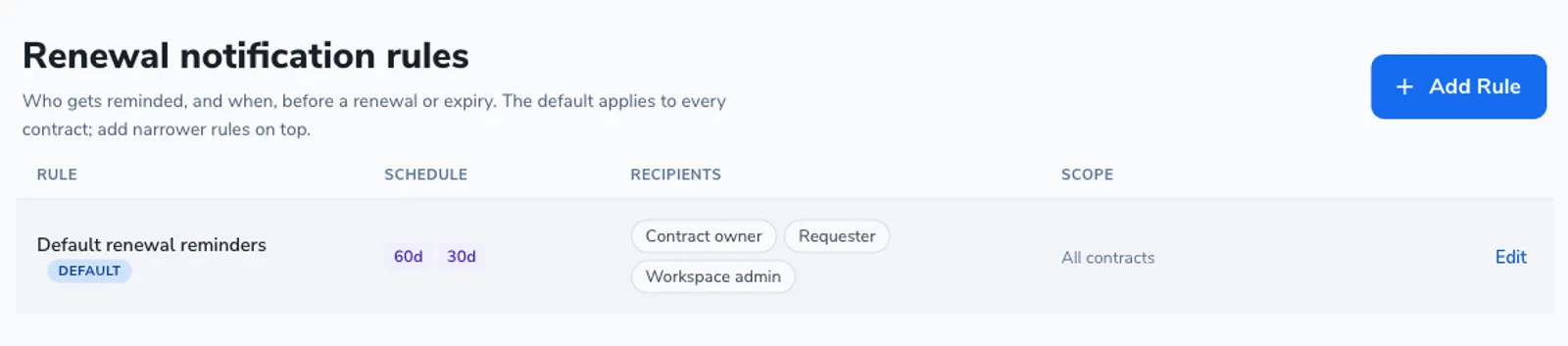
The list always contains one Default rule. It applies to every contract, its scope cannot be narrowed, and it cannot be deleted. Out of the box it reminds the contract owner, the requester, and a workspace admin, at 60 days and 30 days before the deadline.
Edit the default to change the baseline for the whole organization. If most of your contracts should warn people earlier, raise the default offsets here rather than adding a rule for each one.
A rule you add on top of the default applies only to the contracts that match its scope. Where a contract matches more than one rule, the more specific rule takes precedence, so a “High-value NDAs” rule overrides the default for those contracts while everything else keeps the default.
In the left navigation, open Renewal rules, then click Add rule. A form opens below the table.
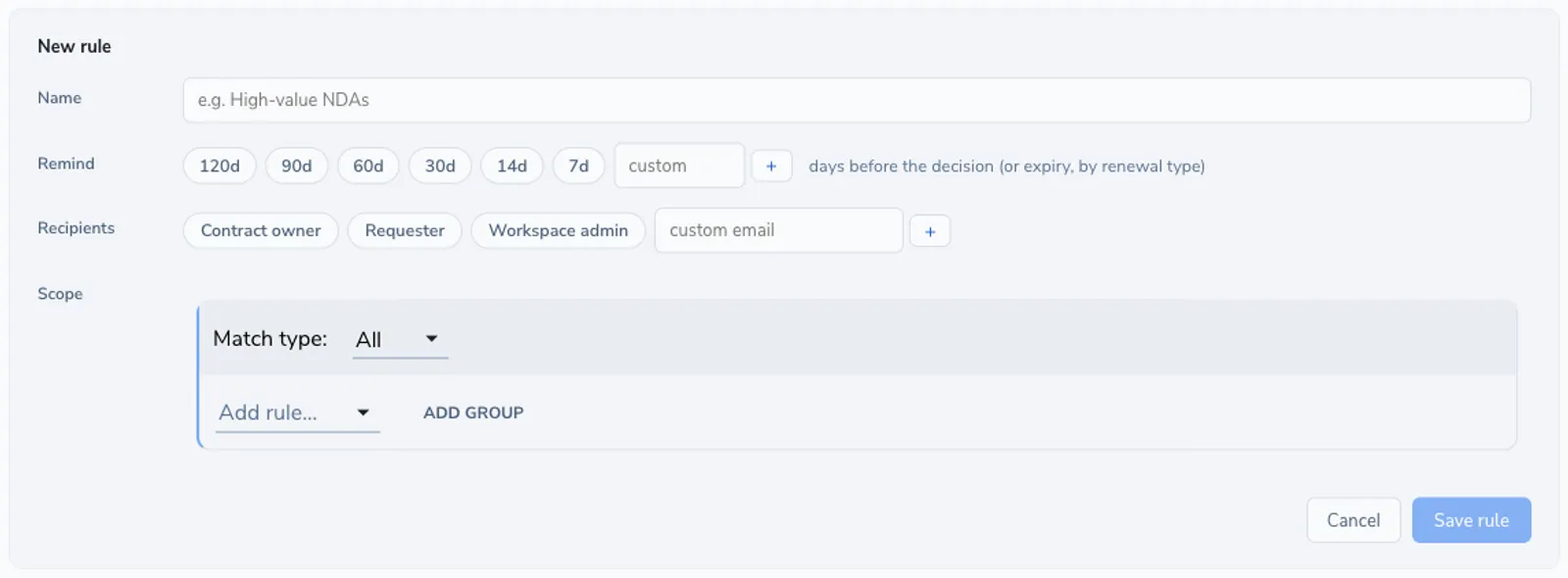
Give it a name that says what it covers, for example "High-value NDAs". The name is how you will recognize it in the list later.
Under Remind, pick how many days before the deadline reminders fire. Tap the preset chips (120, 90, 60, 30, 14, 7 days), and add any other number with the custom day field. Each day you select adds one reminder.
Pick the roles to notify (Contract owner, Requester, Workspace admin) and add any specific email addresses. Email recipients do not need to be Pactly users, so a shared mailbox or an external contact can be included.
Build the conditions that decide which contracts the rule covers: by category, contract owner, a party attribute, or any contract property. Leave the scope empty to match all contracts. The Default rule always matches all contracts and its scope is locked.
Click Save rule. It joins the list and starts applying to matching contracts. A rule needs a name, at least one reminder day, and at least one recipient before it can be saved.
The days you set count back from the deadline that matters for each contract. For a contract that auto-renews with a notice period, that is the notice deadline; for a contract that simply expires, it is the expiry date. The contract’s Renewal & expiry tab shows the resulting reminders and recipients, so you can confirm a rule is doing what you intended by opening a contract it covers.
The rules table lists each rule with its schedule, recipients, and scope. Edit any rule to change it, including the Default. Delete removes a rule you added (the Default cannot be deleted). Removing a rule simply returns its contracts to whichever rule they match next, usually the Default.