Workflows
When a contract is ready for sign-off, someone has to send it to the right approver, move it to the next stage once they say yes, and tell the requester. Do that by hand on every contract and things slip: approvals sit in an inbox, owners forget to update status, the wrong person gets asked.
Workflows do those steps for you. You tell Pactly when something happens, do this (optionally only if a condition is met), and it runs every time, automatically. For most teams the one thing they configure here is approvals: who signs off on which contracts, in what order, and what happens once they do.
How a workflow is built: event, rule, actions
Section titled “How a workflow is built: event, rule, actions”A workflow is not a single object you draw start to finish. It is an automatic reaction with three parts: an event that triggers it, optional rules that decide whether it runs, and the actions that run in response.
Read it as one sentence: when an event fires, only if the rule holds, Pactly runs the actions. Drop the rule and the actions always run.
- Events are lifecycle moments: a form is submitted, a contract is finalized, an approval is accepted or rejected, a contract is signed.
- Rules are optional conditions: only for a certain category, only when value is above a threshold, only when a risk flag is set. No rule means the action always runs.
- Actions are what Pactly does: request approval, send a notification, change the status, assign an owner, set a property, start a form sequence, call a webhook, or run an AI task.
Every workflow reads the same way: when [event], do [action], but only if [rule]. When a contract is finalized, request approval, but only if its value is $100k or more. Finalizing is the most common trigger: it is the moment an owner marks a drafted contract as ready to move forward, and it is separate from approving or signing, which happen afterward.
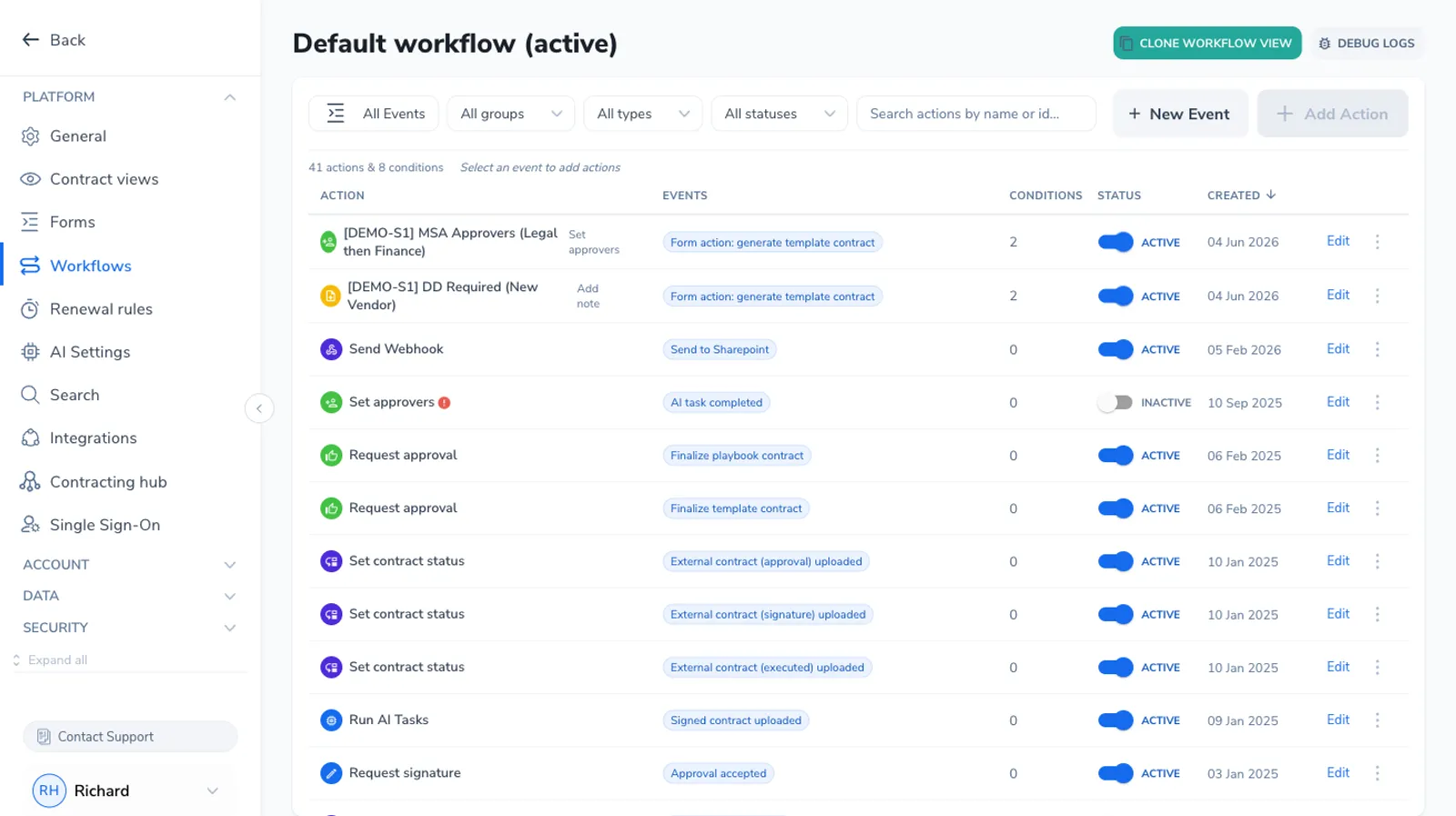
You configure all of this on the Workflows screen. Each workflow view is a single actions table with one row per action, and an Events column of chips shows which event or events trigger that row. Above the table, group tabs, an event filter, and a free-text search box narrow the list, and you can sort it by the date each action was created.
Click a row to expand it into full-width configuration and Rules editors inline, so you set up the action and its conditions in the same place. Add action works the other way round from the table: you choose the target event or events first, then configure what the action does and, optionally, its rules. Custom events can be renamed inline.
You already have a default workflow
Section titled “You already have a default workflow”Every company starts with a working default, so contracts move through their stages out of the box without you setting anything up. The defaults cover the common path:
| When this happens | Pactly does this |
|---|---|
| A form is submitted | Notifies the contract owner and the form submitter |
| A contract is finalized | Moves it to Pending Approval, requests approval, and extracts contract properties |
| An approval is accepted | Moves the contract to Pending Signature |
| An approval is rejected | Sends the contract back to In Negotiation |
| A signature request completes | Moves the contract to Executed |
| A contract is terminated | Moves it to Terminated |
You only touch Workflows when you want to change this: routing approvals to specific people, adding or removing an approval step for certain contract types, or adding notifications. Most of this section is about shaping the approval part of that flow.
Where workflows fit the lifecycle
Section titled “Where workflows fit the lifecycle”Workflows run in the background across the whole lifecycle, reacting to each milestone. Intake and finalization feed events in; approvals, status changes, and notifications come out.
Markers show where workflow events fire as a contract moves through its stages.
Because workflows react to events rather than a fixed schedule, the same event can do different things for different contracts. A finalized NDA can skip approval while a finalized vendor contract routes to Finance and Procurement, all from one “contract finalized” event with different rules attached.
Common things teams automate
Section titled “Common things teams automate”Approvals dominate, but the same event-rule-action engine handles several jobs.
Beyond approvals and notifications, workflow actions can assign an owner, set a contract property, change status, start a form sequence, call an external webhook, or run an AI task such as property extraction. The advanced article covers these.
Approval is not signing
Section titled “Approval is not signing”It is easy to blur approval and signing, but they are separate steps with separate participant lists.
- Approval is the internal sign-off. An approver clicks to approve or reject inside Pactly, checking the contract is okay to proceed.
- Signing is execution. A signer legally signs the document, often someone at the counterparty, through your e-signature provider.
The people who approve and the people who sign are usually different, and you configure them in different places. Each approval request also sends recurring reminders and appears in a recurring reminder digest (daily or weekly, depending on your company’s schedule) until it is resolved, covered in Managing Approval Requests.
Workflow actions are not form actions
Section titled “Workflow actions are not form actions”One distinction worth getting right early. A form has its own actions that run when it is submitted, such as generating a contract, redirecting the requester, or importing the counterparty’s document. Those are form actions, configured on the form itself.
Workflow actions are a separate system. A form submission can also fire a workflow event (for example, to send a notification), but the contract generation on submit is a form action, not a workflow action.
What’s covered in this section
Section titled “What’s covered in this section”Related
Section titled “Related”Approval pathways, routing, managing requests, and advanced actions are covered in the cards above. These cross-section links connect workflows to the rest of the platform: