1
Find the contract in the repository
Open the contracts list and locate the contract, for example by searching its reference number (such as 2026-0499).
When someone leaves the team, goes on leave, or a contract simply lands with the wrong person, you need to move it to a new owner. This is something you can do yourself, for a single contract or for a whole batch at once, without raising a support request.
Every contract has one owner (the person shown in the Owner column of the repository, sometimes called the assignee or contract manager). The owner is who the contract sits with, who appears in “My active inbox”, and who notifications default to. Reassigning changes that person.
Whether you can reassign a contract depends on your permissions and on who currently owns it. Two things generally hold:
If the Assign contract option is greyed out or missing on a contract, you don’t have permission to reassign that one. Ask an admin to do it, or have the current owner hand it over. Exact permissions vary by how your organization has configured roles and groups, so check with your Pactly admin if you’re unsure what your role allows.
When a contract is created, its owner is usually set to the person who created it, so you rarely need to set the first owner by hand. Reassignment covers everything after that: handing a contract to a colleague, redistributing a departing teammate’s queue, or correcting an owner that was set wrong at creation.
Use this when one specific contract needs a new owner. You can do it straight from the repository list, without opening the contract.
Open the contracts list and locate the contract, for example by searching its reference number (such as 2026-0499).
Hover over the contract's row. A set of action icons appears at the end of the row. Click the Assign contract icon (the person with a tick).

In the "Assign contract" dialog, use the "Assign to..." picker to select the person who should own the contract. To remove the owner instead, choose Unassigned.
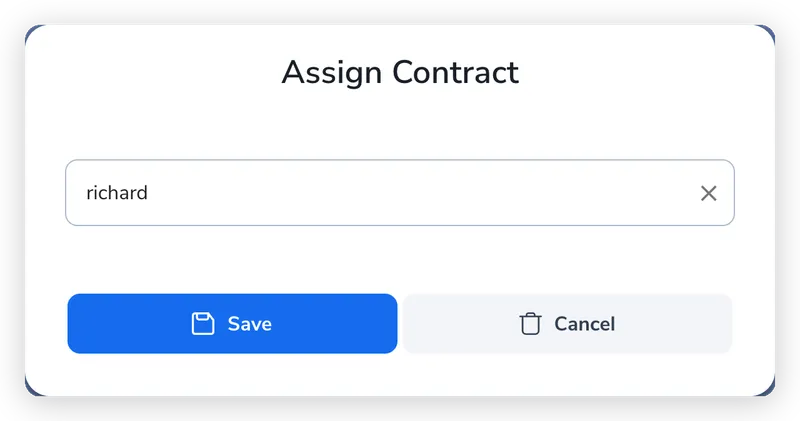
Click Save. The Owner column updates and Pactly confirms with "Contract has been reassigned."
When you’re redistributing a batch (a departing colleague’s contracts, or a stack that all belong with the same person), assign them together in one step.
In the repository, tick the checkbox on each contract you want to reassign. Once two or more are selected, a row of bulk action icons appears in the toolbar.
Once two or more contracts are selected, a row of bulk action icons appears in the toolbar. Click the Assign icon (the person with a tick).

In the dialog, use the "Assign to..." picker to choose who should own all the selected contracts. Click Assign.
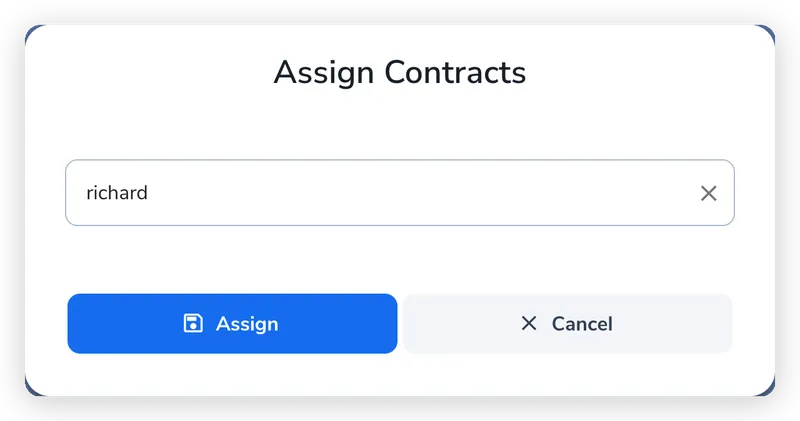
Pactly reassigns each contract and confirms with "Contracts have been assigned." The list refreshes with the new owner.
Reassigning does more than swap a name in a column: