1
Open the Parties section
On the contract record, go to the Parties section. Any contacts already on the contract show here, each with its role chips beneath the name.
A contract is an agreement between sides, so Pactly needs to know who those sides are. The other company, the person who signs, the people negotiating on each side: each one is a party on the contract.
Parties don’t live on the contract document itself. You attach a contact from your Contact Book to the contract and give it one or more roles, which say what that contact is on this particular agreement. The same contact can sit on many contracts at once, so you pick it once and reuse it from then on.
When you attach a contact, you set its role. A contact can hold more than one role on the same contract (the person who negotiates is often also the person who signs).
There are four roles:
Open the contract, find the Parties section, and link a contact from your Contact Book.
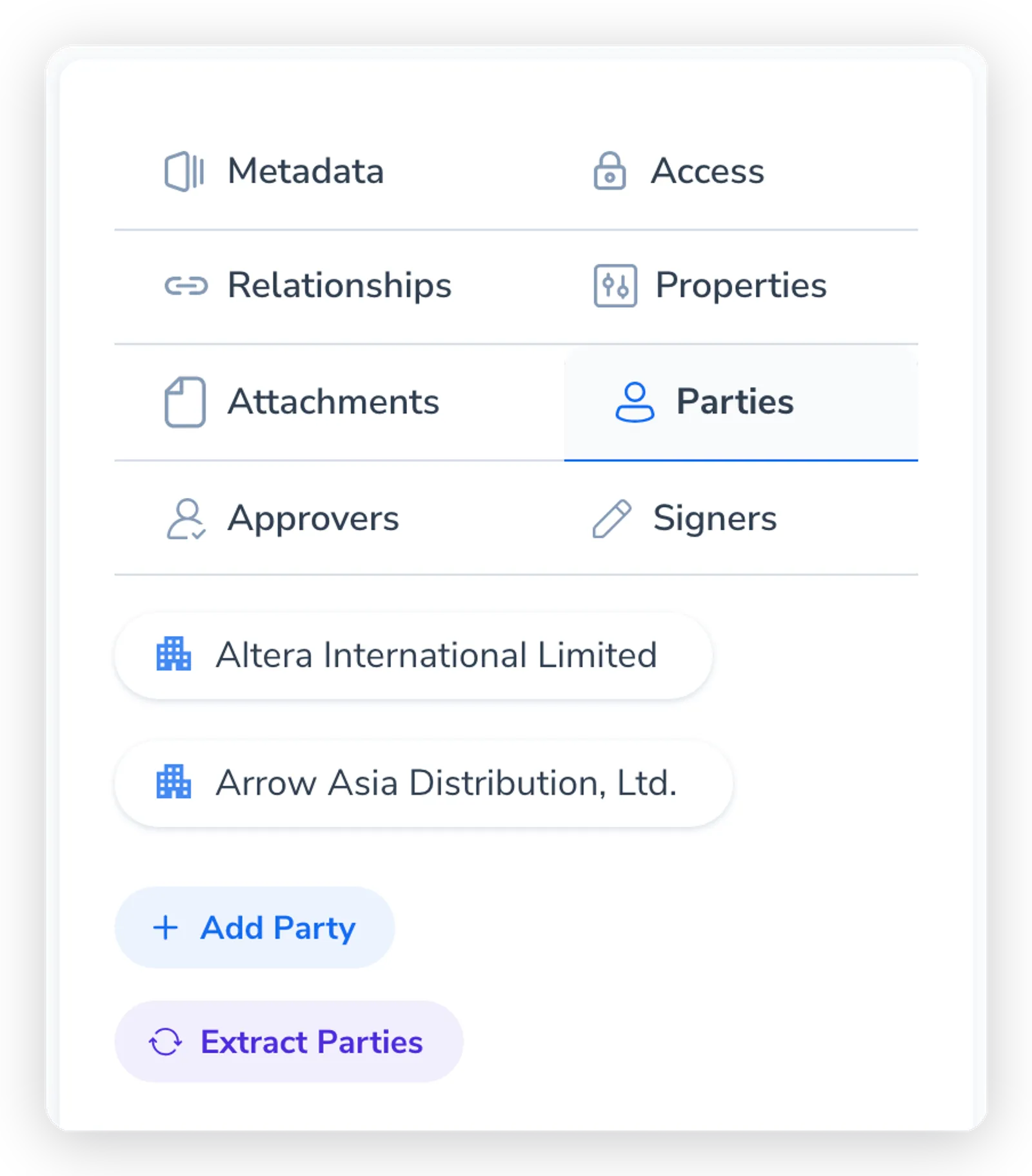
On the contract record, go to the Parties section. Any contacts already on the contract show here, each with its role chips beneath the name.
Click Add Party and search your Contact Book. The search matches across every party field, so you can look by company name, person name, email, or any custom attribute. Pick the contact you want.
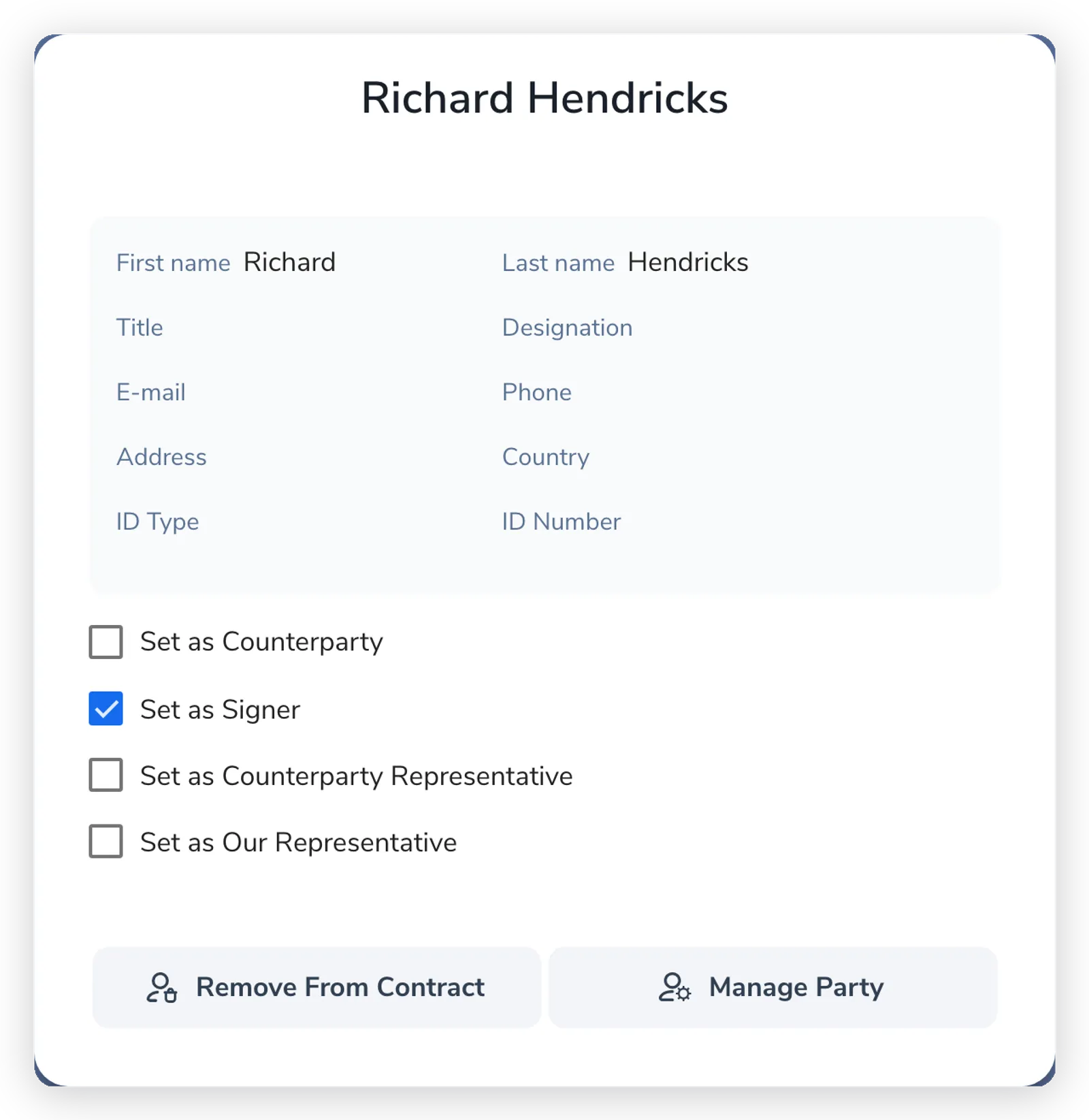
The contact opens in a panel showing its details. Tick the roles it holds on this contract: Set as Counterparty, Set as Signer, Set as Counterparty Representative, or Set as Our Representative. Company contacts show only Set as Counterparty.
The roles you tick are saved on the link between that contact and this contract, not on the contact itself. The same company can be the counterparty here and a counterparty on a dozen other contracts, each with its own roles.
Click a linked party to reopen its panel. Manage Party jumps to the full contact record in the Contact Book, where you can edit its details. Remove From Contract detaches the contact from this contract. Removing a party only breaks the link; the contact stays in your Contact Book and on every other contract it’s attached to.
The Contact Book exists so you enter a company or person once and reuse it everywhere. When you click Add Party, search first: if the contact already exists, pick it so the contract points at the same clean record every other contract uses.
If the contact genuinely isn’t there yet, choose New Party from the bottom of the search to create it inline, then set its roles. The new contact is added to your Contact Book at the same time, ready to reuse on the next contract.
When you upload a third-party document, Pactly can read the parties straight out of the text so you don’t have to type them. Click Extract parties on the Parties section to run extraction.
Extracted contacts appear under AI Extracted Parties for review. A suggestion can match a contact already in your Contact Book or contain details for a new contact. Click one to review it:
A purple dot on the Parties tab marks suggestions awaiting review, including suggested links to existing contacts. Hover over it for an explanation. The dot remains when you open the tab and clears after you accept or dismiss the last suggestion.
For a new suggestion, Pactly may also show potential duplicates so you can merge into the right existing contact. Review suggestions before accepting them; an extracted name may still be missing a registration number or address that your templates rely on.
If confirmation reports a server error, a timeout or a lost connection, reload the contract to check whether your change was saved before trying again. If the message says your change was saved but the list could not refresh, reload to see the updated list.
When a contract is generated from a template, party data fills the document through tokens. Which party slot a contact fills is decided by the template, not by the role you set on the link. For how to write party tokens, including built-in fields and custom party attributes, see the variables and tokens reference.