1
Open the property editor
On the Properties tab, click Create Property.
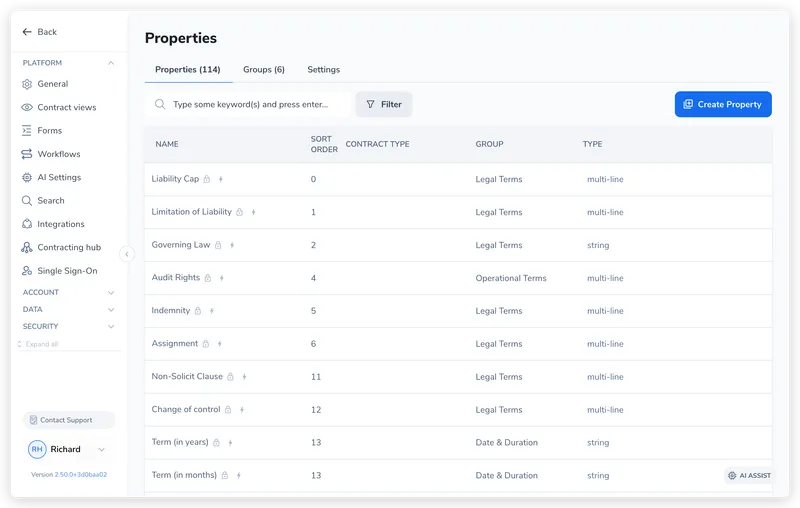
A contract property is one fact you track on a contract: its value, its expiry date, the team responsible, whether personal data is involved. Properties are the columns of your contract register, except they live on the contract and feed everything downstream: filtering, reporting, document tokens, renewal tracking, and approval routing.
You define a property once at the company level, then decide how it attaches to contracts: automatically on every new contract, or added by hand where it’s needed. This article covers that definition: choosing the type, deciding how it attaches, and grouping it so the right properties show up in the right place.
Properties live in Settings → Manage Properties, which has three tabs:
| Tab | What it controls |
|---|---|
| Properties | The properties themselves: label, type, options, attach behavior, and grouping |
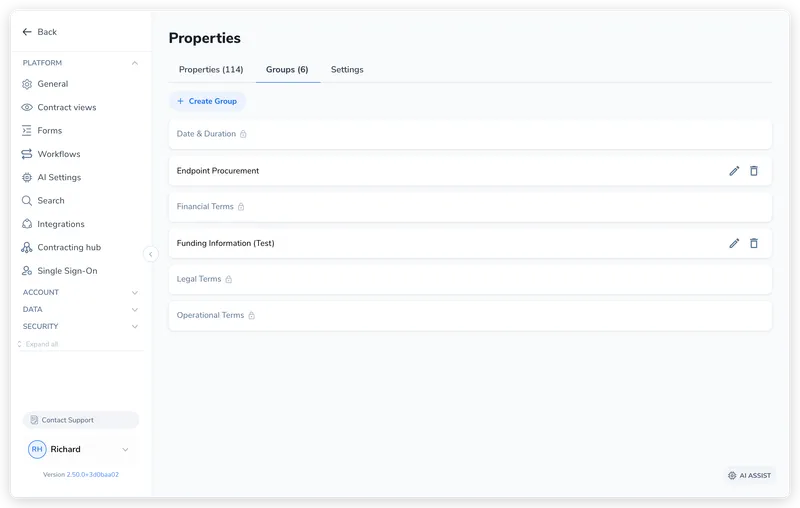
| Groups | Property groups that organize properties in the contract sidebar |
| Settings | Per-category display flags (Show in miniview, Auto extract with AI) |
This article covers the Properties and Groups tabs. Contract types live on the Contract Types (Categories) page.
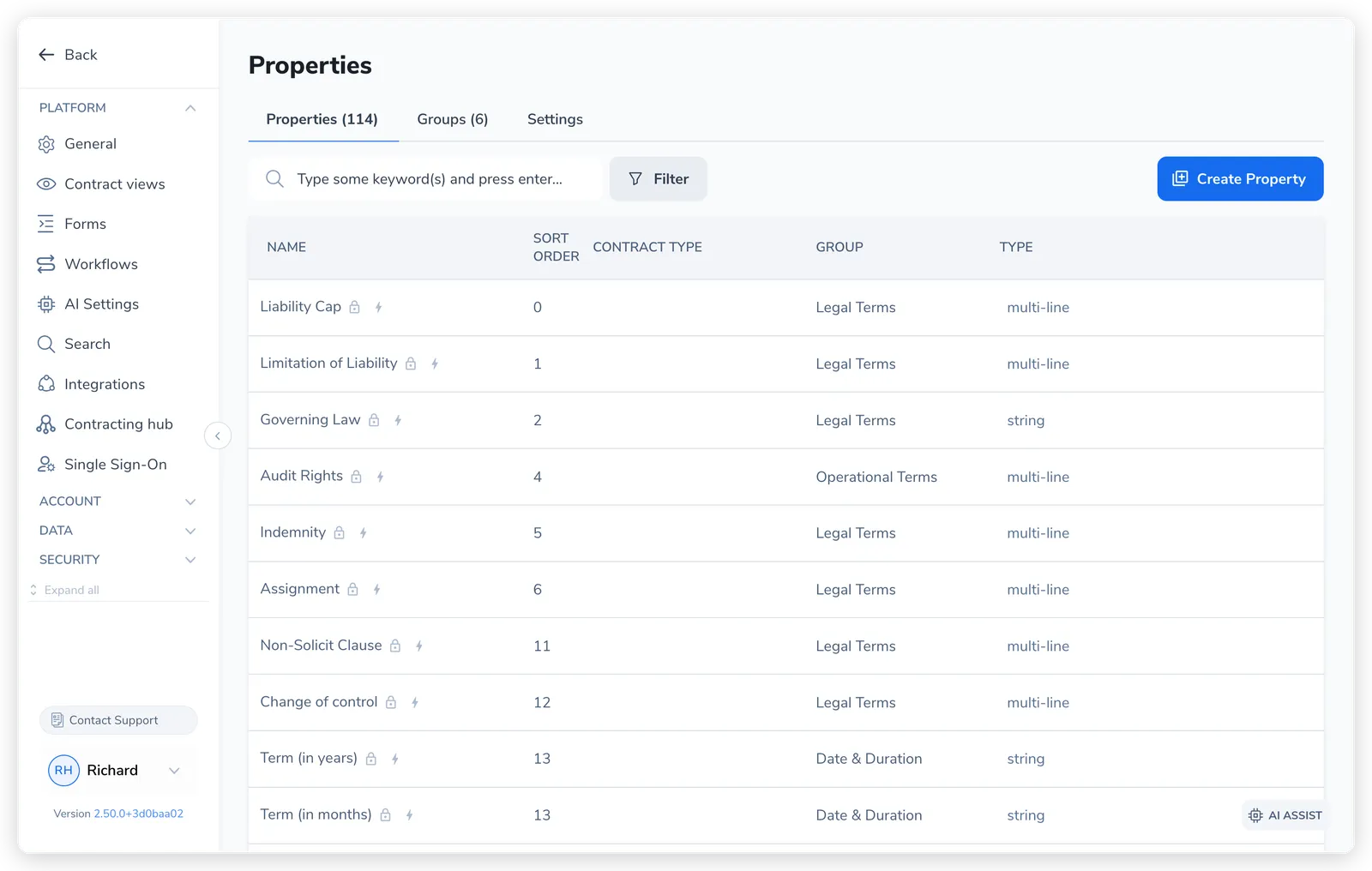
Pactly has ten types. Most real registers are built from four of them: List, Number, Date, and Boolean. Pick the type that matches how you will use the value, not just what it looks like.
| UI label | What it captures |
|---|---|
| List | Single-select dropdown from a fixed set of options (Risk Level, Region) |
| Number | A numeric value (contract value, quantity); supports gt/lt/gte/lte in rules, which powers value-threshold routing |
| Date | A calendar date (Effective Date, Expiration Date); the only type usable for dashboard sorting and renewal tracking |
| Boolean | A true/false flag (“Personal data processed”, “New vendor”); the cleanest input for a workflow rule to branch on |
| Multiple options | Multi-select; pick more than one value from the set (applicable regulations, tags) |
| Text string | A short single-line value (a reference, a name) |
| Multi-line text | A longer free-text value across several lines |
| Duration | A length of time, such as an NDA term |
| Party | A live link to a party record (resolved at read time, not AI-extracted) |
| User | A live link to a Pactly user, such as Contract Owner (resolved at read time, not AI-extracted) |
If you are coming from a spreadsheet or another tool, the type names map like this:
Open Settings → Manage Properties, stay on the Properties tab, and click Create Property.
On the Properties tab, click Create Property.
The Label (up to 64 characters) is the display name, for example "Contract Value". The Description is optional helper text. When you save, Pactly derives a permanent key from the label. That key, not the label, is what templates, exports, forms, and workflow rules point at, and renaming the label later does not change it. Name the property carefully the first time. See Best Practices and Pitfalls for why keys are stable.
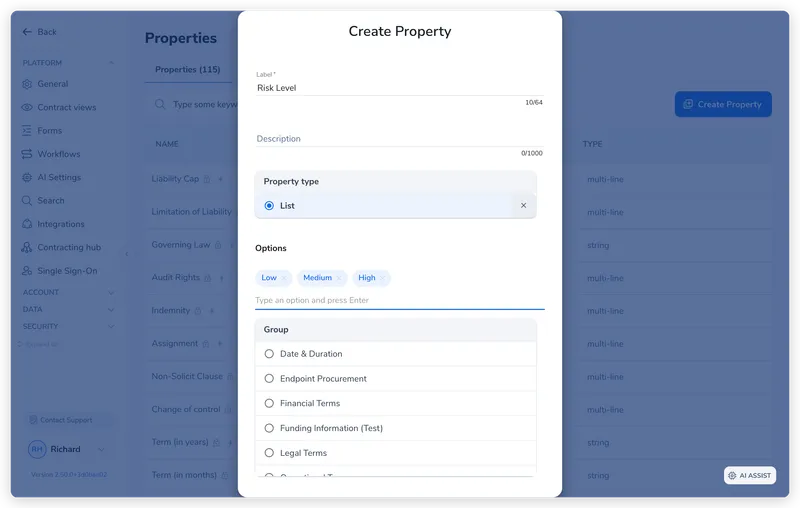
Pick one of the ten types. For List or Multiple options, a Property Options editor appears. Keep option values clean: trailing spaces and inconsistent casing break filtering and reporting later.
By default a property is added to every new contract automatically. Tick Manual only (don't add to new contracts automatically) to add it per contract instead. Master admins can tick Make this property globally default so it attaches to all new contracts as a baseline field, the way Effective Date and Expiration Date usually do. For date properties, tick Use for sorting in contracts dashboard to make it a sort key.
Pick a Group (and optionally type a Subgroup) to control where the property sits in the contract sidebar. Set a Sort order to position it within the group. Sort order is descending: higher numbers float to the top.
The Contract type multiselect tags the property with one or more categories. This is an organizational aid: it drives the Contract type filter on the Manage Properties admin list, so you can narrow a long list to the properties tied to a given type. It does not control which contracts the property attaches to or where it appears.
Save the property. If it attaches automatically, Pactly applies it to existing contracts in the background, so there can be a short lag before it appears everywhere.
Attachment, not the Contract type tag, decides which contracts carry a property. There are two behaviors, set per property:
Which properties surface in a contract type’s compact sidebar is a separate, per-type control: the Show in miniview flag on the Settings tab. That trims the at-a-glance view for a type without changing what’s attached.
For a saved Boolean property owned by your organization, enable Combine current form responses as a blocking flag when any outstanding or negative response should hold a contract. The setting is off by default and combines mapped responses across all active form sequences on that contract.
Map the form’s outputs to the property so a negative response writes true and an entirely positive response writes false. The flag stays true while any current response is negative, pending, missing or invalid. It becomes false only when every current mapped response explicitly writes false. No remaining mapped response also keeps the flag true.
A later response from another person cannot clear an earlier objection. To correct one person’s response, use Void and reissue on their submitted form. The original stays in the audit history and its pending replacement keeps the flag true. Deleting a response from the Forms list, including automatic cleanup, does not remove it from this calculation.
Enabling the setting does not replay earlier workflows or cancel approvals already sent.
Only Date properties can sort the contracts dashboard, and only when Use for sorting in contracts dashboard is enabled. This is what lets you sort the list by Expiration Date to see what renews next. The option appears only for Date properties.
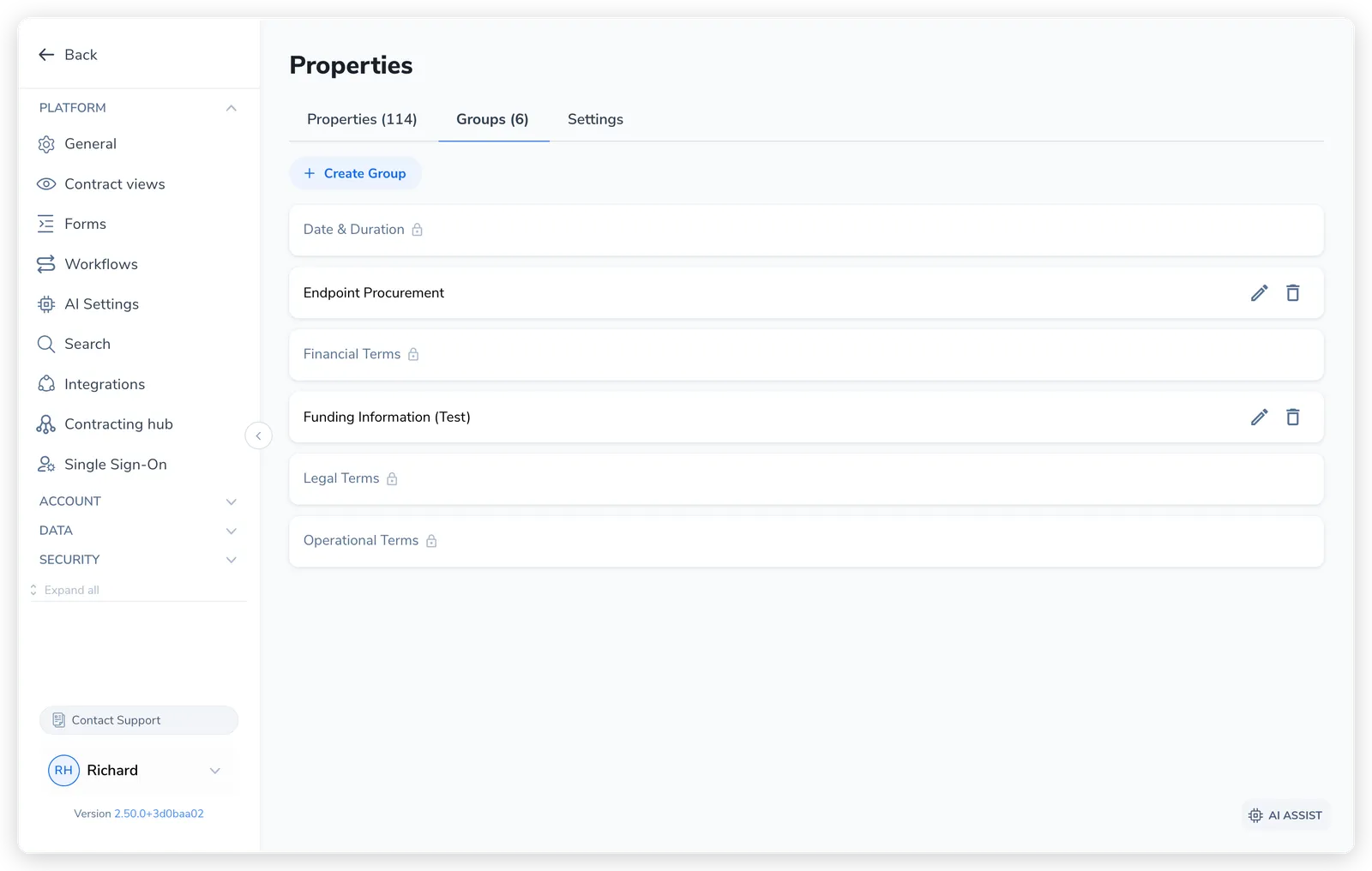
Groups keep the contract sidebar tidy by clustering related properties (Dates, Financials, Ownership, Risk Flags) instead of listing everything flat. Open the Groups tab and click Create Group. A group has a Label (up to 64 characters) and a Sort Order (descending, like properties).
Each property points at a group, and an optional free-text Subgroup adds a second level inside it. Groups are presentation only; they do not affect attachment, routing, or reporting.
Sometimes the valid options for one property depend on another. The classic shape is organizational: pick a Team, and the Department dropdown should show only that team’s departments. Pactly handles this with a Conditional List: a List property whose options change based on a parent List property’s value.
The child must be a List property. In its editor, switch on the Conditional List toggle.
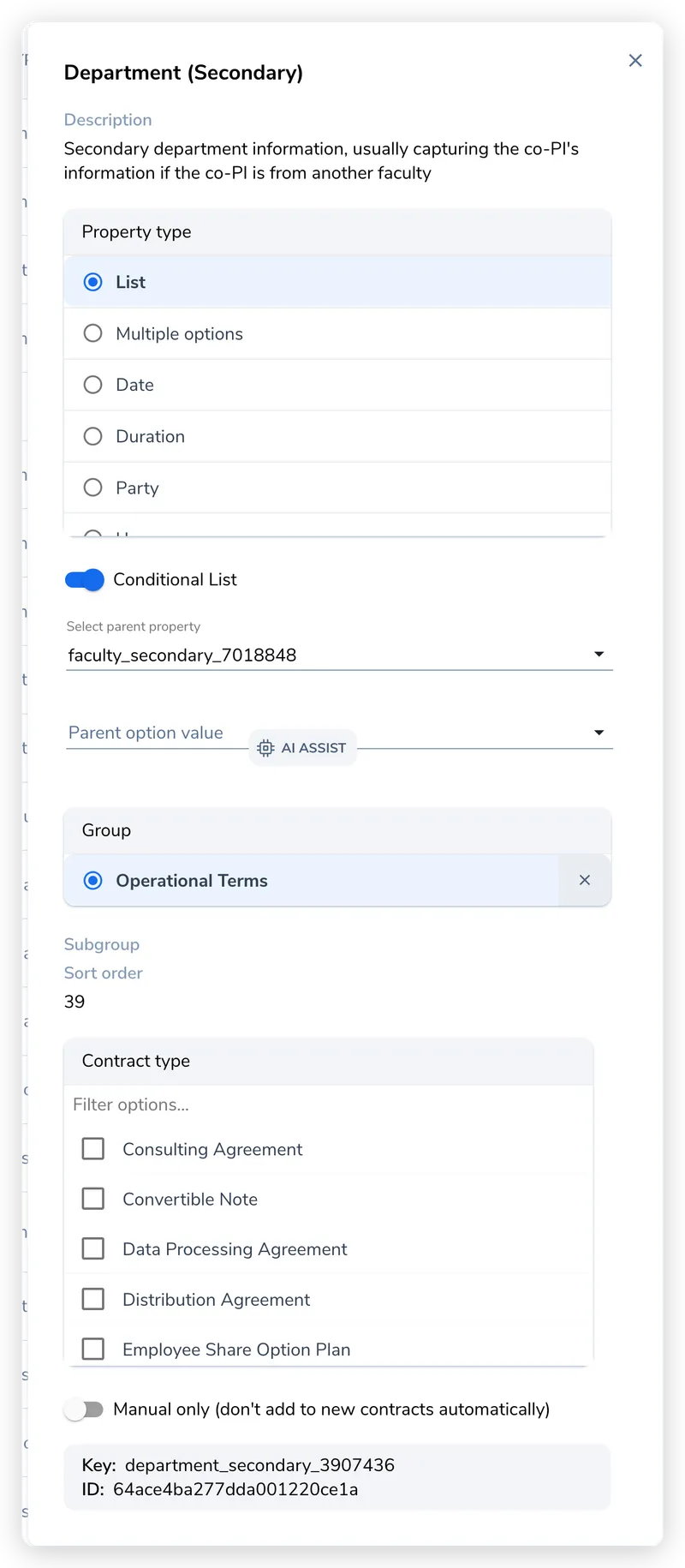
Use Select parent property to choose the parent List (for example, "Team"). Only List properties can be parents.
For each Parent option value, use the Conditional Options editor to enter the child options that appear when that parent value is selected. Every parent value needs its own set.
Rename or reorder the parent’s options later and Pactly cascades those changes to the child’s option sets, so the two stay aligned.