Find Anything with Quick Search
You know the agreement, the company, or the template you need, but getting to it means navigating to the right list first, then searching inside it. When you are several pages deep in a contract, that is several clicks before you can even start typing.
Quick search is a global palette you open from anywhere. Press Ctrl+K (Cmd+K on Mac) and start typing to search across your contracts, parties, forms, and templates at once, then press Enter to jump straight to the result. If you administer the account, it now reaches your settings pages too, so a setting you can name is one search away instead of a hunt through the menu.
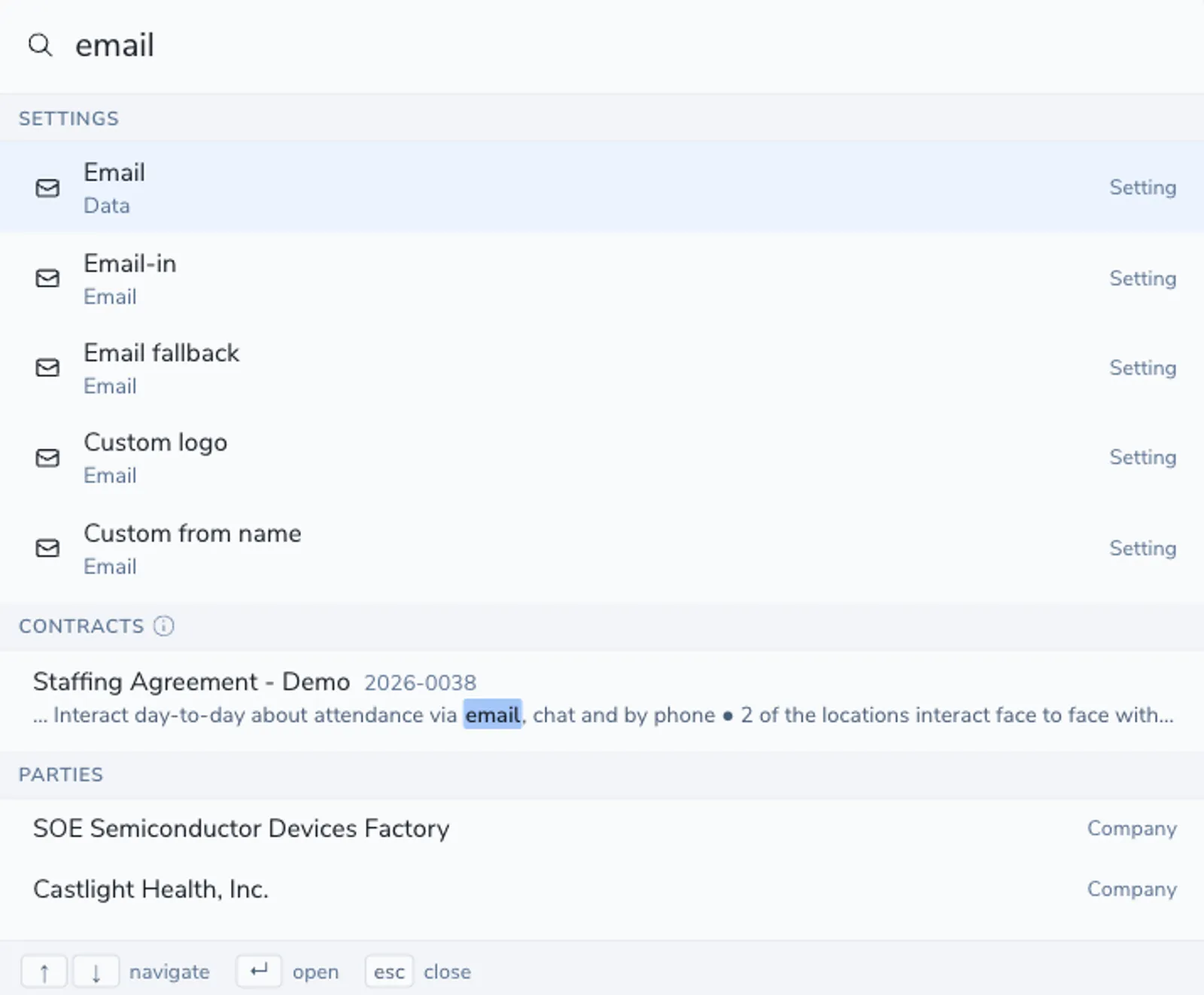
Open it from anywhere
Section titled “Open it from anywhere”Quick search works on every screen, including while you are typing in a field.
- Press Ctrl+K (Cmd+K on Mac) to open or close the palette.
- Or press / when your cursor is not in a text field.
- Start typing once it opens. Search begins after two characters.
- Press Esc to close it.
When you have not typed anything yet, the palette shows a Recent list so you can return to something you opened a moment ago in one keystroke.
What it searches
Section titled “What it searches”Quick search groups the results so you can see, at a glance, where each match came from. Each group shows its own results, in this order:
| Group | What matches | What each result shows |
|---|---|---|
| Settings | Settings pages, and the sections and tabs inside them | Where the setting lives, so you can tell two similarly named ones apart |
| Contracts | Name, reference, and document content | Status, party, and category alongside the name and reference |
| Parties | Companies and individual contacts | A Company or Person tag, with role and email |
| Forms | Your intake and request forms | The form name and description |
| Templates | Your contract templates | The template name and description |
For contracts, an exact reference match ranks first, followed by an exact name match. Document-content matches are available when your workspace has full-text search enabled and its index is ready. Otherwise, quick search continues to match contract names, references, and searchable fields.
Jumping to a setting
Section titled “Jumping to a setting”Settings sit at the top of the list and appear the moment you type, because they come from Pactly’s own navigation rather than a lookup across your records.
Choosing one opens the settings page at the exact part you searched for, scrolled to that section or with the right tab already selected, rather than at the top of a long page. Where a search matches more settings than the palette shows, Show all expands the group in place.
Settings results appear when you administer the account. Areas your access does not extend to, and features that are not part of your plan, are left out of the list.
Move and open with the keyboard
Section titled “Move and open with the keyboard”The palette is built to drive without the mouse.
| Action | Keys |
|---|---|
| Move through results | ↑ ↓ |
| Open the highlighted result | Enter |
| Open in a new tab | Ctrl Enter together (Cmd Enter on Mac) |
| Close the palette | Esc |
The palette’s footer shows these keys at all times, and clicking anywhere outside the palette closes it too.
The View all row appears only for Contracts and Parties, because only those lists carry a search across. Forms and templates open directly from their result rows, and settings use Show all, which expands the group inside the palette instead of opening a list.
Quick search vs the contract list search
Section titled “Quick search vs the contract list search”These are two different tools, and reaching for the right one saves time.
- Quick search (Ctrl+K, Cmd+K on Mac) is for jumping to a known item from anywhere, across contracts, parties, forms, templates, and, for administrators, settings.
- The search box on the contracts list is for working a set of contracts: filtering, sorting, and choosing columns to narrow the repository down. See Navigate and Search Contracts.
Use quick search to get somewhere fast. Use the list search when you need to shape and act on a group of contracts.