1
Open Settings → Party attributes
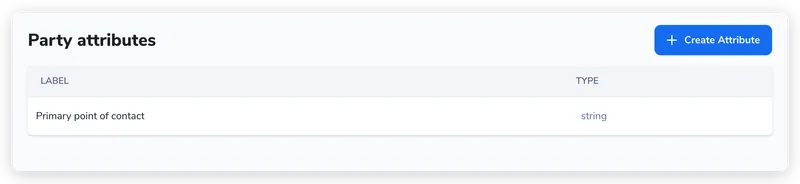
In Settings, open the Party attributes page. It lists every attribute already defined, with its label and type.
The built-in contact fields cover name, email, address, entity name, and registration number. But most teams track more than that about who they contract with: an organization type (Academia / Government / Industry), a region, a finance or vendor ID, a contact for legal notices. There’s no built-in field for those.
Party attributes are the custom fields you add to contacts to capture exactly that. You define an attribute once in Settings, and it becomes an extra field on every contact it applies to, then flows into forms, documents, filters, and exports.
If you’ve set up contract properties, this is the same idea on the other side of the deal. A contract property describes the contract (its value, its dates). A party attribute describes a party, the organization or person you’re contracting with (their industry, their region). Same shape, separate systems.
A party attribute has two parts, and they behave differently.
The definition lives once in Settings: a label, a type, and which kind of contact it applies to. The value is set per contact: this company’s organization type is “Government”, that one’s is “Industry”. One definition, many values.
This split is what makes one attribute travel. Defined once, an “Organization type” attribute becomes a field on every contact in scope, and that single definition is what the forms, templates, filters, and exports below all point at.
Define the attribute once and it reaches every contact, form, document, and export — never re-created per contract.
When you create an attribute you pick a type, which controls how its value is entered and stored:
| Type | Use it for |
|---|---|
| Text string | Short free text (a vendor code, a reference) |
| Multi-line text | Longer notes |
| Number | Numeric values |
| Boolean | A yes/no flag |
| Date | A date value |
| List | One choice from a fixed set of options |
| Multiple options | Several choices from a fixed set of options |
List and Multiple options attributes hold an options list you define alongside the attribute.
A contact in Pactly is one record that can be either an individual (a person) or an entity (a company). Every party attribute is scoped to one of three party types, which decides where it appears:
The default is Both. Pick the narrowest scope that fits, so a company-only field like “Registration authority” doesn’t clutter every person record.
Party attributes are managed by administrators under Settings → Party attributes.
In Settings, open the Party attributes page. It lists every attribute already defined, with its label and type.
Click Create Attribute to open the create dialog. Give the attribute a label, an optional description, and choose its type. For a List or Multiple options attribute, add the options it offers, then Save.
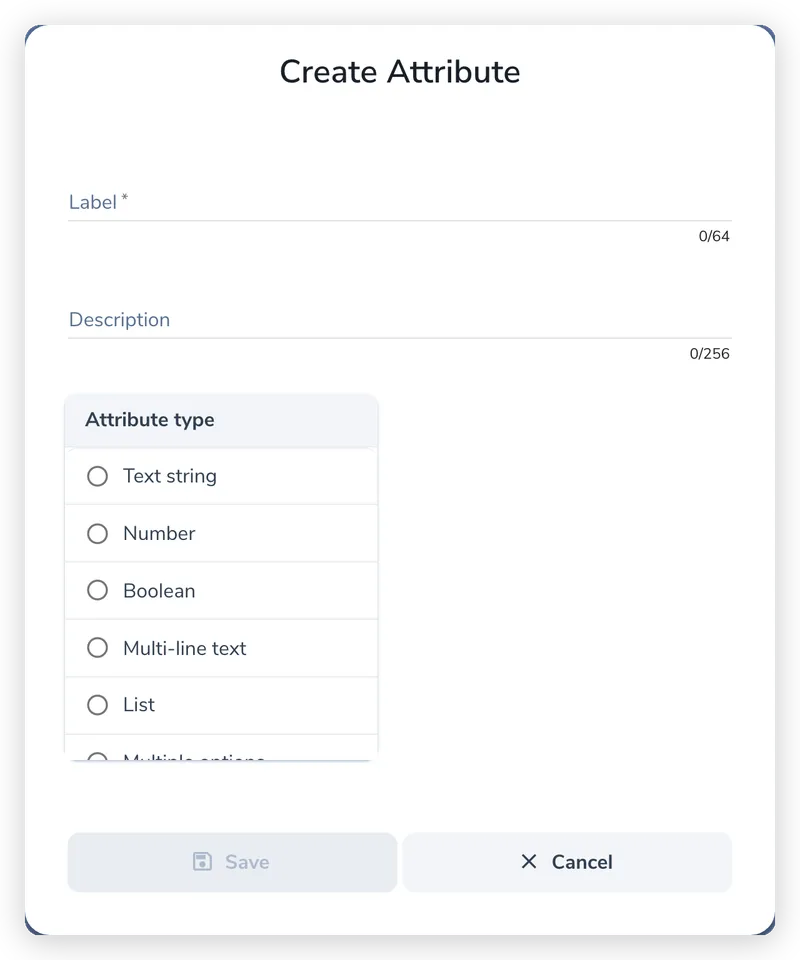
The create dialog captures the label and type only. To set the scope, click the new attribute in the list to open its panel, then set Party type to Individual, Entity, or Both. This controls which contacts show the field.
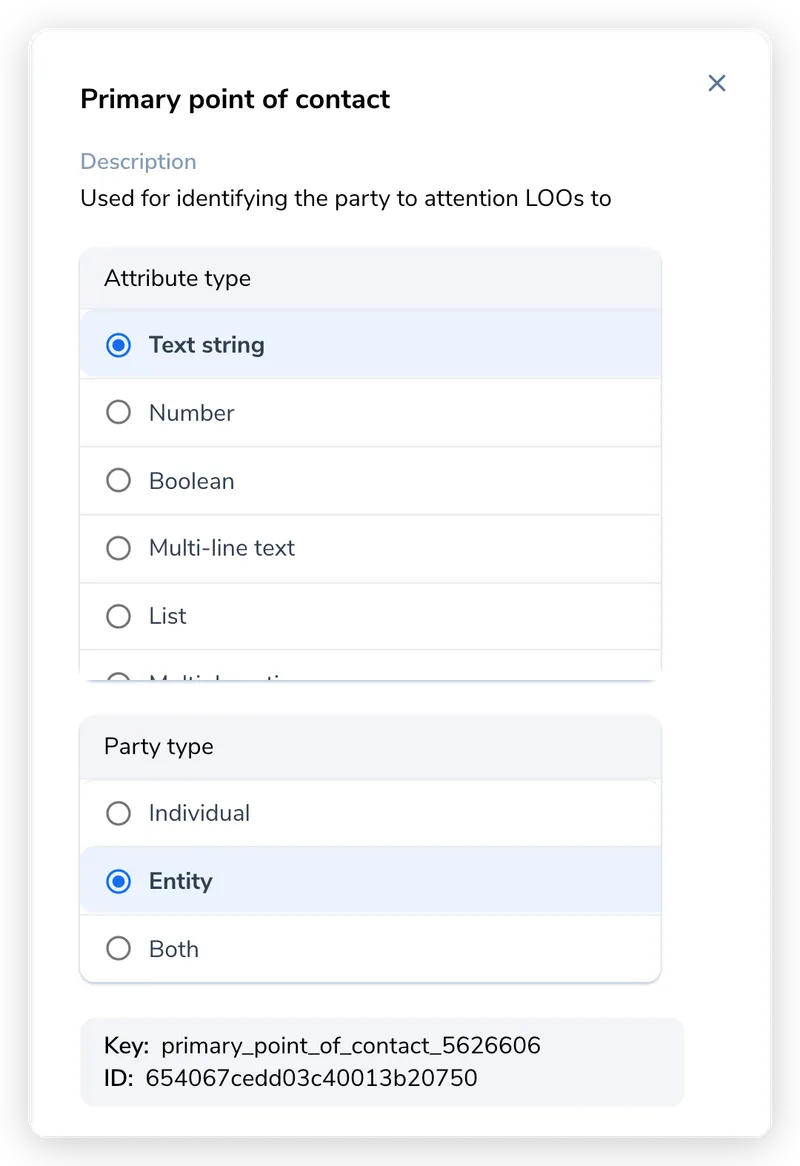
Creating an attribute immediately adds it to every existing contact in scope (with an empty value) and to the create-contact form going forward. Fill the value on any contact from its side panel in the Contact Book, under Custom attributes.
Every attribute also has a stable key, generated from the label when the attribute is created and then frozen. The key never changes, even when you rename the label.
This matters because the key, not the label, is what stores and resolves values. Each contact’s values live under the key, and template tokens, export columns, and workflow rules all point at the key.
The practical payoff: renaming an attribute’s label reflects everywhere automatically. Because every stored value is keyed by the unchanged key, a relabel is purely cosmetic. Existing contacts keep their values, document tokens and export columns keep working, nothing is orphaned, and no backfill or re-sync is needed. (This is the same behavior as renaming a contract property: the label is an alias over a stable key.)
A few behaviors are not obvious, and each one is a real source of “why isn’t my attribute showing up” confusion.
When you create an attribute, Pactly adds it to every existing contact in scope with an empty value, so the field exists everywhere. New contacts also get the field from then on.
It does not, however, add the attribute to forms you’ve already built. A form’s party field carries its own snapshot of which attributes it shows. A newly created attribute only appears on a form after an administrator opens that form’s party field and saves it.
Editing an attribute syncs its label and (for List / Multiple options) its option list onto the forms that already use it. But changing its type or its party type does not propagate to forms that were already configured with the old setting. Re-open and save those form fields if you change either.
Deleting an attribute removes the definition only. The values already stored on contacts are not swept; they stay as orphaned data under the now-unused key, and the attribute is not removed from any form that referenced it. If you want a clean removal, plan to clear those references rather than relying on the delete to do it.
Once defined, a party attribute is reused across the platform:
In a template, a party attribute resolves through the flat token form, using the party slot and the attribute’s key:
{{party1.organization_type_4821093}}party1 is the first party slot on the contract, and the second segment is the attribute’s key (copy it from the attribute’s editor in Settings, not the label).
Built-in fields work the same way with their own names, for example {{party1.entityName}}, {{party1.entityRegNo}}, and {{party1.firstName}}.