Position Reference
A position is one negotiation topic inside a playbook: one thing you check for when reviewing a contract. The playbook is the list of positions; the AI compares the contract against each position and returns a verdict for it.
A position has one required part, the description, and several optional ones that sharpen how the AI finds and judges the relevant clause:
The topic label you scan for in the results list — short and recognisable, like "Limitation of Liability".
A plain-language statement of what the contract must or must not contain. The AI judges every relevant clause against it, so write it for a compliance reviewer.
Reviewer guidance — rationale, technical drafting, and commercial notes. Shown during review; it does not change the verdict.
Pre-approved fallback language to offer when a clause falls short, so reviewers do not draft from scratch.
Sample clauses marked compliant or not, which calibrate how the AI judges this position.
Hints that help the AI find the relevant clause in a long contract before it judges it.
The verdict to return when the contract has no clause on this topic at all — e.g. treat a missing liability cap as non-compliant.
Required core Special rule · everything else is optional
This page is the field-by-field reference for everything a position holds. You edit these fields in the playbook editor (open a playbook from Playbooks, select a position, and the position panel opens on the right). For how to build a whole playbook, see Creating a Playbook. For how positions are read during a review, see Running a Playbook Review in Word.
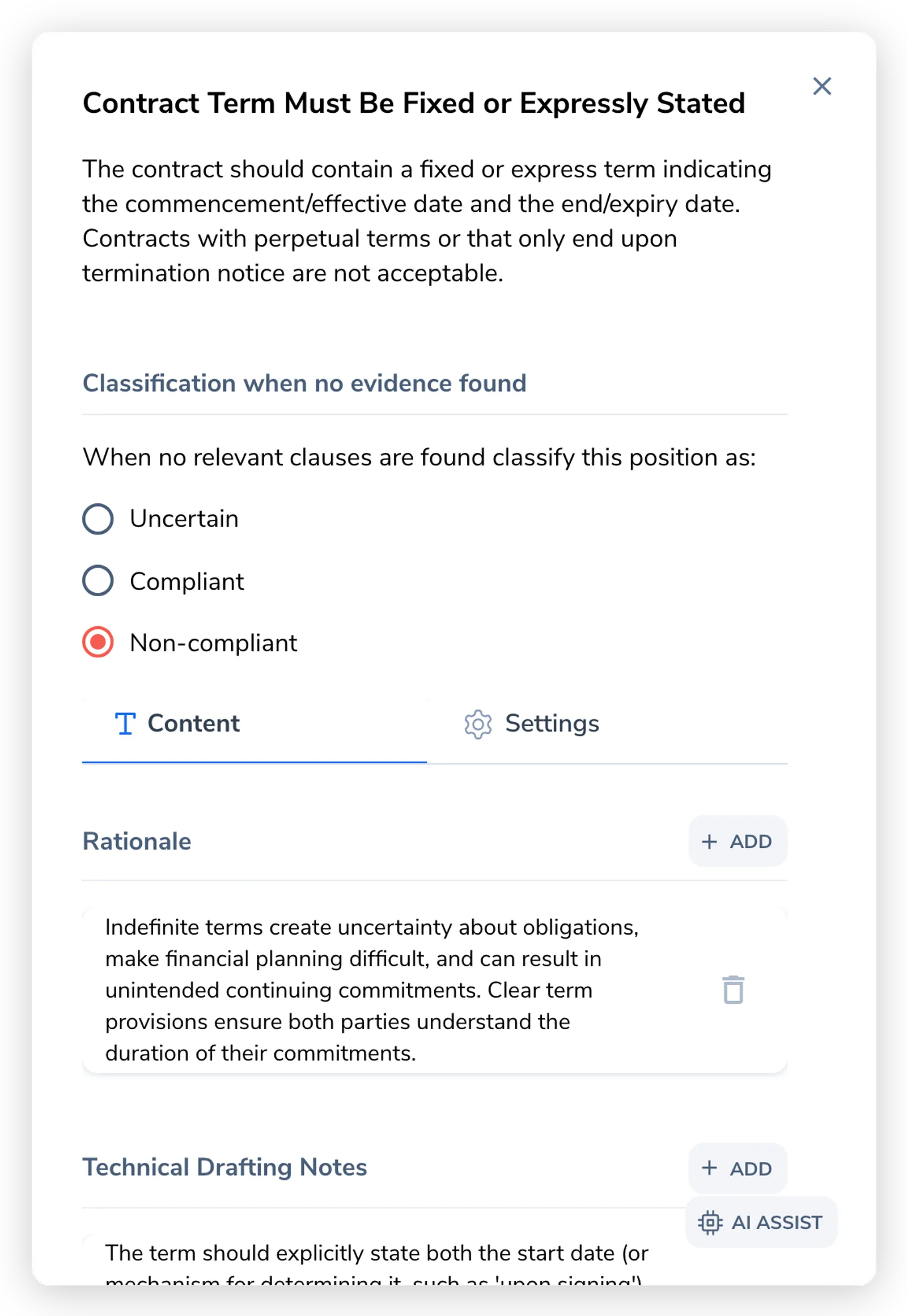
The position’s topic label, the heading you scan for in the results list (3 to 64 characters). Keep it short and recognizable: “Limitation of Liability”, “Governing Law”, “Confidentiality”. Where a position only applies to a subset of contracts, mark that in the name (for example “Cap on Liability (Consulting)”) rather than splitting it into a separate playbook.
Description
Section titled “Description”The description is the heart of the position. It states, in plain declarative language, what the contract must or must not contain. The AI reads this to judge each relevant clause, so write it for a compliance reviewer, not as a negotiation playbook (up to 1,500 characters).
Write it declaratively and specifically:
| Weak | Strong |
|---|---|
| ”Liability should be reasonable." | "Total liability must be capped at the fees paid in the 12 months before the claim." |
| "Payment terms should be acceptable." | "Payment terms must be Net 30 or longer." |
| "Confidentiality should be balanced." | "Confidentiality obligations must be mutual.” |
Avoid subjective words (“reasonable”, “standard”, “appropriate”) unless you define them. The AI cannot act on a standard it cannot measure.
Keep approval routing and escalation out of the description: “Escalate to the Legal Director if the cap exceeds $5M” is an approval-workflow concern, not a compliance criterion, and it makes the position harder for the AI to judge. The description answers one question, does this clause meet the standard or not. Route approvals through Workflows instead.
If the description grows past a few hundred characters with the why and the how, move that detail into notes (below). The editor nudges you to do this.
The three note types
Section titled “The three note types”Notes hold supporting context that is not the compliance test itself. A position has three note types, each captured separately in the position panel. All three are optional, and most positions have none. Add a note only when the information genuinely exists in your standards; do not invent rationale to fill the fields.
Rationale
Section titled “Rationale”Why this position matters. The reasoning behind the requirement, used to justify the position to a counterparty. When the AI drafts a fix or a comment, the rationale gives it the argument for your ask.
Technical Drafting Notes
Section titled “Technical Drafting Notes”How to draft the clause. Mechanical guidance for getting the language right, edge cases, definitions to align, dates to set. Notes for the person editing the document.
Internal/Operational Notes
Section titled “Internal/Operational Notes”Internal context. Information for your own team that you would not share with the counterparty: which deals this applies to, who owns the topic, how strict to be in practice.
Suggested clauses
Section titled “Suggested clauses”Suggested clauses are pre-approved, ready-to-insert clause language for this position, the fallbacks a reviewer reaches for when the contract’s clause does not meet your standard. Each has a title, the clause text, and an optional default comment.
When a reviewer works through a position in Word, your suggested clauses appear as Preferred clauses, with two insert options: Adapt & Insert (the AI adjusts party names and terminology to match the contract) and Insert as-is (the original text, unchanged). For that flow, see Running a Playbook Review in Word.
Guidance for writing them:
- Title each clause clearly so a reviewer knows when to use it (“Standard Mutual Cap – 12 Months”, “Minimum Acceptable – Total Fees”).
- Include complete language. A suggested clause should be ready to insert. The Adapt & Insert option handles party names, so you do not need placeholders.
- Order from preferred to minimum. Put your first-choice clause first, fallbacks after.
You can add a suggested clause from scratch, or pull one in from your clause bank using the clone control on the section, and you can push a new clause back into the bank with the Add to clause bank checkbox.
Examples
Section titled “Examples”Examples are sample clause text that shows the AI what a passing or failing clause looks like for this position. Each example has text and a justification, and is tagged one of two types:
- Positive: a clause that meets the standard.
- Negative: a clause that fails it.
Examples are optional. They are most useful where the description alone leaves the line genuinely ambiguous and a concrete passing/failing clause sharpens the AI’s judgment.
Keywords
Section titled “Keywords”Keywords help the AI locate the clauses relevant to this position. Each keyword has a value (3 to 64 characters) and a type. Keywords are optional; the AI also finds clauses semantically, but good keywords improve precision on positions where wording varies. Keywords live on the position’s Settings tab.
| Type | In-product label | Behavior |
|---|---|---|
| Pattern | Pattern match | Matches as a pattern regardless of word boundaries (“info” also matches “information”). The default; use for most keywords. |
| Exact | Exact match | Matches only the exact keyword (“info” does not match “information”). Use for precise phrases that should not vary. |
| Negative | Negative match | Excludes clauses containing this term. Use to filter out false positives. |
A negative keyword is the fix for over-matching: if a “Limitation of Liability” position keeps catching insurance clauses (which also say “liability”), add a negative keyword to exclude them.
Positions can be organized into groups (for example “Risk Allocation”, “Commercial Terms”), set on the position’s Settings tab. Groups section the results so a reviewer reads related positions together, and you manage the group list at the playbook level. Grouping is presentational; it does not change how the AI judges a position.
Classification when no evidence found
Section titled “Classification when no evidence found”This is the highest-leverage correctness setting on a position, and the one most often set wrong. It answers: if the AI finds no clause relevant to this position, what verdict should it assign? You set it with a radio group in the position panel:
- Uncertain: the absence is genuinely unclear; flag for a human to decide.
- Compliant: finding nothing is good.
- Non-compliant: finding nothing is bad.
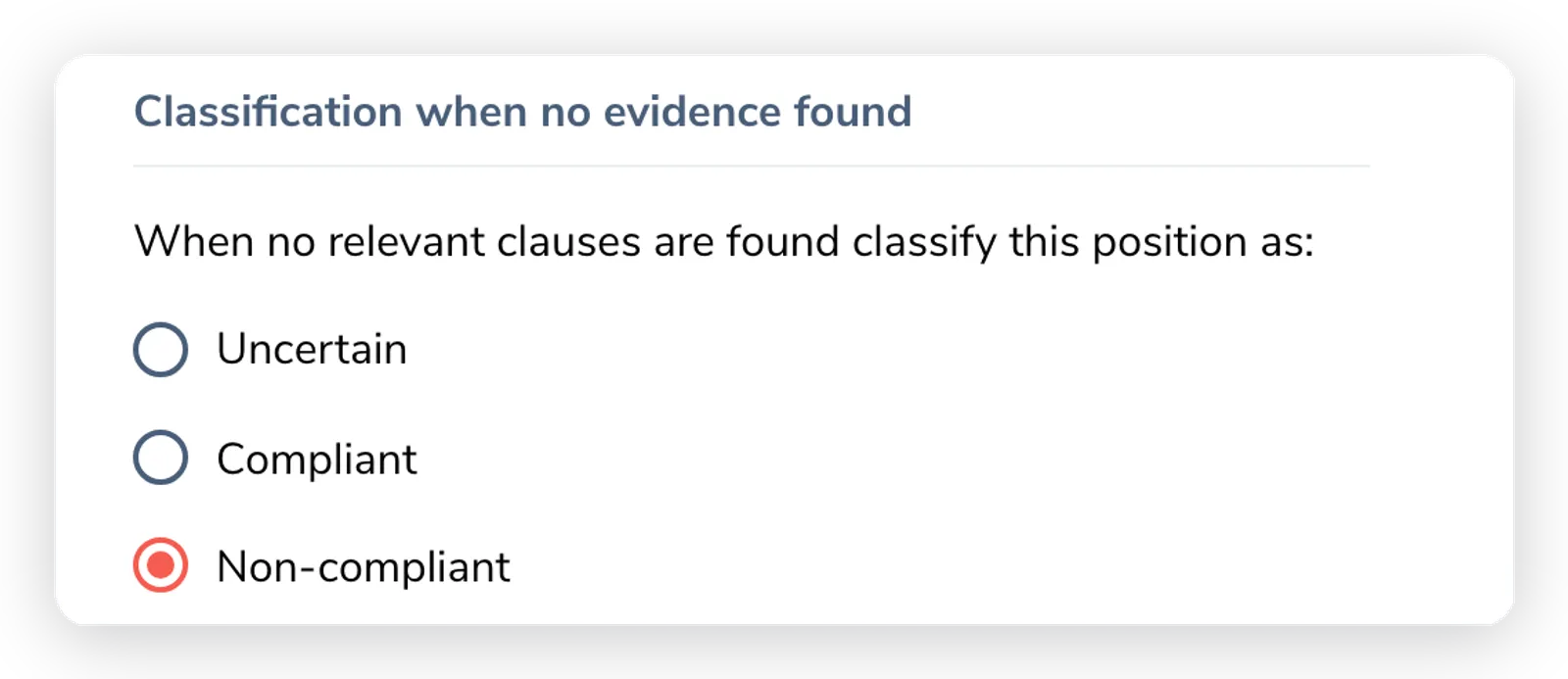
The right choice follows directly from whether the position is a prohibition or a requirement:
| The position says… | If no clause is found, that is… | Set classification to |
|---|---|---|
| The contract must not contain / permit / impose X (a prohibition) | good, the bad thing is absent | Compliant |
| The contract must include / specify X (a requirement) | bad, the required thing is missing | Non-compliant |
So a prohibition (“must not include automatic renewal”) defaults to Compliant when nothing is found, because no auto-renewal clause is exactly what you want. A requirement (“must include a data processing addendum”) defaults to Non-compliant when nothing is found, because the missing DPA is the problem.
How a position becomes a verdict
Section titled “How a position becomes a verdict”When you run a review, the AI locates the relevant clauses (using your keywords and its own reading), compares them against the description, and assigns one verdict per position:
| Verdict | Meaning |
|---|---|
| Compliant | The clause meets the position’s standard. |
| Not compliant | The clause does not meet the standard. |
| Not applicable | The position does not apply to this contract. |
| Uncertain | The AI could not decide; needs a human. |
| Pending | The position has not been evaluated yet (before the review completes). |
When no relevant clause is found, the verdict falls back to the position’s Classification when no evidence found setting above, which is why getting that setting right matters. For reading and acting on these verdicts in a review, see Running a Playbook Review in Word and Reviewing Third-Party Contracts.