Email Settings
Pactly sends and receives email on your account’s behalf: signature requests, approval reminders, contract notifications, and inbound emails captured onto the timeline. The Email settings page is where an administrator tunes how those emails look, where they come from, and where stray ones go.
These settings are account-wide and apply to everyone in your workspace. The page lives under Data > Email, not under Account settings, and the controls described here are on its Settings tab. All of them require admin access (the company.update permission).
What you can configure
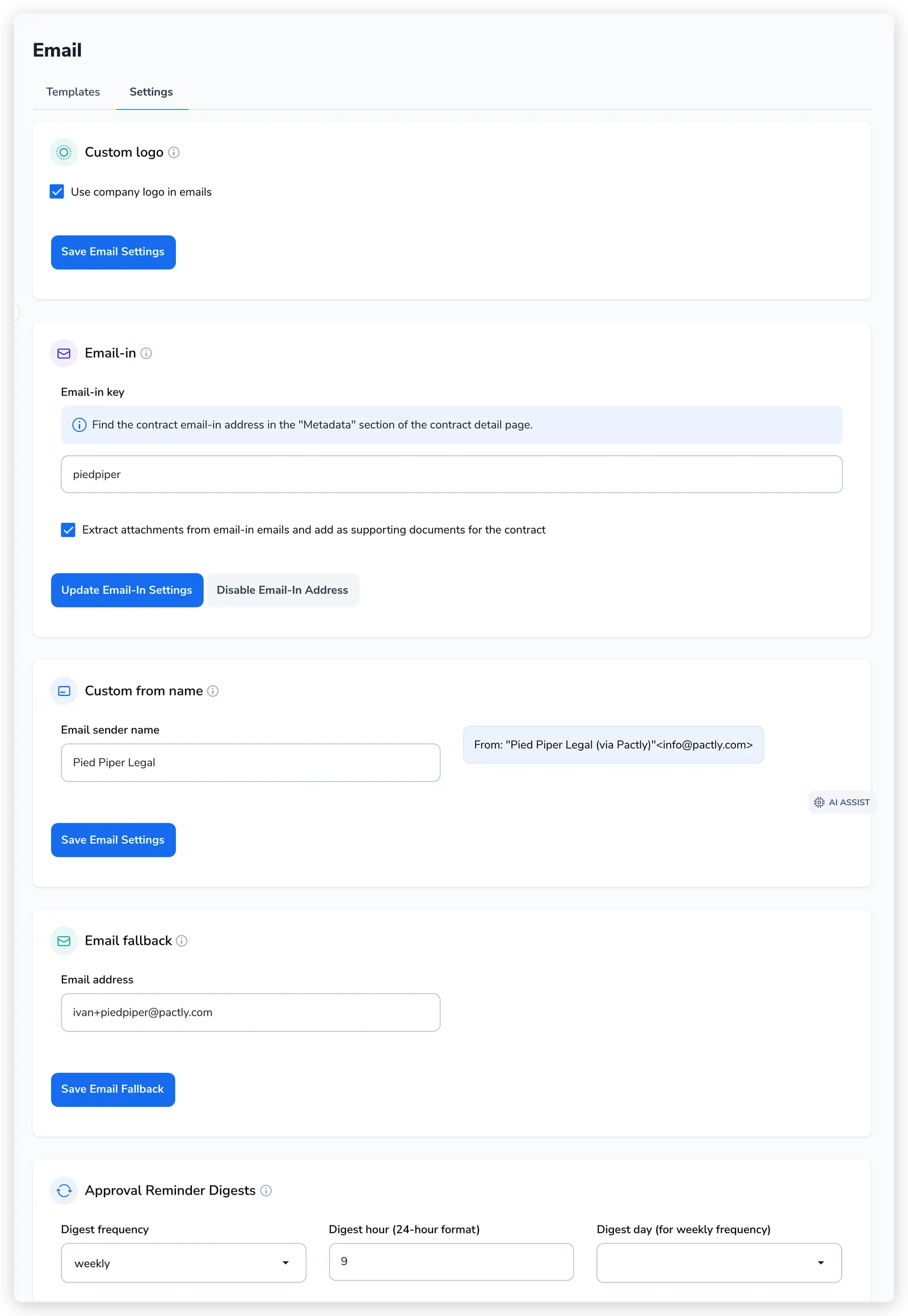
Section titled “What you can configure”The Settings tab is a set of independent boxes, each with its own Save button. Changing one and saving does not touch the others.
| Setting | What it controls |
|---|---|
| Custom logo | Whether your company logo replaces Pactly’s default branding in outgoing emails. |
| Email-in | The inbound address that lets you CC emails onto a contract’s timeline, plus attachment handling. |
| Custom from name | The sender name shown in the “From” line of emails Pactly sends. |
| Email fallback | A backup address that receives notifications when the intended recipient is missing. |
| Approval Reminder Digests | How often pending-approval reminders are batched and sent. |
Custom logo
Section titled “Custom logo”The Custom logo box holds a single checkbox, Use company logo in emails. When ticked, the emails Pactly sends carry your logo instead of Pactly’s default branding.
This checkbox stays disabled until you have uploaded a logo under Account settings > Company, so the upload comes first. The full two-step flow is covered in its own article.
Email-in
Section titled “Email-in”Email-in gives each contract a dedicated address. CC or forward an email to that address and the message lands on the contract’s timeline. This box is where you turn the feature on and manage how it behaves.
- Enable email-in feature. Generates an email-in key for your account, which forms part of every contract’s address. Once enabled, the box shows the key and an option to update or disable it.
- Email-in key. A short identifier that appears in each contract’s address. You can edit it (minimum three characters) and click Update email-in settings to apply a new one.
- Extract attachments from email-in emails. When ticked, qualifying attachments on an inbound email are saved as supporting documents on the contract. This is off by default, and images and the contract’s own Pactly-generated document are skipped.
- Disable email-in address. Turns the feature off and clears the key.
The address itself is shown per contract, in the Metadata section of the contract detail page, not here. For how the feature works day to day, including the address format and what happens when an email cannot be matched to a contract, see the email-in guide.
Custom from name
Section titled “Custom from name”By default, emails Pactly sends show a Pactly sender name. The Custom from name box lets you set your own, so recipients recognize who the message is from.
Enter a name in Email sender name and the box shows a live preview of how the “From” line will read:
From: "Your Company (via Pactly)" <info@pactly.com>The “(via Pactly)” suffix and the underlying info@pactly.com address stay fixed; only the display name is yours. Click Save Email Settings to apply it.
Email fallback
Section titled “Email fallback”Some notifications are addressed to a role or assignment rather than a fixed person. If the intended recipient cannot be resolved, the notification would otherwise have nowhere to go.
The Email fallback box sets a single backup address for exactly that case. Enter an address under Email address and click Save email fallback. A shared inbox monitored by your operations or admin team is a good choice, so nothing is silently dropped.
Approval Reminder Digests
Section titled “Approval Reminder Digests”When an approver has several contracts waiting on them, Pactly can consolidate the reminders into one digest email instead of sending a separate message per approval. The Approval Reminder Digests box controls that schedule.
- Digest frequency. Choose daily or weekly.
- Digest hour. The hour the digest goes out, in 24-hour time (0 to 23). The default is 09:00.
- Digest day. Shown only when the frequency is weekly. Pick the day of the week the digest is sent; the default is Monday.
Click Save to apply the schedule. Multiple pending approvals for the same approver are then rolled into a single email at the chosen time.
A note on who gets notified
Section titled “A note on who gets notified”There is no per-user “notification preferences” screen in Pactly, and the Email settings page is not one. You cannot mute individual notification types or opt a single person out from here.
Who receives a given notification is governed by how work is assigned and routed, not by a personal preference. Approval reminders go to the assigned approvers, contract notifications go to owners and the people a workflow routes them to. If notifications are reaching the wrong people or no one, the place to look is your workflow and assignment configuration.
Signing emails are delivered separately
Section titled “Signing emails are delivered separately”Emails that ask a counterparty to sign are sent through your e-signature provider, not through the settings on this page. If signing invitations are landing in spam or arriving late, that is a deliverability issue with the provider’s mail, and the fix (whitelisting, resending) lives in the E-Signatures section rather than here.