1
Open Playbooks
In the Pactly web app, open Playbooks from the left navigation. The list shows your existing playbooks.
Most teams already have their standards written down somewhere. Sometimes that is a written playbook: a position paper or a checklist of what to look for. More often it is your standard contract template, the paper you send out, which encodes those standards clause by clause. Rebuilding either one into a playbook position by position is slow. Upload the document instead and let Pactly build the draft for you.
Importing used to accept a written playbook only. It now takes both kinds of document, and Pactly auto-detects which one you uploaded, so you no longer have to know in advance whether your file is a playbook or a template. From a written playbook it converts your existing positions; from a contract template it reads each clause as the position you would prefer to see. Either way the result is a draft you review and publish, never a change to anything live.
The document you already have usually decides the fastest route. Import from a document covers the two on-paper cases; the AI wizard and From scratch cover the two where you have nothing to upload.
If your standards are not written down anywhere, the AI wizard asks you a few questions and drafts the positions with no upload. To build a playbook by hand a position at a time, see Creating Your First Playbook.
.docx file (Word format), up to 26 MB. Other formats are not accepted.In the Pactly web app, open Playbooks from the left navigation. The list shows your existing playbooks.
The Create Playbook dialog groups the ways to start into two sections. "From a document" is where you upload a file. "Build in Pactly" holds the Create with AI wizard, Create from scratch, and Clone an existing playbook.
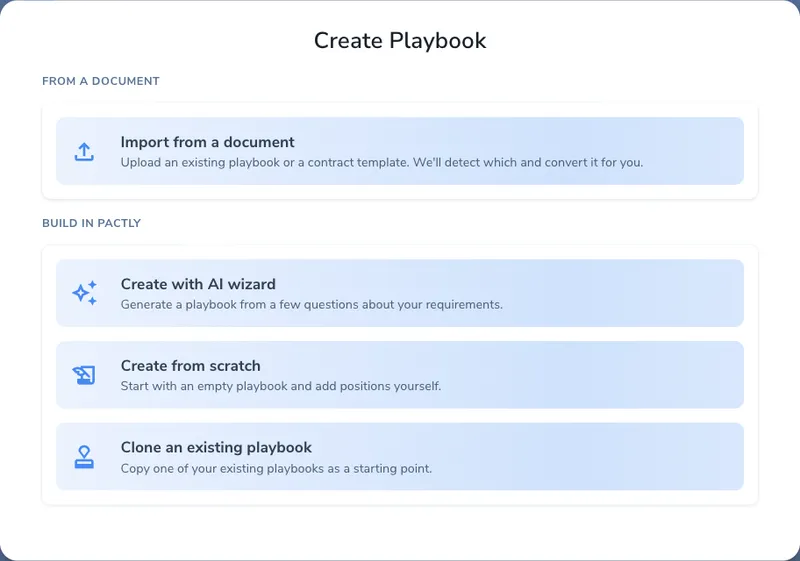
Under "From a document", pick the upload option. You do not choose between playbook and template here: Pactly works out which one you uploaded after it reads the file.
Drop your file onto the upload area, or click to pick a file. Only .docx files up to 26 MB are accepted.
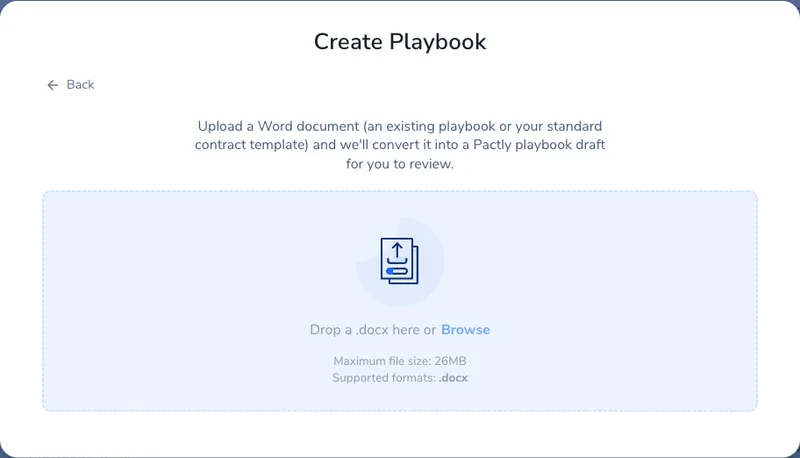
Once the file is in, Pactly reads it and decides whether it is an existing playbook (a document that already describes your standards) or a contract template (your paper, which encodes those standards as clauses). The two follow different paths from here, so the detection matters.
The detection is usually right, but not always. If Pactly guesses wrong, use the override link to switch modes: tell it to treat a file it read as a template as a written playbook instead, or the reverse. Set the mode before you continue so the extraction runs the way you intend.
When Pactly reads the file as an existing playbook, it converts your document into positions. It works in several AI passes, so each position is built from the relevant part of your source rather than the whole document at once:
The result is saved as a draft, visible only to you until you publish it.
When Pactly reads the file as a contract template, it does something different: it treats every clause in your paper as the position you would prefer to see, and builds the playbook around your standard language. Before it extracts anything, it needs a little context about how you negotiate.
Pactly asks a short set of questions so it can read the template from your side of the table rather than neutrally:
With that context, Pactly reads the template clause by clause and turns each clause into a preferred position in the clause bank: your standard wording becomes the position you want to hold. For each one it also infers the supporting detail a reviewer needs:
Because some of this comes straight from your paper and some is Pactly’s inference, each element in the draft editor is badged so you can tell them apart:
Work through the AI-suggested elements with the closest eye. They are Pactly’s best inference from your paper and your clarify answers, not something you wrote, so confirm each one reflects how you actually negotiate before you publish.
When the recommended category matches one you already have a published playbook for, Pactly asks how to file the import rather than creating a duplicate. You’ll see “You already have a playbook for this category” with two choices:
After extraction, Pactly shows "You already have a playbook for this category" with the recommended category and the playbooks the import could attach to.
Under "Add as a new version of", click the playbook you want to version. Or choose "Create a separate new playbook".
You can only attach to a published playbook. If Pactly finds no matching category, or you have no published playbook for it, you won’t see this prompt and the import saves straight to a new draft.
Whichever path you take, the import lands as a draft for you to finish: