Your Clause Library
When you need standard language for a clause, copying it from an old contract is slow and risky. You never quite remember which version was the approved one, and the wording drifts a little every time someone pastes it.
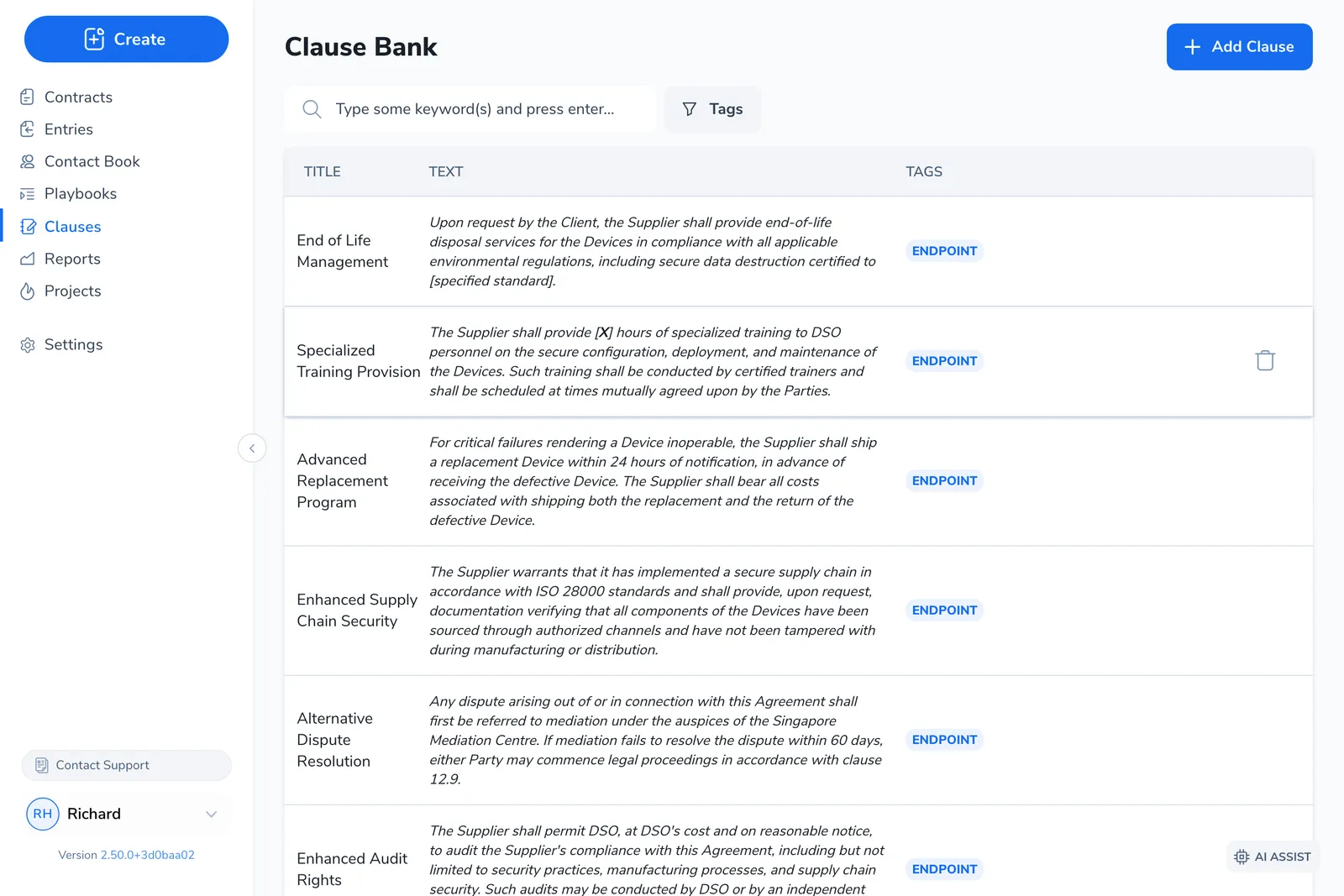
Your clause library is the answer: one company-wide store of pre-approved language you can search and drop into a contract, in the web app and in the Word plugin. This page explains what a clause is, where the library lives, who can edit it, and how it relates to the other places “approved language” shows up in Pactly.
What a clause is
Section titled “What a clause is”A clause in the library is a single saved piece of language. Each one carries:
- A title. A short name (3 to 64 characters) so you can find it. Many teams follow a
Category - Descriptionconvention, for example Confidentiality - Return or Destroy Obligation. - The clause text. The body of the clause, with light formatting (bold, italic, underline).
- Tags. The only way clauses are organized. There are no folders. You filter the list by tag chips instead.
- A default comment (optional). A note that travels with the clause when you insert it, becoming a Word comment. Use it for guidance like Do not weaken without legal sign-off.
Where the library lives
Section titled “Where the library lives”The same library is reachable from two places, and they share one store. A clause you save in one shows up in the other.
- The web app. Open Clauses from the left-hand menu to reach the Clause Bank screen. This is where you build and curate the library: add, edit, retag, and delete clauses.
- The Word plugin. The Clauses screen in the Pactly Word plugin lets you search the same library and insert a clause straight into the open document, without leaving Word. You can also save a selection back to the library with Clip.
When you insert a clause, you choose how it lands. Insert as-is drops in the original text unchanged. Adapt & Insert has the AI rewrite the clause’s terminology to match the document you are working in, for example changing Service Provider to Provider to match the contract’s defined terms. The full insert and Clip flow is covered in Using the Clause Library in Word.
Who can use it
Section titled “Who can use it”Browsing and inserting clauses is open to everyone who can see the library. Building and changing it is restricted.
- Anyone with access can search the library and insert clauses.
- Managers and above can add, edit, and delete clauses. If you only see browse and insert, your role can use the library but not change it. Ask an administrator to add a clause for you.
- Group-restricted users see only the clauses in their groups, not every clause in the company.
Three things people confuse
Section titled “Three things people confuse”“Approved language” appears in more than one place in Pactly, and the surfaces are easy to mix up. They are related but separate.
The Clause Bank
Section titled “The Clause Bank”The standalone library. The company-wide store described on this page, browsed and inserted from the web app and Word. It exists on its own, whether or not you use playbooks.
A playbook’s suggested clauses
Section titled “A playbook’s suggested clauses”Fallbacks attached to a position. Inside a playbook, a position can hold its own pre-approved wording, labelled Suggested clauses in the playbook editor and Preferred clauses in the Word review pane. These are a different store: they live on the position and surface during a playbook review when that position is flagged, not when you browse the Clause Bank. The two are bridged at one point. When you author a suggested clause in a playbook, you can tick Add to clause bank to copy it into the library, and you can import an existing Clause Bank clause as a suggested clause. See What is a Playbook.
The AI assistant’s library lookup
Section titled “The AI assistant’s library lookup”Search on the AI’s behalf. The AI drafting agent can look up your Clause Bank to pull approved wording into a draft. This is the same library, read by the agent rather than by you. For the exact tool the agent uses, see the AI Assist tools reference.
Across all three, the library never suggests clauses as you type. Wording surfaces only when you search and insert it yourself, when a playbook review offers preferred clauses on a flagged position, or when the AI agent looks it up.