1
Open the importer
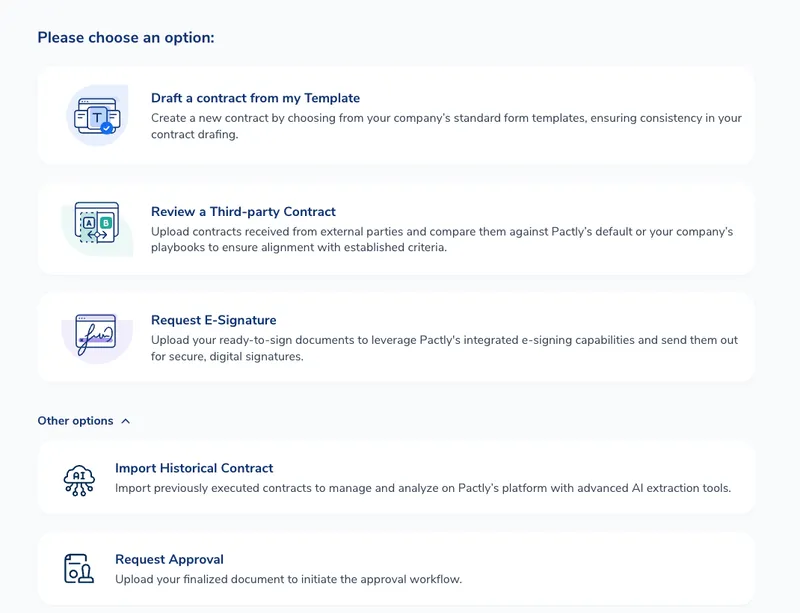
Click Create in the top-left corner, open Other options, and choose Import Historical Contract.
Moving a backlog of already-signed agreements into Pactly used to mean importing one file at a time and typing each contract’s details by hand. Import Historical Contract now takes a whole set of files at once, stages them in a review table, and classifies and names each one as it imports, so you correct a few rows instead of filling in every field.
Use this for agreements that were signed outside Pactly and only need to be tracked, searched, and watched for renewal. They arrive finished, with no negotiation, review, or approval steps, and you choose per file whether each one lands in the active repository or straight in the archive.
Click Create in the top-left corner, open Other options, and choose Import Historical Contract.
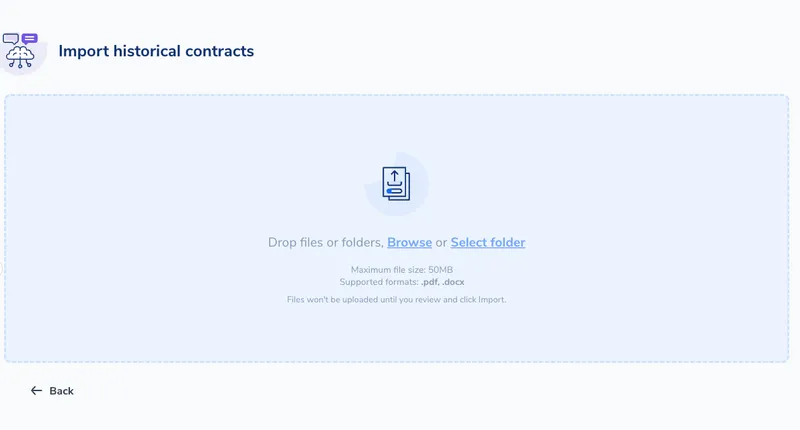
Drag files or folders onto the upload area, or use Browse and Select folder. Pactly looks inside a folder, including any folders nested within, and stages every PDF and Word document it finds. Up to 500 files can be staged at once, and Pactly tells you how many it left out of a larger folder.
Nothing is imported yet. Each file is a row with its Category, Reference year, Import as, Owner, and Group, ready to correct inline. Identical copies carry a Duplicate pill, and the eye icon previews any document in place.
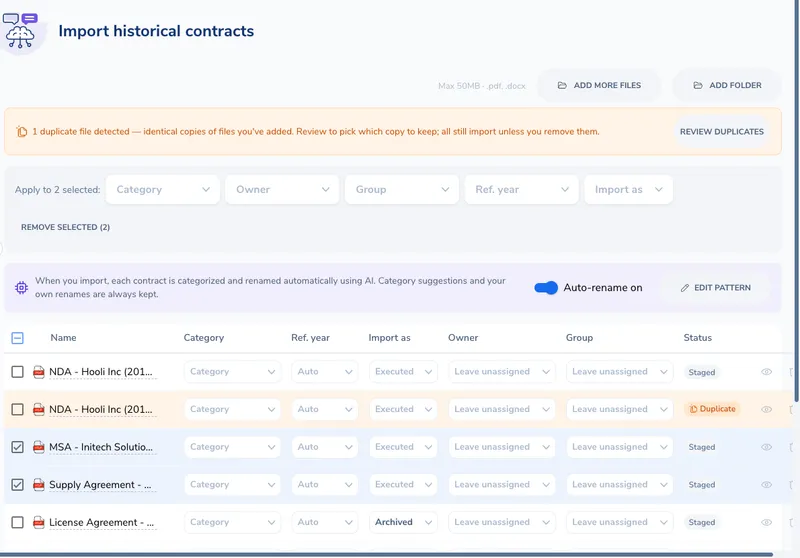
Tick several rows and the Apply to selected bar fills a field on all of them at once, the quickest way to set Import as across a backfill. When the table looks right, click Import.

Once files are staged, the upload control moves above the table as Add more files and Add folder, so you can fold another folder into the same import.
Each row carries the fields Pactly will file the contract with:
Edit any cell inline. To set the same value across several files, select those rows and use bulk apply, which fills the chosen field on every selected row at once. It is the quickest way to handle Import as, since a backlog usually splits into one long run of archived agreements and a shorter list of live ones. Anything you set by hand always wins over what Pactly suggested, both here and when the contract is created.
Executed is the default and imports the contract into the active repository, where it behaves like any other executed contract. Archived imports it straight into the archive.
Reach for Archived on a historical backfill: agreements that have already expired or gone inactive, which you want on record and searchable without them cluttering the working repository. Everything else about the import is unchanged, so archived contracts are still classified, renamed, and given a reference year, and the archive itself is recorded on each contract’s timeline.
Preview a document with the eye icon at the end of its row. It opens the file in place, for both PDF and Word documents, so you can confirm you are looking at the right agreement without opening it separately.
If two uploaded files are byte-for-byte identical, Pactly marks the extra copies with a Duplicate pill and shows a Review duplicates banner above the table. Open the banner to see the matches and remove a copy with one click.
Pactly gives each contract a consistent name as it imports, following a naming pattern you can see above the table. Click Edit pattern to change how imported contracts are named, for example to lead with the party and year. The pattern applies to every file in the import, and any name you type on a row by hand overrides it for that row.
If the files already follow a naming convention you want to keep, switch Auto-rename off above the table. Every contract then keeps its file’s own name, and Pactly still classifies each one as usual.
Selecting Import files every row as you set it, each contract with its category, reference year, owner, and group already in place. Rows left as Executed land in the repository and behave like any other contract: searchable, reportable, and watched for renewal. Rows set to Archived go to the archive, where they stay searchable and reportable without appearing in the day-to-day list.
When Pactly cannot read a reference year from a document, it imports the contract with an unverified year flag so you can find and fix it later rather than blocking the import. An administrator can correct it from the contract’s details page with the Reassign reference year action. Reassigning records the change on the contract timeline and clears the unverified flag.